
How to Specify Default Power Plan for All Users in Vista, Windows 7, and Windows 8
Information
This will show you how to specify a custom or default (Balanced, Power Saver, High Performance) power plan for all users in Vista, Windows 7, and Windows 8 so that the power plan and settings cannot be changed.
You must be logged in as an administrator to be able to do the steps in this tutorial.
You must be logged in as an administrator to be able to do the steps in this tutorial.
Note
Making a change in either option below will override any setting made previously in any other option below.
EXAMPLE: When a "Custom" or "Default" Power Plan is Specied for All Users
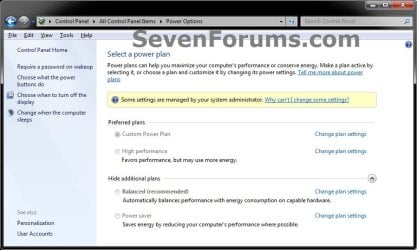
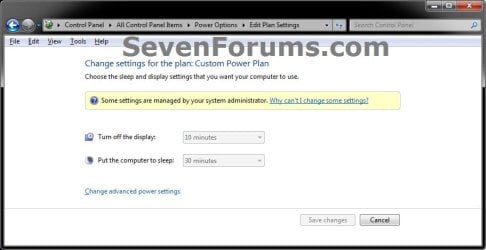
OPTION ONE
To Specify a "Default" Power Plan Using a REG File Download
NOTE: If you wanted to specify a custom power plan, then you would need to use either OPTION THREE or OPTION FOUR below instead. 1. To Allow Users to be able to Specify Their Own Power Plan
NOTE: This is the default setting. A) Click/tap on the Download button below to download the file below. Allow_Users_to_Specify_their_own_Power_Plan.reg
Download
B) Go to step 5.
2. To Specify All Users to have the Balanced Power Plan A) Click/tap on the Download button below to download the file below. Set_Balanced_Power_Plan_for_All_Users.reg
Download
B) Go to step 5.
3. To Specify All Users to have the Power saver Power Plan A) Click/tap on the Download button below to download the file below. Set_Power-Saver_Power_Plan_for_All_Users.reg
Download
B) Go to step 5.
4. To Specify All Users to have the High performance Power Plan A) Click/tap on the Download button below to download the file below. Set_High-Performance_Power_Plan_for_All_Users.reg
Download
B) Go to step 5.
5. Save the .reg file to your desktop.
6. Double click/tap on the downloaded the .reg file to merge it.
7. Click/tap on Run, Yes (UAC-Windows 7/8) or Continue (UAC-Vista), Yes, and OK when prompted.
8. When done, you can delete the downloaded .reg file if you like.
OPTION TWO
To Specify a "Default" Power Plan in Group Policy
NOTE: If you wanted to specify a custom power plan, then you would need to use either OPTION THREE or OPTION FOUR below instead. 1. Open the Local Group Policy Editor.
2. In the left pane, double click/tap on the arrow to expand Computer Configuration, Administrative Templates, System, then click/tap on Power Management. (see screenshot below)
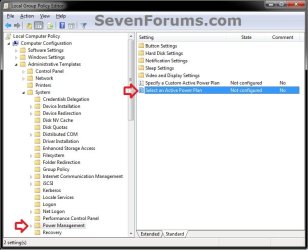
3. In the right pane, double click/tap on Select an Active Power Plan. (see screenshot above)
4. To Allow Users to be able to Specify Their Own Power Plan A) Select (dot) Not Configured or Disabled. (see screenshot below step 8)
NOTE: Not Configured is the default setting.
B) Go to step 8.
5. To Specify All Users to have the Balanced Power Plan A) Select (dot) Enabled, and select Automatic under the Active Power Plan options section. (see screenshot below step 8)
B) Go to step 8.
6. To Specify All Users to have the Power saver Power Plan A) Select (dot) Enabled, and select Power Saver under the Active Power Plan options section. (see screenshot below step 8)
B) Go to step 8.
7. To Specify All Users to have the High performance Power Plan A) Select (dot) Enabled, and select High Performance under the Active Power Plan options section. (see screenshot below step 8)
B) Go to step 8.
8. Click/tap on OK. (see screenshot below)
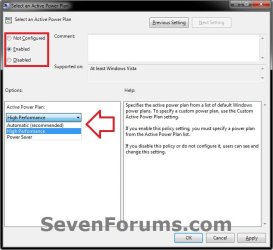
9. Close the Local Group Policy Editor.
OPTION THREE
To Specify a "Custom" Power Plan in Group Policy
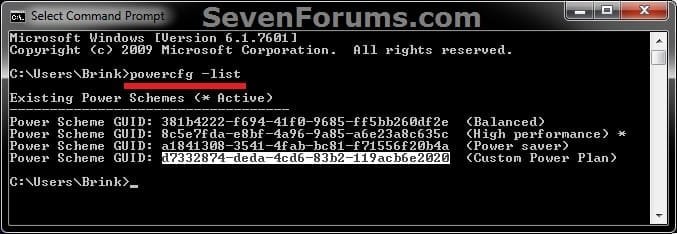
NOTE: If you wanted to specify a default power plan, then using either OPTION ONE or OPTION TWO above instead would be an easier way to do so. 1. Open a command prompt, type powercfg -list, press Enter, and make note of the long GUID number of the custom power plan that you previously created. (see screenshot below)
2. Open the Local Group Policy Editor.
3. In the left pane, double click/tap on the arrow to expand Computer Configuration, Administrative Templates, System, then click/tap on Power Management. (see screenshot below)

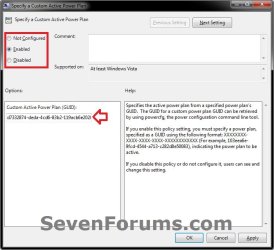
4. In the right pane, double click/tap on Specify a Custom Active Power Plan. (see screenshot above)
5. To Allow Users to be able to Specify Their Own Power Plan A) Select (dot) Not Configured or Disabled. (see screenshot below step 7)
NOTE: Not Configured is the default setting. You could also use the REG file in step 1 of OPTION ONE above to do this as well.
B) Go to step 7.
6. To Specify All Users to have a Custom Power Plan A) Select (dot) Enabled, and type in the long GUID number (step 1) for the name of the custom power plan that you wanted to specify under the Custom Active Power Plan (GUID) options section. (see screenshot below step 8)
B) Go to step 7.
7. Click/tap on OK. (see screenshot below)
8. Close the command prompt and Local Group Policy Editor.
OPTION FOUR
To Specify a "Custom" Power Plan Manually in Registry Editor
NOTE: If you wanted to specify a default power plan, then using either OPTION ONE or OPTION TWO above instead would be an easier way to do so. 1. Open a command prompt, type powercfg -list, press Enter, and make note of the long GUID number of the custom power plan that you previously created. (see screenshot below)
2. In the Start Menu, type regedit in the search box and press Enter.
3. If prompted by UAC, then click/tap on Yes (Windows 7/8) or Continue (Vista).
4. To Specify All Users to have a Custom Power Plan A) In regedit, navigate to the location below. (see screenshot below) HKEY_LOCAL_MACHINE\SOFTWARE\Policies\Microsoft
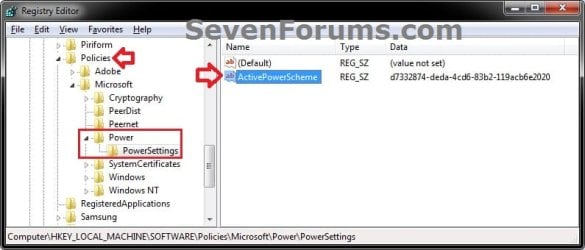
B) In the left pane of regedit, right click on the Microsoft key, click/tap on New and Key, type in Power, and press Enter. (see screenshot below step 4A)
NOTE: If you already have the Power key in the left pane, then skip this step and continue to step 4C instead.
C) In the left pane of regedit, right click on the Power key, click/tap on New and Key, type in PowerSettings, and press Enter. (see screenshot below step 4A)
NOTE: If you already have the PowerSettings key in the left pane, then skip this step and continue to step 4D instead.
D) In the right pane of PowerSettings, right click on a empty space, click/tap on New and String Value, type in ActivePowerScheme, and press Enter. (see screenshot below step 4A)
NOTE: If you already have the ActivePowerScheme string value in the right pane, then skip this step and continue to step 4E instead.
E) In the right pane of PowerSettings, double click/tap on ActivePowerScheme to modify it. (see screenshot below step 4A)
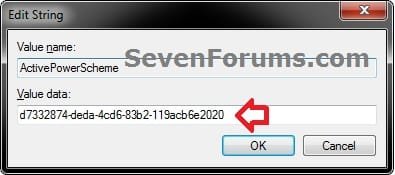
F) Type in the long GUID number (step 1) for the name of the custom power plan that you wanted to specify, and click/tap on OK. (see screenshot below)
G) Go to step 6.
5. To Allow Users to be able to Specify Their Own Power Plan
NOTE: This is the default setting. You could also use the REG file in step 1 of OPTION ONE above to do this as well. A) In regedit, navigate to the location below. (see screenshot below) HKEY_LOCAL_MACHINE\SOFTWARE\Policies\Microsoft\Power\PowerSettings
B) In the right pane of PowerSettings, right click on ActivePowerScheme, and click/tap on Delete. (see screenshot below step 5A)
C) Click/tap on Yes to confirm deletion. (see screenshot below)
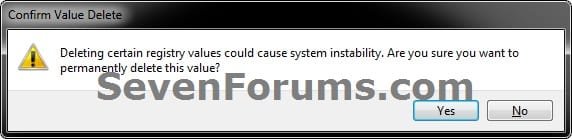
D) Go to step 6.
6. Close the command prompt and regedit.
That's it,
Shawn
Related Tutorials
- How to Select a Power Plan in Windows 7
- How to Create or Delete a Custom Power Plan in Windows 7
- How to Change the Power Plan Settings in Windows 7
- How to Change Power Plan Settings in Windows 8
- How to Restore the Default Power Plan Settings in Windows 7
- How to Enable or Disable Require Password on Wakeup in Windows 7
- How to Create a Shortcut to Change Power Plans in Windows 7 and Windows 8
- How to Add "Choose Power Plan" to Desktop Context Menu in Windows 7 and Windows 8
- How to Create a Power Options Shortcut in Windows 7
- How to Create a "Advanced Power Options" Shortcut in Windows 7
- How to Export and Import Power Plans in Windows 7
- How to Rename a Power Plan Name in Windows 7
Attachments
Last edited:

