
How to Create a "Windows Mobility Center" Shortcut in Windows 7 and Windows 8
Information
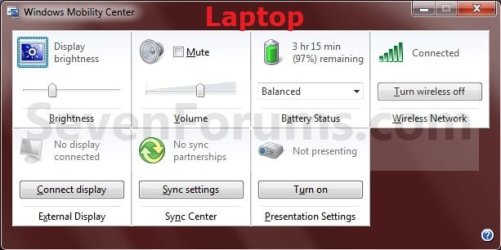
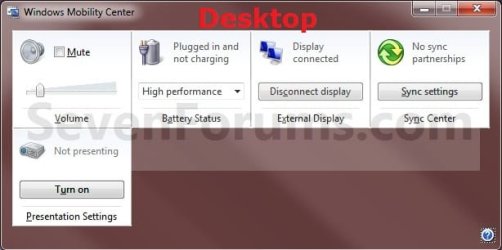
Windows Mobility Center displays the most commonly used laptop settings, such as display brightness, volume, battery status, wireless network status, external display, Sync Center, and Presentation settings in one location for quicker access in Windows 7.
This tutorial will show you how to download or create a Windows Mobility Center shortcut in Windows 7 and Windows 8.
This tutorial will show you how to download or create a Windows Mobility Center shortcut in Windows 7 and Windows 8.
Note
- By default, the Windows Mobility Center feature is only available on laptops, notebooks, and tablet PCs. It is not available on desktop computers unless enabled.
- Windows Mobility Center is not available in the Windows 7 Starter edition.
- In Windows 7, Presentation Settings in Windows Mobility Center is only available in the Windows 7 Professional, Windows 7 Ultimate, and Windows 7 Enterprise editions.
- In Windows 8, Presentation Settings in Windows Mobility Center is only available in the Windows RT, Windows 8 Pro, and Windows 8 Enterprise editions.
NOTE: Each available setting is displayed as a tile in Mobility Center. Different tiles are displayed depending on your system hardware and drivers. Not all settings are available on laptops and desktops. The left screenshot is from a laptop, and the right screenshot is from a desktop.
OPTION ONE
To Download a "Windows Mobility Center" Shortcut
1. Click/tap on the Download button below to download the file below.
Windows_Mobility_Center.zip
Download
2. Save the .zip file to your desktop.
3. Open the .zip file and extract (drag and drop) the Windows Mobility Center shortcut to the desktop.
4. Right click or press and hold on the Windows Mobility Center shortcut, and click/tap on Properties, General tab, and on the Unblock button.
NOTE: If you do not have a Unblock button under the General tab, then the shortcut is already unblocked and you can continue on to step 5 or 6.
5. In Windows 7, you can now Pin to Taskbar or Pin to Start Menu, add to Quick Launch, assign a keyboard shortcut to it, or move this shortcut to where you like for easy use.
6. In Windows 8, you can Pin to Taskbar on desktop, Pin to Start screen, add to Quick Launch, assign a keyboard shortcut to it, or move this shortcut to where you like for easy use.
7. When finished, you can delete the downloaded .zip file if you like.
OPTION TWO
To Manually Create a "Windows Mobility Center" Shortcut
1. Right click or press and hold on an empty area on desktop, and click on New and Shortcut.
2. Copy and paste the location below into the location area, and click/tap on the Next button. (see screenshot below)
%SystemRoot%\System32\mblctr.exe
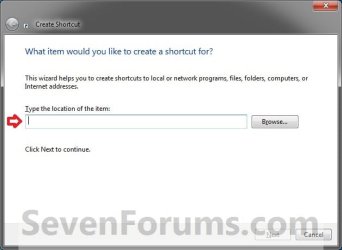
3. Type Windows Mobility Center for the name, and click/tap on the Finish button. (see screenshot below)
NOTE: You can name this anything you would like though.

4. In Windows 7, you can now Pin to Taskbar or Pin to Start Menu, add to Quick Launch, assign a keyboard shortcut to it, or move this shortcut to where you like for easy use.
5. In Windows 8, you can Pin to Taskbar on desktop, Pin to Start screen, add to Quick Launch, assign a keyboard shortcut to it, or move this shortcut to where you like for easy use.
That's it,
Shawn
Related Tutorials
- How to Open and Use Mobility Center in Windows 7 and Windows 8
- How to Enable Windows Mobility Center on a Desktop Computer in Windows 7 and Windows 8
- How to Turn Presentation Settings On or Off in Windows 7 and Windows 8
- How to Enable or Disable Presentation Settings in Windows 7 and Windows 8
- How to Create a "Presentation Settings" Shortcut in Windows 7 and Windows 8
- How to Enable or Disable Windows Mobility Center in Windows 7 and Windows 8
- How to Reset Position of Windows Mobility Center to Default in Windows
Attachments
Last edited:

