
How to Change the Default Memory Dump File Location in Windows
Information
This tutorial will show you how to view and change the default location where to save a memory dump file at when you get a BSOD in Vista, Windows 7, and Windows 8.
You must be logged in as an administrator to be able to do this tutorial.
You must be logged in as an administrator to be able to do this tutorial.
OPTION ONE
To Change Dump File Location in Startup and Recovery
1. Open the Start Menu.
A) Right click on the Computer button on the dark right side and click on Properties.
B) Go to step 3.
OR
2. Open the Control Panel (icons view) and click on the System icon.
3. In the left blue pane, click on the Advanced system settings link. (see screenshot below)
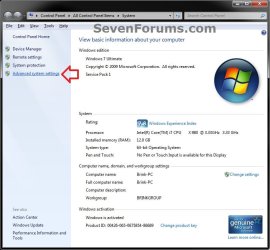
4. Close the System window. (see screenshot above)
5. Under the Advanced tab, click on the Settings button under Startup and Recovery. (see screenshot below)
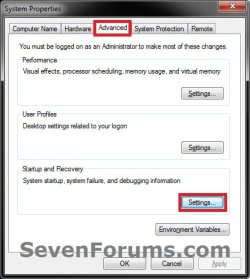
6. Do step 7 or 8 below to change the default location of the dump file that you currently have Windows set to create when you get a BSOD.
7. To Change the Default Location of the "Kernal Memory Dump" and "Complete Memory Dump" File
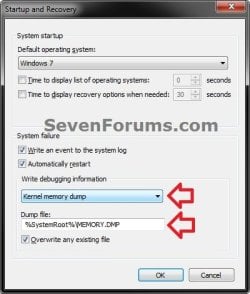
NOTE: The Kernal memory dump or Complete memory dump uses the same location.
A) With Kernal memory dump or Complete memory dump selected, type in the full path in the "Dump file" field that you would like to have the MEMORY.DMP file saved at with MEMORY.DMP still at the end of the path. (see screenshots below)
NOTE: The default path is C:\Windows\MEMORY.DMP or %SystemRoot%\MEMORY.DMP.
For Example: If I wanted to change the default location to C:\Users\Public, I would type this location below.
C:\Users\Public\MEMORY.DMP

B) Go to step 9.
8. To Change the Default Location of the "Small Memory Dump" File
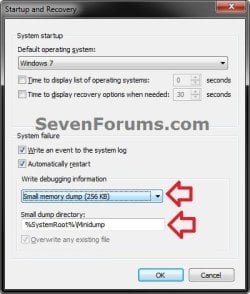
A) With Small memory dump selected, type in the full path in the "Dump file" field that you would like to have the Minidump file saved at with Minidump still at the end of the path. (see screenshot below)
NOTE: The default path is C:\Windows\Minidump or %SystemRoot%\Minidump.
For Example: If I wanted to change the default location to C:\Users\Public, I would type this location below.
C:\Users\Public\Minidump
B) Go to step 9.
9. Click on OK. (see screenshots below step 7A or 8A)
10. If prompted, click on Restart after you save and close anything that you have open. (see screenshot below)
OPTION TWO
To Change Dump File Location in Registry Editor
1. Open the Start Menu, type regedit in the search box, and press Enter.
2. If prompted by UAC, then click on Yes (Windows 7) or Continue (Vista).
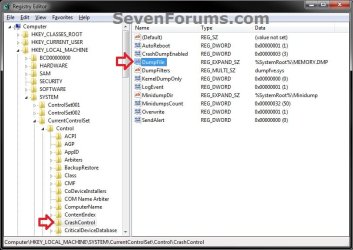
3. In regedit, navigate to the location below, then do step 4 or 5 below. (see screenshots below step 4A or 5A below)
HKEY_LOCAL_MACHINE\SYSTEM\CurrentControlSet\Control\CrashControl
4. To Change the Default Location of the "Kernal Memory Dump" and "Complete Memory Dump" File
NOTE: The Kernal memory dump or Complete memory dump uses the same location.
A) In the right pane of CrashControl, double click on DumpFile to modify it. (see screenshot below)
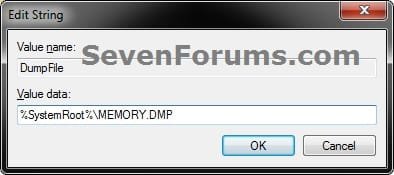
B) Type in the full path in the "Dump file" field that you would like to have the MEMORY.DMP file saved at with MEMORY.DMP still at the end of the path, and click on OK. (see screenshot below)
NOTE: The default path is C:\Windows\MEMORY.DMP or %SystemRoot%\MEMORY.DMP.
For Example: If I wanted to change the default location to C:\Users\Public, I would type this location below.
C:\Users\Public\MEMORY.DMP
C) Go to step 6.
5. To Change the Default Location of the "Small Memory Dump" File
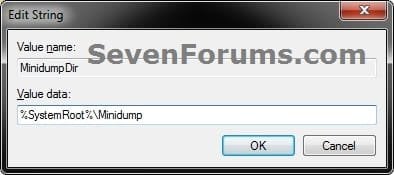
A) In the right pane of CrashControl, double click on MinidumpDir to modify it. (see screenshot below)

B) Type in the full path in the "Dump file" field that you would like to have the Minidump file saved at with Minidump still at the end of the path, and click on OK. (see screenshot below)
NOTE: The default path is C:\Windows\Minidump or %SystemRoot%\Minidump.
For Example: If I wanted to change the default location to C:\Users\Public, I would type this location below.
C:\Users\Public\Minidump
C) Go to step 6.
6. When finished, close regedit.
OPTION THREE
To Change Dump File Location in a Command Prompt
Warning
Using the command prompt will only change the default location of the dump file that you currently have Windows set to create when you get a BSOD.
1. Open an elevated command prompt.
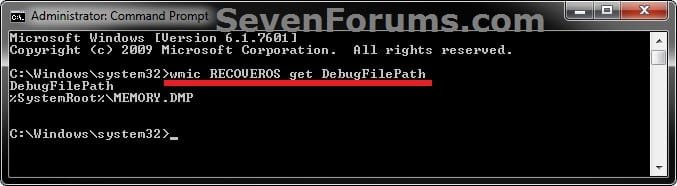
2. To See What the Current Default Dump File Location is Set To
A) In the elevated command prompt, copy and paste the command below and press Enter. (see screenshot below)
wmic RECOVEROS get DebugFilePath
3. To Change the Default Dump File Location
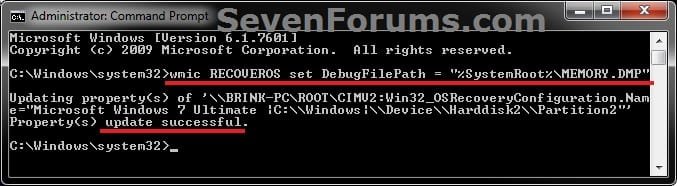
A) In the elevated command prompt, type the command below and press Enter. (see screenshot below)
wmic RECOVEROS set DebugFilePath = "file path"
Note
Substitute file path in the command above with the full path within quotes that you would like to have the Minidump or MEMORY.DMP file saved at with Minidump or MEMORY.DMP still at the end of the path.
Minidump = Small memory dump
MEMORY.DMP = Kernal and Complete memory dump
Minidump = Small memory dump
MEMORY.DMP = Kernal and Complete memory dump
4. Close the elevated command prompt.
That's it,
Shawn
Last edited:


