

How to Add "Enable/Disable Screen Saver" to Desktop Context Menu
InformationThis will show you how to add Enable/Disable Screen Saver to the Desktop context menu for users to be able to quickly toggle their screen saver on or off when say watching a movie or playing a game in Vista, Windows 7, and Windows 8.
While you must be logged in as an administrator to be able to add or remove this from the context menu, all users on the computer will be able to use the context menu item.
NoteIf you use the option (step 2) below that will play a sound, then it will speak "The Screen Saver has been disabled" to indicate the screen saver has been disabled (turned off), and speak "The Screen Saver has been enabled" to indicate the screen saver has been enabled (turned on).
When you toggle the screen saver to be enabled using this context menu item, Windows will still use the same screen saver that you had set to run before you toggled it disabled.
EXAMPLE: Enable/Disable Screen Saver added to Desktop Context Menu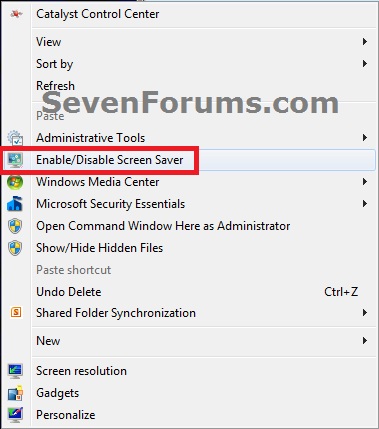
OPTION ONETo Add "Enable/Disable Screen Saver" to Desktop Context Menu
1. Do either step 2 or 3 below for the context menu item that you would like to add.
2. To Toggle Enable/Disable Screen Saver with Sound PlayedA) Click/tap on the Download button below to download the file below, and save it to your desktop, and go to step 4 below.3. To Toggle Enable/Disable Screen Saver without Sound
NOTE: When you click on the Enable/Disable Screen Saver context menu item using this option, you will hear the .wav sound file play only if Window Media Player is set as the default program for .wav files. If you do not have Window Media Player turned on in Windows Features, then you will get a error instead of the sound playing.A) Click/tap on the Download button below to download the file below, and save it to your desktop, and go to step 4 below.4. Double click/tap on the downloaded ZIP file, and extract (drag and drop) both the .reg and .vbs files below to your desktop.
NOTE: This option is if you do not want to have the .wav sound play when you use the Enable/Disable Screen Saver context menu item, or if you get an error from using step 1 since you have Windows Media Player turned off in Windows Features.
5. Unblock the extracted .vbs file.
6. Right click on the extracted and unblocked vbs, and click on Copy.
7. In Windows Explorer, navigate to and open the C:\Windows folder. Right click or press and hold on an empty area in the C:\Window folder, click/tap on Paste, then click/tap on Continue and Yes (UAC) if prompted. Close the Windows Explorer window.
8. Double click/tap on the downloaded .reg file to merge it.
9. If prompted, click/tap on Run,Yes (UAC-Windows 7/8) or Continue (UAC-Vista), Yes, and OK to approve the merge.
10. Enable/Disable Screen Saver has now been added to the context menu.
11. You can delete the download files left on your desktop now if you would like to.
OPTION TWOTo Remove "Enable/Disable Screen Saver" from Desktop Context Menu
NOTE: This is the default setting.1. Click/tap on the Download button below to download the file below, and save it to your desktop. 2. Double click/tap on the downloaded .reg file to merge it.
3. If prompted, click/tap on Run, Yes (UAC-Windows 7/8) or Continue (UAC-Vista), Yes, and OK to approve the merge.
4. Enable/Disable Screen Saver has now been removed from the context menu.
5. In Windows Explorer, navigate to and open the C:\Windows folder, right click or press and hold on the file below, click/tap on Delete, and Yes (if prompted).Toggle_Enable-Disable_Screen-Saver.vbs6. You can now delete the download reg file if you would like to.
OR
Toggle_Enable-Disable_Screen-Saver_with_SOUND.vbs
That's it,
Shawn
Screen Saver - Toggle On or Off - Add to Desktop Context Menu
-
-
-
New #3
Just brilliant.
-
New #4
This worked well for me until I followed a tutorial to make a shortcut to change my screensaver with this text C:\Windows\System32\rundll32.exe shell32.dll,Control_RunDLL desk.cpl,,1 as recommended here: Pin screensaver shortcut to taskbar? and dragged it to the taskbar. Now the screen saver won't go on at all. I removed it from the context menu but that didn't help.I'm going to try to reinstall your context menu addition with sound this time and try again. Strange.
UPDATE: ...aaand it worked... I think the problem was I didn't unblock the .vob file the first time I did the without sound version. I think I prefer the with sound version: that way I know if I've disabled or enabled the screen saver. What a fascinating place, Windows Seven Forums is! Thanks again!
-
New #5
Hello pxfragonard,
That's only a shortcut to open your Screen Saver settings. Please go ahead and post a screenshot showing these settings to see if anything stands out for why it won't play you screen saver. :)
-
-
New #7
Sure you can. You can edit the .vbs file to change the part in red below to be the full path of the .wav file you want instead.
Code:Registry = "HKCU\Control Panel\Desktop\ScreenSaveActive" Set Command1 = WScript.CreateObject("WScript.Shell") Set command2 = CreateObject("Wscript.Shell") Check = Command1.RegRead(Registry) If Check = 1 Then Command1.RegWrite Registry, 0, "REG_SZ" command2.Run "wmplayer.exe ""C:\Windows\Media\Windows Logoff Sound.wav""", 0, false WScript.sleep 1000 command2.Run "taskkill /f /im wmplayer.exe", 0 Else Command1.RegWrite Registry, 1, "REG_SZ" command2.Run "wmplayer.exe ""C:\Windows\Media\Windows Logon Sound.wav""", 0, false WScript.sleep 1000 command2.Run "taskkill /f /im wmplayer.exe", 0 End If
-
-

Screen Saver - Toggle On or Off - Add to Desktop Context Menu
How to Add "Enable/Disable Screen Saver" to Desktop Context MenuPublished by Brink


 Quote
Quote
Related Discussions