
How to Change the ClickLock Time Until Click is Locked in Windows 7
Information
When ClickLock is turned in, it enables you to highlight (select) or drag items without having to keep holding down the mouse left click button.
This will show you how to adjust the settings for ClickLock for how long in milliseconds you need to hold down the mouse left click button before your click is locked in Windows 7.
This will show you how to adjust the settings for ClickLock for how long in milliseconds you need to hold down the mouse left click button before your click is locked in Windows 7.
OPTION ONE
To Set ClickLock Time in Mouse Properties
1. Open the Control Panel (icons view), click on the Mouse icon, and close the Control Panel.
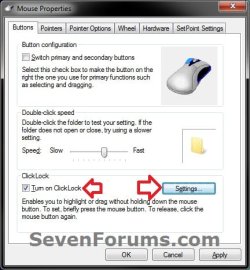
2. In the Buttons tab, check the Turn on ClickLock box, and click on the Settings button. (see screenshot below)
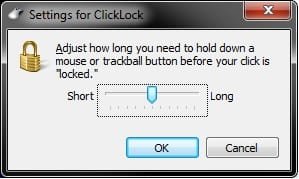
3. Adjust the slider for how long you would like to have to hold down the mouse button before it is locked down, and click on OK. (see screenshot below)
NOTE: This ranges from 200-2200 milliseconds. The default ClickLock time is 1200 milliseconds.
4. Click on OK. (see screenshot below step 2)
OPTION TWO
To Set ClickLock Time in Registry Editor
1. Open the Start Menu, type regedit in the search box, and press Enter.
2. If prompted by UAC, then click on Yes.
3. In regedit, navigate to the location below. (see screenshot below)
HKEY_CURRENT_USER\Control Panel\Desktop
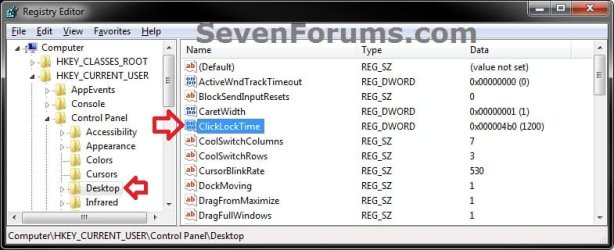
4. In the right pane of Desktop, double click on ClickLockTime. (see screenshot above)
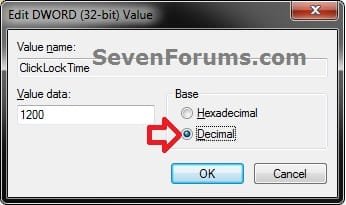
5. Select (dot) Decimal, then type in a number between 200 and 2200 for how many milliseconds you would like to have to hold down the mouse button before it is locked down, and click on OK. (see screenshot below)
NOTE: The default ClickLock time is 1200 milliseconds.
6. Close regedit.
7. Log off and log on, or restart the computer to apply.
That's it,
Shawn
Last edited: