Windows 7 Forums


Windows 7: Windows Update Shortcut - Create in Windows 7


Windows Update Shortcut - Create in Windows 7

How to Create a "Windows Update" Shortcut in Windows 7
Published 14 Aug 2009
Published by

Applies to:
7

Featured Tutorial

Emergency Kit - save your files from a dead OS

How to Create and Use a Linux Mint Mate USB Flash Drive to Recover your Files

Peppermint3 - Create Live CD/DVD/USB To Use For Emergency Backup

How to Perform an Emergency Data Backup When Windows 7 Will Not Boot

Microsoft Outlook Desktop Shortcut - Create

How to Create a Special Outlook Desktop (Office XP style) Shortcut

Chrome GPU Hardware Acceleration - Turn On or Off

How to Turn GPU "Hardware Acceleration" On or Off in Chrome

Windows 7 Installation - Transfer to a New Computer

How to Transfer your Complete Windows 7 Installation to a New Computer

Troubleshooting Windows 7 Failure to Boot


How to Create a "Windows Update" Shortcut in Windows 7

information   Information
This will show you how to create or download a Windows Update shortcut in Windows 7.


EXAMPLE: Windows Update
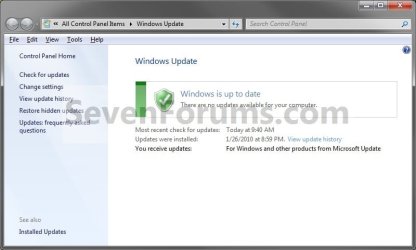
Windows Update Shortcut - Create in Windows 7-windows_update.jpg


OPTION ONE
To Download a "Windows Update" Shortcut
1. Click on the Download button below to download the file below.
Windows_Update.zip

download
2. Click on Save, and save the .zip file to the desktop.

3. Open the .zip file and extract the Windows Update shortcut to the desktop.

4. Right click on the Windows Update shortcut, and click on Properties, General tab, and on the Unblock button. (see screenshot below)
NOTE: If you do not have a Unblock button under the General tab, then the shortcut is already unblocked and you can continue on to step 5.
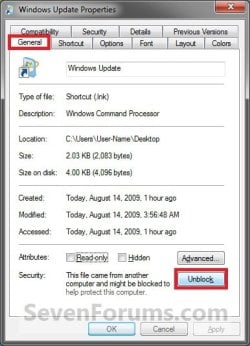
Windows Update Shortcut - Create in Windows 7-unblock.jpg
5. You can now Pin to Taskbar or Pin to Start Menu this shortcut, assign a keyboard shortcut to it, or move it where you like for easy use.

6. When done, you can delete the downloaded .zip file on the desktop if you like, or save it to use again.


OPTION TWO
To Manually Create a "Windows Update" Shortcut
1. Right click on a empty area on the desktop, and click on New and Shortcut.

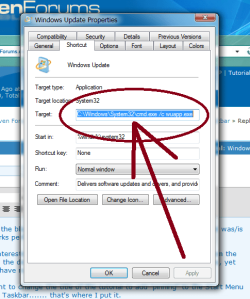
2. Copy and Paste either location below into the location area, and click on the Next button. (see screenshot below)
%windir%\System32\rundll32.exe url.dll,FileProtocolHandler wuapp.exe

OR

%windir%\explorer.exe shell:::{36eef7db-88ad-4e81-ad49-0e313f0c35f8}
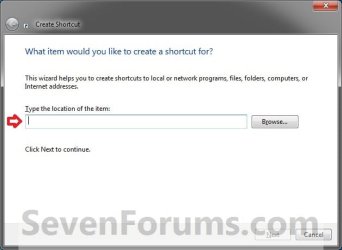
Windows Update Shortcut - Create in Windows 7-step1.jpg
3. Type Windows Update for the name, and click on the Finish button. (see screenshot below)
NOTE: You can name this anything you would like though.
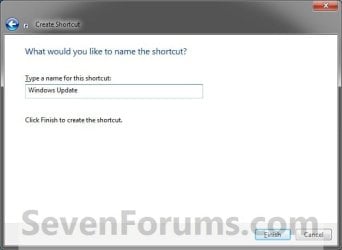
Windows Update Shortcut - Create in Windows 7-step2.jpg
4. Right click on the new Windows Update shortcut on the Desktop and click on Properties.

5. Click on the Change Icon button. (see screenshot below)
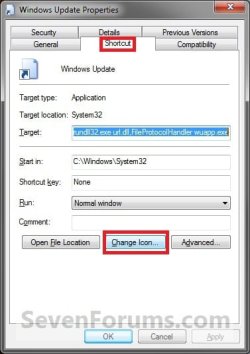
Windows Update Shortcut - Create in Windows 7-step3.jpg
6. In the line under "Look for icons in this file", type the location below and press Enter. (see screenshot below)
%windir%\system32\wucltux.dll

Windows Update Shortcut - Create in Windows 7-step5.jpg
7. Select the icon highlighted in blue above and click on OK. (see screenshot above)
NOTE: You can use any icon that you would like instead though.

8. Click on OK. (see screenshot below)
Windows Update Shortcut - Create in Windows 7-step6.jpg
9. You can now Pin to Taskbar or Pin to Start Menu this shortcut, assign a keyboard shortcut to it, or move it where you like for easy use.
That's it,
Shawn


Need more help? Try searching our extensive help and support site.
Loading
14 Aug 2009   #1
charlieo

7 rtm
 
 
Perfect!

Perfection through simplicity!

If you look at the blogs on this "issue" ..... I find it amazing that your solution was/is so simple. Works perfectly!

I also find it interesting that yesterday when I dragged "Windows Update" from the Start Menu to the desktop the resulting shortcut did not have the pin options, yet yours does. I have no idea what the difference is.

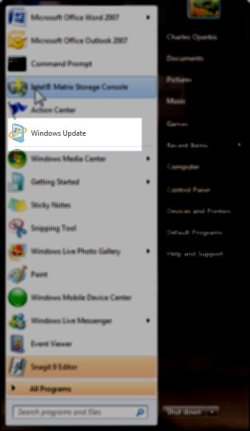
You might want to change the title of the tutorial to add "pinning" to the Start Menu as well as the Taskbar....... that's where I put it.

Thanks once again.

Charlie

Attached Thumbnails
Windows Update Shortcut - Create in Windows 7-windows-updatestartmenu.jpg  
My System SpecsSystem Spec

14 Aug 2009   #2
Brink

64-bit Windows 7 Ultimate SP1 & Windows 8 Enterprise
Texas


You're welcome Charlie.
My System SpecsSystem Spec
31 Aug 2009   #3
rondoyle

Windows 7
Harrisonburg, VA, USA


Excellent - thanks!
My System SpecsSystem Spec
.


31 Aug 2009   #4
Brink

64-bit Windows 7 Ultimate SP1 & Windows 8 Enterprise
Texas


You're welcome Ron, and welcome to Seven Forums.

Shawn
My System SpecsSystem Spec
08 Nov 2009   #5
nomadgamer13

Windows 7 Ultimate 64bit
c:\windows\system32


thanks m8!!!! i got tired of using docks... hehehe.... now my desktop is neat and clean...
My System SpecsSystem Spec
08 Nov 2009   #6
Brink

64-bit Windows 7 Ultimate SP1 & Windows 8 Enterprise
Texas


You're welcome Nomadgamer.
My System SpecsSystem Spec
08 Nov 2009   #7
jedy48

Windows 7 Home Premium 64 bit
Montecatini Terme


Tanks very appreciated
My System SpecsSystem Spec
08 Nov 2009   #8
Brink

64-bit Windows 7 Ultimate SP1 & Windows 8 Enterprise
Texas


You're welcome Jedy, and welcome to Seven Forums.
My System SpecsSystem Spec
09 Nov 2009   #9
jedy48

Windows 7 Home Premium 64 bit
Montecatini Terme


Tanks are happy to have you discovered while I understand the language I just arranged with a translator
My System SpecsSystem Spec
Comment

 Windows Update Shortcut - Create in Windows 7 problems?


Tutorial Tools


Similar help and support threads for: Windows Update Shortcut - Create in Windows 7
Windows 7 Tutorial Category
Microsoft Security Essentials - Update - Create Shortcut Tutorials
Microsoft Security Essentials - Update & Quick Scan - Create Shortcut Tutorials
Windows Fax and Scan Shortcut - Create Tutorials
Windows Update Troubleshoot Shortcut - Create Tutorials
Windows Firewall Shortcut - Create Tutorials


All times are GMT -5. The time now is 10:26 AM.


Seven Forums Android App Seven Forums IOS App Follow us on Facebook

Windows 7 Forums is an independent web site and has not been authorized,
sponsored, or otherwise approved by Microsoft Corporation.
"Windows 7" and related materials are trademarks of Microsoft Corp.
© Designer Media Ltd
  

1 2 3 4 5 6 7 8 9 10 11 12 13 14 15 16 17 18 19 20 21 22 23 24 25 26 27 28 29 30 31 32