
How to Enable or Disable Pinning and Unpinning of Items in Windows 7 Jump Lists
Information
This will show you how to enable or disable the ablility of all or specific users to pin or unpin items, such as recent and frequent items, files, folders, and websites, to or from Jump Lists in the Start Menu and taskbar in Windows 7.
You must be logged in as an administrator to be able to do the steps in this tutorial.
You must be logged in as an administrator to be able to do the steps in this tutorial.
Note
On a computer that is running Windows 7 or Windows Server 2008 R2, the Jump List of an application may disappear permanently when you use the application to open or save a new item. This issue occurs when there are 999 items in the Jump List already.
Installing the update at the link below resolves the issue and enables the displaying of the Jump Lists.
A Jump List is not displayed in Windows 7 or in Windows Server 2008 R2 if the list contains more than 999 items
Installing the update at the link below resolves the issue and enables the displaying of the Jump Lists.
A Jump List is not displayed in Windows 7 or in Windows Server 2008 R2 if the list contains more than 999 items
EXAMPLE: Enabled and Disable in the Start Menu and Taskbar
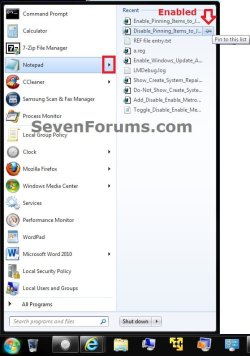
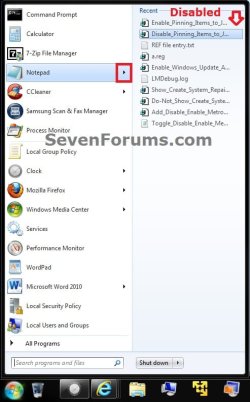
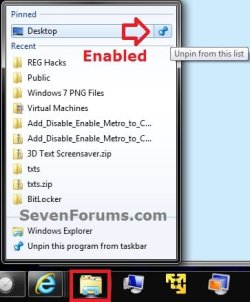
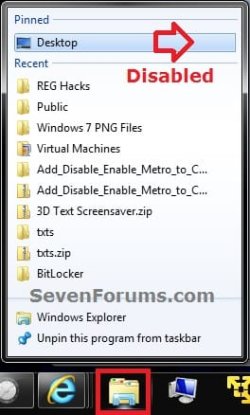
OPTION ONE
Using a REG File Download
NOTE: This option will affect all users on the computer.
1. To Enable Pinning and Unpinning of Items in Jump Lists for Only Current User
NOTE: This is the default setting.
A) Click on the Download button below to download the file below.
Enable_Pinning_Unpinning_Items_in_Jump_Lists.reg
Download
B) Go to step 3.
2. To Disable Pinning and Unpinning of Items in Jump Lists for Only Current User
A) Click on the Download button below to download the file below.
Disable_Pinning_Unpinning_Items_in_Jump_Lists.reg
Download
3. Click on Save, and save the .reg file to the desktop.
4. Right click on the downloaded .reg file and click on Merge.
5. Click on Run, Yes, Yes, and OK when prompted.
6. Log off and log on, or restart the computer to fully apply.
7. When done, you can delete the downloaded .reg file if you like.
OPTION TWO
Through the Local Group Policy Editor
1. Open the all users, specific users or groups, or all users except administrators Local Group Policy Editor for how you want this policy applied.
2. In the left pane, click on to expand User Configuration, Administrative Templates, and Start Menu and Taskbar. (see screenshot below)
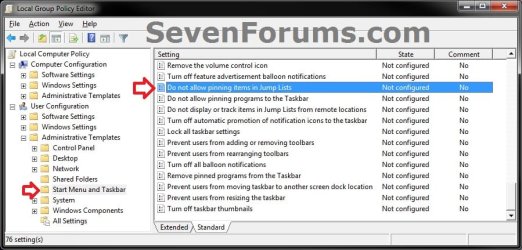
3. In the right pane, right click on Do not allow pinning of items in Jump Lists and click on Edit. (see screenshot above)
4. To Enable Pinning and Unpinning of Items in Jump Lists
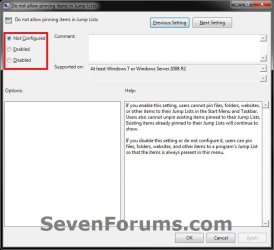
A) Select (dot) either Not Configured or Disabled. (see screenshot below step 6)
NOTE: Not Configured is the default setting.
B) Go to step 6.
5. To Disable Pinning and Unpinning of Items in Jump Lists
A) Select (dot) Enabled. (see screenshot below step 6)
6. Click on OK. (see screenshot below)
7. Close the Local Group Policy Editor window.
That's it,
Shawn
Related Tutorials
- How to Pin or Unpin Items in Windows 7 Jump Lists
- How to Backup and Restore Jump Lists in Windows 7
- How to Open and Use Windows 7 Start Menu and Taskbar Jump Lists
- How to Reset and Clear All Items in Windows 7 Jump Lists
- How to Change the Number of Recent Items to Display in Windows 7 Jump Lists
- How to Create Custom Jump Lists in Windows 7
- How to Pin or Unpin a Program to the Windows 7 Taskbar
- How to Pin or Unpin a Program to the Windows 7 Start Menu
- How to Turn Recent Items On or Off in Windows 7
- How to Enable or Disable Recent Items in Windows 7 and Vista
Attachments
Last edited:


