How to Properly Delete a OS in a Dual Boot
Information
Deleting a double booted OS may seem simple - you just delete the partition with the OS you want to get rid of and you are done. Well, it is not that easy. With said approach you may get yourself into a lot of trouble. This tutorial describes a safe way how to properly delete a double booted OS.
Step 1 - Check where the bootmgr resides
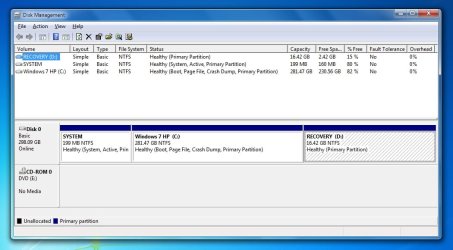
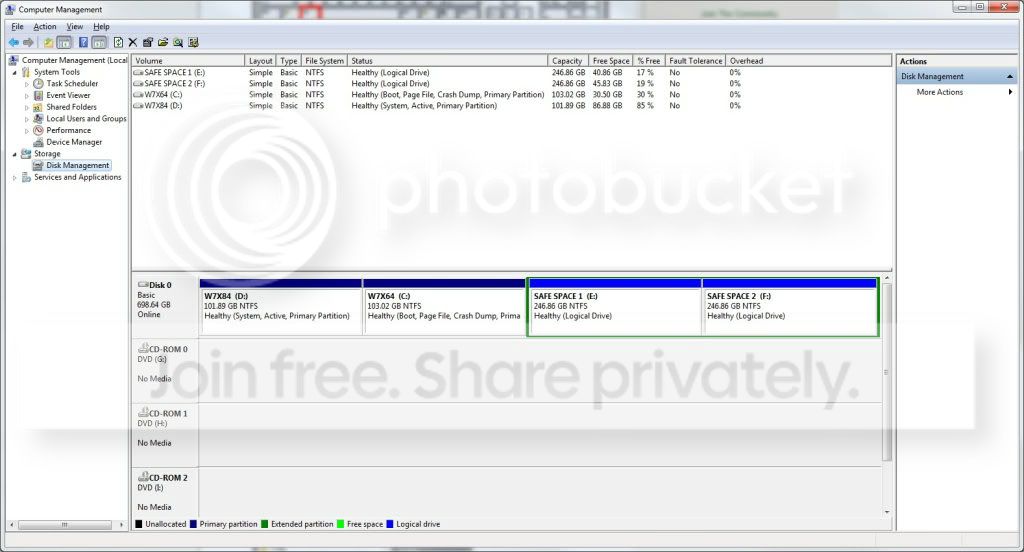
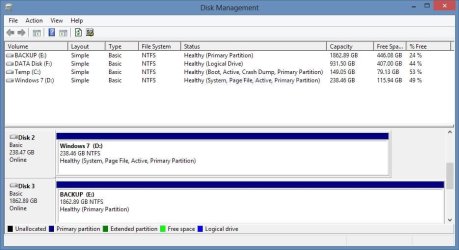
Open Disk Management and find the partition that is marked "active". That is the partition that contains the bootmgr. If there are several active partitions, you have to look for the system flag - best seen in Computer.
The active partition is usually from the OS that was on the system first - e.g. if you installed Windows 7 on an XP system, the XP system would be the active partition. But there are also other cases.
If Windows 7 was the first OS on the system, then your bootmgr resides most likely in a separate system partition which is usually small.
If you installed Windows 7 as first OS to a disk that was not attached to the Sata port0, it can very well be that the bootmgr resides on an arbitrary partition on the disk that is attached to port0.
If you have e.g. a Dell system, your bootmgr may be on the recovery partition. Other OEMs may do the same, but I was not able to verify that.
This is the example of my current system. Note the two last partitions which are Windows 7 and Windows 8. The Windows 7 partition is marked as active. You also see that I have no small system partition because I have eliminated that partition after I moved the bootmgr from that small system partition to the Windows 7 partition.
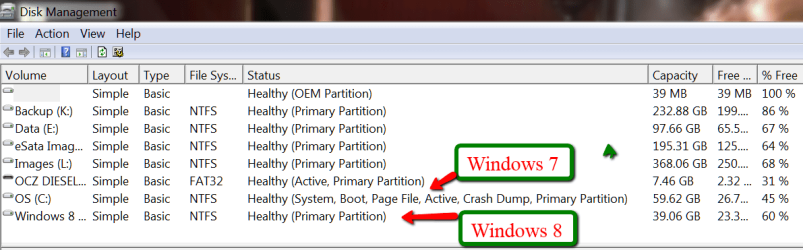
If I would delete the Windows 7 partition, my Windows 8 would not boot any more because it would have lost it's bootmgr that is in cohabitation with the Windows7 bootmgr.
In order to avoid such an unfortunate situation, we launch the system that we want to retain and move the bootmgr to that system's OS partition. Here is how.
Step 2 - Delete the unwanted OS partition and reuse the space (Optional)
Stay in the OS that you want to keep and open Disk Management. Right click on the partition that contains the OS you want to delete and Delete Volume. Then right click on the deleted volume and Delete Partition. Now you should have "Freespace" where this partition originally was.
With Disk Management, you can define a new partition in that freespace or you can add it to the partition that shows to the left of that freespce. Just click on the partition which is to the left and Extend Volume.
If, however, you want to add that freespace to a partition that is to the right of the freespace, then you have to use an external tool. I suggest the bootable CD of Partition Wizard. Here is how.
A word of caution: before you manipulate partitions with Partition Wizard, make an image of all partitions on that disk. I once lost all my partitions on a disk because I made a small mistake manipulating one partition with Partition Wizard. For imaging I recommend Free Macrium. Here is how.
Step 3 - Cleanup the bootmgr
Now that we removed one OS, we have a surplus entry in the bootmgr. We will remove this entry with EasyBCD. As you can see in the picture, the operation takes only 4 clicks.
EasyBCD is a very handy tool for a variety of operations on the bootmgr. You should have that in your toolkit anyhow.
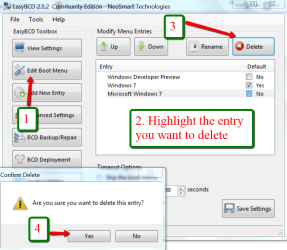
If you stop at this step, the MBR is still in a double boot configuration and when you boot, the BIOS will present you the black screen where you have to choose the operating sytem - although only one operating system is present. This is not a disaster, but it is an unnecessary step that requires your intervention.
The next two steps will reset the MBR to your current OS and then your system will automatically boot into that.
Important: You absolutely have to execute both Steps 4 and Step 5. If you only do Step 4, your system will not boot any more.
Step 4 - Clean the MBR
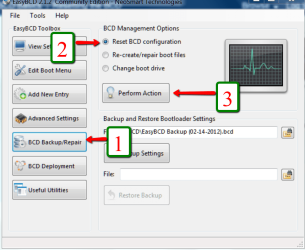
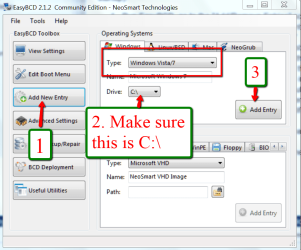
Step 5 - Reset MBR with the entry of the current OS
Related Tutorials
- How to Delete "Windows 8 Developer Preview" in your Dual Boot with Windows 7
- How to Setup a Dual Boot Installation with Windows 7 and Vista
- How to Do a Dual Boot Installation with Windows 7 and Windows 8
- How to Setup a Dual Boot Installation with Windows 7 and XP
- How to Setup a Dual Boot Installation with Windows Vista and XP
- How to Dual Boot Windows 7 and Ubuntu
- How to Delete an Operating System Listed in Windows Boot Manager
- How to Change the OS Name in Windows Boot Manager
- How to Recover a Partition Used by an Older OS in a Dual Boot
Last edited: