|
Welcome to Windows 7 Forums. Our forum is dedicated to helping you find solutions with any problems, errors or issues you are experiencing with Windows 7. The Windows 7 forum also covers news and updates and has an extensive Windows 7 tutorial section that covers a wide range of tips and tricks.
Windows 7 - Safe Mode - Add to Windows Boot Manager Screen in Windows 7 Safe Mode - Add to Windows Boot Manager Screen in Windows 7 How to Add Windows 7 "Safe Mode" to Windows Boot Manager Screen
Published by Brink
02-03-2012
| Safe Mode - Add to Windows Boot Manager Screen in Windows 7 How to Add Windows 7 "Safe Mode" to Windows Boot Manager Screen  Information This will show you how to add Windows 7 Safe Mode to the Windows Boot Manager to be able to easily select to startup into Safe Mode, Windows 7, or any other installed OS at boot from the Windows Boot Manager screen.
This can be handy to have as another option to be able to start Windows 7 in Safe Mode as needed.
You must be logged in as an a dministrator to be able to do the steps in this tutorial. EXAMPLE: "Windows 7 Safe Mode" added to Windows Boot Manager OPTION ONE
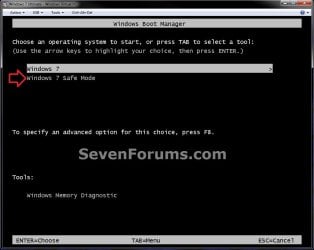
To Add Windows 7 "Safe Mode" to Windows Boot Manager
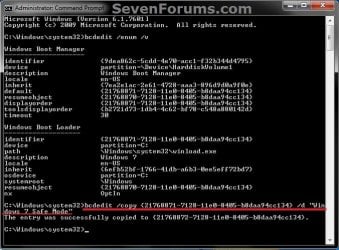
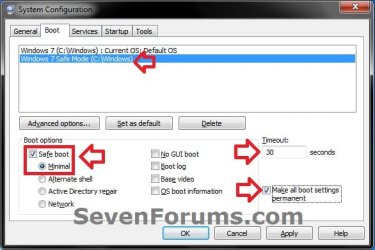
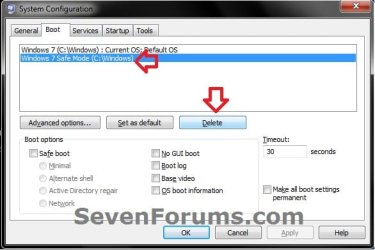
1. Open a elevated command prompt or a command prompt at boot. 2. In the command prompt, copy and paste the command below and press Enter. (see screenshot below)bcdedit /enum /v  3. From under a Windows Boot Loader section, look for the description that has Windows 7 listed, and make note of it's identifier number (ex: {21768871-7128-11e0-8405-b8daa94cc134} ) . (see screenshot above) 4. In the command prompt, type the command below and press Enter. (see screenshot below) NOTE: Substitute identifier number in the command below with your actual Windows 7 identifier number from step 3.bcdedit /copy {identifier number} /d “Windows 7 Safe Mode” For example: I would type this command below exactly for my identifier number {21768871-7128-11e0-8405-b8daa94cc134}. bcdedit /copy {21768871-7128-11e0-8405-b8daa94cc134} /d “Windows 7 Safe Mode”  5. If successfully copied, close the elevated command prompt. NOTE: If you did this from a command prompt at boot, then restart the computer into Windows 7 instead. 6. Open the Start Menu in Windows 7, type msconfig in the search box, and press Enter. 7. Click on the Boot tab, select Windows 7 Safe Mode, check the Safe boot box and select (dot) Minimal, have enough seconds (ex: 30) entered under Timeout to be able to have enough time to select a OS at boot, check the Make all boot settings permanent box, and click on OK. (see screenshot below)
8. Click on Yes. (see screenshot below)
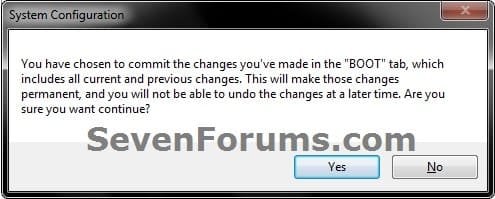
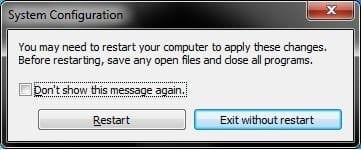
9. Click on Restart. (see screenshot below) 10. You will now be able to select to startup into Safe Mode, Windows 7, or any other installed OS at boot from the Windows Boot Manager screen. OPTION TWO
To Remove Windows 7 "Safe Mode" from Windows Boot Manager
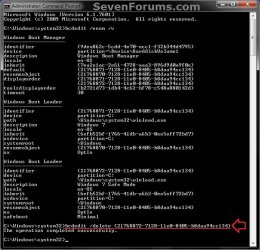
1. Boot into Windows 7, and not the Windows 7 Safe Mode option. 2. Using either option in the tutorial below, delete the Windows 7 Safe Mode entry like in the screenshots below.How to Delete a Operating System Listed in Windows Boot Manager in Windows 7    That's it,
Shawn |  Published by | | Administrator Join Date: Oct 2008 Location: Texas Posts: 37,290 | |
 Tutorial Tools | | | | | | | | | |
02-13-2012
|
#1 | | Windows 7 Ultimate x86/Ubuntu |
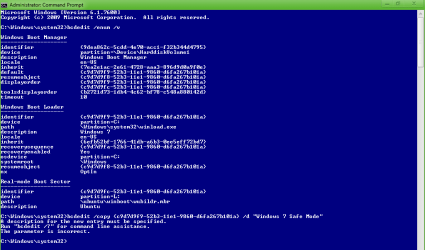
Hi Brink, thanks for the tutorial. But I get this error: Quote: A description for the new entry must be specified.
Run "bcdedit /?" for command line assistance.
The parameter is incorrect. | My System Specs | | OS Windows 7 Ultimate x86/Ubuntu CPU Intel Core i5 2500k at 3.3 GhZ Memory 2x4GB DDR3 1333Hz Graphics Card Ati Radeon 6770 Sound Card Speakers Monitor(s) Displays 1x 15" HD 572 Screen Resolution 1024x768 Keyboard Wired Keyboard Mouse Wired Mouse Cooling 3x Fans Hard Drives 2x500GB Internet Speed 10MB/s Other Info Netbook: Dell Inspiron Mini |
02-13-2012
|
#2 | | Windows 7 Ultimate x64 SP1 |
Hello Infinite,
It sounds like you may have made a typo or spacing mistake. Could you post a screenshot of your command prompt like in the tutorial showing what you typed in when it gave you this error? | My System Specs | | System Manufacturer/Model Number Self built custom OS Windows 7 Ultimate x64 SP1 CPU Intel i7-980X 3.3 Ghz (3.48 Ghz OC'd) Motherboard ASUS P6X58D Premium Memory 12 GB (2GBx6) DDR3 PC3-16000 2000 MHz Kingston HyperX Graphics Card Sapphire HD5870 Eyefinity 6 2GB Sound Card Realtek HD Audio ALC889 Integrated Chip Monitor(s) Displays 3x 27" Asus VE278Q Screen Resolution 1920x1080 Keyboard Logitech Cordless Desktop MX 5500 Revolution Mouse Logitech Cordless Desktop MX 5500 Revolution PSU OCZ Series Gold OCZZ1000M 1000W Case Corsair Obsidian 800D Cooling Thermalright Ultra 120 Extreme Copper CPU heat sink w/120 MM Hard Drives 160GB OCZ RevoDrive X2
** 2 x 1TB Samsung HDD HD154UI SATA Internet Speed 50 Mb/s Download and 2 Mb/s Upload Other Info Microsoft LifeCam Cinema
** Lite-On iHBS212 12x BD Writer
** Samsung CLX-3175FW Printer
** Netgear WNDR3800 Router
** Motorola SBG6580 Cable Modem
** 2x APC Back-UPS XS 1500 |
02-13-2012
|
#3 | | Windows 7 Ultimate x86/Ubuntu |
Here: | My System Specs | | OS Windows 7 Ultimate x86/Ubuntu CPU Intel Core i5 2500k at 3.3 GhZ Memory 2x4GB DDR3 1333Hz Graphics Card Ati Radeon 6770 Sound Card Speakers Monitor(s) Displays 1x 15" HD 572 Screen Resolution 1024x768 Keyboard Wired Keyboard Mouse Wired Mouse Cooling 3x Fans Hard Drives 2x500GB Internet Speed 10MB/s Other Info Netbook: Dell Inspiron Mini |
02-13-2012
|
#4 | | Windows 7 Ultimate x64 SP1 |
Did you type the command out, or did you copy and paste any part of it?
If you copied and pasted it, then that may be the issue when copying a space and it acting as a enter instead of space and not actually using the "Windows 7 Safe Mode" (description) part of the command. Try typing it out completely to see if it may work then. | My System Specs | | System Manufacturer/Model Number Self built custom OS Windows 7 Ultimate x64 SP1 CPU Intel i7-980X 3.3 Ghz (3.48 Ghz OC'd) Motherboard ASUS P6X58D Premium Memory 12 GB (2GBx6) DDR3 PC3-16000 2000 MHz Kingston HyperX Graphics Card Sapphire HD5870 Eyefinity 6 2GB Sound Card Realtek HD Audio ALC889 Integrated Chip Monitor(s) Displays 3x 27" Asus VE278Q Screen Resolution 1920x1080 Keyboard Logitech Cordless Desktop MX 5500 Revolution Mouse Logitech Cordless Desktop MX 5500 Revolution PSU OCZ Series Gold OCZZ1000M 1000W Case Corsair Obsidian 800D Cooling Thermalright Ultra 120 Extreme Copper CPU heat sink w/120 MM Hard Drives 160GB OCZ RevoDrive X2
** 2 x 1TB Samsung HDD HD154UI SATA Internet Speed 50 Mb/s Download and 2 Mb/s Upload Other Info Microsoft LifeCam Cinema
** Lite-On iHBS212 12x BD Writer
** Samsung CLX-3175FW Printer
** Netgear WNDR3800 Router
** Motorola SBG6580 Cable Modem
** 2x APC Back-UPS XS 1500 |
02-13-2012
|
#5 | | Windows 7 Ultimate x86/Ubuntu |
OK, I did copy and paste it before Yes. Now it is working, thanks.
However the Boot Manager list order is: Quote: Windows 7
Ubuntu
Windows 7 Safe Mode How can I move Ubuntu below Windows 7 Safe Mode, so the list order is Quote: Windows 7
Windows 7 Safe Mode
Ubuntu Also if I want No GUI Boot, would I just need to select Windows 7 from MSConfig and select No GUI Boot? | My System Specs | | OS Windows 7 Ultimate x86/Ubuntu CPU Intel Core i5 2500k at 3.3 GhZ Memory 2x4GB DDR3 1333Hz Graphics Card Ati Radeon 6770 Sound Card Speakers Monitor(s) Displays 1x 15" HD 572 Screen Resolution 1024x768 Keyboard Wired Keyboard Mouse Wired Mouse Cooling 3x Fans Hard Drives 2x500GB Internet Speed 10MB/s Other Info Netbook: Dell Inspiron Mini |
02-13-2012
|
#6 | | Windows 7 Ultimate x64 SP1 |
That's great news Infinite.
That would be correct for No GUI Boot.
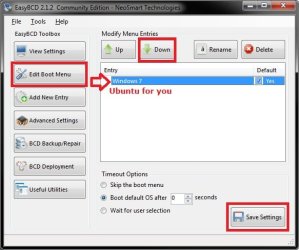
The easiest way to move Ubuntu down one level is to download and install and run the free EasyBCD (registration not required to download) in Windows 7, go to the Edit Boot Menu location in the screenshot below, select (highlight) Ubuntu, click on the Down button, and click on the Save Settings button. | My System Specs | | System Manufacturer/Model Number Self built custom OS Windows 7 Ultimate x64 SP1 CPU Intel i7-980X 3.3 Ghz (3.48 Ghz OC'd) Motherboard ASUS P6X58D Premium Memory 12 GB (2GBx6) DDR3 PC3-16000 2000 MHz Kingston HyperX Graphics Card Sapphire HD5870 Eyefinity 6 2GB Sound Card Realtek HD Audio ALC889 Integrated Chip Monitor(s) Displays 3x 27" Asus VE278Q Screen Resolution 1920x1080 Keyboard Logitech Cordless Desktop MX 5500 Revolution Mouse Logitech Cordless Desktop MX 5500 Revolution PSU OCZ Series Gold OCZZ1000M 1000W Case Corsair Obsidian 800D Cooling Thermalright Ultra 120 Extreme Copper CPU heat sink w/120 MM Hard Drives 160GB OCZ RevoDrive X2
** 2 x 1TB Samsung HDD HD154UI SATA Internet Speed 50 Mb/s Download and 2 Mb/s Upload Other Info Microsoft LifeCam Cinema
** Lite-On iHBS212 12x BD Writer
** Samsung CLX-3175FW Printer
** Netgear WNDR3800 Router
** Motorola SBG6580 Cable Modem
** 2x APC Back-UPS XS 1500 |
02-16-2012
|
#7 | | Windows 7 Ultimate x86/Ubuntu |
Just a thought, you could try making a tutorial for how to add Safe mode for networking or Safe mode for command prompt to Boot Manager or continue it from this, or perhaps that isn't possible. | My System Specs | | OS Windows 7 Ultimate x86/Ubuntu CPU Intel Core i5 2500k at 3.3 GhZ Memory 2x4GB DDR3 1333Hz Graphics Card Ati Radeon 6770 Sound Card Speakers Monitor(s) Displays 1x 15" HD 572 Screen Resolution 1024x768 Keyboard Wired Keyboard Mouse Wired Mouse Cooling 3x Fans Hard Drives 2x500GB Internet Speed 10MB/s Other Info Netbook: Dell Inspiron Mini |
02-17-2012
|
#8 | | Windows 7 Ultimate x64 SP1 |
Sure, you would do the same thing in this tutorial except check the "Boot option" you wanted instead in step 7 OPTION ONE instead, and change the description at step 4.
I'll add it to the list of tutorials to do though. | My System Specs | | System Manufacturer/Model Number Self built custom OS Windows 7 Ultimate x64 SP1 CPU Intel i7-980X 3.3 Ghz (3.48 Ghz OC'd) Motherboard ASUS P6X58D Premium Memory 12 GB (2GBx6) DDR3 PC3-16000 2000 MHz Kingston HyperX Graphics Card Sapphire HD5870 Eyefinity 6 2GB Sound Card Realtek HD Audio ALC889 Integrated Chip Monitor(s) Displays 3x 27" Asus VE278Q Screen Resolution 1920x1080 Keyboard Logitech Cordless Desktop MX 5500 Revolution Mouse Logitech Cordless Desktop MX 5500 Revolution PSU OCZ Series Gold OCZZ1000M 1000W Case Corsair Obsidian 800D Cooling Thermalright Ultra 120 Extreme Copper CPU heat sink w/120 MM Hard Drives 160GB OCZ RevoDrive X2
** 2 x 1TB Samsung HDD HD154UI SATA Internet Speed 50 Mb/s Download and 2 Mb/s Upload Other Info Microsoft LifeCam Cinema
** Lite-On iHBS212 12x BD Writer
** Samsung CLX-3175FW Printer
** Netgear WNDR3800 Router
** Motorola SBG6580 Cable Modem
** 2x APC Back-UPS XS 1500 |
02-17-2012
|
#9 | | Windows 7 Ultimate x86/Ubuntu |
So it would be like this?
bcdedit /copy {identifier number} /d “Windows 7 Safe Mode with Networking”
bcdedit /copy {identifier number} /d “Windows 7 Safe Mode with Command Prompt”
Then you enable permanent boot settings, and if you added all three you would have all 3 options? | My System Specs | | OS Windows 7 Ultimate x86/Ubuntu CPU Intel Core i5 2500k at 3.3 GhZ Memory 2x4GB DDR3 1333Hz Graphics Card Ati Radeon 6770 Sound Card Speakers Monitor(s) Displays 1x 15" HD 572 Screen Resolution 1024x768 Keyboard Wired Keyboard Mouse Wired Mouse Cooling 3x Fans Hard Drives 2x500GB Internet Speed 10MB/s Other Info Netbook: Dell Inspiron Mini Safe Mode - Add to Windows Boot Manager Screen in Windows 7 problems? All times are GMT -5. The time now is 02:25 AM. |  |