
How to Back Up and Restore Jump Lists in Windows 7
Information
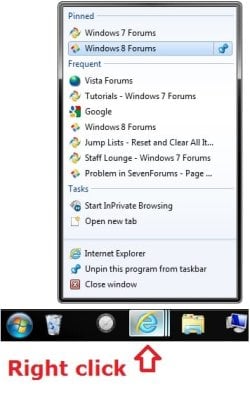
Jump Lists in the Start Menu and on the taskbar are lists of recent items, such as files, folders, or websites, organized by the program that you use to open them. In addition to being able to open recent and frequent items using a Jump List, you can also pin favorites to a Jump List, so you can quickly get to the items that you use every day.
This tutorial will show you how to back up and restore Jump Lists for your user account in Windows 7. This will also include the pinned items in your Jump Lists as well.
This tutorial will show you how to back up and restore Jump Lists for your user account in Windows 7. This will also include the pinned items in your Jump Lists as well.
Note
By default, your Jump Lists and pinned items in Jump Lists are saved in the folder locations below. You could copy the shell command below into the Start Menu search box to open these folders. This is what this tutorial will be backing up and restoring for you automatically using a BAT file.
shell:Recent\AutomaticDestinations
Shell:Recent\CustomDestinations
shell:Recent\AutomaticDestinations
Shell:Recent\CustomDestinations
EXAMPLE: Jump Lists and Pinned Items in Jump Lists

OPTION ONE
To Back Up Jump Lists and Pinned Items in Jump Lists
1. Click on the Download button below to download the .bat file below, then run it.
Backup-Jump-Lists.bat
Download
2. If prompted, click on Run.
NOTE: If you like, you can stop getting the Run prompt by unblocking the downloaded .bat file.
3. You will now notice your screen flicker as explorer is restarted.
4. You will now have a Jump-Lists-Backup folder on your desktop that is the backup of your current Jump Lists and pinned items in the Jump Lists.
5. Move this folder to where you like for safe keeping.
NOTE: Do not rename this folder since it must remain the exact same name to be able to use it in OPTION TWO below to restore your pinned taskbar items with.
OPTION TWO
To Restore Jump Lists and Pinned Items in Jump Lists
1. If you have not already, make sure that any 3rd party programs that were pinned in your Jump Lists when the backup was created in OPTION ONE are still installed to the same location first.
NOTE: Since pinned items in Jump Lists are just shortcuts that point to the program, the programs must still be at the same location when the backup was created before restoring the backed up Jump Lists.
2. Move or copy the Jump-Lists-Backup folder created from OPTION ONE above to your desktop.
3. Click on the Download button below to download the .bat file below, then run it.
Restore-Jump-Lists.bat
Download
4. If prompted, click on Run.
NOTE: If you like, you can stop getting the Run prompt by unblocking the downloaded .bat file.
5. You will now notice your screen flicker as explorer is restarted.
6. Your backed up Jump Lists and pinned items in the Jump Lists have now been restored.
That's it,
Shawn
Related Tutorials
- How to Back Up and Restore Pinned Start Menu Items in Windows 7
- How to Back Up and Restore Pinned Taskbar Items in Windows 7
- How to Back Up and Restore Taskbar Toolbars in Vista and Windows 7
- How to Open and Use Windows 7 Start Menu and Taskbar Jump Lists
- How to Pin or Unpin Items in Windows 7 Jump Lists
- How to Reset and Clear All Items in Windows 7 Jump Lists
- How to Change the Number of Recent Items to Display in Windows 7 Jump Lists
- How to Create Custom Jump Lists in Windows 7
- How to Turn Recent Items On or Off in Windows 7
- How to Enable or Disable Recent Items in Windows 7 and Vista
- How to Enable or Disable Pinning and Unpinning of Items in Windows 7 Jump Lists
Attachments
Last edited:


