
How to Customize Sticky Notes in Windows 7 and Windows 8
Information
This will show you how to Customize the default look of Sticky Notes in Windows 7 and Windows 8.
Note
The text color is controled by the theme you are using default aero is black
Warning
Copy the StikyNot.exe to your desktop to edit
Default
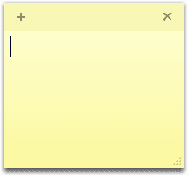
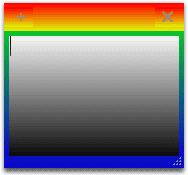
Custom
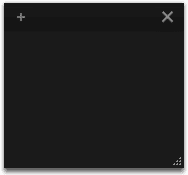
Get a copy of StikyNot.exe from C:\Windows\System32 and put it on your desktop.
Open it in Resource Hacker, on the left side expand UIFILE > 1001 > 1033 highlighted in yellow. On the right side under <style resid="Yellow"> change the rgb values highlighted in yellow.
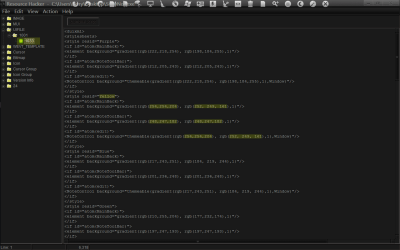
After you have changed the rgb values highlighted in yellow Click on Compile Script button. I have changed the values shown below in the Screenshot to show where their locations are.
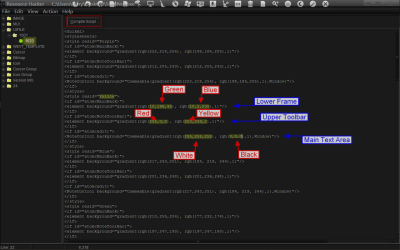
If all you wanted to do was change the look of the notepad background you are done click on File > Save. It will give you StikyNot_original.exe and StikyNot.exe
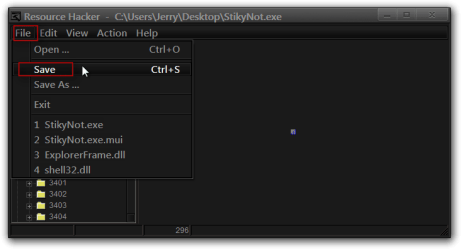
If you want to change the toolbar New Notepad + sign and Close X sign and the Grip on the lower right corner continue following this tutorial.
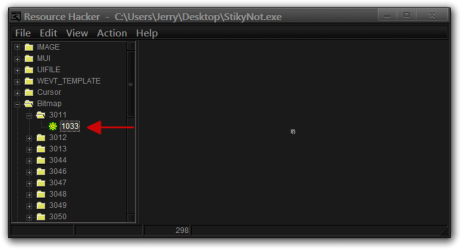
I will use the Grip in the lower right corner has the example. Expand Bitmap > 3011 > 1033.
Click on Action > Save[Bitmap : 3011 : 1033].
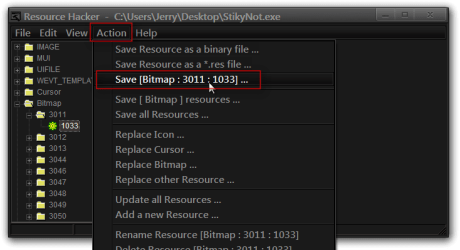
Named the file 3011 Save it to your desktop.
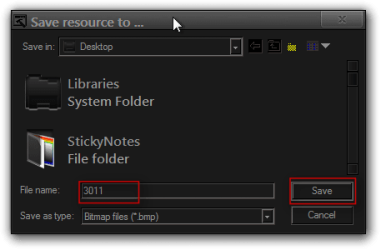
Edit the image to your liking with a image editor saving it back to your desktop.
Click on Action > Replace Bitmap.

Click on Open file with new bitmap.
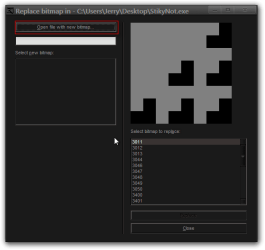
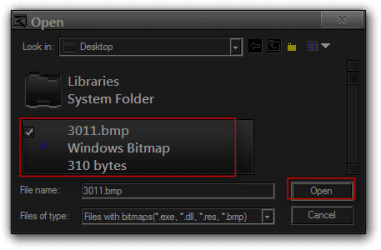
Navigate to the 3011.bmp (the one you edited) and click on Open.
Click on Replace.
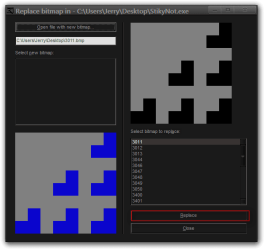
Repeat the above steps for each image.
When done click on File > Save . It will give you StikyNot_original.exe and StikyNot.exe
Go to C:\Windows\System32\StikyNot.exe and Take Ownership of it, then give yourself Permissions renamed to StikyNot.bak.exe replace with StikyNot.exe the modified one on your desktop.
Below are the image numbers for the Right Click menu Icon images.
Right Click menu icon #s 3044 to 3050
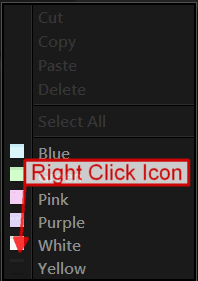
Below are the Toolbar and Gripimage numbers. You will notice that there are 3 numbers for each image it depends on which DPI setting you are using Small, Medium, Large.

Grip lower right corner #s 3011, 3012, 3013
New Note #s 3400,3401,3402
Close #s 3403,3404,3405
New Note Hot/Hover #s 3410,3411,3412
Close Hot/Hover #s 3413,3414,3415
New Note Pressed #s 3420,3421,3422
Close Pressed #s 3423,3424,3425
Jerry
Related Tutorials
- How to Create and Delete Sticky Notes in Windows 7 and Windows 8
- How to Format Text in a Sticky Note in Windows 7 and Windows 8
- How to Change the Default Font in Sticky Notes in Windows 7 and Windows 8
- How to Change the Color of a Sticky Note in Windows 7 and Windows 8
- How to Backup and Restore Sticky Notes in Windows 7 and Windows 8
Last edited by a moderator:


