Windows 7 Forums


Windows 7: Safe Mode with Command Prompt - Add to Windows Boot Manager Screen


Safe Mode with Command Prompt - Add to Windows Boot Manager Screen

How to Add Windows 7 "Safe Mode with Command Prompt" to Windows Boot Manager Screen
Published 17 Feb 2012
Published by

Featured Tutorial

User Profile - Customize During Installation

How to Customize Default User Profile in Audit Mode

Windows 7 Installation - Transfer to a New Computer

How to Transfer your Complete Windows 7 Installation to a New Computer

Safe Internet Browsing

How to safely operate on the internet and stay free from malware infections

Online Scanners - Scan Suspicious Files on your PC

How to Scan Suspicious Files using Online Scanners

Search - Find More with Filters and Operators

How to Use Windows Search Filters and Operators to get better Search Results in Windows 7

Microsoft Account - Sign up for and Create

How to Sign up for and Create a Microsoft Account
How to Add Windows 7 "Safe Mode with Command Prompt" to Windows Boot Manager Screen

information   Information
This will show you how to add Windows 7 Safe Mode with Command Prompt to the Windows Boot Manager to be able to easily select to startup into Safe Mode with Command Prompt, Windows 7, or any other installed OS at boot from the Windows Boot Manager screen.

This can be handy to have as another option to be able to start Windows 7 in Safe Mode with Command Prompt as needed.

You must be logged in as an administrator to be able to do the steps in this tutorial.


EXAMPLE: "Windows 7 Safe Mode with Command Prompt" added to Windows Boot Manager
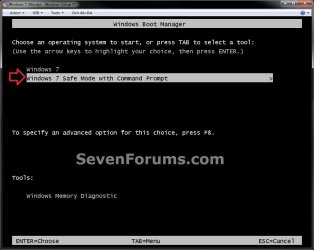
Safe Mode with Command Prompt - Add to Windows Boot Manager Screen-example.jpg


OPTION ONE
Add Windows 7 "Safe Mode with Command Prompt" to Windows Boot Manager
1. Open a elevated command prompt or a command prompt at boot.

2. In the command prompt, copy and paste the command below and press Enter. (see screenshot below)
bcdedit /enum /v
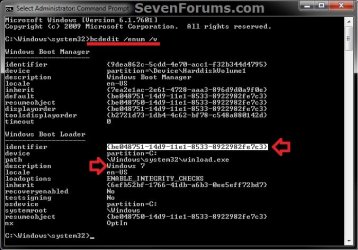

Safe Mode with Command Prompt - Add to Windows Boot Manager Screen-step-1.jpg
3. From under a Windows Boot Loader section, look for the description that has Windows 7 listed, and make note of it's identifier number (ex: {be048751-14d9-11e1-8533-8922982fe7c3} ) . (see screenshot above)

4. In the command prompt, type the command below and press Enter. (see screenshot below)
NOTE: Substitute identifier number in the command below with your actual Windows 7 identifier number from step 3.
bcdedit /copy {identifier number} /d “Windows 7 Safe Mode with Command Prompt”
For example: I would type this command below exactly for my identifier number {be048751-14d9-11e1-8533-8922982fe7c3}.

Code:
bcdedit /copy {be048751-14d9-11e1-8533-8922982fe7c3} /d “Windows 7 Safe Mode with Command Prompt”
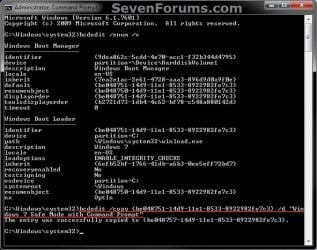
Safe Mode with Command Prompt - Add to Windows Boot Manager Screen-step-2.jpg
5. If successfully copied, close the elevated command prompt.
NOTE: If you did this from a command prompt at boot, then restart the computer into Windows 7 instead.

6. Open the Start Menu in Windows 7, type msconfig in the search box, and press Enter.

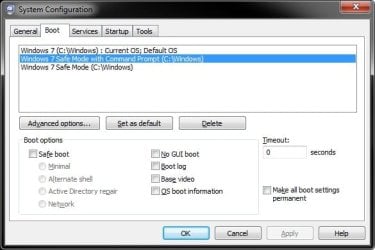
7. Click on the Boot tab, select Windows 7 Safe Mode with Command Prompt, check the Safe boot box and select (dot) Alternate shell, have enough seconds (ex: 30) entered under Timeout to be able to have enough time to select a OS at boot, check the Make all boot settings permanent box, and click on OK. (see screenshot below)
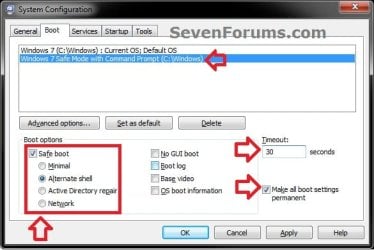
Safe Mode with Command Prompt - Add to Windows Boot Manager Screen-step-3.jpg

8. Click on Yes. (see screenshot below)
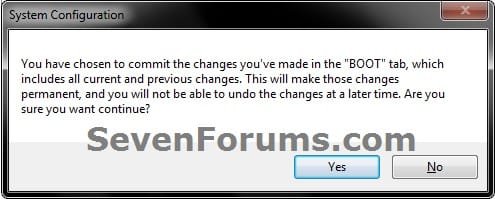
Safe Mode with Command Prompt - Add to Windows Boot Manager Screen-step-4.jpg

9. Click on Restart. (see screenshot below)
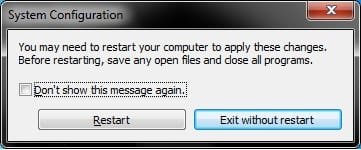
Safe Mode with Command Prompt - Add to Windows Boot Manager Screen-step-5.jpg
10. You will now be able to select to startup into Safe Mode with Command Prompt, Windows 7, or any other installed OS at boot from the Windows Boot Manager screen.


OPTION TWO
To Remove "Safe Mode with Command Prompt" from Windows Boot Manager
1. Boot into Windows 7, and not the Windows 7 Safe Mode with Command Prompt option.

2. Using either option in the tutorial below, delete the Windows 7 Safe Mode with Command Prompt entry like in the screenshots below.
How to Delete a Operating System Listed in Windows Boot Manager in Windows 7
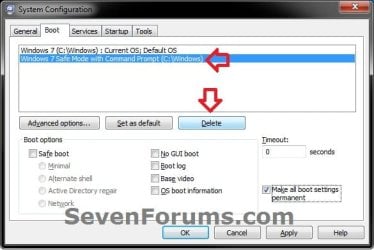

Safe Mode with Command Prompt - Add to Windows Boot Manager Screen-step-6.jpgSafe Mode with Command Prompt - Add to Windows Boot Manager Screen-step-7.jpg

That's it,
Shawn


Need more help? Try searching our extensive help and support site.
Loading
17 Feb 2012   #1
Infinite

Windows 7 Ultimate x64


I tried doing this, it successfully copied, but it would not add to msconfig, I assume you can only have 1 Safe Mode version at a time.

My System SpecsSystem Spec

17 Feb 2012   #2
Brink

64-bit Windows 7 Ultimate SP1 & Windows 8 Enterprise
Texas


Yep, as I posted yesterday in the other thread, you must do these one at a time from start to finish and not any of them together.
My System SpecsSystem Spec
17 Feb 2012   #3
Infinite

Windows 7 Ultimate x64


I did, I did the original a week ago, tried this but it wouldn't add it to msconfig.
My System SpecsSystem Spec
.


17 Feb 2012   #4
Brink

64-bit Windows 7 Ultimate SP1 & Windows 8 Enterprise
Texas


Oh, my apologies. I thought you were trying to do the network and command prompt one together.

Yes, you will be able to add as many different ones as you want to the Windows Boot Manager like in the msconfig screenshot below.
Safe Mode with Command Prompt - Add to Windows Boot Manager Screen-msconfig.jpg
Could you post screenshots of your command prompt doing the tutorial to see if anything (error messages, mistakes, etc...) may stand out as a cause for you?

If you had msconfig opened while doing the command prompt, then close and reopen msconfig to see if it's there afterwards.
My System SpecsSystem Spec
17 Feb 2012   #5
Infinite

Windows 7 Ultimate x64


OK I managed to add all three:
Safe Mode with Command Prompt - Add to Windows Boot Manager Screen-example.png
My System SpecsSystem Spec
17 Feb 2012   #6
Brink

64-bit Windows 7 Ultimate SP1 & Windows 8 Enterprise
Texas


That's great news.

Did you have msconfig open while doing the command prompt?
My System SpecsSystem Spec
17 Feb 2012   #7
Infinite

Windows 7 Ultimate x64


Quote   Quote: Originally Posted by Brink View Post
Did you have msconfig open while doing the command prompt?
I think so, yes.
My System SpecsSystem Spec
17 Feb 2012   #8
Brink

64-bit Windows 7 Ultimate SP1 & Windows 8 Enterprise
Texas


Eh, it happens to all of us.
My System SpecsSystem Spec
Comment

 Safe Mode with Command Prompt - Add to Windows Boot Manager Screen problems?


Tutorial Tools


Similar help and support threads for: Safe Mode with Command Prompt - Add to Windows Boot Manager Screen
Windows 7 Tutorial Category
Safe Mode with Networking - Add to Windows Boot Manager Screen Tutorials
Safe Mode - Add to Windows Boot Manager Screen in Windows 7 Tutorials
Solved Can't access Boot Option screen or Safe Mode Installation & Setup
Black screen at boot with safe mode, system restore, or repair mode Backup and Restore
Window and Text size in Command Prompt, Windows XP Mode Virtualization


All times are GMT -5. The time now is 11:56 PM.


Seven Forums Android App Seven Forums IOS App Follow us on Facebook

Windows 7 Forums is an independent web site and has not been authorized,
sponsored, or otherwise approved by Microsoft Corporation.
"Windows 7" and related materials are trademarks of Microsoft Corp.
© Designer Media Ltd
  

1 2 3 4 5 6 7 8 9 10 11 12 13 14 15 16 17 18 19 20 21 22 23 24 25 26 27 28 29 30 31 32