Windows 7 Forums Search
Welcome to Windows 7 Forums. Our forum is dedicated to helping you find solutions with any problems, errors or issues you are experiencing with Windows 7. The Windows 7 forum also covers news and updates and has an extensive Windows 7 tutorial section that covers a wide range of tips and tricks.


Windows 7 - Command Prompt - Copy to Clipboard

 
08-22-2009   #9
Brink


Windows 7 Ultimate x64 SP1


Command Prompt - Copy to Clipboard

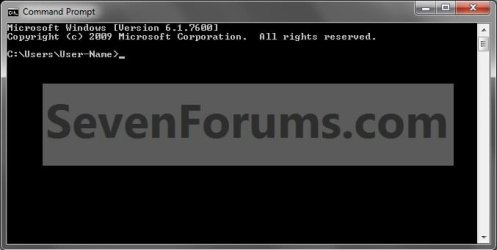
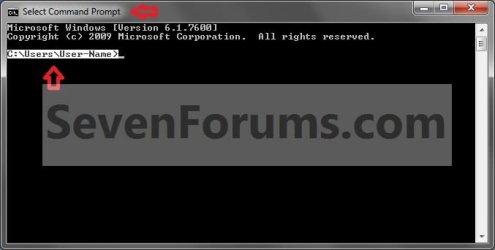
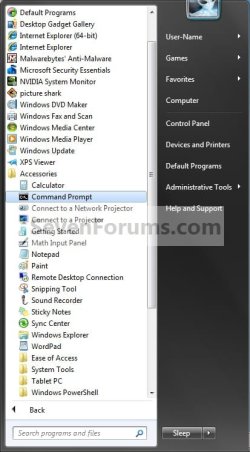
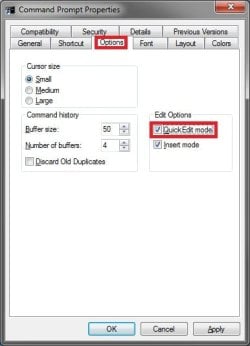
How to Enable Copy to Clipboard from the Windows 7 Command Prompt

...


Last edited by Brink; 01-25-2011 at 02:26 PM..
My System SpecsSystem Spec
08-23-2009   #10
Brink


Windows 7 Ultimate x64 SP1


Quote   Quote: Originally Posted by Wii Master 64 View Post
well, i went to the file that you specified in explorer, but when i right clicked it and hit properties, all that came up was 4 tabs that said general, security, and i forgot what the other 2 said. do i need to take ownership or something?
Hello Wii Master,

It can only be done using a command prompt shortcut. Tutorial updated.

My System SpecsSystem Spec
08-23-2009   #11
Wii Master 64


Windows 7 Home Premium


ok, thanks for telling me that. i figured it out now! that can really come in handy i also tried it in XP, and it works there as well.
My System SpecsSystem Spec
08-23-2009   #12
chuckr


XP_Pro, W7_7201, W7RC.vhd, SciLinux5.3, Fedora12, Fedora9_2x, OpenSolaris_09-06


Quote   Quote: Originally Posted by Brink View Post
Hello Wii Master,

It can only be done using a command prompt shortcut. Tutorial updated.
I enjoyed this posting yesterday but had no time for reply.

FWIW, I've been doing something 'similar' since the old millenium with NT.

I generally use a different 'technique', but its available at any DOS-box.
(Running XP right now, but Windows 7 works the same.)

1. R-click the icon at UpperLeft.

2. Click 'Properties' - This gives the whole 'shebang'...
My main targets here are the tabs, for 'Font' and 'color', and sometimes 'Layout' to set 'Window size' to 40 lines.

3. If you do not click 'Properties', and instead slide the cursor to 'Edit >'
you can click on 'Mark' - this allows highlighting with Left mouse-button,
dragging to hilite the area of interest.
Once done with that, hit 'Enter' on the KB. This copies hi-lite area to Clipboard, and you can Paste to wherever. (I use Notepad).

4. To 'copy' the entire screen, don't click 'Mark', but click 'Select All'.
Then, hit 'Enter' on the KB.

5. Since I don't like the default font, I use 'Lucida Console' at 14 points.
I also prefer the Green on Black for text-work.
Oh, and click: "Modify shortcut that started", if you want "persistence"...

Hope this helps...
(Don't want to spoil my reputation...)
Attached Thumbnails
Command Prompt - Copy to Clipboard-dos0.png   Command Prompt - Copy to Clipboard-dos1.png   Command Prompt - Copy to Clipboard-dos2edit.png   Command Prompt - Copy to Clipboard-dos3mark.png   Command Prompt - Copy to Clipboard-dos4selall.png  

Command Prompt - Copy to Clipboard-dos5selgot.png   Command Prompt - Copy to Clipboard-dos6lucida.png   Command Prompt - Copy to Clipboard-dos7green.png  

Last edited by chuckr; 08-23-2009 at 06:36 PM..
My System SpecsSystem Spec
08-23-2009   #13
Night Hawk


Windows 7 Ultimate x64, XP Mode(VPC and VMLite), VM Player 4.02, W8 CPreview


"I'll try copy and pasting this little change!"
Attached Thumbnails
Command Prompt - Copy to Clipboard-elevated-command-prompt-appearance.jpg   Command Prompt - Copy to Clipboard-elevated-command-prompt-appearance2.jpg   Command Prompt - Copy to Clipboard-elevated-command-prompt-appearance3.jpg  
My System SpecsSystem Spec
.


08-23-2009   #14
Brink


Windows 7 Ultimate x64 SP1


Quote   Quote: Originally Posted by ChuckR View Post
I enjoyed this posting yesterday but had no time for reply.

FWIW, I've been doing something 'similar' since the old millenium with NT.

I generally use a different 'technique', but its available at any DOS-box.
(Running XP right now, but Windows 7 works the same.)

1. R-click the icon at UpperLeft.

2. Click 'Properties' - This gives the whole 'shebang'...
My main targets here are the tabs, for 'Font' and 'color', and sometimes 'Layout' to set 'Window size' to 40 lines.

3. If you do not click 'Properties', and instead slide the cursor to 'Edit >'
you can click on 'Mark' - this allows highlighting with Left mouse-button,
dragging to hilite the area of interest.
Once done with that, hit 'Enter' on the KB. This copies hi-lite area to Clipboard, and you can Paste to wherever. (I use Notepad).

4. To 'copy' the entire screen, don't click 'Mark', but click 'Select All'.
Then, hit 'Enter' on the KB.

5. Since I don't like the default font, I use 'Lucida Console' at 14 points.
I also prefer the Green on Black for text-work.
Oh, and click: "Modify shortcut that started", if you want "persistence"...

Hope this helps...
(Don't want to spoil my reputation...)
Thank you Chuck. I added this as an option in step 1 of this tutorial.
My System SpecsSystem Spec
08-23-2009   #15
chuckr


XP_Pro, W7_7201, W7RC.vhd, SciLinux5.3, Fedora12, Fedora9_2x, OpenSolaris_09-06


Quote   Quote: Originally Posted by Brink View Post
Thank you Chuck. I added this as an option in step 1 of this tutorial.
You're welcome, Shawn.

It was kind of fun doing the write-up.
(Maybe some people would like Yellow text on black, etc)

And, Thank you!
My System SpecsSystem Spec
10-30-2010   #16
tartansailor


7 Home Premium 32 bit


Greetings,
I did the above, but it's WORD that I am trying to copy too, and I can not copy to WORD.

Help would be greatly appreciated.

Dick
My System SpecsSystem Spec
10-30-2010   #17
Brink


Windows 7 Ultimate x64 SP1


Hello Dick, and welcome to Seven Forums.

In the command prompt, highlight what you want to copy, then right click on it to add it to the clipboard. Next in Word, click on the page where you would like to copy it to, then press CTRL+V to copy it there.

Hope this helps,
Shawn
My System SpecsSystem Spec
10-30-2010   #18
tartansailor


7 Home Premium 32 bit


Hi Brink,
I'll be!
It worked!!
Sincere thanks,
Dick
My System SpecsSystem Spec
10-30-2010   #19
Brink


Windows 7 Ultimate x64 SP1


You're most welcome.
My System SpecsSystem Spec
Comment

 Command Prompt - Copy to Clipboard problems?


Tutorial Tools


Similar Threads for: Command Prompt - Copy to Clipboard
Windows 7 Tutorial Category
Run administrative command prompt from command prompt General Discussion
Copy Content to Clipboard - Add to Context Menu Tutorials
Solved Command Prompt General Discussion
Command Prompt command <ipconfig> not working Network & Sharing
How to fix MBR through command prompt? General Discussion


All times are GMT -5. The time now is 02:23 AM.


Windows 7 Forums is an independent web site and has not been authorized,
sponsored, or otherwise approved by Microsoft Corporation.
"Windows 7" and related materials are trademarks of Microsoft Corp.
© Designer Media Ltd
  

1 2 3 4 5 6 7 8 9 10 11 12 13 14 15 16 17 18 19 20 21 22 23 24 25 26 27 28 29 30