
Virtual XP Machine - Copy

How to Copy a Virtual XP Machine in Windows 7

   Note
Notice please:

This tutorial was written when we were still using first beta versions of Virtual PC and XP mode. This method to copy a VPC virtual machine was the most practical at that time. It still is a fully working and secure way to copy a virtual machine.

Today, with the current version of VPC and XP Mode, copying a virtual machine is much easier. Basically, all you have to do is to copy a vhd-file to another location on same computer and create a new virtual machine using an existing vhd as told here.

Kari
November 2010


   Information
This tutorial will show how to make a working copy of a Virtual XP Machine. Same priciple can also be used to make a copy of any Virtual PC virtual hard disk.

By default, XP Mode virtual machine consists of five files when installed and run first time, plus two additional files if XP Mode is hibernated or the Undo Disk feature is enabled. The file names, extensions and default locations are:

  • Windows XP Mode base.vhd
    • XP Mode base disk, contains the core elements of operating system (XP), no user data is saved on this virtual disk
    • default location C:\Program Files\Windows XP Mode
  • Windows XP Mode.vhd
    • Virtual Machine virtual hard drive image, all user data and content is saved on this virtual disk
    • default location C:\Users\Your_Username\AppData\Local\Microsoft\Windows Virtual PC\Virtual Machines
  • Windows XP Mode.vmcx
    • Virtual Machine description and registration settings
    • default location C:\Users\Your_Username\Virtual Machines
  • Windows XP Mode.vmc
    • Virtual Machine settings file
    • default location C:\Users\Your_Username\AppData\Local\Microsoft\Windows Virtual PC\Virtual Machines
  • Windows XP Mode.vmc.vpcbackup
    • Virtual Machine settings backup
    • default location C:\Users\Your_Username\AppData\Local\Microsoft\Windows Virtual PC\Virtual Machines
    Additional files, only exist when certain criteria is met:
  • Windows XP Mode.vsv
    • Virtual Machine saved state file (hibernation data)
    • default location C:\Users\Your_Username\AppData\Local\Microsoft\Windows Virtual PC\Virtual Machines
    • This file exists only when XP Mode is hibernated or is running. It is deleted automatically every time XP Mode is shut down
  • VirtualPCUndo_Windows XP Mode_X_Y_ZZZZZZZZZZZZZZ.vud
    • Virtual machine Undo-disk (X, Y & Z in the file name are replaced with digits)
    • default location C:\Users\Your_Username\AppData\Local\Microsoft\Windows Virtual PC\Virtual Machines
    • This file exists only if so called Undo Disk is enabled in XP Mode settings

Copying Virtual XP or any other virtual hard disk created with Virtual PC is very easy and fast. Here's what you have to do:


  1. Turn off your Virtual XP, do not hibernate it
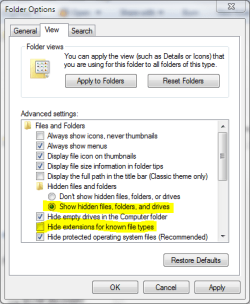
  2. Open Folder Options, choose Show hidden files, folders and drives. Uncheck Hide extensions for known file types
    Hide_Extension.PNG
  3. Goto C:\Users\Your_Username\AppData\Local\Microsoft\Windows Virtual PC\Virtual Machines
  4. Copy Windows XP Mode.vhd and Windows XP Mode.vmc files
  5. Paste files to the same folder. Windows adds word Copy to both filenames, so now you have two new files: Windows XP Mode - Copy.vhd and Windows XP Mode - Copy.vmc
  6. Open Windows XP Mode - Copy.vmc with Notepad. It is a xml-file, so you can edit it normally with Notepad
  7. Find the following string containing virtual drives name: <drive_type type="integer">1</drive_type>

    Name_of_vhd.PNG
  8. Under the <drive_type...> change the vhd-file name to Windows XP Mode - Copy.vhd both in <absolute type="string"> and <relative type="string">
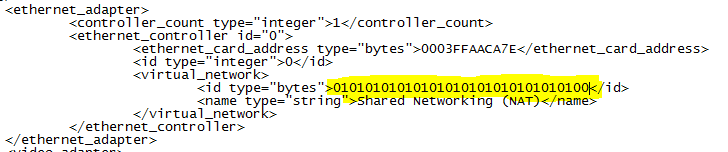
  9. Find the following place under <virtual_network> containing MAC-adress for Virtual XP's ethernet adapter: <id type="bytes">
    Ethernet.PNG
  10. To allow two copies of Virtual XP to connect to network simultaneously , we have to change the MAC-adress of the ethernet adapter to avoid MAC-adress conflict. Adress is given in hex, 0-9 and A-E. It is enough to change one bit. In this example we have changed the last bit from 1 to 0
  11. Save and close the file
  12. Go to C:\Users\Your_Username\Virtual Machines , copy Windows XP Mode.vmcx and paste it to same folder
  13. Open the file Windows XP Mode - Copy.vmcx with Notepad
  14. Change the file names to Windows XP Mode - Copy.vhd in <primary_disk1 type="string"> and to Windows XP Mode - Copy.vmc in <vmc_path type="string">

    name_vmcx.PNG
  15. Save and close the file
  16. Open Folder Options and choose Don't show hidden files, folders or drives. Check Hide extensions for known file types and click OK.
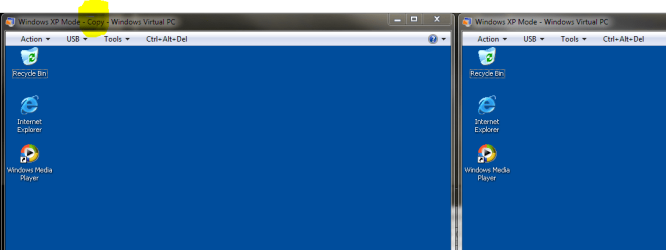
That's it. Now you can run two Virtual XP's simultaneously.
VirtualXP_copy.PNG
Have fun,

Kari

EDIT: Thanks to Brink for visual appearance.


Last edited:
Thanks, mate. Don't know about being an expert. I just need Virtual Machines at my line of work.

Kari
 

My Computer

Computer type
Laptop
Computer Manufacturer/Model Number
HP ENVY 17-1150eg
OS
Windows 10 Pro x64 EN-GB
CPU
1.6 GHz Intel Core i7-720QM Processor
Memory
6 GB
Graphics Card(s)
ATI Mobility Radeon HD 5850 Graphics
Sound Card
Beats sound system with integrated subwoofer
Monitor(s) Displays
17" laptop display, 22" LED and 32" Full HD TV through HDMI
Screen Resolution
1600*900 (1), 1920*1080 (2&3)
Hard Drives
Internal: 2 x 500 GB SATA Hard Disk Drive 7200 rpm
External: 2TB for backups, 3TB USB3 network drive for media
Cooling
As Envy runs a bit warm, I have it on a Cooler Master pad
Keyboard
Logitech diNovo Media Desktop Laser (bluetooth)
Mouse
Logitech Performance Mouse MX
Internet Speed
50/10 Mbps VDSL
Antivirus
Windows Defender 4.3.9431.0
Browser
Maxthon 3.5.2., IE11
Didn't work for me.:cry:

I even tried copying and editing the .vmcx file. When I try to run it or check the settings, I get an error that I don't have premission or the file is missing, then it disappears.
 

My Computer

OS
Win 7
Didn't work for me.:cry:

I even tried copying and editing the .vmcx file. When I try to run it or check the settings, I get an error that I don't have premission or the file is missing, then it disappears.
It works. Please do not misunderstand me but it have to be a self caused issue, like misspelling or forgetting something.

Here's a short checklist:

  • Do not change the file locations:
    • The vmcx-files should always be located in C:\Your_Username\Virtual Machines
    • The vmc-, vhd- and possible vsv-files should always be located in C:\Your_Username\AppData\Local\Microsoft\Windows Virtual PC\Virtual Machines
  • The virtual machine you copy must be powered down, not hibernated
  • All virtual machine files belonging to a certain virtual machine must have exactly the same name, only difference being the filename extension
  • Tutorial, point 7: vhd-name must be changed in both absolute and relative type
  • Tutorial, point 10: MAC-Address must be a valid 32-bit hexadecimal
  • Tutorial, point 13: vhd-name must be changed in both primary_disk1 type and vmc_path type
So, check spelling, check the files needed are in the right folders, and check you edited the right files; for example after copying and pasting the files edit the copies, not the originals.

Good luck.

Kari
 
Last edited:

My Computer

Computer type
Laptop
Computer Manufacturer/Model Number
HP ENVY 17-1150eg
OS
Windows 10 Pro x64 EN-GB
CPU
1.6 GHz Intel Core i7-720QM Processor
Memory
6 GB
Graphics Card(s)
ATI Mobility Radeon HD 5850 Graphics
Sound Card
Beats sound system with integrated subwoofer
Monitor(s) Displays
17" laptop display, 22" LED and 32" Full HD TV through HDMI
Screen Resolution
1600*900 (1), 1920*1080 (2&3)
Hard Drives
Internal: 2 x 500 GB SATA Hard Disk Drive 7200 rpm
External: 2TB for backups, 3TB USB3 network drive for media
Cooling
As Envy runs a bit warm, I have it on a Cooler Master pad
Keyboard
Logitech diNovo Media Desktop Laser (bluetooth)
Mouse
Logitech Performance Mouse MX
Internet Speed
50/10 Mbps VDSL
Antivirus
Windows Defender 4.3.9431.0
Browser
Maxthon 3.5.2., IE11
Beta to RC

It's worth noting that if you go from W7VPC Beta to RC, the instructs listed are not quite enough (if you're using dynamic disks). You also need to copy the parent disk to the exact same location on the new computer. In my case, this simply meant copying over the "C:\Program Files\Virtual Windows XP" folder.
 

My Computer

OS
Windows 7 Professional RTM
Here I was able to backup the entire virtual machines folder before proceeding to place them into the new folder on a fresh install of 7 to see the XP Mode as well as a previous Vista on vhd install run again.

Later when the VPC RC and XP Mode RC were released the same vhd used for Vista needed a fresh install where the 32bit 7 RC was used to replace Vista on that same vhd!
 

My Computers

System One System Two

  • Computer type
    PC/Desktop
    Computer Manufacturer/Model Number
    Custom builds = 2
    OS
    W7 Ultimate x64/W10 Pro x64/W11 Pro Triple Boot - Main PC W7 Remote PC Micro ATX W7 Pro x64/W11 Pro
    CPU
    AMD Phenom II X4 975 Deneb 3.6ghz - 965 2nd remote pc
    Motherboard
    Gigabyte GA-790XTA-UD4-Gigabyte GA-880GM-D2H remote pc
    Memory
    Kingston Hyper X DDR3 1600 1.5v 16gb - Hyper X Fury 8gb 2nd
    Graphics Card(s)
    MSI HD Radeon 5750 1gb - MSI HD Radeon 6450 on mini tower
    Sound Card
    Creative Labs X-Fi Xtreme Audio P - Realtek onooard 2nd case
    Monitor(s) Displays
    ASUS VW199T-P 19" HP 2082a Main-HP 2082a 20" remote pc
    Screen Resolution
    Asus 1440x900 - HP 1600x900
    Hard Drives
    WD Black 1TB HD per OS W7, W10, and pending W11 presently on 500gb OS Drive - Pending Triple 1TB HDs for Spanned Storage/backup volume
    Single 2TB external USB enclosure, single 1TB System 7 Host/Boot drive, Pending 8TB external HD for system image b
    PSU
    Corsair 750TX - primary / Corsair CX600 - second
    Case
    Antec 900-2 - SSD compatible / NZXT Vulcan mini tower
    Cooling
    Zalman CNPS9900A
    Keyboard
    AZIO L70 Backlit Letters Gaming - ONN Cordless/USB
    Mouse
    MSI DS200 Programmable, Logitech Cordless
    Internet Speed
    30mbps upgrade - primary hard wired - mini tower usb WiFi
    Antivirus
    GFI VIPRE Internet Security 2014 on W7 2016 beta on W10,
    Browser
    Cyberfox, WaterFox 64bit FF variants, FireFox x64, Pale Moon
    Other Info
    Accomdata fan cooled usb 2.0 PIDE/Sata II, III external enclosure.
    Sambient usb/eSata PATA/Sata II, III external enclosure.
  • Computer type
    PC/Desktop
    System Manufacturer/Model Number
    CUSTOM ASSEMBLY
    OS
    W7 Pro x64/W11 Pro
    CPU
    AMD Deneb 3.6ghz - 965
    Motherboard
    Gigabyte GA-880GM-D2H remote pc
    Memory
    Kingston Hyper X Fury 8gb
    Graphics Card(s)
    MSI HD Radeon 6450 DVI Output
    Sound Card
    Realtek onooard Creative or Other separate PENDING
    Monitor(s) Displays
    VIZIO 32" LCD TV Separate LCD Pending
    Screen Resolution
    1600x1080
    Hard Drives
    WD 500GB OS Host/Boot WD Green 1TB Storage/Backup
    PSU
    Corsair 600W - THERMALTAKE 600W spare case
    Case
    NZXT Vulcan mini tower
    Cooling
    Twin 120mm Top Fans - 240mm Side Cover
    Keyboard
    ONN Cordless/USB Logitech Cordless
    Mouse
    ONN USB/Cordless - Logitech Cordless
    Internet Speed
    DSL 5G
    Browser
    MS Edge, FireFox, WaterFox x64, FireFox Nightly
    Other Info
    OS Testing-Remote Access to Main TeamViewer
I see same problem as JackStockton

I've been through the steps a few times with care, and I see the same strange behavior JackStockton mentioned where the .vmcx disappears as soon as I click on it. I will post a solution if I figure it out, but I just wanted to reinforce that JackStockton is not imagining things, and as near as I can tell, not failing to follow the directions with care.
 

My Computer

OS
W7 Pro
Welcome to the Se7en Forums! rfeague

One thing I found fast from the time this guide was first posted here and once the final XP Mode was available was that copying no longer worked as it had been seen with the XP Mode RC version which was the only version available at the time.

The final version runs like an installer with a preconfigured setup mode for each fresh install there unlike the RC. The guide here worked then for the RC version however but now needs to be updated.

When the RC version was used on a second 7 RC installation I would simply create a new shortcut once the files/folders were copied over once a fresh install of the Virtual PC was seen first to have it work then.

First you now install the VPC, restart the system, and then install the XP Mode later to watch the setup take place.
 

My Computers

System One System Two

  • Computer type
    PC/Desktop
    Computer Manufacturer/Model Number
    Custom builds = 2
    OS
    W7 Ultimate x64/W10 Pro x64/W11 Pro Triple Boot - Main PC W7 Remote PC Micro ATX W7 Pro x64/W11 Pro
    CPU
    AMD Phenom II X4 975 Deneb 3.6ghz - 965 2nd remote pc
    Motherboard
    Gigabyte GA-790XTA-UD4-Gigabyte GA-880GM-D2H remote pc
    Memory
    Kingston Hyper X DDR3 1600 1.5v 16gb - Hyper X Fury 8gb 2nd
    Graphics Card(s)
    MSI HD Radeon 5750 1gb - MSI HD Radeon 6450 on mini tower
    Sound Card
    Creative Labs X-Fi Xtreme Audio P - Realtek onooard 2nd case
    Monitor(s) Displays
    ASUS VW199T-P 19" HP 2082a Main-HP 2082a 20" remote pc
    Screen Resolution
    Asus 1440x900 - HP 1600x900
    Hard Drives
    WD Black 1TB HD per OS W7, W10, and pending W11 presently on 500gb OS Drive - Pending Triple 1TB HDs for Spanned Storage/backup volume
    Single 2TB external USB enclosure, single 1TB System 7 Host/Boot drive, Pending 8TB external HD for system image b
    PSU
    Corsair 750TX - primary / Corsair CX600 - second
    Case
    Antec 900-2 - SSD compatible / NZXT Vulcan mini tower
    Cooling
    Zalman CNPS9900A
    Keyboard
    AZIO L70 Backlit Letters Gaming - ONN Cordless/USB
    Mouse
    MSI DS200 Programmable, Logitech Cordless
    Internet Speed
    30mbps upgrade - primary hard wired - mini tower usb WiFi
    Antivirus
    GFI VIPRE Internet Security 2014 on W7 2016 beta on W10,
    Browser
    Cyberfox, WaterFox 64bit FF variants, FireFox x64, Pale Moon
    Other Info
    Accomdata fan cooled usb 2.0 PIDE/Sata II, III external enclosure.
    Sambient usb/eSata PATA/Sata II, III external enclosure.
  • Computer type
    PC/Desktop
    System Manufacturer/Model Number
    CUSTOM ASSEMBLY
    OS
    W7 Pro x64/W11 Pro
    CPU
    AMD Deneb 3.6ghz - 965
    Motherboard
    Gigabyte GA-880GM-D2H remote pc
    Memory
    Kingston Hyper X Fury 8gb
    Graphics Card(s)
    MSI HD Radeon 6450 DVI Output
    Sound Card
    Realtek onooard Creative or Other separate PENDING
    Monitor(s) Displays
    VIZIO 32" LCD TV Separate LCD Pending
    Screen Resolution
    1600x1080
    Hard Drives
    WD 500GB OS Host/Boot WD Green 1TB Storage/Backup
    PSU
    Corsair 600W - THERMALTAKE 600W spare case
    Case
    NZXT Vulcan mini tower
    Cooling
    Twin 120mm Top Fans - 240mm Side Cover
    Keyboard
    ONN Cordless/USB Logitech Cordless
    Mouse
    ONN USB/Cordless - Logitech Cordless
    Internet Speed
    DSL 5G
    Browser
    MS Edge, FireFox, WaterFox x64, FireFox Nightly
    Other Info
    OS Testing-Remote Access to Main TeamViewer
Didn't work for me.:cry:

I even tried copying and editing the .vmcx file. When I try to run it or check the settings, I get an error that I don't have premission or the file is missing, then it disappears.

I've been through the steps a few times with care, and I see the same strange behavior JackStockton mentioned where the .vmcx disappears as soon as I click on it. I will post a solution if I figure it out, but I just wanted to reinforce that JackStockton is not imagining things, and as near as I can tell, not failing to follow the directions with care.

Welcome to the Se7en Forums! rfeague

One thing I found fast from the time this guide was first posted here and once the final XP Mode was available was that copying no longer worked as it had been seen with the XP Mode RC version which was the only version available at the time.

The final version runs like an installer with a preconfigured setup mode for each fresh install there unlike the RC. The guide here worked then for the RC version however but now needs to be updated.

When the RC version was used on a second 7 RC installation I would simply create a new shortcut once the files/folders were copied over once a fresh install of the Virtual PC was seen first to have it work then.

First you now install the VPC, restart the system, and then install the XP Mode later to watch the setup take place.

I really do not know why some of you guys are experiencing problems. To re-test the validity of this tutorial, I checked everything once more this morning.

I followed tutorial literally and it works. In the attached screenshot from this morning you can see two independent XP Modes open at the same time, both having different software installed, both connected to network.

It's worth noting that if you go from W7VPC Beta to RC, the instructs listed are not quite enough (if you're using dynamic disks). You also need to copy the parent disk to the exact same location on the new computer. In my case, this simply meant copying over the "C:\Program Files\Virtual Windows XP" folder.
I have Virtual PC and XP Mode RC, and this method works as it did with beta. The base vhd-file in C:\Program Files\Virtual Windows XP should not be copied, it is as the name says the base to every copy of the XP Mode.

Kari

XP Mode Copy.png
 
Last edited:

My Computer

Computer type
Laptop
Computer Manufacturer/Model Number
HP ENVY 17-1150eg
OS
Windows 10 Pro x64 EN-GB
CPU
1.6 GHz Intel Core i7-720QM Processor
Memory
6 GB
Graphics Card(s)
ATI Mobility Radeon HD 5850 Graphics
Sound Card
Beats sound system with integrated subwoofer
Monitor(s) Displays
17" laptop display, 22" LED and 32" Full HD TV through HDMI
Screen Resolution
1600*900 (1), 1920*1080 (2&3)
Hard Drives
Internal: 2 x 500 GB SATA Hard Disk Drive 7200 rpm
External: 2TB for backups, 3TB USB3 network drive for media
Cooling
As Envy runs a bit warm, I have it on a Cooler Master pad
Keyboard
Logitech diNovo Media Desktop Laser (bluetooth)
Mouse
Logitech Performance Mouse MX
Internet Speed
50/10 Mbps VDSL
Antivirus
Windows Defender 4.3.9431.0
Browser
Maxthon 3.5.2., IE11
When Vista was on one vhd I copied the vhd itself over to the next drive and ran it there. The same worked for the 32bit 7 RC upgrade over that but all this was seen on the VPC and XP Mode RCs not final.

When going to start up the XP Mode RC with a new vhd already sitting blank waiting for an OS instead of seeing the XP Mode come right up the installer for Windows disk in the drive would load!

The images here are part of a guide I made up for installing Vista on a VM last summer. The finished XP Mode however will still see the "press any key to boot from dvd" message and then proceed onto the XP Mode's desktop.
 

Attachments

  • INSTALL VISTA6.jpg
    INSTALL VISTA6.jpg
    86.8 KB · Views: 379
  • INSTALL VISTA5.jpg
    INSTALL VISTA5.jpg
    139 KB · Views: 377
  • INSTALL VISTA4.jpg
    INSTALL VISTA4.jpg
    102.2 KB · Views: 379
  • INSTALL VISTA3.jpg
    INSTALL VISTA3.jpg
    68.2 KB · Views: 309
  • INSTALL VISTA2.jpg
    INSTALL VISTA2.jpg
    67 KB · Views: 363
  • INSTALL VISTA1.jpg
    INSTALL VISTA1.jpg
    72.8 KB · Views: 389

My Computers

System One System Two

  • Computer type
    PC/Desktop
    Computer Manufacturer/Model Number
    Custom builds = 2
    OS
    W7 Ultimate x64/W10 Pro x64/W11 Pro Triple Boot - Main PC W7 Remote PC Micro ATX W7 Pro x64/W11 Pro
    CPU
    AMD Phenom II X4 975 Deneb 3.6ghz - 965 2nd remote pc
    Motherboard
    Gigabyte GA-790XTA-UD4-Gigabyte GA-880GM-D2H remote pc
    Memory
    Kingston Hyper X DDR3 1600 1.5v 16gb - Hyper X Fury 8gb 2nd
    Graphics Card(s)
    MSI HD Radeon 5750 1gb - MSI HD Radeon 6450 on mini tower
    Sound Card
    Creative Labs X-Fi Xtreme Audio P - Realtek onooard 2nd case
    Monitor(s) Displays
    ASUS VW199T-P 19" HP 2082a Main-HP 2082a 20" remote pc
    Screen Resolution
    Asus 1440x900 - HP 1600x900
    Hard Drives
    WD Black 1TB HD per OS W7, W10, and pending W11 presently on 500gb OS Drive - Pending Triple 1TB HDs for Spanned Storage/backup volume
    Single 2TB external USB enclosure, single 1TB System 7 Host/Boot drive, Pending 8TB external HD for system image b
    PSU
    Corsair 750TX - primary / Corsair CX600 - second
    Case
    Antec 900-2 - SSD compatible / NZXT Vulcan mini tower
    Cooling
    Zalman CNPS9900A
    Keyboard
    AZIO L70 Backlit Letters Gaming - ONN Cordless/USB
    Mouse
    MSI DS200 Programmable, Logitech Cordless
    Internet Speed
    30mbps upgrade - primary hard wired - mini tower usb WiFi
    Antivirus
    GFI VIPRE Internet Security 2014 on W7 2016 beta on W10,
    Browser
    Cyberfox, WaterFox 64bit FF variants, FireFox x64, Pale Moon
    Other Info
    Accomdata fan cooled usb 2.0 PIDE/Sata II, III external enclosure.
    Sambient usb/eSata PATA/Sata II, III external enclosure.
  • Computer type
    PC/Desktop
    System Manufacturer/Model Number
    CUSTOM ASSEMBLY
    OS
    W7 Pro x64/W11 Pro
    CPU
    AMD Deneb 3.6ghz - 965
    Motherboard
    Gigabyte GA-880GM-D2H remote pc
    Memory
    Kingston Hyper X Fury 8gb
    Graphics Card(s)
    MSI HD Radeon 6450 DVI Output
    Sound Card
    Realtek onooard Creative or Other separate PENDING
    Monitor(s) Displays
    VIZIO 32" LCD TV Separate LCD Pending
    Screen Resolution
    1600x1080
    Hard Drives
    WD 500GB OS Host/Boot WD Green 1TB Storage/Backup
    PSU
    Corsair 600W - THERMALTAKE 600W spare case
    Case
    NZXT Vulcan mini tower
    Cooling
    Twin 120mm Top Fans - 240mm Side Cover
    Keyboard
    ONN Cordless/USB Logitech Cordless
    Mouse
    ONN USB/Cordless - Logitech Cordless
    Internet Speed
    DSL 5G
    Browser
    MS Edge, FireFox, WaterFox x64, FireFox Nightly
    Other Info
    OS Testing-Remote Access to Main TeamViewer
Works for some

I really do not know why some of you guys are experiencing problems. To re-test the validity of this tutorial, I checked everything once more this morning.

I followed tutorial literally and it works.

Hi Kari -
I have no doubt this works perfectly for you, and I am grateful for your efforts to post these instructions. But clearly it doesn't work for everyone. Now we just need to figure out what's different between our setups. I'm on the release version of Windows 7 Professional v6.1 build 7600. The VM I was trying to copy is not the original Windows XP Mode vm, but rather a new VM I created from scratch. Maybe that's the difference? My vm disk is of type "dynamic", not "differencing" like the pre-configured XP Mode vm. As such, it has no parent disk specified. I have undo disks enabled, which may have an effect as well (although I made sure to discard all the changes before copying the VM). The other difference I can see is that my networking is not "Shared" like it is with the pre-configured XP Mode VM, but I doubt that matters.
-Roy
 

My Computer

OS
W7 Pro
Ok, rfeague. I'll try to install new virtual machine using my old XP Pro disk. I'll be back to tell how it went.

Kari
 

My Computer

Computer type
Laptop
Computer Manufacturer/Model Number
HP ENVY 17-1150eg
OS
Windows 10 Pro x64 EN-GB
CPU
1.6 GHz Intel Core i7-720QM Processor
Memory
6 GB
Graphics Card(s)
ATI Mobility Radeon HD 5850 Graphics
Sound Card
Beats sound system with integrated subwoofer
Monitor(s) Displays
17" laptop display, 22" LED and 32" Full HD TV through HDMI
Screen Resolution
1600*900 (1), 1920*1080 (2&3)
Hard Drives
Internal: 2 x 500 GB SATA Hard Disk Drive 7200 rpm
External: 2TB for backups, 3TB USB3 network drive for media
Cooling
As Envy runs a bit warm, I have it on a Cooler Master pad
Keyboard
Logitech diNovo Media Desktop Laser (bluetooth)
Mouse
Logitech Performance Mouse MX
Internet Speed
50/10 Mbps VDSL
Antivirus
Windows Defender 4.3.9431.0
Browser
Maxthon 3.5.2., IE11
Did not find my XP install CD, so I tested now with Vista Ultimate.

I installed first Vista to a Virtual PC virtual machine. When it was installed, I turned it of and followed this tutorial step by step to make an independent copy.

I then booted both, changed desktop on one and installed Firefox to the other, only to check that they really are two fully separate machines. Everything works, as you can see in the attached screenshot.

I do not know what else to say. If the computer can run Virtual PC, making a copy of any virtual machine is just so easy as told in this tutorial.

Kari
 

Attachments

  • VirtualVistaCopy.png
    VirtualVistaCopy.png
    710.9 KB · Views: 429

My Computer

Computer type
Laptop
Computer Manufacturer/Model Number
HP ENVY 17-1150eg
OS
Windows 10 Pro x64 EN-GB
CPU
1.6 GHz Intel Core i7-720QM Processor
Memory
6 GB
Graphics Card(s)
ATI Mobility Radeon HD 5850 Graphics
Sound Card
Beats sound system with integrated subwoofer
Monitor(s) Displays
17" laptop display, 22" LED and 32" Full HD TV through HDMI
Screen Resolution
1600*900 (1), 1920*1080 (2&3)
Hard Drives
Internal: 2 x 500 GB SATA Hard Disk Drive 7200 rpm
External: 2TB for backups, 3TB USB3 network drive for media
Cooling
As Envy runs a bit warm, I have it on a Cooler Master pad
Keyboard
Logitech diNovo Media Desktop Laser (bluetooth)
Mouse
Logitech Performance Mouse MX
Internet Speed
50/10 Mbps VDSL
Antivirus
Windows Defender 4.3.9431.0
Browser
Maxthon 3.5.2., IE11
The reason the XP Pro disk wasn't seen is that XP is not supported on the VPC. Vista is required. The Vista install later to 32bit RC worked when copied over to a second RC by simply creating a new shortcut to the vmc file itself. Virtual Box or another VM ware. :(

You still have to install the Windows Virtual PC before you can do anything else however. The setup for the XP Mode mainly preconfigures the vhd as it detects the hardwares on your system as it creates the new files on the drive in the designated folders there.

Even 7 was installed to the VPC as you can see here but has one unresolved problem connecting. The device manager there shows everything properly including the virtual ethernet adapter while the XP Mode and previous Vista and 32bit RC vhds never ran into this. Blocked by Windows Firewall until on the excepted programs list!
 

Attachments

  • W7 on VPC.jpg
    W7 on VPC.jpg
    66.1 KB · Views: 373
  • W7 on VPC Network Issues.jpg
    W7 on VPC Network Issues.jpg
    116.2 KB · Views: 374
  • W7 on VPC Block by Firewall.jpg
    W7 on VPC Block by Firewall.jpg
    130.9 KB · Views: 389

My Computers

System One System Two

  • Computer type
    PC/Desktop
    Computer Manufacturer/Model Number
    Custom builds = 2
    OS
    W7 Ultimate x64/W10 Pro x64/W11 Pro Triple Boot - Main PC W7 Remote PC Micro ATX W7 Pro x64/W11 Pro
    CPU
    AMD Phenom II X4 975 Deneb 3.6ghz - 965 2nd remote pc
    Motherboard
    Gigabyte GA-790XTA-UD4-Gigabyte GA-880GM-D2H remote pc
    Memory
    Kingston Hyper X DDR3 1600 1.5v 16gb - Hyper X Fury 8gb 2nd
    Graphics Card(s)
    MSI HD Radeon 5750 1gb - MSI HD Radeon 6450 on mini tower
    Sound Card
    Creative Labs X-Fi Xtreme Audio P - Realtek onooard 2nd case
    Monitor(s) Displays
    ASUS VW199T-P 19" HP 2082a Main-HP 2082a 20" remote pc
    Screen Resolution
    Asus 1440x900 - HP 1600x900
    Hard Drives
    WD Black 1TB HD per OS W7, W10, and pending W11 presently on 500gb OS Drive - Pending Triple 1TB HDs for Spanned Storage/backup volume
    Single 2TB external USB enclosure, single 1TB System 7 Host/Boot drive, Pending 8TB external HD for system image b
    PSU
    Corsair 750TX - primary / Corsair CX600 - second
    Case
    Antec 900-2 - SSD compatible / NZXT Vulcan mini tower
    Cooling
    Zalman CNPS9900A
    Keyboard
    AZIO L70 Backlit Letters Gaming - ONN Cordless/USB
    Mouse
    MSI DS200 Programmable, Logitech Cordless
    Internet Speed
    30mbps upgrade - primary hard wired - mini tower usb WiFi
    Antivirus
    GFI VIPRE Internet Security 2014 on W7 2016 beta on W10,
    Browser
    Cyberfox, WaterFox 64bit FF variants, FireFox x64, Pale Moon
    Other Info
    Accomdata fan cooled usb 2.0 PIDE/Sata II, III external enclosure.
    Sambient usb/eSata PATA/Sata II, III external enclosure.
  • Computer type
    PC/Desktop
    System Manufacturer/Model Number
    CUSTOM ASSEMBLY
    OS
    W7 Pro x64/W11 Pro
    CPU
    AMD Deneb 3.6ghz - 965
    Motherboard
    Gigabyte GA-880GM-D2H remote pc
    Memory
    Kingston Hyper X Fury 8gb
    Graphics Card(s)
    MSI HD Radeon 6450 DVI Output
    Sound Card
    Realtek onooard Creative or Other separate PENDING
    Monitor(s) Displays
    VIZIO 32" LCD TV Separate LCD Pending
    Screen Resolution
    1600x1080
    Hard Drives
    WD 500GB OS Host/Boot WD Green 1TB Storage/Backup
    PSU
    Corsair 600W - THERMALTAKE 600W spare case
    Case
    NZXT Vulcan mini tower
    Cooling
    Twin 120mm Top Fans - 240mm Side Cover
    Keyboard
    ONN Cordless/USB Logitech Cordless
    Mouse
    ONN USB/Cordless - Logitech Cordless
    Internet Speed
    DSL 5G
    Browser
    MS Edge, FireFox, WaterFox x64, FireFox Nightly
    Other Info
    OS Testing-Remote Access to Main TeamViewer
I do not know what else to say. If the computer can run Virtual PC, making a copy of any virtual machine is just so easy as told in this tutorial.

Kari

Hi Kari -
I appreciate your dedication! What kind of disk did you use in the new VM you made? As noted previously, mine is type "dynamic"; I wonder if that matters?

My computer can run Virtual PC just fine. Both the Windows XP Mode default VM and my new made-from-scratch VM work fine. But making a copy of my new VM from these instructions does not work for me. Don't take it as an offense or an indication that there's something wrong with your instructions. I'm sure there is just a difference between our setups.
-Roy
 

My Computer

OS
W7 Pro
I'm always using dynamic disks with virtual machines. Anyway, disk type should have nothing to do with this.

Could you attach the vmc and vmcx files of your new VM here for us to see? Just copy them to a new folder and change the filename extension to .txt, or zip them, and then attach to a new post.

Kari
 

My Computer

Computer type
Laptop
Computer Manufacturer/Model Number
HP ENVY 17-1150eg
OS
Windows 10 Pro x64 EN-GB
CPU
1.6 GHz Intel Core i7-720QM Processor
Memory
6 GB
Graphics Card(s)
ATI Mobility Radeon HD 5850 Graphics
Sound Card
Beats sound system with integrated subwoofer
Monitor(s) Displays
17" laptop display, 22" LED and 32" Full HD TV through HDMI
Screen Resolution
1600*900 (1), 1920*1080 (2&3)
Hard Drives
Internal: 2 x 500 GB SATA Hard Disk Drive 7200 rpm
External: 2TB for backups, 3TB USB3 network drive for media
Cooling
As Envy runs a bit warm, I have it on a Cooler Master pad
Keyboard
Logitech diNovo Media Desktop Laser (bluetooth)
Mouse
Logitech Performance Mouse MX
Internet Speed
50/10 Mbps VDSL
Antivirus
Windows Defender 4.3.9431.0
Browser
Maxthon 3.5.2., IE11
Thanks, this really helped.
 

My Computer

Computer Manufacturer/Model Number
microsoft
OS
windows7 pro 64 bit
CPU
ADM Phenom II X4 965 3.4GHZ
Motherboard
MSI 790GX-G65
Memory
8 ram
Monitor(s) Displays
accer p244w lcd
Hard Drives
Western Digital Caviar Black 1 TB Bulk/OEM Hard Drive 3.5 Inch, 32 MB Cache, 7200 RPM SATA II WD1001FALS
PSU
Thermaltake W0117RU ToughPower 750W Black PFC Power Supply w
Case
Antec Three Hundred Gaming Case
Really excellent article. Very helpful. However, step 14 has a small mistake. The vmc_path should be set to Windows XP Mode - Copy.vmc not Windows XP Mode - Copy.vhd
 

My Computer

OS
Windows 7
Hello Alochi, welcome to the Seven Forums.

That was a really bad typo! Thank you for pointing that out to me. Typo is now fixed.

Kari
 

My Computer

Computer type
Laptop
Computer Manufacturer/Model Number
HP ENVY 17-1150eg
OS
Windows 10 Pro x64 EN-GB
CPU
1.6 GHz Intel Core i7-720QM Processor
Memory
6 GB
Graphics Card(s)
ATI Mobility Radeon HD 5850 Graphics
Sound Card
Beats sound system with integrated subwoofer
Monitor(s) Displays
17" laptop display, 22" LED and 32" Full HD TV through HDMI
Screen Resolution
1600*900 (1), 1920*1080 (2&3)
Hard Drives
Internal: 2 x 500 GB SATA Hard Disk Drive 7200 rpm
External: 2TB for backups, 3TB USB3 network drive for media
Cooling
As Envy runs a bit warm, I have it on a Cooler Master pad
Keyboard
Logitech diNovo Media Desktop Laser (bluetooth)
Mouse
Logitech Performance Mouse MX
Internet Speed
50/10 Mbps VDSL
Antivirus
Windows Defender 4.3.9431.0
Browser
Maxthon 3.5.2., IE11
Back
Top