
How to Add Limited User Accounts to Windows Virtual PC XP Mode
Information
This will show how to add a user account with limited rights to Windows Virtual PC XP Mode.
Note
Default user account in XP Mode is XPMUser. When adding other user accounts, if you choose account type as Computer Administrator you can use this account to log in.
If you want to create a Limited user account with no administrative rights, you have to add it to a group called Remote Desktop Users before being able to log in to XP Mode. Limited users not belonging to this group can't log in, instead they get an error dialog telling they have no permission every time they try to do this:
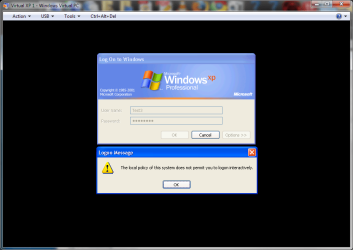
If you want to create a Limited user account with no administrative rights, you have to add it to a group called Remote Desktop Users before being able to log in to XP Mode. Limited users not belonging to this group can't log in, instead they get an error dialog telling they have no permission every time they try to do this:
Here's how to give permissions to new users:
- Create limited user account(s) you want to using Control Panel > User Accounts
- Open Start Menu, right click My Computer and choose Manage
- Click and open Local Users and Groups on the left pane, click Users and double click the limited user account you want to grant right to log in
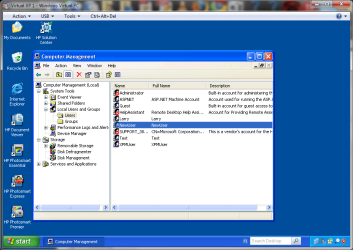
- Choose Member Of, click Add
- Write Remote Desktop Users to field Enter the object names to select, click OK twice
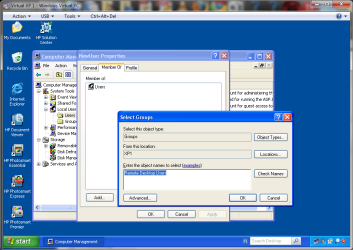
- Close Management Console
Kari
EDIT: Thanks to Brink for visual appearance.
Related Tutorials
- How to Copy a Virtual XP Machine in Windows 7
- How to Install and Setup Virtual Windows XP Mode in Windows 7
- How to Enable the Built-in Administrator Account in Windows XP Mode
- How to Create a Virtual Machine in Windows Virtual PC
- How to Create Differencing Disks in Windows Virtual PC
- How to Delete a Virtual Machine Created with Windows Virtual PC
- How to Change Virtual Machine Settings in Windows Virtual PC
- How to Boot from a CD or DVD in a Windows Virtual PC
- How to Install, Enable, and Disable Windows Virtual PC Integration Features
- How to Select Host Devices to Share with Virtual Machines in Windows Virtual PC
Last edited by a moderator:


