How to Change the Mouse Pointers in Windows 7
Information
This will show you how to change and customize the mouse pointers in Windows 7.
Note
Windows 7 uses .ani (animated cursor) and .cur (cursor) files for the mouse pointers.
The default Cursor folder in Windows 7 is located at C:\Windows\Cursors. It would be best to keep your pointers saved in this folder as well.
The default Cursor folder in Windows 7 is located at C:\Windows\Cursors. It would be best to keep your pointers saved in this folder as well.
Tip
For all you left handed folks out there, here are some left handed Aero cursors for you in a .zip file below. 
Download
Download
OPTION ONE
To Change Pointers in Mouse Properties
2. Close the Control Panel window.
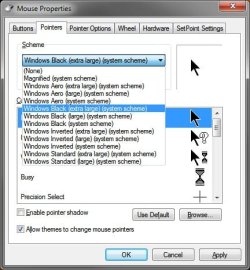
3. Click on the Pointers tab, then do either step 4 or 5 below for how you would like to change them. (see screenshot below)
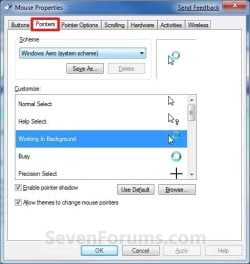
4. To Select a Mouse Pointer Scheme (theme)
NOTE: This will let you select a default Windows 7 scheme, or a custom scheme saved by you from step 6 below.A) Under Scheme, select a scheme that you want to use for all of the pointers from the drop down menu. (see screenshot above and below)
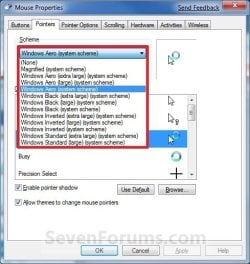
B) If you do not want to customize any of these pointers, then go to step 8.
5. To Customize and Change a Mouse Pointer
NOTE: This will allow you to change any individual pointer event in a scheme to whatever pointer that you want instead.A) Under Customize, select the event that you want to change the pointer for, and click on the Browse button. (see screenshot below step 3)
NOTE: If you want to use the default pointer for that event, click on the Use Default button instead. This can be handy if you have already changed pointer from it's default pointer.
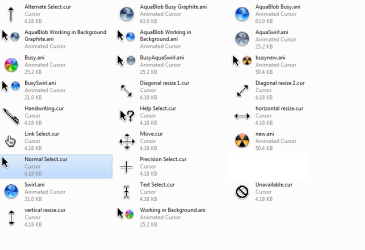
B) Navigate to where you have your pointer saved to, then select it and click on the Open button. (see screenshow below)
Note
For custom mouse pointer .cur or .ani file that you have downloaded and saved to your computer, be sure that you right click on the .cur or .ani file, click on Properties, General tab, and click on the Unblock button if there as below. Not making sure that the .cur file is unblocked already will prevent the image from being used and displayed.
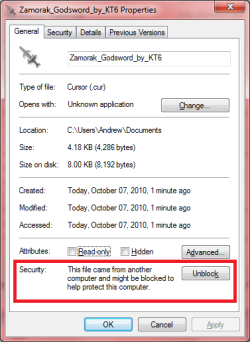

C) If you do not want to save your new custom pointers scheme, then go to step 8.
6. To Save a Mouse Pointer Scheme (theme)
NOTE: This will allow you to save your custom scheme so that it will be available to select from step 4 above.A) Under Scheme, click on the Save As button. (see screenshot below step 4)
B) Type in a name for your pointers scheme and click on OK. (see screenshot below)
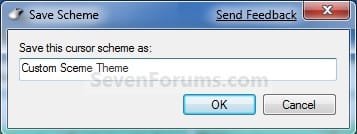
7. To Delete a Mouse Pointer Scheme (theme)
NOTE: This will allow you to delete a custom scheme that you have saved from step 6 above. You cannot delete a default Windows 7 pointers scheme.A) Under Scheme, select a scheme from the drop down menu that you want to delete, and click on the Delete button. (see screenshots below step 3 and 4A)
NOTE: If the Delete button is grayed out, then you have a default Windows 7 pointers theme selected. You will need to select one that you had saved from step 6 before instead.
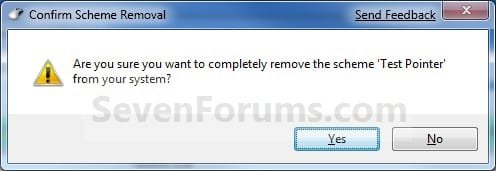
B) Click on Yes to confirm the deletion. (see screenshot below)
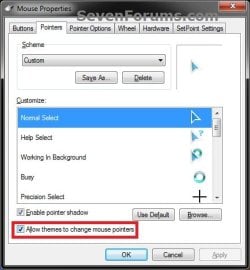
8. When done, check the Allow themes to change mouse pointers box and click on OK. (see screenshot below)
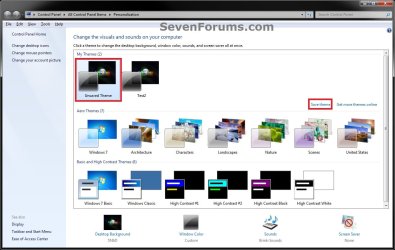
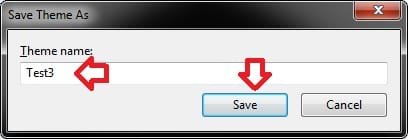
9. Now, save your new Windows theme. (see screenshots below)
NOTE: Since your new mouse pointer theme is also part of your Windows theme, you will need to re-save your Windows theme so that the changes you made to your mouse pointers are applied again the next time you log off and log on or restart the computer.
OPTION TWO
To Change Pointers in Registy Editor
2. If prompted by UAC, then click on Yes.
3. In regedit, navigate to the location below, then do either step 4 or 5 below for how you would like to change them. (see screenshot below)HKEY_CURRENT_USER\Control Panel\Cursors
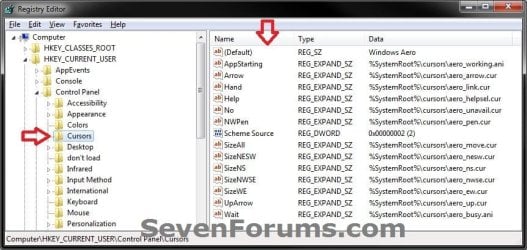
4. To Select a Mouse Pointer Scheme (theme)A) In the right pane of Cursors, right click on (Default) and click on Modify. (see screenshot above)
B) Type in the Data value exactly as is below for the pointer Scheme that you would like to use, and click on OK. (see screenshow below)
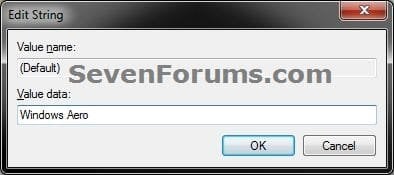
Data Values:
- (leave empty in Modify for None)
- Magnified
- Windows Aero (extra large)
- Windows Aero (large)
- Windows Aero
- Windows Black (extra large)
- Windows Black (large)
- Windows Black
- Windows Inverted (extra large)
- Windows Inverted (large)
- Windows Inverted
- Windows Standard (extra large)
- Windows Inverted (large)
5. To Customize and Change a Mouse Pointer
NOTE: This will allow you to change any individual pointer event in a scheme to whatever pointer that you want instead.A) In the right pane of Cursors, right click on the string value Name (see table below) for the mouse pointer that you want to change, then click on Modify. (see screenshot below step 3)
NOTE: The string value names in red below are not listed by default, and will need to be added. To do so, right click in a empty space in the right pane and click on New and String Value, then type in the string value name below and press enter.
| Mouse Pointer | String Value Name |
|---|---|
| Normal Select | Arrow |
| Help Select | Help |
| Working in Background | AppStarting |
| Busy | Wait |
| Precision Select | Crosshair |
| Text Select | IBeam |
| Handwriting | NWPen |
| Unavailable | No |
| Vertical Resize | SizeNS |
| Horizontal Resize | SizeWE |
| Diagonal Resize 1 | SizeNWSE |
| Diagonal Resize 2 | SizeNESW |
| Move | SizeAll |
| Alternate Select | UpArrow |
| Link Select | Hand |
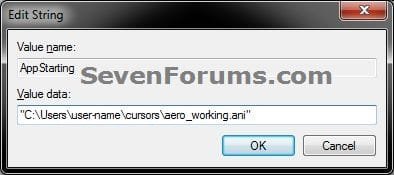
B) Type in the full path to the location of your saved .ani or .cur file within quotes, and click on OK. (see screenshot below)
Note
For custom mouse pointer .cur or .ani file that you have downloaded and saved to your computer, be sure that you right click on the .cur or .ani file, click on Properties, General tab, and click on the Unblock button if there as below. Not making sure that the .cur file is unblocked already will prevent the image from being used and displayed.
6. Close regedit.
7. Now, save your new desktop theme. (see screenshots below)
NOTE: Since your new mouse pointer theme is also part of your desktop theme, you will need to re-save your desktop theme so that the changes you made to your mouse pointers are applied again the next time you log off and log on or restart the computer.
That's it,
Shawn Brink
Related Tutorials
- How to Change the Event Sound Effects in Windows 7
- How to Change or Save a Windows 7 Theme
- How to Make your own Windows 7 Theme Pack
- How to Prevent or Allow Themes to Change Windows 7 Mouse Pointers
- How to Allow or Prevent Changing Mouse Pointers in Windows 7
- How to Create "Mouse Properties" Shortcuts in Windows 7 and Vista
Attachments
Last edited: