
How to Uninstall a Windows Update in Windows 7 and Windows 8
Information
This tutorial will show you how to uninstall a Windows Update in Windows 7 and Windows 8.
You must be logged in as an administrator to be able to uninstall a Windows Update.
You must be logged in as an administrator to be able to uninstall a Windows Update.
Note
You can remove some updates, but not updates that affect important operating system files. You should remove an update only if you're sure that it's causing a problem.
If you want, you can reinstall the update later by going to Windows Update in the Control Panel and checking again for updates.
If you want, you can reinstall the update later by going to Windows Update in the Control Panel and checking again for updates.
OPTION ONE
Uninstall Windows Update through Installed Updates
1. Do step 2, 3, or 4 below for how you would like to open Installed Updates.
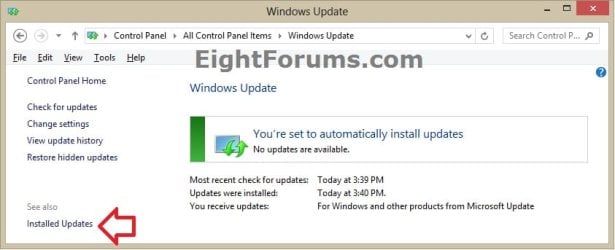
2. Open the Control Panel (icons view) in Windows 7 or Windows 8, and click/tap on the Windows Update icon.
A) In the left pane of Windows Update, click/tap on the Installed Updates link at the bottom, and go to step 5 below. (see screenshot below)
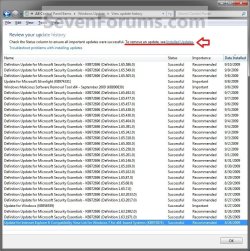
3. Open View update history, click/tap on the Installed Updates link at the top, and go to step 5 below. (see screenshot below)
4. Open the Control Panel (icons view) in Windows 7 or Windows 8, and click/tap on the Programs and Features icon.
A) In the left pane of Programs and Features, click/tap on the View installed updates link at the top, and go to step 5 below. (see screenshot below)

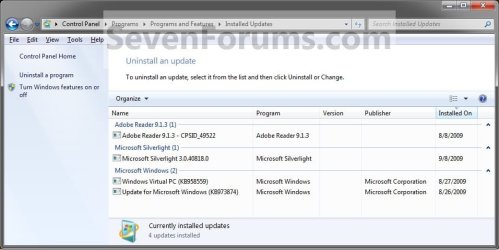
5. Double click/tap on a Windows Update that you want to uninstall, OR select a listed Windows Update that you want to uninstall and click/tap on the Uninstall toolbar button. (see screenshot below)
6. If prompted by UAC, then click/tap on Yes to approve.
7. When finished, you can close the Installed Updates window if you like.
Note
Uninstalling some updates may require you to restart the computer to finish uninstalling the update. You will be notified to restart if the update does.
OPTION TWO
Uninstall Windows Update in Command Prompt
1. For how, see: How to Uninstall Windows Update from Console Level
That's it,
Shawn
Related Tutorials
- How to Remove Outdated Windows Updates in Disk Cleanup in Windows 7
- How to Use Windows Update Cleanup in Windows 8 and 8.1
- How to Check for and Install Windows Updates in Windows 8
- How to Create Modern "View Update History" Shortcut in Windows 8.1
- How to Create a Installed Windows Updates Shortcut in Windows 7
- How to Create a "Windows Update" Shortcut in Windows 7
- How to Change the Windows Update Settings in Windows 7
- How to Enable or Disable Windows Updates from Automatically Restarting the Computer
- How to View Windows Update History Details in Windows 7 and Windows 8
- How to Hide or Restore Hidden Windows Updates in Windows 7 and Windows 8
- How to Create a Windows Update Troubleshoot Shortcut in Windows 7
- How to Enable or Disable Uninstalling Windows Updates in Windows 7
- How to Enable or Disable Programs and Features in Windows 7
- How to Uninstall or Change a Program in Windows 7
- How to Enable or Disable Access to Windows Updates in Windows 7
- How to Reset Windows Update in Vista, Windows 7, and Windows 8
- How to Uninstall Windows Update from Console Level
- How to Enable or Disable the Windows Update "Who can install updates" Setting
- How to Download the Standalone MSU Installer File of a Windows Update
- How to Extract a Windows Update
- How to Uninstall Internet Explorer 9
- How to Install or Uninstall Internet Explorer 10 (IE10) in Windows 7
Last edited:


