How to Hide or Restore Hidden Windows Updates in Windows 7 and Windows 8
Information
This tutorial will show you how to either hide or unhide Windows Updates to have them listed or not listed as available to install again in Windows 7 and Windows 8.
OPTION ONE
To Hide a Windows Update
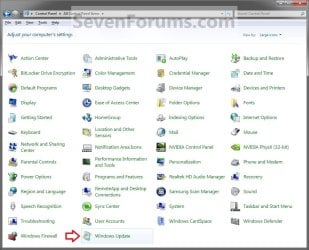
1. Open the Control Panel (icons view), and click/tap on the Windows Update icon. (see screenshot below)
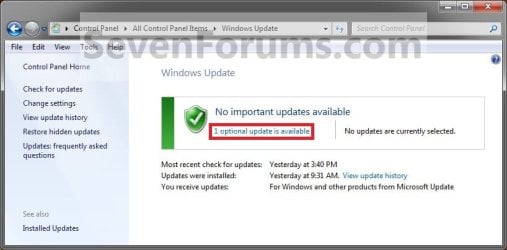
2. After you check for updates, click/tap on the .....update(s) is available link. (See screenshot below)
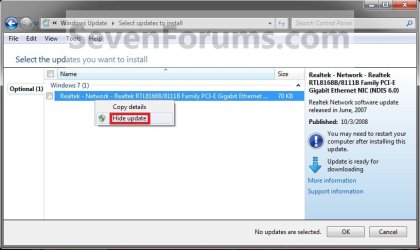
3. Right click or press and hold on a listed Windows Update that you want to hide, then click/tap on Hide Update. (See screenshot below)
4. If prompted by UAC, click/tap on Yes.
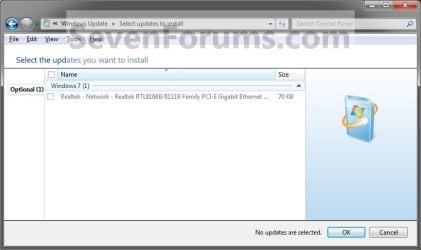
5. You will now notice that the now hidden Windows Update is grayed out. Repeat steps 3 and 4 if you want to hide another Windows Update. When done, click/tap on OK. (See screenshot below)
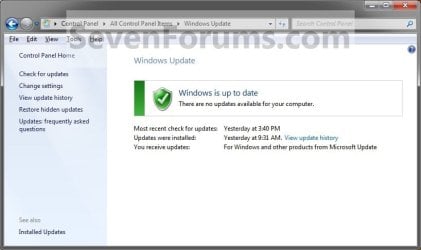
6. You will now see this if you do not have any unhidden Windows Updates left to install. (See screenshot below)
OPTION TWO
To Restore a Hidden Windows Update
1. Open the Control Panel (icons view), and click/tap on the Windows Update icon. (See screenshot below)
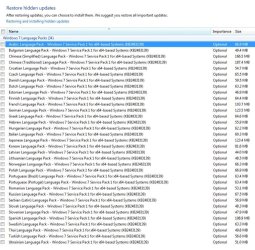
2. In the left pane, click/tap on Restore hidden updates. (See screenshot below)

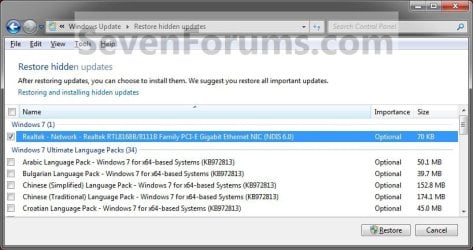
3. Check all of the Windows Updates boxes that you want to restore, and click on the Restore button. (See screenshot below)
4. If prompted by UAC, then click/tap on Yes or enter the administrator's password.
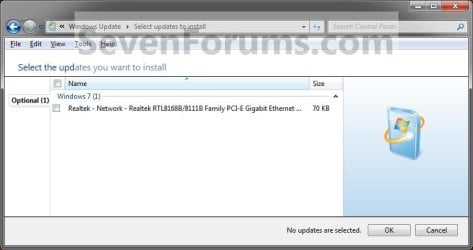
5. Windows Updates will now check for updates, then your restored update(s) will now be available to be installed. (See screenshots below)
NOTE: Some updates that you try to restore might not appear in the list of updates that Windows Update offers you. This happens only when Windows Update finds a more recent update, available or already installed, that addresses the same problem as the update you tried to restore.
That's it,
Shawn
Related Tutorials
- How to Create a "Windows Update" Shortcut in Windows 7
- How to Change the Windows Update Settings in Windows 7
- How to Enable or Disable Windows Updates from Automatically Restarting the Computer
- How to Uninstall a Windows Update in Windows 7
- How to View Windows Update History Details in Windows 7 and Windows 8
- How to Create a Installed Windows Updates Shortcut in Windows 7
- How to Create a Windows Update Troubleshoot Shortcut in Windows 7
- How to Enable or Disable Uninstalling Windows Updates in Windows 7
- How to Enable or Disable Access to Windows Updates in Windows 7
- How to Reset Windows Update in Vista, Windows 7, and Windows 8
- How to Enable or Disable the Windows Update "Who can install updates" Setting
- How to Download the Standalone MSU Installer File of a Windows Update
- How to Extract a Windows Update
- How to Check for and Install Windows Updates in Windows 8
Last edited: