
How to Add or Remove "Hard disk burst ignore time" in Power Options
Information
This tutorial will show you how to add or remove the "Hard disk burst ignore time" setting under Hard disk in the advanced power settings of all power plans for all users in Vista, Windows 7, and Windows 8.
You must be logged in as an administrator to be able to do this tutorial.
You must be logged in as an administrator to be able to do this tutorial.
Note
Although the disk idle time‑out alone can be configured with the "Turn off hard disk after" setting to favor power savings or performance, some Windows systems might exhibit very small amounts (bursts) of disk activity separated by relatively long amounts of disk idle time. This pattern of disk activity impacts system power savings because the disk is powered up periodically. The disk then remains in the spin-up state for at least the disk idle time‑out, even if the amount of disk activity that caused the disk to spin up is very small.
The disk burst activity time addresses these scenarios by allowing the administrator to configure an amount of disk activity that will be ignored as the power manager accrues disk idle time for the "Turn off hard disk after" setting.
For more detailed information about disk idle detection and disk burst ignore time-out purposes and settings, you could download the Windows Disk Idle Detection Word .doc file from Microsoft.
The disk burst activity time addresses these scenarios by allowing the administrator to configure an amount of disk activity that will be ignored as the power manager accrues disk idle time for the "Turn off hard disk after" setting.
For more detailed information about disk idle detection and disk burst ignore time-out purposes and settings, you could download the Windows Disk Idle Detection Word .doc file from Microsoft.
Warning
The Hard disk burst ignore time setting is only effective if you have the Turn off hard disk after setting set to an amount of minutes and not to Never.
EXAMPLE: "Hard disk burst ignore time" added to Advanced Power Settings
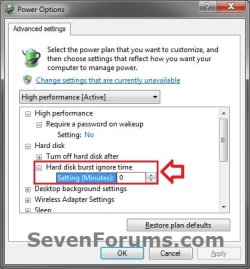
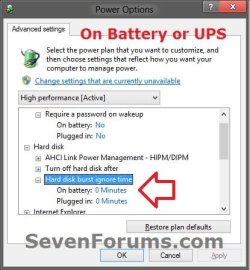
Here's How:
1. Do step 2 or 3 below for what you would like to do.
2. Add "Hard disk burst ignore time" to Advanced Power Settings
A) Click/tap on the Download button below to download the file below.
Add_Hard_disk_burst_ignore_time.reg
Download
B) Go to step 4.
3. Remove "Hard disk burst ignore time" from Advanced Power Settings
NOTE: This is the default setting.
A) Click/tap on the Download button below to download the file below.
Remove_Hard_disk_burst_ignore_time.reg
Download
4. Save the .reg file to the desktop.
5. Double click/tap on the downloaded .reg file to Merge it.
6. When prompted, click/tap on Run, Yes (UAC Windows 7/8) or Continue (UAC Vista), Yes, and OK.
7. You can now delete the downloaded .reg file if you like.
That's it,
Shawn
Related Tutorials
- How to Turn Off Hard Disk After so many Minutes of being Idle or Never
- How to Change the Power Plan Settings in Windows 7
- How to Change Power Plan Settings in Windows 8 and 8.1
- How to Create a "Advanced Power Options" Shortcut in Windows 7
- How to Enable HIPM and DIPM for your SSD and HDD in Windows 7
- How to Add or Remove "Allow Away Mode Policy" in Power Options in Windows
- How to Add or Remove "Allow sleep with Remote Opens" in Power Options in Windows 7 and 8
- How to Add or Remove "Allow wake timers" in Power Options in Windows
- How to Add or Remove Desktop Background "Slide Show" in Power Options in Windows
- How to Add or Remove "Dim display after" in Power Options in Windows
- How to Add or Remove "Hibernate after" in Power Options in Windows
- How to Add or Remove "Enable forced button/lid shutdown" in Power Options
- How to Add or Remove PCIe "Link State Power Management" in Power Options in Windows
- How to Add or Remove "Minimum processor state" and "Maximum processor state" in Power Options in Windows
- How to Add or Remove "System cooling policy" in Power Options in Windows
- How to Add or Remove "System unattended sleep timeout" in Power Options
- How to Add or Remove "Turn off hard disk after" in Power Options in Windows
- How to Add or Remove "USB 3 Link Power Mangement" in Power Options in Windows 8
- How to Add or Remove "USB selective suspend setting" in Power Options in Windows
- How to Add or Remove "When sharing media" in Power Options in Windows
- How to Add or Remove Wireless Adapter Settings "Power Saving Mode" in Windows
Attachments
Last edited:


