Windows Registry Editor Version 5.00

; ::::::::::::::::::: by adonios77 :::: (supports Windows 7) :::::::::::::::::::

[HKEY_CLASSES_ROOT\DesktopBackground\Shell\Appearance_custom]
"Icon"="themecpl.dll"
"MUIVerb"="Appearance (Control Panel)"
"Position"="Bottom"
"SubCommands"=""

[HKEY_CLASSES_ROOT\DesktopBackground\Shell\Appearance_custom\Shell]

[-HKEY_CLASSES_ROOT\DesktopBackground\Shell\Display] ; Screen Resolution - Display (default)
[HKEY_CLASSES_ROOT\DesktopBackground\Shell\Appearance_custom\Shell\01_ScreenResolution]
"Icon"="display.dll,-1"
"MUIVerb"="Screen Resolution"
"CommandFlags"=dword:00000020

[HKEY_CLASSES_ROOT\DesktopBackground\Shell\Appearance_custom\Shell\01_ScreenResolution\Command]
@="control.exe desk.cpl,Settings @[URL="https://www.sevenforums.com/members/set.html"]Set[/URL]tings"

[-HKEY_CLASSES_ROOT\DesktopBackground\Shell\Personalize] ; Personalize (default)
[HKEY_CLASSES_ROOT\DesktopBackground\Shell\Appearance_custom\Shell\02_Personalize]
@=hex(2):40,00,25,00,73,00,79,00,73,00,74,00,65,00,6d,00,72,00,6f,00,6f,00,74,\
  00,25,00,5c,00,73,00,79,00,73,00,74,00,65,00,6d,00,33,00,32,00,5c,00,74,00,\
  68,00,65,00,6d,00,65,00,63,00,70,00,6c,00,2e,00,64,00,6c,00,6c,00,2c,00,2d,\
  00,31,00,30,00,00,00
"HideInSafeMode"=""
"ControlPanelName"="Microsoft.Personalization"
"Icon"=hex(2):25,00,73,00,79,00,73,00,74,00,65,00,6d,00,72,00,6f,00,6f,00,74,\
  00,25,00,5c,00,73,00,79,00,73,00,74,00,65,00,6d,00,33,00,32,00,5c,00,74,00,\
  68,00,65,00,6d,00,65,00,63,00,70,00,6c,00,2e,00,64,00,6c,00,6c,00,2c,00,2d,\
  00,31,00,00,00

[HKEY_CLASSES_ROOT\DesktopBackground\Shell\Appearance_custom\Shell\02_Personalize\command]
"DelegateExecute"="{06622D85-6856-4460-8DE1-A81921B41C4B}"
"CommandFlags"=dword:00000040

[HKEY_CLASSES_ROOT\DesktopBackground\Shell\Appearance_custom\Shell\03_WindowColor&Appearance]
"Icon"="themecpl.dll"
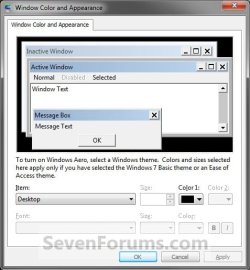
"MUIVerb"="Window Color and Appearance"
"CommandFlags"=dword:00000020

[HKEY_CLASSES_ROOT\DesktopBackground\Shell\Appearance_custom\Shell\03_WindowColor&Appearance\Command]
@="explorer.exe shell:::{ED834ED6-4B5A-4bfe-8F11-A626DCB6A921} -Microsoft.Personalization\\pageColorization"

[HKEY_CLASSES_ROOT\DesktopBackground\Shell\Appearance_custom\Shell\04_DesktopBackground]
"Icon"="imageres.dll,-110"
"MUIVerb"="Desktop Background"

[HKEY_CLASSES_ROOT\DesktopBackground\Shell\Appearance_custom\Shell\04_DesktopBackground\Command]
@="explorer.exe shell:::{ED834ED6-4B5A-4bfe-8F11-A626DCB6A921} -Microsoft.Personalization\\pageWallpaper"

[HKEY_CLASSES_ROOT\DesktopBackground\Shell\Appearance_custom\Shell\05_DesktopIconSettings]
"MUIVerb"="Desktop Icon Settings"
"Icon2"="desk.cpl"
"Icon"="imageres.dll,-110"

[HKEY_CLASSES_ROOT\DesktopBackground\Shell\Appearance_custom\Shell\05_DesktopIconSettings\Command]
@="rundll32 shell32.dll,Control_RunDLL desk.cpl,,0"

[HKEY_CLASSES_ROOT\DesktopBackground\Shell\Appearance_custom\Shell\06_ScreenSaverSettings]
"Icon"="PhotoScreensaver.scr"
"MUIVerb"="Screen Saver Settings"

[HKEY_CLASSES_ROOT\DesktopBackground\Shell\Appearance_custom\Shell\06_ScreenSaverSettings\Command]
@="rundll32.exe shell32.dll,Control_RunDLL desk.cpl,screensaver @[URL="https://www.sevenforums.com/members/screensaver.html"]Screensaver[/URL]"

[HKEY_CLASSES_ROOT\DesktopBackground\Shell\Appearance_custom\Shell\07_MouseProperties]
"Icon"="main.cpl"
"MUIVerb"="Mouse Properties"

[HKEY_CLASSES_ROOT\DesktopBackground\Shell\Appearance_custom\Shell\07_MouseProperties\Command]
@="rundll32.exe shell32.dll,Control_RunDLL main.cpl,,1"

[HKEY_CLASSES_ROOT\DesktopBackground\Shell\Appearance_custom\Shell\08_Sounds]
"Icon"="mmsys.cpl"
"MUIVerb"="Sounds"

[HKEY_CLASSES_ROOT\DesktopBackground\Shell\Appearance_custom\Shell\08_Sounds\Command]
@="rundll32.exe shell32.dll,Control_RunDLL mmsys.cpl ,2"

[-HKEY_CLASSES_ROOT\DesktopBackground\Shell\Gadgets] ; Gadgets (default)
[HKEY_CLASSES_ROOT\DesktopBackground\Shell\Appearance_custom\Shell\09_Gadgets]
"MUIVerb"=hex(2):40,00,25,00,50,00,72,00,6f,00,67,00,72,00,61,00,6d,00,46,00,\
  69,00,6c,00,65,00,73,00,25,00,5c,00,57,00,69,00,6e,00,64,00,6f,00,77,00,73,\
  00,20,00,53,00,69,00,64,00,65,00,62,00,61,00,72,00,5c,00,73,00,69,00,64,00,\
  65,00,62,00,61,00,72,00,2e,00,65,00,78,00,65,00,2c,00,2d,00,31,00,31,00,31,\
  00,30,00,30,00,00,00
"Icon"="C:\\Program Files\\Windows Sidebar\\sidebar.exe,-100"
"CommandFlags"=dword:00000020

[HKEY_CLASSES_ROOT\DesktopBackground\Shell\Appearance_custom\Shell\09_Gadgets\command]
@="C:\\Program Files\\Windows Sidebar\\sidebar.exe /showGadgets"

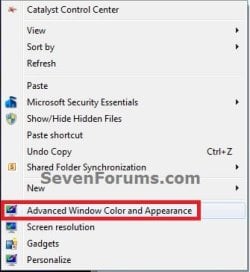

![[original]_desktop_context-menu.png](https://www.sevenforums.com/data/attachments/233/233374-9f032b2f5ada9e599f04a31730e00e5a.jpg?hash=ybHoftPtgq "[original]_desktop_context-menu.png")
![Appearance_custom_[W7].png](https://www.sevenforums.com/data/attachments/233/233995-09d1cb831b9ca70c529253ca13c77f23.jpg?hash=bvwNaMYd6f "Appearance_custom_[W7].png")
![Appearance_custom_[W10].png](https://www.sevenforums.com/data/attachments/233/233382-b3085460983572c734ff0fdbce007760.jpg?hash=QA60sX6ZiZ "Appearance_custom_[W10].png")


