
How to Change the Color Bit Depth in Windows 7
Information
This will show you how to change your Colors settings to the Color bit you want in the Windows 7 Display Settings.
Note
Windows 7 colors and themes work best when you have your monitor set to True Color 32 bit color depth. You can set your monitor to 24-bit color, but you won't see all the visual effects. If you set your monitor to 16-bit color, images that should be smooth might not appear correctly. The available colors to choose from will depend on your monitor and graphic card drivers.
Warning
Aero Requirements to be Enabled in Windows 7:
- 1 GHz 32-bit or 64-bit processor
- 1 GB of system memory
- Support for DirectX 9 graphics with 128 MB memory (in order to enable Aero theme)
- You must be have True Color (32 bit) set instead of High Color (16 bit).
- The desktop composition and Animate controls and elements inside windows options enabled in Visual Effects.
- Refresh or update your WEI score.
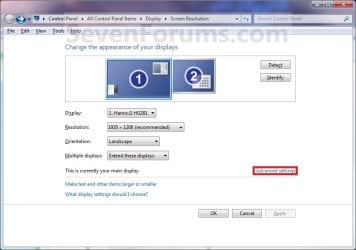
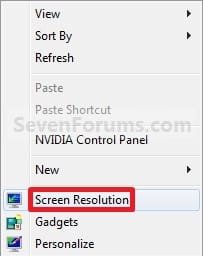
Here's How: 1. Right click on a empty space on the desktop and click on Screen Resolution. (See screenshot below)

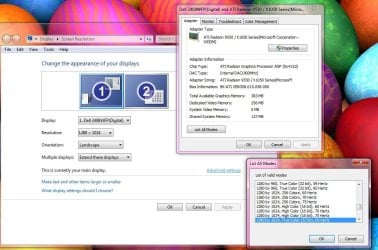
2. Select the monitor Display you want to change the color bit depth for. (See screenshot below step 3)
NOTE: You will only be able to select a different display if you have more than one monitor connected.
3. Click on the Advanced settings link. (See screenshot below)
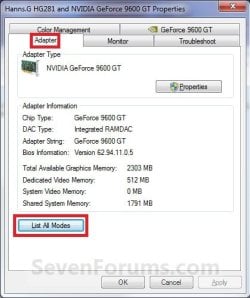
4. To Select from a List of All Display Modes A) Click on the Adapter tab, and on the List All Modes button. (See screenshot below)
B) Select the display mode with the screen resolution, color depth, and screen refresh rate that you want to use, and click on OK. (See screenshot below)
NOTE: It is recommended to use a native screen resolution with a True Color (32-bit) color depth.
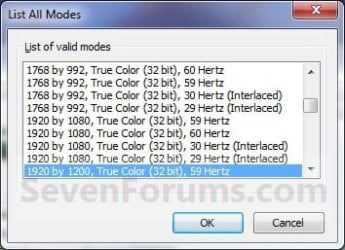
C) Click on OK. (See screenshot below step 4A)
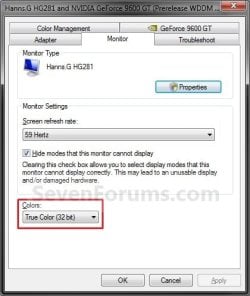
5. To Change Only the Color Depth Setting A) Click on the Monitor tab. (See screenshot below step 5C)
B) Select from the available Colors from the drop down menu the color bit you want. (See screenshot below step 5C)
WARNING: It is recommended to use True Color (32 bit) for the best picture for your monitor.
C) Click on OK.
D) Go to step 6.
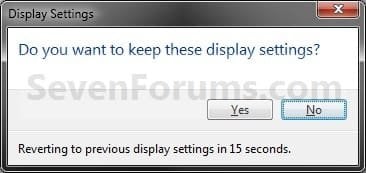
6. Click on Yes to confirm the color bit change. (See screenshot below)
7. Click on OK. (See screenshot below step 3)
That's it,
Shawn
Related Tutorials
- How to Change the Screen Resolution in Windows 7
- How to Change the Screen Refresh Rate in Windows 7
- How to Change the Display DPI Size in Windows 7
- How to Open and Use Display Color Calibration in Windows 7
- How to Change the Main Display in Windows 7
- Enable or Disable Changing "DPI" and "Screen Resolution" Display Settings in Windows 7 and Windows 8
Attachments
Last edited:




 . cause i cant exactly do anything with this computer until i get 32 bit...any suggestions?.


