How to Convert GPT Disk to MBR Disk
Information
A disk is a separate physical hard drive. This will show you how to convert a GPT (GUID - Globally Unique Identifer) disk to a MBR (Master Boot Record) disk in Windows Disk Manager or in a command prompt. By default Windows uses MBR disks.
While all Windows can boot from a MBR disk, you can only boot from a GPT disk if you have a operating system (see below) that supports GPT and your motherboard has a EFI BIOS and is enabled. Windows 7 and Vista does support booting from a GPT disk.
You can still have a separate GPT disk as a data disk if your operating system (see below) supports reading a GPT disk, even if your system disk that Windows is installed on is still a MBR disk.
While all Windows can boot from a MBR disk, you can only boot from a GPT disk if you have a operating system (see below) that supports GPT and your motherboard has a EFI BIOS and is enabled. Windows 7 and Vista does support booting from a GPT disk.
You can still have a separate GPT disk as a data disk if your operating system (see below) supports reading a GPT disk, even if your system disk that Windows is installed on is still a MBR disk.
Note
Differences Between MBR and GPT Disks:
- MBR disks are supported (readable) by all Windows operating systems.
- GPT disks are only supported (readable) by Windows server 2003 SP1 +, XP 64-bit, Vista, Windows 7, Windows Server 2008.
- MBR disks use the standard BIOS partition table.
- GPT disks use extensible firmware interface (EFI).
- MBR disks supports up to 2TB per single partition.
- GPT disks supports up to 256TB per single partition in Windows.
- MBR disks supports up to 4 Primary partitions or 3 Primary partitions and 1 Extended partition with up to 128 logical volumes in the extended partition.
- GPT disks supports up to 128 Primary partitions.
- Removable disks are MBR disks by default.
- Removable disks cannot be converted into a GPT disk.
Warning
- You must be a administrator to do this in Windows.
- Before you convert a disk, close any programs that are running on or from that disk.
- Before you convert a disk, be sure to backup anything that you do not want to lose on that disk. Converting the disk requires that all partitions and volumes are deleted on the disk first.
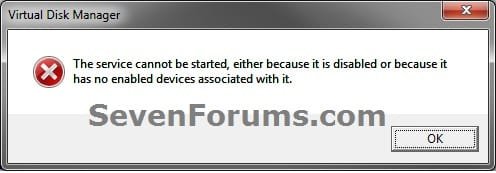
- If you disable the Disk Defragmenter service, then you will get the error below when you try to do anything in Disk Management. If you get this error, then make sure that the Disk Defragmenter service is enabled and set to only Manual.
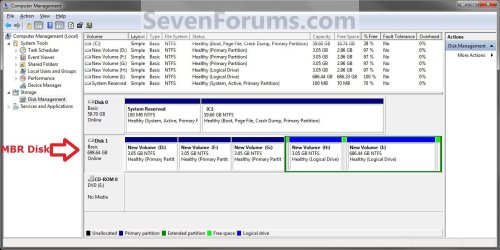
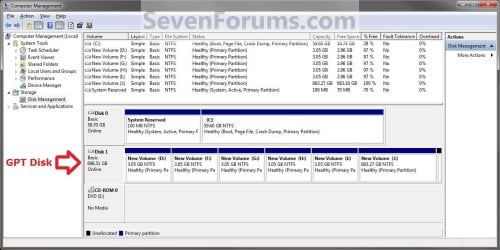
EXAMPLE: MBR disk vs GPT disk in Disk Management
OPTION ONE
Through Disk Management
1. Open the Control Panel (icons view), and click on the Administrative Tools icon, then close the Control Panel window.
2. Click on Computer Management in Administrative Tools, then close the Administrative Tools window.
3. If prompted by UAC, click on Yes.
4. In the left pane under Storage, click on Disk Management. (See screenshot below)
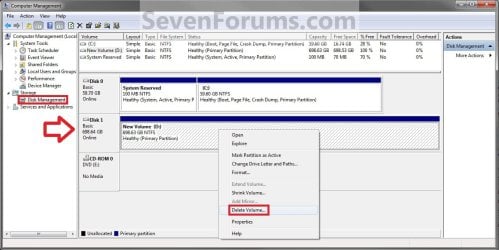
5. In the disk (ex: Disk 1) that you want to convert to a MBR disk, right click on each partition and volume on the disk and click on Delete Volume until the whole disk is unallocated space. (See screenshot above)
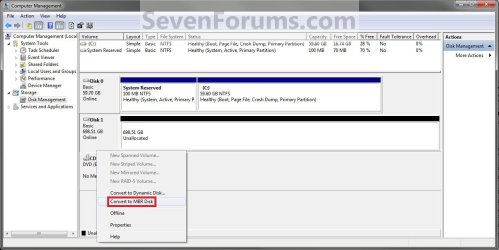
6. Right click on the disk (ex: Disk 1) that you want to convert to a MBR disk, and click on Convert to MBR Disk if available. (See screenshot below)
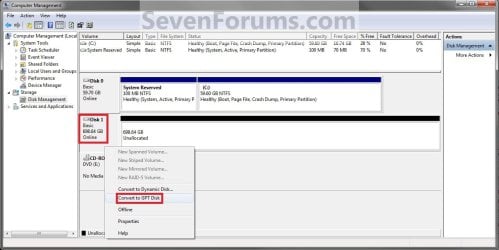
7. You can confirm that the disk is a MBR disk if you right click on the disk and it has Convert to GPT Disk instead now. (See screenshot below)
8. You can now create partitions on the now MBR disk if you like.
9. When done, close Disk Management.
OPTION TWO
Through a Command Prompt
1. Open an elevated command prompt, and go to step 3 below.
OR
2. Open a command prompt at boot, and go to step 3 below.
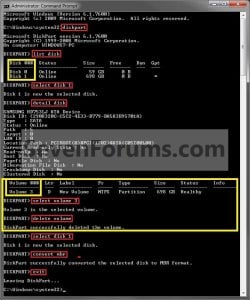
3. In the command prompt, type diskpart and press enter. (See screenshot above)
4. Type list disk and press enter.
NOTE: Make note of the disk number (ex: Disk 1) that you want to convert to a MBR disk.
5. Type select disk # and press enter.
NOTE: Substitute # with the actual disk number that you want to convert to a MBR disk. For example, select disk 1.
6. Do step 7 or 8 below for what you would like to do.
7. To Use the "Clean" Command to make Disk Unallocated
NOTE: This is the easiest method. It will wipe the disk clean all at once leaving it as unallocated space afterwards.
A) In the command prompt, type clean and press enter.
B) Go to step 9 below.
8. To Manually make Disk Unallocated
NOTE: This method has you manually delete each volume on the disk before converting the disk to MBR.
A) Type detail disk and press enter. If the disk does not have any volumes listed, then you can go to step 8E below.
NOTE: This will give you a list of all the volume numbers on the selected disk number that you will need to delete in steps 8B and 8C below.
B) Type select volume # and press enter.
NOTE: Substitute # with a volume number listed in step 8A. For example, select volume 3.
C) Type delete volume and press enter.
D) Repeat steps 8B and 8C for each volume # listed in step 8A until you have deleted all volume #'s.
E) When finished, type select disk # and press enter.
NOTE: You would use the same one from step 5 above. For example, select disk 1.
F) Go to step 9 below.
9. Type convert mbr and press enter.
10. Close the command prompt.
11. You can now create partitions on the now MBR disk if you like.
NOTE: Restart the computer if you did step 2 instead.
That's it,
Shawn
Related Tutorials
- How to Convert a MBR Disk to a GPT Disk
- How to Convert a Basic Disk to a Dynamic Disk
- How to Convert a Dynamic Disk to a Basic Disk
- How to Convert a FAT or FAT32 Volume to NTFS in Windows 7
- How to Extend a Partition or Volume in Windows 7
- How to Create a New Partition or Volume in Windows 7
- How to Delete a Partition or Volume in Windows 7
- How to Shrink a Partition or Volume in Windows 7
- How to Clean or Clean All a Disk with the Diskpart Command
- How to Quick Format a HDD or USB Drive
Last edited: