How to Create a "Show Desktop" Shortcut in Windows 7 and Windows 8
Information
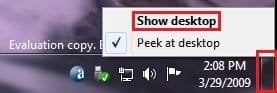
Show Desktop was a feature present in Windows XP and Windows Vista, but has been changed to the Aero Peek/Show Desktop button on the bottom right corner of the screen, near the Notification Area in Windows 7 and Windows 8.
This tutorial will show you how to create or download a Show Desktop shortcut that you can use anywhere in Windows 7 and Windows 8.
Note
By default in Windows 7, the taskbar button on the far right side is for Show Desktop and Aero Peek.
OPTION ONE
To Download the "Show Desktop" Shortcut
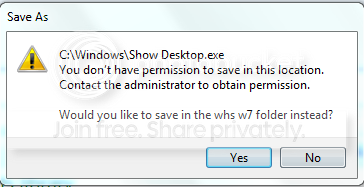
1. Click/tap on the Download button below to download the Show_Desktop.zip file.
2.Save the .zip file to the desktop.
3. Open the .zip file, and extract (drag and drop) the Show Desktop shortcut to the desktop.
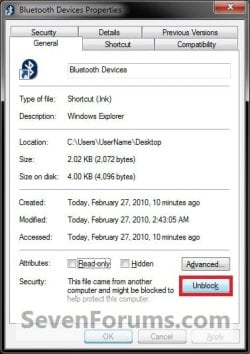
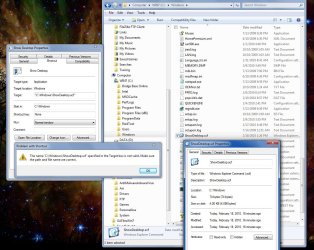
4. Right click or press and hold on the Show Desktop shortcut, and click/tap on Properties, General tab, and on the Unblock button. (See screenshot below) NOTE:If you do not have a Unblock button under the General tab, then the shortcut is already unblocked and you can continue on to step 5.
5. When done, you can delete the downloaded .zip file on the desktop if you like, or save it to use again.
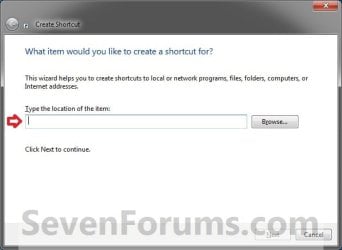
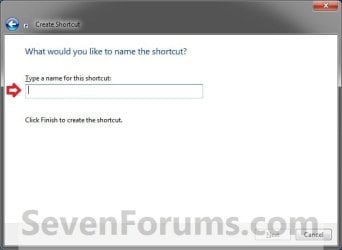
3. Type Show Desktop for the name, and click/tap on the Finish button. (See screenshot below) NOTE:You can name this anything you would like though.
4. Right click or press and hold on the new Show Desktop shortcut on the Desktop, and click/tap on Properties.
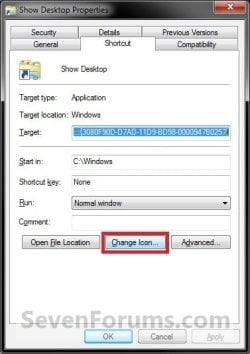
5. Click/tap on the Shortcut tab, then click/tap on the Change Icon button. (See screenshot below)
6. In the line under "Look for icons in this file", copy and paste the location below, and press Enter. (See screenshot below)
%SystemRoot%\system32\imageres.dll
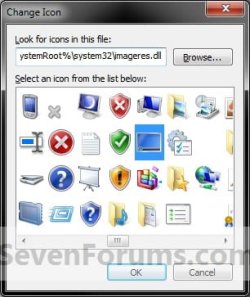
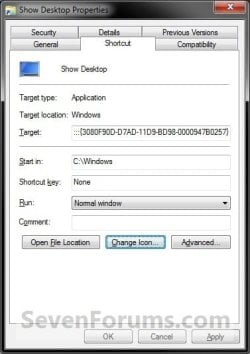
7. Select the icon highlighted in blue above, and click/tap on OK. (See screenshot above) NOTE:You can use any icon that you would like instead though.
OS Windows 7 64bit Home CPU Q9650 Motherboard Asus P5Q E Memory Kingston Hyper X 4x2048 Graphics Card His 4870 Sound Card Onboard Monitor(s) Displays Dell 2008WFP Screen Resolution 1920x1200
PSU Enermax Modu+ 625w Case Antec 300 Hard Drives Velociraptor
System Manufacturer/Model Number Dell Vostro 1500 OS Windows 7 Professional CPU Intel Core2Duo T5270 Memory 3072MB Graphics Card nVidia GeForce 8400M GS
Mouse Logitech VX Revolution Hard Drives Western Digital 320GB Scorpio Blue SATAII Internet Speed Comcast Performance High Speed Internet
OS Windows 7 64bit Home CPU Q9650 Motherboard Asus P5Q E Memory Kingston Hyper X 4x2048 Graphics Card His 4870 Sound Card Onboard Monitor(s) Displays Dell 2008WFP Screen Resolution 1920x1200
PSU Enermax Modu+ 625w Case Antec 300 Hard Drives Velociraptor
Hi Victor, sorry to bother you again but since installing the retail version of windows 7 home I'm unable to put show desktop on the taskbar.
If I drag it to taskbar it gets pinned either to windows explorer or to my computer, it doesn't stay directly on the taskbar, I have to click on windows explore or my computer and then its there like a jumplist.
any suggestions?
OS Windows 7 64bit Home CPU Q9650 Motherboard Asus P5Q E Memory Kingston Hyper X 4x2048 Graphics Card His 4870 Sound Card Onboard Monitor(s) Displays Dell 2008WFP Screen Resolution 1920x1200
PSU Enermax Modu+ 625w Case Antec 300 Hard Drives Velociraptor
This didn't work for me either, but I found the shortcut in the Quicklaunch folder in Brinks tutorial " Quicklaunch - Enable or Disable " ,Right clicked on it to send to desktop ( create shortcut ). Then followed Charbroil57's tutorial on how to pin the Recycle bin to the Taskbar and that worked for me, I don't know if there is an easier way to go about it ?
Computer type PC/Desktop System Manufacturer/Model Number Compaq sr5410f case OS Windows 7 Pro 64 SP1 CPU AMD X2 4450E @ 2.3 ghz Motherboard Biostar MCP6P M2+ Memory 4.0 g Graphics Card Nvidia GeForce 9600 GT , 512mb Sound Card onboard Monitor(s) Displays auria eq2367 Screen Resolution 1920 x 1080
Keyboard logitech wave cordless Mouse logitech LX8 cordless laser mouse PSU 250 watts Case Compaq Cooling couple fans Hard Drives 1 tb Hitachi HDT721010SLA scsi, 500 gb external Internet Speed comcast hi speed 19 dn 8 up Antivirus Microsoft Security Essentials Browser IE10 Other Info Laptop specs: HP g7-1365dx /
CPU: AMD A6-3420M APU with Radeon(tm) HD Graphics /
RAM: Crucial 8Gb (2x4Gb) /
SSD: Crucial M4-CT128M4SSD2 ATA Device/ FW 000F /
GFX: AMD Radeon HD 6520G /
OS: Microsoft Windows 7 Professional 64-bit 7601 Multiprocessor Free Service Pack 1
Thanks Derekimo, I've tried that and it works but its not ideal as I have to keep the icon eiter down one side or the other.
The way the icon behaved after Viktor's tutorial was what I needed, hope he'll be able to fix it.
Thanks
OS Windows 7 64bit Home CPU Q9650 Motherboard Asus P5Q E Memory Kingston Hyper X 4x2048 Graphics Card His 4870 Sound Card Onboard Monitor(s) Displays Dell 2008WFP Screen Resolution 1920x1200
PSU Enermax Modu+ 625w Case Antec 300 Hard Drives Velociraptor
System Manufacturer/Model Number Home built OS Win7 Pro CPU E8500 Motherboard Asus P5Q SE Memory 4gb Graphics Card ATI Radeon HD 2600 pro Sound Card Realtek alc 1200 8-channel HD Monitor(s) Displays NEC LCD1960NX, Sharp Screen Resolution 1280x1024
PSU ThermalTake 600 watt Case ThermalTake Swing Hard Drives Four Internet Speed Fios 20MB
This is totally minor, but I was wondering if you could tell me what I did wrong or what the fix might be: I was able to install the desktop button on my task bar, but it is not actually the desktop icon...can I get the icon image? Thanks!
System Manufacturer/Model Number HP, Dell, Gateway, Toshiba - 4 laptops and 2 desktops OS Vista, Windows7, Mint Mate, Zorin, Windows 8 CPU from 1.6GHz Duo to i7 Monitor(s) Displays 2x HP w2207
Keyboard with trackball - no mices Mouse Trackball mice Hard Drives 5x HDD, 7x SSD, 12x Externals Internet Speed DSL 6000