
Partition or Volume - Delete

How to Delete a Partition or Volume in Windows 7 and Windows 8


   Information
This will show you how to delete a partition or volume on a hard disk using Disk Management or Diskpart in Windows 7 and Windows 8 to create empty unallocated space that you can use to create new partitions with.

   Note


  • You will not be able to delete the Windows partition that you are currently logged in to. The only way would be to delete it at boot or during a Windows installation.
  • You also can't delete the system partition, boot partition, or any partition that contains the virtual memory paging file, because Windows needs this information to startup and run properly.
   Warning

  • You must be logged on in an administrator account to be able to do this tutorial.
  • When you delete a partition, all data on the partition is erased.
  • If you disable the Disk Defragmenter service, then you will get the error below when you try to do anything in Disk Management. If you get this error, then make sure that the Disk Defragmenter service is set to only Manual.
Error.jpg


OPTION ONE

To Delete Partition or Volume using Disk Management

1. Press the Windows + R keys to open the Run dialog, type diskmgmt.msc, and Press Enter.

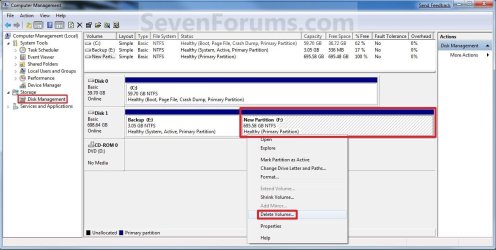
2. In the middle pane, right click on the partition of a disk that you want to delete, and click/tap on Delete Volume. (see screenshot below)
NOTE: If the partition is a logical partition, then you will need to delete the free space again to have it as unallocated space. Delete_Step1.jpg3. Click/tap on Yes to confirm deletion. (see screenshot below) Delete_Step2.jpg
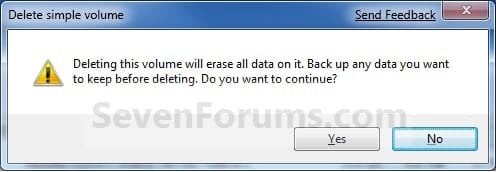
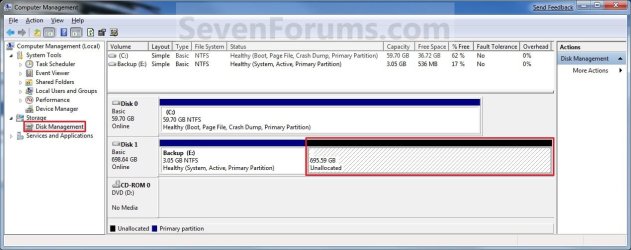
4. The selected partition (step 2) is now deleted and is unallocated space on the disk. If not, then delete the partition again until it displays as unallocated space like below. (see screenshot below)
NOTE: You can now use this unallocated space to create a new partition with, or extend another adjacent partition on that same hard disk into it. Delete_Step3.jpg
5. You can now close Disk Management if you like.


OPTION TWO

To Delete Partition or Volume using Diskpart Command

1. Open an elevated command prompt in Windows 7 or Windows 8, or a command prompt at boot in Windows 7 and Windows 8.

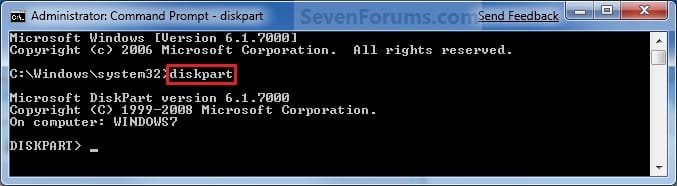
2. In the command prompt, type diskpart and press Enter. (See screenshot below) CMD_Delete_Step1.jpg
3. In the command prompt, type list volume and press Enter. (See screenshot below)
NOTE: This will give you a list of volume numbers to select from to delete. CMD_Delete_Step2.jpg
4. In the command prompt, type select volume # and press Enter. (See screenshot below)
NOTE: You would substitute # for the volume number listed that you want to delete. For example, I want to delete the listed volume 3, so I would type select volume 3 and press Enter. CMD_Delete_Step3.jpg
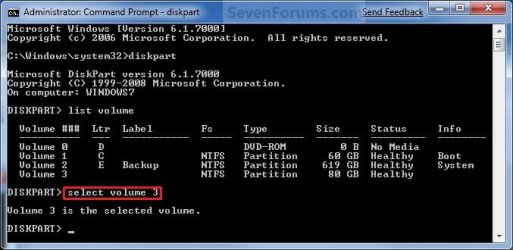
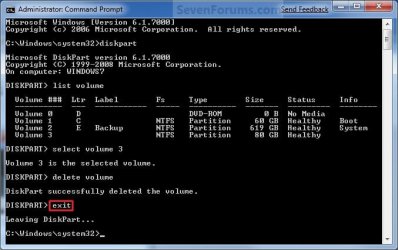
5. In the command prompt, type delete volume and press Enter. (See screenshot below)
NOTE: If it fails to delete, then use type delete volume override and press enter instead. CMD_Delete_Step4.jpg
6. In the command prompt, type exit and press Enter. (See screenshot below) CMD_Delete_Step5.jpg
7. Close the command prompt.

8. The selected partition (step 4) is now deleted and is unallocated space on the disk.
NOTE: You can use this unallocated space to create a new partition with, or extend another partition on that same hard disk into it.
That's it,
Shawn


Last edited:
Hi Brink and everyone. My first post so be gentle ;)


Forgive me if others have already asked something similar. I wonder if you still monitor this thread.


My issue is with a SanDisk 64GB microSD card I'm using as removal storage in an old Asus X53E running Win 7 Home Premium 64-bit. Up until recently, all was fine but now I cannot write to it, I cannot format it and none of the fixes I have seen here and elsewhere work. For example, I do not have the 'Delete Volume' option in Disk Management and when I try to 'delete volume' in DISKPART, I keep getting the message that no volume is selected, even though I just selected it and it was confirmed as selected. Trying the command format fs=ntfs (or format fs=fat32) gives the same result ('There is no volume selected').


I have also added the WriteProtect registry entry to StorageDevicePolicies to no avail. Plus I've tried using EaseUS Partition Master and MiniTool Partition Wizard, both of which appear to format but upon completion, the data on the microSD is completely unchanged.


In the interests of providing all available information, I have also tried formatting this microSD in 2 separate Android phones. The devices identify the microSD as corrupt, like the partition software above appear to format the card but as soon as it's done, the 'Corrupted SD card' notification pops up again.


So, it is possible that the card itself is dodgy but how could this happen from one day to the next? Any suggestions you or anyone else might have would be greatly appreciated.


Many thanks and warm regards,


Rosco
 

My Computer

Computer type
Laptop
Computer Manufacturer/Model Number
Asus
OS
Windows 7 Home Premium 64-bit
CPU
i5 2.5 Ghz
Memory
8GB
Antivirus
Avast
Browser
Firefox

My Computer

Computer type
PC/Desktop
Computer Manufacturer/Model Number
Self built custom
OS
64-bit Windows 11 Pro for Workstations
CPU
Intel i7-8700K OC'd to 5 GHz
Motherboard
ASUS ROG Maximus XI Formula Z390
Memory
64 GB (4x16GB) G.SKILL TridentZ RGB DDR4 3600 MHz
Graphics Card(s)
ASUS ROG-STRIX-GTX1080TI-O11G-GAMING
Sound Card
Integrated
Monitor(s) Displays
2 x Samsung Odyssey G7 27"
Screen Resolution
2560x1440
Hard Drives
1TB Samsung 990 PRO M.2,
4TB Samsung 990 PRO PRO M.2,
TerraMaster F8 SSD Plus NAS
PSU
Seasonic Prime Titanium 850W
Case
Thermaltake Core P3
Cooling
Corsair Hydro H115i
Keyboard
Logitech wireless K800
Mouse
Logitech MX Master 4
Internet Speed
2 Gb/s Download and 100 Mb/s Upload
Antivirus
Malwarebyte Anti-Malware Premium
Browser
Google Chrome
Other Info
Logitech Z625 speaker system,
Logitech BRIO 4K Pro webcam,
HP Color LaserJet Pro MFP M477fdn,
APC SMART-UPS RT 1000 XL - SURT1000XLI,
Galaxy S23 Plus phone
Thanks for the super fast reply. The adapter id unlocked, it was one of the first things I checked. The SD card formatter failed as well. What I just don't understand is that the card works perfectly in read-only but refuses to be formatted or written to.
 

My Computer

Computer type
Laptop
Computer Manufacturer/Model Number
Asus
OS
Windows 7 Home Premium 64-bit
CPU
i5 2.5 Ghz
Memory
8GB
Antivirus
Avast
Browser
Firefox
Could be a safety feature to prevent data loss when the SD card goes south.
 

My Computer

Computer type
PC/Desktop
Computer Manufacturer/Model Number
Self built custom
OS
64-bit Windows 11 Pro for Workstations
CPU
Intel i7-8700K OC'd to 5 GHz
Motherboard
ASUS ROG Maximus XI Formula Z390
Memory
64 GB (4x16GB) G.SKILL TridentZ RGB DDR4 3600 MHz
Graphics Card(s)
ASUS ROG-STRIX-GTX1080TI-O11G-GAMING
Sound Card
Integrated
Monitor(s) Displays
2 x Samsung Odyssey G7 27"
Screen Resolution
2560x1440
Hard Drives
1TB Samsung 990 PRO M.2,
4TB Samsung 990 PRO PRO M.2,
TerraMaster F8 SSD Plus NAS
PSU
Seasonic Prime Titanium 850W
Case
Thermaltake Core P3
Cooling
Corsair Hydro H115i
Keyboard
Logitech wireless K800
Mouse
Logitech MX Master 4
Internet Speed
2 Gb/s Download and 100 Mb/s Upload
Antivirus
Malwarebyte Anti-Malware Premium
Browser
Google Chrome
Other Info
Logitech Z625 speaker system,
Logitech BRIO 4K Pro webcam,
HP Color LaserJet Pro MFP M477fdn,
APC SMART-UPS RT 1000 XL - SURT1000XLI,
Galaxy S23 Plus phone
Perhaps but if so, I would have preferred them to have invested their time and efforts into a card that lasted :huh:
 

My Computer

Computer type
Laptop
Computer Manufacturer/Model Number
Asus
OS
Windows 7 Home Premium 64-bit
CPU
i5 2.5 Ghz
Memory
8GB
Antivirus
Avast
Browser
Firefox
Have you tested to see if you're able to save to it on other devices?
 

My Computer

Computer type
PC/Desktop
Computer Manufacturer/Model Number
Self built custom
OS
64-bit Windows 11 Pro for Workstations
CPU
Intel i7-8700K OC'd to 5 GHz
Motherboard
ASUS ROG Maximus XI Formula Z390
Memory
64 GB (4x16GB) G.SKILL TridentZ RGB DDR4 3600 MHz
Graphics Card(s)
ASUS ROG-STRIX-GTX1080TI-O11G-GAMING
Sound Card
Integrated
Monitor(s) Displays
2 x Samsung Odyssey G7 27"
Screen Resolution
2560x1440
Hard Drives
1TB Samsung 990 PRO M.2,
4TB Samsung 990 PRO PRO M.2,
TerraMaster F8 SSD Plus NAS
PSU
Seasonic Prime Titanium 850W
Case
Thermaltake Core P3
Cooling
Corsair Hydro H115i
Keyboard
Logitech wireless K800
Mouse
Logitech MX Master 4
Internet Speed
2 Gb/s Download and 100 Mb/s Upload
Antivirus
Malwarebyte Anti-Malware Premium
Browser
Google Chrome
Other Info
Logitech Z625 speaker system,
Logitech BRIO 4K Pro webcam,
HP Color LaserJet Pro MFP M477fdn,
APC SMART-UPS RT 1000 XL - SURT1000XLI,
Galaxy S23 Plus phone
Yep, I can copy everything off it thankfully and have done so. Curiouser and curiouser.
 

My Computer

Computer type
Laptop
Computer Manufacturer/Model Number
Asus
OS
Windows 7 Home Premium 64-bit
CPU
i5 2.5 Ghz
Memory
8GB
Antivirus
Avast
Browser
Firefox
Back
Top