Convert a Dynamic Disk to a Basic Disk

How to Convert a Dynamic Disk to a Basic Disk

   Information
A disk is a separate physical hard drive. This will show you how to convert a dynamic, also known as "software RAID", disk to a basic disk in Windows Disk Manager or in a command prompt. By default Windows uses Basic disks.

Basic and dynamic disks both support using MBR and GPT partition (volume) styles.

For more detailed information on basic and dynamic disks, see: Basic and Dynamic Disks (Windows)


   Note
Differences Between Basic and Dynamic Disks:
  • Basic disks are supported (readable) by all Windows operating systems since MS-DOS.
    • Dynamic disks are only supported (readable) by Windows 2000, XP Professional, Windows Server 2003, Vista Ultimate, Vista Enterprise, Windows 7, and Windows Server 2008.
  • Basic disks can have up to 128 GPT primary partitions, or 4 MBR primary partitions or 3 MBR primary partitions and 1 extended partition with up to 128 logical volumes in the extended partition.
    • Dynamic disks can have up to 2000 dynamic volumes that function like a primary partition used in basic disks.
  • Basic disks cannot share or split data with other primary or logical partitions, or basic disks. Each partitiion on a basic disk is treated as if it was a separate hard disk on the basic disk.
    • Separate dynamic disks can be combined into a single dynamic volume (spanning), split data among several dynamic disks (striping) for increased performance, or duplicate data among several dynamic disks (mirroring) for increased reliability.
  • Hard disks are basic disks by default, including removable disks and disks on a laptop (notepad).
    • Removable disks cannot be converted to a dynamic disk.
   Warning
VERY IMPORTANT, PLEASE READ THIS FIRST.
  • You must be logged in as an administrator to do this inside Windows.
  • Before you convert a dynamic disk to a basic disk, be sure to backup anything that you do not want to lose on that dynamic disk. Converting the dynamic disk back to a basic disk using either OPTION 3-5 below requires that all dynamic volumes are deleted on the disk first.
  • See OPTION ONE or OPTION TWO below if you wanted to be able to convert a dynamic disk back to a basic disk without losing the data on it.
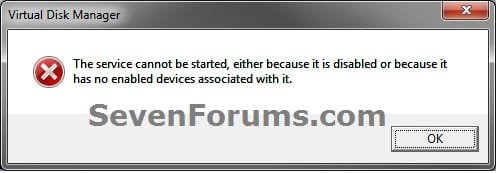
  • If you disable the Disk Defragmenter service, then you will get the error below when you try to do anything in Disk Management. If you get this error, then make sure that the Disk Defragmenter service is set to only Manual.
Error.jpg


OPTION ONE

Convert Dynamic Disk to Basic Disk using "Partition Wizard 4.2 Free"


:warn:WARNING: Even though you will not lose the data on the dynamic disk when you use this option to convert the dynamic disk back to a basic disk, be sure to backup any data on the dynamic disk that you wish to keep first just to be safe in case something happens. Say a power outage while in the middle of converting the disk.1. Do step 2 or 3 below depending on what you are able to do.

2. To Use Partition Wizard 4.2 Free at Boot
NOTE: This option can be helpful if you are unable to startup Windows if your Windows disk was made dynamic.A) Download "pwhe42.iso" file here to your desktop.
NOTE: It will take a moment for the download option to automatically appear at the link.

B) Create either a bootable CD/DVD or USB with the pwhe42.iso file.
NOTE: You could also use a free program like ImgBurn at 4x burn speed to create a bootable CD/DVD with.

C) Boot from the the CD/DVD or USB.

D) Convert the dynamic disk to basic like starting at step 3E below.

3. To Use Partition Wizard 4.2 Free in WindowsA) Download the "Partition_Wizard_4.2_free.zip" file here to your desktop.

B) Open the ZIP file, and extract (drag and drop) the PW folder to your desktop.

C) Open the PW folder, and run the PWIZ.exe file.

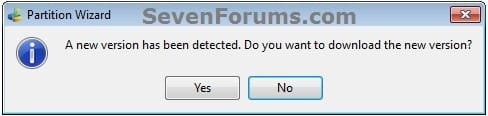
D) Click on No for the new version avialable update. (see screenshot below)PW-1.jpg

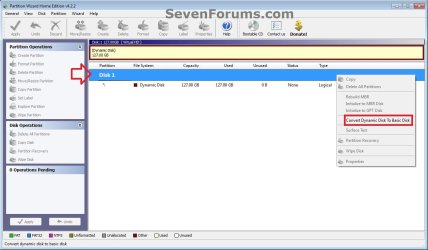
E) Right click on the Disk # (ex: Disk 1) of the dynamic disk you want to convert, then click on Convert Dynamic Disk to Basic Disk. (see screenshot below)PW-2.jpg

F) Click on OK. (see screenshot below)

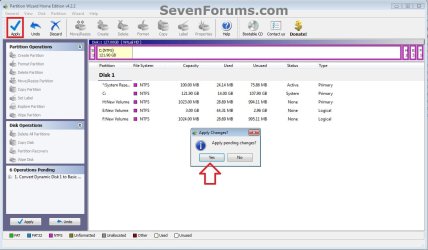
G) Click on the blue Apply check mark toolbar button at the top left corner, and click on Yes. (see screenshot below)PW-4.jpg

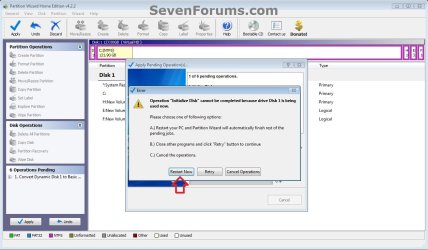
H) If prompted to restart, click on Restart Now. (see screenshot below)
NOTE: This is normal if the dynamic disk you wanted to convert to basic is the disk that the currently running Windows is installed on.PW-5.jpg


4. When finished, the selected dynamic disc will now be converted to a basic disk without losing any data on it.


OPTION TWO

To Convert Dynamic Disk to Basic Disk using Disk Management


:warn:WARNING: Be sure to read the red WARNING box above. You will lose all data on the dynamic disk using this option.1. Open the Control Panel (icons view), and click on the Administrative Tools icon, then close the Control Panel window.

2. Click on Computer Management in Administrative Tools, then close the Administrative Tools window.

3. If prompted by UAC, click on Yes.

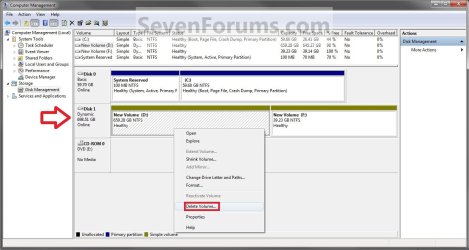
4. In the left pane under Storage, click on Disk Management. (See screenshot below)Step1.jpg

5. In the dynamic disk (ex: Disk 1) that you want to convert to a basic disk, right click on each volume on the disk and click on Delete Volume until the whole disk is unallocated space. (See screenshot above)
NOTE: If prompted, click on Yes to continue deleting the volume(s).

6. If the disk (ex: Disk 1) that you want to convert to a basic disk is still displayed has being Dynamic (left side under Disk #), then right click on the disk (ex: Disk 1) and click on Convert to Basic Disk if available. (See screenshot below)Step2.jpg

7. You can also confirm that the disk is a basic disk if it's displayed has being Basic (left side under Disk #), or if you right click on the disk # and it has Convert to Dynamic Disk instead now. (See screenshot below)Step3.jpg

8. You can now create partitions on the now basic disk if you like.

9. When done, close Disk Management.


OPTION THREE

To Convert Dynamic Disk to Basic Disk using "Clean" Command


:warn:WARNING: Be sure to read the red WARNING box above. You will lose all data on the dynamic disk using this option.1. Use the Clean command in the tutorial below on the dynamic disk that you want to wipe out and convert to be a basic disk.
NOTE: You could also use the Clean all command for this as well, but it will take much longer to do since it also does a secure erase.How to Clean or Clean All a Disk with the Diskpart Command

2. You can now create partitions on the now basic disk if you like.


OPTION FOUR

To Convert Dynamic Disk to Basic Disk using "Delete Volume" Command


:warn:WARNING: Be sure to read the red WARNING box above. You will lose all data on the dynamic disk using this option.1. Open an elevated command prompt, and go to step 3 below.

OR

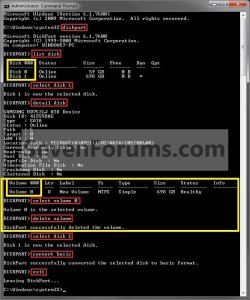
2. Open a command prompt at boot, and go to step 3 below.Command_Basic.jpg

3. In the command prompt, type diskpart and press enter. (See screenshot above)

4. Type list disk and press enter.
NOTE: Make note of the disk number (ex: Disk 1) that you want to convert to a basic disk.

5. Type select disk # and press enter.
NOTE: Substitute # with the actual disk number that you want to convert to a dynamic disk. For example, select disk 1.

6. Type detail disk and press enter.
NOTE: This will give you a list of all the volume numbers on the selected disk number that you will need to delete in steps 7 and 8 below.A) If you do not have any volumes listed, then you can go to step 10.

7. Type select volume # and press enter.
NOTE: Substitute # with a volume number listed in step 6. For example, select volume 3.

8. Type delete volume and press enter.

9. Repeat steps 7 an 8 for each volume # listed in step 6 until you have deleted all volume #'s.

10. When done, type select disk # and press enter.
NOTE: You would use the same one from step 5 above. For example, select disk 1.

11. Type convert basic and press enter.

12. When done, type exit and press enter.

13. Close the command prompt.

14. You can now create partitions on the now basic disk if you like.
NOTE: Restart the computer if you did step 2 instead.

That's it,
Shawn


Attachments

Last edited:
Hello Anigoni, and welcome to Seven Forums.

If you have not already, while you have Windows 7 started, see if you are still able to create a set of HP Windows 7 Recovery Disks from the "HP Recovery Manager". The instructions for how are in the HP link below if needed.

Using HP Backup and Recovery Manager in Vista - HP Customer Care (United States - English)

If successfull, you can boot from this recovery disc to format your hard drive back to a BASIC disk again. Be sure to backup anything that you do not want to lose first though.

Hope this helps,
Shawn
 

My Computer

Computer type
PC/Desktop
Computer Manufacturer/Model Number
Self built custom
OS
64-bit Windows 11 Pro for Workstations
CPU
Intel i7-8700K OC'd to 5 GHz
Motherboard
ASUS ROG Maximus XI Formula Z390
Memory
64 GB (4x16GB) G.SKILL TridentZ RGB DDR4 3600 MHz
Graphics Card(s)
ASUS ROG-STRIX-GTX1080TI-O11G-GAMING
Sound Card
Integrated
Monitor(s) Displays
2 x Samsung Odyssey G7 27"
Screen Resolution
2560x1440
Hard Drives
1TB Samsung 990 PRO M.2,
4TB Samsung 990 PRO PRO M.2,
TerraMaster F8 SSD Plus NAS
PSU
Seasonic Prime Titanium 850W
Case
Thermaltake Core P3
Cooling
Corsair Hydro H115i
Keyboard
Logitech wireless K800
Mouse
Logitech MX Master 4
Internet Speed
2 Gb/s Download and 100 Mb/s Upload
Antivirus
Malwarebyte Anti-Malware Premium
Browser
Google Chrome
Other Info
Logitech Z625 speaker system,
Logitech BRIO 4K Pro webcam,
HP Color LaserJet Pro MFP M477fdn,
APC SMART-UPS RT 1000 XL - SURT1000XLI,
Galaxy S23 Plus phone
Hello Anigoni, and welcome to Seven Forums.

If you have not already, while you have Windows 7 started, see if you are still able to create a set of HP Windows 7 Recovery Disks from the "HP Recovery Manager". The instructions for how are in the HP link below if needed.

Using HP Backup and Recovery Manager in Vista - HP Customer Care (United States - English)

If successfull, you can boot from this recovery disc to format your hard drive back to a BASIC disk again. Be sure to backup anything that you do not want to lose first though.

Hope this helps,
Shawn

Hello,

after created new partition and after Windows 7 changed disk to Dynamic type, I can't create Recovery Disk. When I start "HP Recovery Manager" and try to burn CD or DVD, this error message appears: "Unable to create Recovery Disk System. Parameter not correct. (0x80070057)"

If I press "f11" or "f8" at the booting of the system, Windows doesn't start and I have the following state error: "state: 0xc0000225".

I can see, in Disk Manager of Windows 7, all the partitions: HP_RECOVERY, HP_TOOLS, SYSTEM, C.\....

I have seen in some technical forum that a way to reverse back dynamic disk to basic without data loss is change, with a partition table editor, the partition type from "42" value to "07" value ...

What do you think about?

Andrea.
 

My Computer

OS
Windows 7
Andrea,

I have not tried that before myself, but I would strongly advise backing up anything that you do not want to lose to be safe before trying it. Also, if you do not have a way to reinstall Windows 7 afterwards, you may need to either contact HP to see about getting a set of HP Windows 7 Recovery Discs, or purchasing a retail upgrade copy of Windows 7. :(

If you have a friend that has the same model of computer that you do, then you can use their recovery disc to reinstall Windows 7 on your computer with you using your product key number instead.
 

My Computer

Computer type
PC/Desktop
Computer Manufacturer/Model Number
Self built custom
OS
64-bit Windows 11 Pro for Workstations
CPU
Intel i7-8700K OC'd to 5 GHz
Motherboard
ASUS ROG Maximus XI Formula Z390
Memory
64 GB (4x16GB) G.SKILL TridentZ RGB DDR4 3600 MHz
Graphics Card(s)
ASUS ROG-STRIX-GTX1080TI-O11G-GAMING
Sound Card
Integrated
Monitor(s) Displays
2 x Samsung Odyssey G7 27"
Screen Resolution
2560x1440
Hard Drives
1TB Samsung 990 PRO M.2,
4TB Samsung 990 PRO PRO M.2,
TerraMaster F8 SSD Plus NAS
PSU
Seasonic Prime Titanium 850W
Case
Thermaltake Core P3
Cooling
Corsair Hydro H115i
Keyboard
Logitech wireless K800
Mouse
Logitech MX Master 4
Internet Speed
2 Gb/s Download and 100 Mb/s Upload
Antivirus
Malwarebyte Anti-Malware Premium
Browser
Google Chrome
Other Info
Logitech Z625 speaker system,
Logitech BRIO 4K Pro webcam,
HP Color LaserJet Pro MFP M477fdn,
APC SMART-UPS RT 1000 XL - SURT1000XLI,
Galaxy S23 Plus phone
Andrea,

I have not tried that before myself, but I would strongly advise backing up anything that you do not want to lose to be safe before trying it. Also, if you do not have a way to reinstall Windows 7 afterwards, you may need to either contact HP to see about getting a set of HP Windows 7 Recovery Discs, or purchasing a retail upgrade copy of Windows 7. :(

If you have a friend that has the same model of computer that you do, then you can use their recovery disc to reinstall Windows 7 on your computer with you using your product key number instead.

Brink,

I will back up HP_RECOVERY, HP_TOOLS and SYSTEM partitions that I have preinstalled from HP in my HDD... but ... what do you suggest?

Simple file backup or create image for each partition?

Then, I will try to convert dynamic disc to basic disc, but, if everything goes wrong, could I restore my data?
Form simple back up file or from image created before?

I'm not sure of that or... better... what I mean is that HP_RECOVERY and HP_TOOLS and HP_SYSTEM partitions are "special" partition by HP and I don't know exactly how to backup them in the right way...

What do you suggest me about?

Many thanks in advance,

Best Regards,

Andrea
 

My Computer

OS
Windows 7
Andrea,

Since you can no longer create a set of Windows 7 recovery discs of your own, then it would be best to get a copy from HP first for your computer model number since you will not be able to convert it back to basic without losing the recovery partitions and your Windows 7. This way you have a recovery disc to reinstall Windows 7 with after you convert the disk back to basic. :(
 

My Computer

Computer type
PC/Desktop
Computer Manufacturer/Model Number
Self built custom
OS
64-bit Windows 11 Pro for Workstations
CPU
Intel i7-8700K OC'd to 5 GHz
Motherboard
ASUS ROG Maximus XI Formula Z390
Memory
64 GB (4x16GB) G.SKILL TridentZ RGB DDR4 3600 MHz
Graphics Card(s)
ASUS ROG-STRIX-GTX1080TI-O11G-GAMING
Sound Card
Integrated
Monitor(s) Displays
2 x Samsung Odyssey G7 27"
Screen Resolution
2560x1440
Hard Drives
1TB Samsung 990 PRO M.2,
4TB Samsung 990 PRO PRO M.2,
TerraMaster F8 SSD Plus NAS
PSU
Seasonic Prime Titanium 850W
Case
Thermaltake Core P3
Cooling
Corsair Hydro H115i
Keyboard
Logitech wireless K800
Mouse
Logitech MX Master 4
Internet Speed
2 Gb/s Download and 100 Mb/s Upload
Antivirus
Malwarebyte Anti-Malware Premium
Browser
Google Chrome
Other Info
Logitech Z625 speaker system,
Logitech BRIO 4K Pro webcam,
HP Color LaserJet Pro MFP M477fdn,
APC SMART-UPS RT 1000 XL - SURT1000XLI,
Galaxy S23 Plus phone
Hi Anigoni,

You should be able to convert a Dynamic disk to Basic disk without data loss , using a partition manager.

Paragon PM 10 Pro can certainly do it - an excellent program , but it is not free.

There is free one that claims to do it - I haven't tried the function , but because you have a simple Dynamic disk - it will probably be fine:

How to convert dynamic disk to basic disk with Partition Wizard?

Free Download Partition Wizard

You would need to download the bootable disc .iso and burn as an image to cd. Then boot the cd on the sick machine ( make sure NUM LOCK is on when it asks about screen resolution - press1, press enter).

It is a good idea to back up your drive first , to be safe.

I would make an image.

I am not sure how free imaging programs will handle it - but you can try this one:

Paragon Backup & Recovery 10 Free Edition

You need to install it on a working machine - you can run off the bootable disc - boot that on your sick machine , select Normal Mode - then make images of the volumes ( or the whole drive ). If you select normal compression - the image will smaller. You will need to have an external drive attached, or lots of dvd's to store the image.

Hope it helps.
 

My Computers

System One System Two

  • Computer type
    PC/Desktop
    OS
    7 X64
    CPU
    i5 8400
    Motherboard
    gigabyte b365m ds3h
    Memory
    2x8gb 3200mhz
    Hard Drives
    various
    PSU
    pure power 11 400w cm
    Case
    Coolermaster
    Cooling
    cryorig m9i
  • Computer type
    PC/Desktop
    OS
    7x64
    CPU
    g5400
    Motherboard
    ga b365m ds3h
    Memory
    8gb ddr4 2400
    PSU
    xfx pro 450w
Thank you SIW. :)
 

My Computer

Computer type
PC/Desktop
Computer Manufacturer/Model Number
Self built custom
OS
64-bit Windows 11 Pro for Workstations
CPU
Intel i7-8700K OC'd to 5 GHz
Motherboard
ASUS ROG Maximus XI Formula Z390
Memory
64 GB (4x16GB) G.SKILL TridentZ RGB DDR4 3600 MHz
Graphics Card(s)
ASUS ROG-STRIX-GTX1080TI-O11G-GAMING
Sound Card
Integrated
Monitor(s) Displays
2 x Samsung Odyssey G7 27"
Screen Resolution
2560x1440
Hard Drives
1TB Samsung 990 PRO M.2,
4TB Samsung 990 PRO PRO M.2,
TerraMaster F8 SSD Plus NAS
PSU
Seasonic Prime Titanium 850W
Case
Thermaltake Core P3
Cooling
Corsair Hydro H115i
Keyboard
Logitech wireless K800
Mouse
Logitech MX Master 4
Internet Speed
2 Gb/s Download and 100 Mb/s Upload
Antivirus
Malwarebyte Anti-Malware Premium
Browser
Google Chrome
Other Info
Logitech Z625 speaker system,
Logitech BRIO 4K Pro webcam,
HP Color LaserJet Pro MFP M477fdn,
APC SMART-UPS RT 1000 XL - SURT1000XLI,
Galaxy S23 Plus phone
Can't see any partitions with Partitoin Wizard...

Hi Anigoni,

You should be able to convert a Dynamic disk to Basic disk without data loss , using a partition manager.

Paragon PM 10 Pro can certainly do it - an excellent program , but it is not free.

There is free one that claims to do it - I haven't tried the function , but because you have a simple Dynamic disk - it will probably be fine:

How to convert dynamic disk to basic disk with Partition Wizard?

Free Download Partition Wizard

You would need to download the bootable disc .iso and burn as an image to cd. Then boot the cd on the sick machine ( make sure NUM LOCK is on when it asks about screen resolution - press1, press enter).

It is a good idea to back up your drive first , to be safe.

I would make an image.

I am not sure how free imaging programs will handle it - but you can try this one:

Paragon Backup & Recovery 10 Free Edition

You need to install it on a working machine - you can run off the bootable disc - boot that on your sick machine , select Normal Mode - then make images of the volumes ( or the whole drive ). If you select normal compression - the image will smaller. You will need to have an external drive attached, or lots of dvd's to store the image.

Hope it helps.

Dear SIW2,

first of all, thanks for all kind suggestions. I have already tried to boot with Partition Wizard CD, but I can't see partitions on my HDD, it recognize only the physical Hard Disk Drive ad dynamic disk.

I have already ordered DVD set for Recovery all the system from HP Support. I'm waiting for it. Right now, I think the only way to convert dynamic disk in basic disk type is to change partition type from "42" to "07", as I have seen in some other forum... Did you see my previous post where I say:

"I have seen in some technical forum that a way to reverse back dynamic disk to basic without data loss is change, with a partition table editor, the partition type from "42" value to "07" value ..."

What do you think about?

I will try this way ... before, I would like to back-up SYTEM, HP_TOOLS and HP_RECOVERY partitions... I have a doubt referring to this: if I make an image cloning of each of these partition, after, if everything goes wrong, could I format the HDD, create the partition as they are now and restore everything form images of partitions created before?

Sorry for my english ... I hope to be clear enought in explaining my intentions...

Many thanks in advance for your precious suggestions,

Andrea
 

My Computer

OS
Windows 7
Hi Anigoni,

Yes I am aware of the manual method changing 42 to 07 for the partition type. I used to suggest it to people when less software was available to do the job.

It can work - or not. It is easy for the user to make an error, and you need to change all the 42 references, not just one.

Partition Wizard is supposed to only see the whole Dynamic disk. If you click the Disk itself , and select convert to basic ( that is a virtual operation - it will not do the job until you click Apply). Then you will see the volumes.

If it looks right, click Apply.

You can see that in the instructions :

How to convert dynamic disk to basic disk with Partition Wizard?

Good idea to make an image before trying to convert.

Try Paragon B&R Free - no need to "clone" , just make an image. You can restore if necessary.
 

My Computers

System One System Two

  • Computer type
    PC/Desktop
    OS
    7 X64
    CPU
    i5 8400
    Motherboard
    gigabyte b365m ds3h
    Memory
    2x8gb 3200mhz
    Hard Drives
    various
    PSU
    pure power 11 400w cm
    Case
    Coolermaster
    Cooling
    cryorig m9i
  • Computer type
    PC/Desktop
    OS
    7x64
    CPU
    g5400
    Motherboard
    ga b365m ds3h
    Memory
    8gb ddr4 2400
    PSU
    xfx pro 450w
Hi There,

Is doing the command prompt method going to delete the OS?
 

My Computer

Computer Manufacturer/Model Number
Sony Vaio NW Series
OS
Windows 7 Home Premium
Hello Blulex, and welcome to Seven Forums.

As in the warning box at the top of the tutorial, when you convert a dynamic disk back to a basic disk, the disk will need to be deleted first. Doing either method will wipe out the entire HDD that you are converting. Be sure to backup anything that you do not want to lose first.

Sorry,
Shawn
 

My Computer

Computer type
PC/Desktop
Computer Manufacturer/Model Number
Self built custom
OS
64-bit Windows 11 Pro for Workstations
CPU
Intel i7-8700K OC'd to 5 GHz
Motherboard
ASUS ROG Maximus XI Formula Z390
Memory
64 GB (4x16GB) G.SKILL TridentZ RGB DDR4 3600 MHz
Graphics Card(s)
ASUS ROG-STRIX-GTX1080TI-O11G-GAMING
Sound Card
Integrated
Monitor(s) Displays
2 x Samsung Odyssey G7 27"
Screen Resolution
2560x1440
Hard Drives
1TB Samsung 990 PRO M.2,
4TB Samsung 990 PRO PRO M.2,
TerraMaster F8 SSD Plus NAS
PSU
Seasonic Prime Titanium 850W
Case
Thermaltake Core P3
Cooling
Corsair Hydro H115i
Keyboard
Logitech wireless K800
Mouse
Logitech MX Master 4
Internet Speed
2 Gb/s Download and 100 Mb/s Upload
Antivirus
Malwarebyte Anti-Malware Premium
Browser
Google Chrome
Other Info
Logitech Z625 speaker system,
Logitech BRIO 4K Pro webcam,
HP Color LaserJet Pro MFP M477fdn,
APC SMART-UPS RT 1000 XL - SURT1000XLI,
Galaxy S23 Plus phone
Is a Recovery Disk I Made A Back Up? And How is the best way to back up the Hardrive?
 

My Computer

Computer Manufacturer/Model Number
Sony Vaio NW Series
OS
Windows 7 Home Premium

My Computer

Computer type
PC/Desktop
Computer Manufacturer/Model Number
Self built custom
OS
64-bit Windows 11 Pro for Workstations
CPU
Intel i7-8700K OC'd to 5 GHz
Motherboard
ASUS ROG Maximus XI Formula Z390
Memory
64 GB (4x16GB) G.SKILL TridentZ RGB DDR4 3600 MHz
Graphics Card(s)
ASUS ROG-STRIX-GTX1080TI-O11G-GAMING
Sound Card
Integrated
Monitor(s) Displays
2 x Samsung Odyssey G7 27"
Screen Resolution
2560x1440
Hard Drives
1TB Samsung 990 PRO M.2,
4TB Samsung 990 PRO PRO M.2,
TerraMaster F8 SSD Plus NAS
PSU
Seasonic Prime Titanium 850W
Case
Thermaltake Core P3
Cooling
Corsair Hydro H115i
Keyboard
Logitech wireless K800
Mouse
Logitech MX Master 4
Internet Speed
2 Gb/s Download and 100 Mb/s Upload
Antivirus
Malwarebyte Anti-Malware Premium
Browser
Google Chrome
Other Info
Logitech Z625 speaker system,
Logitech BRIO 4K Pro webcam,
HP Color LaserJet Pro MFP M477fdn,
APC SMART-UPS RT 1000 XL - SURT1000XLI,
Galaxy S23 Plus phone
Hello. I sadly have to say that I have tried everything and it does not work. I cannot delete "C" obviously, since Windows is on it. I only have one disk (disk 0 ) so practically my entire disk is dynamic. So the deleting of all partitions does not work. I don't care about any data loss, so I've tried reinstalling windows. I cannot format anything and I cannot make new partitions out of the unallocated space. It keeps telling me there are one or more dynamic partitions on it. The only partition it lets me install Windows is C, and it remains dynamic whatever I do. Any solutions?
 

My Computer

OS
windiws 7
Hello Cutthroat, and welcome to Seven Forums.

You might see if you can boot from your Windows 7 installation disc, then delete all listed partitions on disk 0 in the "Drive Options (Advanced)" part of installation. Afterwards, back out of the installation and into the command prompt at boot to do OPTION TWO in the tutorial to convert it back to Basic.

Hope this helps,
Shawn
 

My Computer

Computer type
PC/Desktop
Computer Manufacturer/Model Number
Self built custom
OS
64-bit Windows 11 Pro for Workstations
CPU
Intel i7-8700K OC'd to 5 GHz
Motherboard
ASUS ROG Maximus XI Formula Z390
Memory
64 GB (4x16GB) G.SKILL TridentZ RGB DDR4 3600 MHz
Graphics Card(s)
ASUS ROG-STRIX-GTX1080TI-O11G-GAMING
Sound Card
Integrated
Monitor(s) Displays
2 x Samsung Odyssey G7 27"
Screen Resolution
2560x1440
Hard Drives
1TB Samsung 990 PRO M.2,
4TB Samsung 990 PRO PRO M.2,
TerraMaster F8 SSD Plus NAS
PSU
Seasonic Prime Titanium 850W
Case
Thermaltake Core P3
Cooling
Corsair Hydro H115i
Keyboard
Logitech wireless K800
Mouse
Logitech MX Master 4
Internet Speed
2 Gb/s Download and 100 Mb/s Upload
Antivirus
Malwarebyte Anti-Malware Premium
Browser
Google Chrome
Other Info
Logitech Z625 speaker system,
Logitech BRIO 4K Pro webcam,
HP Color LaserJet Pro MFP M477fdn,
APC SMART-UPS RT 1000 XL - SURT1000XLI,
Galaxy S23 Plus phone
But I have a laptop and I converted to a dynamic disk and everything's functioning properly. (I haven't rebooted)
 

My Computer

OS
Windows Vista Ultimate
Hard Drives
TOSHIBA MK2552GSX ATA Device
But I have a laptop and I converted to a dynamic disk and everything's functioning properly.
That's fine. If you ever need to use data recovery programs, you may wish for a basic disk, but if everything's working okay, there is no need to convert.

Let us know if you need help.
 

My Computer

Computer Manufacturer/Model Number
Custom
OS
Windows 7 Professional x64
CPU
Intel i7 2600K OC'd @ 4620 MHz
Motherboard
Asus P8Z68-V Pro
Memory
16GB GSkill Sniper 2133 Mhz (4x4GB)
Graphics Card(s)
EVGA GeForce GTX 480 SuperClocked+
Sound Card
Realtek High Definition Audio
Monitor(s) Displays
2x Acer S273HLbmii 27"
Screen Resolution
2 x 1920x1080
Hard Drives
64GB Crucial M4 SSD

Storage: Hitachi 1TB 5400RPM, Samsung 1.5TB 5400RPM
PSU
Corsair HW Series 750w (modular)
Case
Cooler Master HAF 932 Advanced Blue Edition
Cooling
CM Hyper 212+ CPU cooler, 3x 230mm + 1x 140mm case fans
Keyboard
Logitech MK320 (wireless)
Mouse
Logitech MK320 (wireless)
Internet Speed
30 Mb/s : 2 Mb/s
Hello. I sadly have to say that I have tried everything and it does not work. I cannot delete "C" obviously, since Windows is on it. I only have one disk (disk 0 ) so practically my entire disk is dynamic. So the deleting of all partitions does not work. I don't care about any data loss, so I've tried reinstalling windows. I cannot format anything and I cannot make new partitions out of the unallocated space. It keeps telling me there are one or more dynamic partitions on it. The only partition it lets me install Windows is C, and it remains dynamic whatever I do. Any solutions?

I am in the same situation. Wasted a cd by burning Partition Wizard Home which will do absolutely nothing in my case.

Hello Cutthroat, and welcome to Seven Forums.

You might see if you can boot from your Windows 7 installation disc, then delete all listed partitions on disk 0 in the "Drive Options (Advanced)" part of installation. Afterwards, back out of the installation and into the command prompt at boot to do OPTION TWO in the tutorial to convert it back to Basic.

Hope this helps,
Shawn

That will not work, everything except "format" is greyed out in the windows 7 installation(yes, i tried installing from boot).
I will now try to boot from Vista's disk to see if at least that can do something with my hard drive.
 

My Computer

OS
Windows 7
Hello Electrosol, and welcome to Seven Forums.

How about doing OPTION TWO in the tutorial using a command prompt at boot instead?

Hope this helps,
Shawn
 

My Computer

Computer type
PC/Desktop
Computer Manufacturer/Model Number
Self built custom
OS
64-bit Windows 11 Pro for Workstations
CPU
Intel i7-8700K OC'd to 5 GHz
Motherboard
ASUS ROG Maximus XI Formula Z390
Memory
64 GB (4x16GB) G.SKILL TridentZ RGB DDR4 3600 MHz
Graphics Card(s)
ASUS ROG-STRIX-GTX1080TI-O11G-GAMING
Sound Card
Integrated
Monitor(s) Displays
2 x Samsung Odyssey G7 27"
Screen Resolution
2560x1440
Hard Drives
1TB Samsung 990 PRO M.2,
4TB Samsung 990 PRO PRO M.2,
TerraMaster F8 SSD Plus NAS
PSU
Seasonic Prime Titanium 850W
Case
Thermaltake Core P3
Cooling
Corsair Hydro H115i
Keyboard
Logitech wireless K800
Mouse
Logitech MX Master 4
Internet Speed
2 Gb/s Download and 100 Mb/s Upload
Antivirus
Malwarebyte Anti-Malware Premium
Browser
Google Chrome
Other Info
Logitech Z625 speaker system,
Logitech BRIO 4K Pro webcam,
HP Color LaserJet Pro MFP M477fdn,
APC SMART-UPS RT 1000 XL - SURT1000XLI,
Galaxy S23 Plus phone
Back
Top