

How to Change Device Driver and Information Installation Settings in Windows 7 and Windows 8
InformationThis will show you how to allow or change how Windows is to automatically or not download recommended drivers and detailed information and icons for your devices through Windows Update.
NoteWindows 7 and Windows 8 can find and download two kinds of updates for devices connected to your computer:
- Drivers
A driver is software that allows your computer to communicate with hardware devices. Without drivers, the devices you connect to your computer—for example, a mouse or external hard drive—won't work properly. Windows can automatically check if there are drivers available for new devices you connect to your computer.
For hardware that you've connected to your computer in the past, updated drivers might become available at a later date; but those drivers aren't installed automatically. To install these optional updates, go to Windows Update in Control Panel, check for updates, and then view and install driver updates that are available for your computer.- Information
- Windows can download high-resolution icons for many hardware devices that you connect to your computer, along with detailed information about them, such as product name, manufacturer, and model number—even detailed information about the sync capabilities of a device. This is much more detailed device information than was previously available in earlier versions of Windows. These details can make it easier for you to distinguish between similar devices that are connected to your computer, such as if you have several different portable music players and mobile phones. Additionally, they make it easier to check the capabilities of a device.
- Updated icons are displayed in the Devices and Printers folder, making it easier to see all your devices at a glance and find the one you're looking for.
- Windows can automatically download this detailed information about your devices if you turn on Recommended updates.
Here's How:
1. Open Devices and Printers, and right click or press and hold on the Computer icon with your computer name on it, then click/tap on Device installation settings. (see screenshot below)2. Do step 3, 4, or 5 for how you would like to set the settings.
3. To Allow Device Drivers and Information to be Installed Automatically
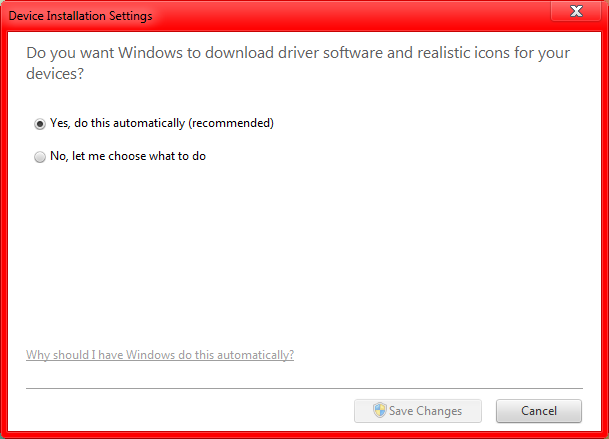
NOTE: This will allow both the device drivers and information to be installed automatically by Windows 7 through Windows Update.A) Select (dot) Yes, do this automatically. (see screenshot below step 6)4. To Not Allow Device Drivers and Information to be Installed
B) You will need to select Install updates automatically, and check the Give me recommended updates the same way I receive important updates in the Windows Update settings. (see screenshot below)C) Click/tap on OK, and go to step 6 below.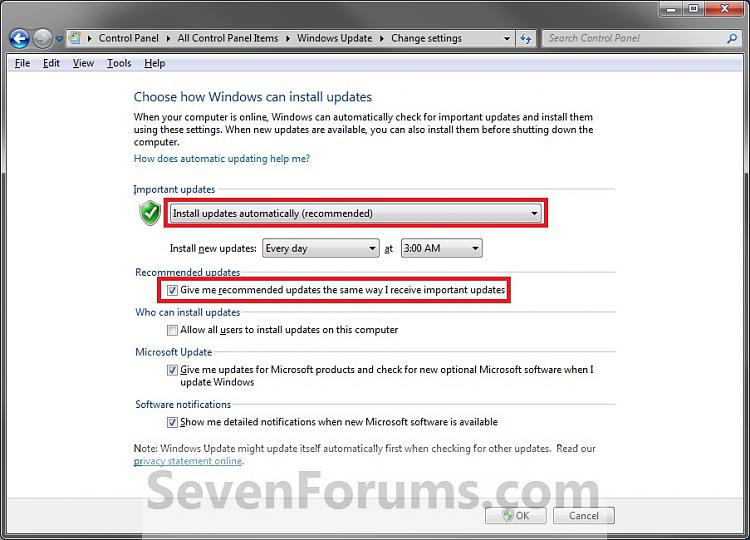
NOTE: This will not allow both the device drivers and information to be installed automatically by Windows 7 through Windows Update. You can still choose to install the driver updates manually by reviewing available updates when you check for updates in Windows Update.A) Select (dot) No, let me choose what to do. (see screenshot below step 6)5. To Choose What to Install Instead
B) Select (dot) Never install driver software from Windows Update. (see screenshot below step 6)
C) Uncheck the Replace generic device icons with enhanced icons box. (see screenshot below step 6)
D) Go to step 6 below.A) Select (dot) No, let me choose what to do. (see screenshot below step 6)6. Click/tap on the Save Changes button. (see screenshot below)
B) Select (dot) either the Always install the best driver software from Windows Update or Install driver software from Windows Update if it is not found on my computer settings. (see screenshot below step 6)
NOTE: If you want the device information and new icons downloaded for Devices and Printers.
C) Check the Replace generic device icons with enhanced icons box if you want high def icons for devices in Devices and Printers, or uncheck if not.
D) You will need to turn on Windows Updates and check Give me recommended updates the same way I receive important updates in the Windows Update settings. (see screenshot below)E) Click/tap on OK, and go to step 6 below.
7. If prompted by UAC, then click/tap on Yes.
8. Close the Device and Printers window. (see screenshot below step 2)
That's it,
Shawn
Related Tutorials
- How to Create a "Device Installation Settings" Shortcut in Windows 7 and Windows 8
- How to Enable or Disable "Found New Hardware" Balloons During Device Installation
- How to Change the Windows Update Settings in Windows 7
- How to Open Devices and Printers in Windows 7
- How to Create a "Scanners and Cameras" Shortcut in Windows 7 and Windows 8
- How to Open and Use the "Scanner and Camera Installation Wizard" in Windows 7 and Windows 8
- How to Create a "Devices and Printers" Shortcut in Windows 7 and Windows 8
- How to Add "Devices and Printers" to "Computer" or "This PC" in Windows 7 and Windows 8
- How to Uninstall a Device and Device Driver in Vista and Windows 7
- How to Roll Back a Device Driver in Device Manager
- How to Change Icons in Devices and Printers with Custom Icons
Device Installation Settings
-
-
-
New #3
Hi,
Does anyone know how to disable win7 driver installation programmatically?
thanks
-
New #4
Start
Run
CMD (Run As Admin)
bcdedit.exe -set loadoptions DDISABLE_INTEGRITY_CHECKS
bcdedit.exe -set TESTSIGNING ON
Boot
Turn driver signing ON
bcdedit.exe -set loadoptions ENABLE_INTEGRITY_CHECKS
bcdedit.exe -set TESTSIGNING OFF
-
New #5
Hi,
I've tried these commands
(bcdedit.exe -set loadoptions DDISABLE_INTEGRITY_CHECKS
bcdedit.exe -set TESTSIGNING ON
Boot )
but it didn't work.
My problem is with "Allow Device Drivers and Information to be Installed Automatically", it always took more than 5 minutes to try to get driver from windows update before I can install my driver manually when device is presented and it's too slow to accept, so I select "Never install driver software from Windows Update" to skip that and it worked.
Now I just need a way to do exactly the same thing but only by programmatically.
Does anyone know how to do that?
thanks
-
New #6
May I add an alternative option Brink?
Control Panel - System - Advanced system settings - Click the Hardware Tab and select Device Installation Settings. From there chose the option.
-
New #7
Sure thing Infinite. It's a bit of a longer way to open it, but another way none the less. :)
-
New #8
Doesnt work. It searches thru its preconfigured driver folders and installs the driver anyway.
-
New #9
Hello Riahc,
I think you may have what this does confused. These settings are only for getting a custom icon (if available) for the device, and only getting driver updates through Windows Update.
This isn't related to the generic drivers for devices that come preinstalled in Windows and used (if available) when you don't install the drivers yourself or through Windows Updates. It also has nothing to do with Windows automatically installing drivers for a device when the drivers are already available or installed in Windows. For that, you would want to use the tutorial below instead.
"Found New Hardware" Balloons - Enable or Disable
Hope this helps,
Shawn
Device Installation Settings
How to Change Device Driver and Information Installation Settings in Windows 7 and Windows 8Published by Brink


 Quote
Quote
Related Discussions