Windows 7 Forums Search
Welcome to Windows 7 Forums. Our forum is dedicated to helping you find solutions with any problems, errors or issues you are experiencing with Windows 7. The Windows 7 forum also covers news and updates and has an extensive Windows 7 tutorial section that covers a wide range of tips and tricks.


Windows 7 - Windows Explorer Taskbar Icon - Change Open To Target


Windows Explorer Taskbar Icon - Change Open To Target

How to Change the Windows 7 Pinned Windows Explorer Taskbar Icon Open To Target
Published by Brink
01-25-2009
Default Windows Explorer Taskbar Icon - Change Open To Target

How to Change the Windows 7 Pinned Windows Explorer Taskbar Icon Open To Target
information   Information
This will show you how to change the Windows 7 pinned Windows Explorer taskbar icon from the default Open To the Libraries window target to Open To the Computer window target or other possible locations that are available to choose from instead when you click on the Windows Explorer icon on the taskbar.
Note   Note
Special thanks to Chappy (aka: Dave) for pointing this out to me, and to Limneos for the additional locations.
warning   Warning
By design in Windows, these shortcuts will open a new window in a new process (explorer.exe) each time you use the shortcut. When you close the opened window from the shortcut, the extra explorer.exe process will close with it as well a few moments afterwards.

EXAMPLE: Windows Explorer icon pinned to the taskbar

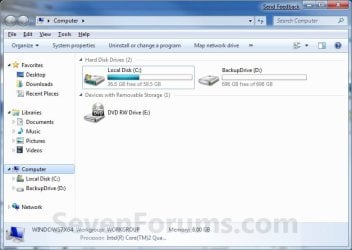
EXAMPLE: Opens to Libraries (default) or Computer
NOTE: You can also select from the other available options below.
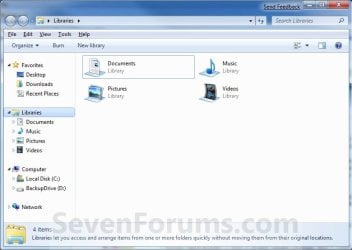
Windows Explorer Taskbar Icon - Change Open To Target-libraries.jpgWindows Explorer Taskbar Icon - Change Open To Target-computer.jpg
Here's How:
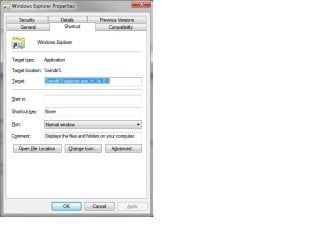
1. Right click on the pinned Windows Explorer taskbar icon, then right click on Windows Explorer in the Jump List and click on Properties. (see screenshot below)
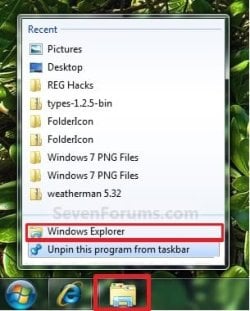
Windows Explorer Taskbar Icon - Change Open To Target-unpin.jpg
2. In the Shortcut tab, make sure that the field box to the right of Start in is empty.

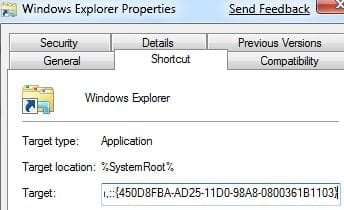
3. In the Shortcut tab and to the right of Target, type or copy the path (code) for the location below that you want the Windows Explorer icon to open to instead, then click on OK. (see screenshot below)
NOTE: You can do this for any item that you know it's {CLSID} registry entry for. You can also specify a specific folder e.g. :
%windir%\explorer.exe /n, /e, /select, C:\somefolder
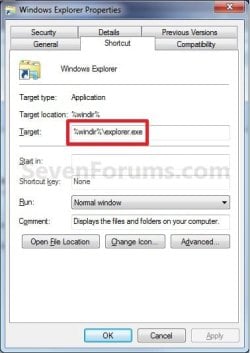
Windows Explorer Taskbar Icon - Change Open To Target-target_properties.jpg

Note   Note
Using the Explorer.exe Command Line Syntax/:
%windir%\explorer.exe [/n][/e][,/root],X,[[/Select],Y]

X specifies the object, and optionally with sub-object Y. The /e switch shows the left Windows Explorer tree view in the navigation pane together with the right pane in list view, while /n hides the left navigation pane. When the /root parameter is present, Explorer.exe will explore the root object X and objects belonging to X. On the other hand, when the /root switch is not present, Explorer.exe explores the object X, its children, and other Explorer objects as well. The /Select switch puts the focus on a file or folder.

For example:
Code:
%windir%\explorer.exe /N,%WinDir%\System32,/Select,%WinDir%\system32\calc.exe
The command above will explore the C:\Windows\System32 folder and put the focus on the calc.exe (calculator) program.

  • Windows Explorer (default) (opens to Libraries)
Code:
%windir%\explorer.exe
  • Computer
Code:
%windir%\explorer.exe /n,::{20D04FE0-3AEA-1069-A2D8-08002B30309D}
OR

Code:
%windir%\explorer.exe shell:MyComputerFolder
  • My Documents
Code:
%windir%\explorer.exe /n,::{450D8FBA-AD25-11D0-98A8-0800361B1103}
  • Documents Library
Code:
%UserProfile%\AppData\Roaming\Microsoft\Windows\Libraries\Documents.library-ms
  • Downloads
Code:
%UserProfile%\Downloads
  • Recycle Bin
Code:
%windir%\explorer.exe /n,::{645FF040-5081-101B-9F08-00AA002F954E
  • Network Neighborhood
Code:
%windir%\explorer.exe /n,::{208D2C60-3AEA-1069-A2D7-08002B30309D}
  • Default Web Browser (ex: Internet Explorer)
Code:
%windir%\explorer.exe /n,::{871C5380-42A0-1069-A2EA-08002B30309D}
  • Computer Search Results Folder
Code:
%windir%\explorer.exe /n,::{1F4DE370-D627-11D1-BA4F-00A0C91EEDBA}
  • Network Search Results Folder
Code:
%windir%\explorer.exe /n,::{E17D4FC0-5564-11D1-83F2-00A0C90DC849}
  • Web Folders
Code:
%windir%\explorer.exe /n,::{20D04FE0-3AEA-1069-A2D8-08002B30309D}\::{BDEADF00-C265-11D0-BCED-00A0C90AB50F}
  • Control Panel
Code:
%windir%\explorer.exe /n,::{20D04FE0-3AEA-1069-A2D8-08002B30309D}\::{21EC2020-3AEA-1069-A2DD-08002B30309D}
  • Printers and Faxes
Code:
%windir%\explorer.exe /n,::{20D04FE0-3AEA-1069-A2D8-08002B30309D}\::{21EC2020-3AEA-1069-A2DD-08002B30309D}\::{2227A280-3AEA-1069-A2DE-08002B30309D}
  • Scanners and Cameras
Code:
%windir%\explorer.exe /n,::{20D04FE0-3AEA-1069-A2D8-08002B30309D}\::{21EC2020-3AEA-1069-A2DD-08002B30309D}\::{E211B736-43FD-11D1-9EFB-0000F8757FCD}
  • Fonts
Code:
%windir%\explorer.exe /n,::{20D04FE0-3AEA-1069-A2D8-08002B30309D}\::{21EC2020-3AEA-1069-A2DD-08002B30309D}\::{D20EA4E1-3957-11d2-A40B-0C5020524152}
  • Network Connections or My Network Place
Code:
%windir%\explorer.exe /n,::{20D04FE0-3AEA-1069-A2D8-08002B30309D}\::{21EC2020-3AEA-1069-A2DD-08002B30309D}\::{7007ACC7-3202-11D1-AAD2-00805FC1270E}
  • Administrative Tools
Code:
%windir%\explorer.exe /n,::{20D04FE0-3AEA-1069-A2D8-08002B30309D}\::{21EC2020-3AEA-1069-A2DD-08002B30309D}\::{D20EA4E1-3957-11d2-A40B-0C5020524153}
  • Tasks Scheduler
Code:
%windir%\explorer.exe /n,::{20D04FE0-3AEA-1069-A2D8-08002B30309D}\::{21EC2020-3AEA-1069-A2DD-08002B30309D}\::{D6277990-4C6A-11CF-8D87-00AA0060F5BF}
  • User Profile (personal) Folder
Code:
%windir%\explorer.exe shell:Profile
That's it,
Shawn


Published by
Administrator

Join Date: Oct 2008
Location: Texas
Posts: 34,826
Brink has a reputation beyond reputeBrink has a reputation beyond reputeBrink has a reputation beyond repute
Brink has a reputation beyond reputeBrink has a reputation beyond reputeBrink has a reputation beyond reputeBrink has a reputation beyond reputeBrink has a reputation beyond reputeBrink has a reputation beyond reputeBrink has a reputation beyond reputeBrink has a reputation beyond reputeBrink has a reputation beyond reputeBrink has a reputation beyond reputeBrink has a reputation beyond reputeBrink has a reputation beyond reputeBrink has a reputation beyond reputeBrink has a reputation beyond repute

Tutorial Tools
01-25-2009   #1
t16skyhopper


XP 64 , Vista 64 , W7 64 tripple boot


Thanks, I was struggling with this to get it, I've been using it that way since W 98
as I see this is excellent for opening 1 window alone but when u have the necessity to open many windows at the time, this is not exactly a shortcut . . .
I open the folder containing the item I want to copy for instance, then I have to go to desktop or start menu to open an other window, to paste in, or I have to close the first window to open an other without having to right click the pin and open an other window, so the use of pins isn't exactly a very big advantage even if just more beautiful

My System SpecsSystem Spec
01-25-2009   #2
Brink


Windows 7 Ultimate x64 SP1


You're welcome t16skyhopper, and welcome to Seven Forums.

Shawn
My System SpecsSystem Spec
02-12-2009   #3
limneos


Windows 7 RC 7100 32bit/64bit


Libraries Taskbar Icon- Change Default Opening Location

Note   Note
By default, Windows Explorer in Windows 7 opens the Libraries location. Following this tutorial you will find how you can change this location to "My Computer" or other possible locations that are available to choose from


HERE'S HOW:

1. Right-click the Libraries icon on the taskbar.
2. Right-click Windows Explorer icon (usually third from bottom on the list)
and select "Properties".

3. In the Target text box under Shortcut tab, change the value to one of the following to open either Documents or Computer by default:

To Make Computer as Default Folder to Open by Windows Explorer upon Launching:
Code:
%windir%\explorer.exe /e,::{20D04FE0-3AEA-1069-A2D8-08002B30309D}
To Make Documents as Default Folder to Open by Windows Explorer upon Launching:

Code:
%windir%\explorer.exe /n,::{450D8FBA-AD25-11D0-98A8-0800361B1103}
4. Click OK and you're done.

Note   Note
You can do this for any item that you know it's {CLSID}. You can also specify a specific folder e.g. : %windir%\explorer.exe /n, /e, /select, C:\somefolder


Limneos


More available locations:

Recycle Bin
%windir%\explorer.exe /N,::{645FF040-5081-101B-9F08-00AA002F954E}
Network Neighborhood
%windir%\explorer.exe /N,::{208D2C60-3AEA-1069-A2D7-08002B30309D}
Default Web Browser or Navigator (IE, Firefox, Safari, Google Chrome)
%windir%\explorer.exe /N,::{871C5380-42A0-1069-A2EA-08002B30309D}
Computer Search Results Folder
%windir%\explorer.exe /N,::{1F4DE370-D627-11D1-BA4F-00A0C91EEDBA}
Network Search Results Folder
%windir%\explorer.exe /N,::{E17D4FC0-5564-11D1-83F2-00A0C90DC849}
Web Folders
%windir%\explorer.exe /N,::{20D04FE0-3AEA-1069-A2D8-08002B30309D}\::{BDEADF00-C265-11D0-BCED-00A0C90AB50F}
Control Panel
%windir%\explorer.exe /N,::{20D04FE0-3AEA-1069-A2D8-08002B30309D}\::{21EC2020-3AEA-1069-A2DD-08002B30309D}
Printers and Faxes
%windir%\explorer.exe /N,::{20D04FE0-3AEA-1069-A2D8-08002B30309D}\::{21EC2020-3AEA-1069-A2DD-08002B30309D}\::{2227A280-3AEA-1069-A2DE-08002B30309D}
Scanners and Cameras
%windir%\explorer.exe /N,::{20D04FE0-3AEA-1069-A2D8-08002B30309D}\::{21EC2020-3AEA-1069-A2DD-08002B30309D}\::{E211B736-43FD-11D1-9EFB-0000F8757FCD}
Fonts
%windir%\explorer.exe /N,::{20D04FE0-3AEA-1069-A2D8-08002B30309D}\::{21EC2020-3AEA-1069-A2DD-08002B30309D}\::{D20EA4E1-3957-11d2-A40B-0C5020524152}
Network Connections or My Network Place
%windir%\explorer.exe /N,::{20D04FE0-3AEA-1069-A2D8-08002B30309D}\::{21EC2020-3AEA-1069-A2DD-08002B30309D}\::{7007ACC7-3202-11D1-AAD2-00805FC1270E}
Administrative Tools
%windir%\explorer.exe /N,::{20D04FE0-3AEA-1069-A2D8-08002B30309D}\::{21EC2020-3AEA-1069-A2DD-08002B30309D}\::{D20EA4E1-3957-11d2-A40B-0C5020524153}
Tasks Scheduler
%windir%\explorer.exe /N,::{20D04FE0-3AEA-1069-A2D8-08002B30309D}\::{21EC2020-3AEA-1069-A2DD-08002B30309D}\::{D6277990-4C6A-11CF-8D87-00AA0060F5BF}
Attached Thumbnails
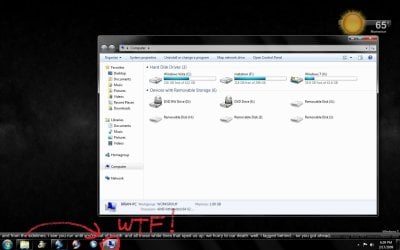
Windows Explorer Taskbar Icon - Change Open To Target-test2.jpg  
Attached Images
 

Last edited by Brink; 10-15-2009 at 09:39 PM.. Reason: changed %systemroot% to %windir%
My System SpecsSystem Spec
.


02-12-2009   #4
Brink


Windows 7 Ultimate x64 SP1


Limneos,

Thank you for the additional locations.
My System SpecsSystem Spec
02-14-2009   #5
Dragor1


Windows 7 Ultimate (32 bit) triple boot with Windows XP SP3 and Fedora 13 KDE


Thanks works gr8! Actually wanted it this way for 1 click My computer access from anywhere! Very useful for copy/cut paste operations!
My System SpecsSystem Spec
02-14-2009   #6
garysgold


Vista Ult 64 bit Seven Ult RTM x64


Great info. Thanks guys.
My System SpecsSystem Spec
02-14-2009   #7
RoyalNoob3


Dualboot (Vista Home Premium 32b + Windows 7 Ultimate 32b)


Thanks >.
My System SpecsSystem Spec
02-14-2009   #8
limneos


Windows 7 RC 7100 32bit/64bit


Quote   Quote: Originally Posted by Brink View Post
Limneos,

Thank you for the additional locations.
My pleasure, Shawn.
My System SpecsSystem Spec
03-07-2009   #9
gendows


Windows 7


great

and if u want to change the icon

Shift + R Click on the Explorer icon
and click on Properties then in the Customize tab choose Change icon button


and for more icons type
%SystemRoot%\system32\SHELL32.dll

in the location bar
My System SpecsSystem Spec
Comment

Windows Explorer Taskbar Icon - Change Open To Target problems?


Tutorial Tools


Similar Threads for: Windows Explorer Taskbar Icon - Change Open To Target
Windows 7 Tutorial Category
Taskbar icon for open program/window change Customization
How to change icon on taskbar when i have a folder open? Customization
'Open' icon in Windows Explorer problem General Discussion
All icon change target type to WMP General Discussion
My taskbar Windows Explorer icon changed. Customization


All times are GMT -5. The time now is 07:55 AM.


Windows 7 Forums is an independent web site and has not been authorized,
sponsored, or otherwise approved by Microsoft Corporation.
"Windows 7" and related materials are trademarks of Microsoft Corp.
© Designer Media Ltd
  

1 2 3 4 5 6 7 8 9 10 11 12 13 14 15 16 17 18 19 20 21 22 23 24 25 26 27 28 29 30