
How to Hide or Show System Icons and Notifications in Windows 7 and Windows 8
Information
The notification area is a part of the taskbar that provides a temporary source for notifications and status. It can also be used to display icons for system and program features that are not on the desktop. The notification area was known historically as the system tray or status area.
By default, the only icons that will be visible in this area are some system icons. However, you can select which icons appear on the taskbar, and which icons hide in the overflow section.
This will show you how to hide or show your choice of the system icons and their notifications on the taskbar in Windows 7 and Windows 8.
By default, the only icons that will be visible in this area are some system icons. However, you can select which icons appear on the taskbar, and which icons hide in the overflow section.
This will show you how to hide or show your choice of the system icons and their notifications on the taskbar in Windows 7 and Windows 8.
Note
Each system icon will have the choice to Only show notifications, Show icon and notifications, Hide icon and notifications, or Always show all icons on the taskbar with notifications.
Tip
Microsoft has made available a hotfix that will resolve a problem where the taskbar customizations are lost and reset to defaults when automatic logon is enabled in Windows 7 and Windows Server 2008 R2. More details are available at:
FIX: The Taskbar is reset to the default settings when you use the "Automatically Log On" feature in Windows 7 and in Windows Server 2008 R2.
FIX: The Taskbar is reset to the default settings when you use the "Automatically Log On" feature in Windows 7 and in Windows Server 2008 R2.
EXAMPLE: Show All System Icons and Hide System Icons on the Taskbar
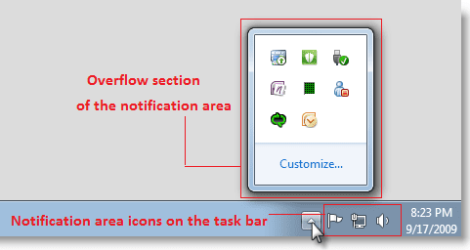
NOTE: To view icons that are hidden, click on the arrow in the notification area on the taskbar. (Right screenshot below)
OPTION ONE
Through Notification Area Icons Settings
1. Do step 2, 3, or 4 below for what you would like to do.
2. Click on the arrow in the notification area on the taskbar, and click on Customize, and go to step 5 below. (See screenshot below)
NOTE: You will not see this arrow unless you already have hidden system icons.

3. Open the Control Panel (icons view), click/tap on the Notification Area Icons icon, and go to step 5 below.
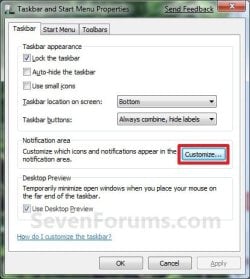
4. Right click or press and hold on the taskbar, and click/tap on Properties.
A) Click/tap on the Customize button to the right of "Notification area". (see screenshot below)
B) Click on Cancel to close the Taskbar and Start Menu Properties window, and go to step 5 below.
5. To Always Show All System Icons and Notifications
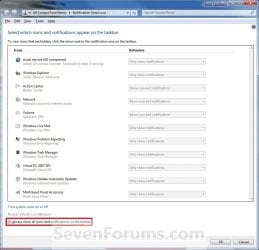
A) Check the Always show all icons and notifications on the taskbar box, and go to step 11 below. (See screenshot below)
NOTE: This will only gray out all of the Behaviors for the Icons. It will not change how the Behaviors are set if you wanted to uncheck this box later.
6. To Show a System Icon and its Notifications
A) Uncheck the Always show all icons and notifications on the taskbar box. (See screenshot above)
WARNING: Unchecking this box will also have all of the other listed system icons act as they are set in their Behaviors options.
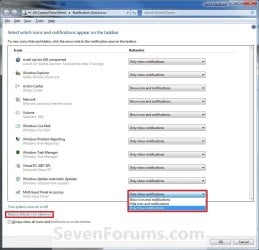
B) Click/tap on the Behaviors drop down arrow menu to the right of the icon you want this behavior for. (See screenshot below step 11)
C) Click/tap on Show icon and notifications to select it.
7. To Hide a System Icon and its Notifications
A) Uncheck the Always show all icons and notifications on the taskbar box. (See screenshot below step 5A)
WARNING: Unchecking this box will also have all of the other listed system icons act as they are set in their Behaviors options.
B) Click/tap on the Behaviors drop down arrow menu to the right of the icon you want this behavior for. (See screenshot below step 11)
C) Click/tap on Hide icon and notifications to select it.
8. To Only Show a System Icon's Notifications
A) Uncheck the Always show all icons and notifications on the taskbar box. (See screenshot below step 2)
WARNING: Unchecking this box will also have all of the other listed system icons act as they are set in their Behaviors options.
B) Click/tap on the Behaviors drop down arrow menu to the right of the icon you want this behavior for. (See screenshot below step 10)
C) Click/tap on Only show notifications to select it.
9. Repeat steps 6 to 8 until you have set the system icon Behaviors to how you want them for each icon.
10. To Restore the Default System Icon's Behaviors
A) Uncheck the Always show all icons and notifications on the taskbar box. (See screenshot below step 2)
WARNING: Unchecking this box will also have all of the other listed system icons act as they are set in their Behaviors options.
B) Click/tap on the Restore default icon behaviors link. (See screenshot below)
11. When done, click/tap on OK. (See screenshot below)
12. Click/tap on OK. (See screenshot below)
NOTE: You will not see this unless you had opened the System Icons window from the Control Panel above.
OPTION TWO
Using a REG File Download
NOTE: This will only turn on or off Always show icons and notifications on the taskbar.
1. To Turn On Always show all taskbar icons and notifcations
A) Click/tap on the download button below to download the file below.
Turn_On_Always_show_all_taskbar_icons_and_notifcations.reg
Download
B) Go to step 3.
2. To Turn Off Always show all taskbar icons and notifcations
A) Click/tap on the download button below to download the file below.
Turn_Off_Always_show_all_taskbar_icons_and_notifcations.reg
Download
3. Save the .reg file to the desktop.
4. Double click/tap on the downloaded .reg to merge it.
6. Click/tap on Run, Yes (UAC), Yes, and OK when prompted.
7. Log off and log on, or restart the computer to apply the changes.
8. When done, you can delete the downloaded .reg file if you like.
OPTION THREE
Manually in Registry Editor
NOTE: This will only turn on or off Always show icons and notifications on the taskbar.
1. Press the Windows+R keys to open the Run dialog, type regedit, and press Enter.
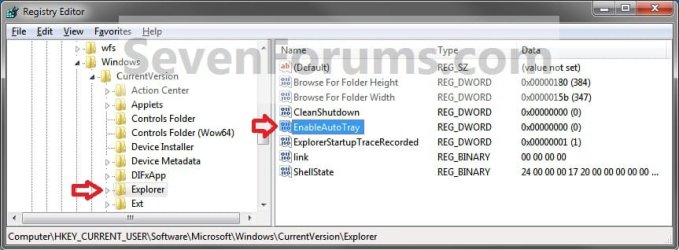
2. In regedit, navigate to the location below. (See screenshot below step 3)
HKEY_CURRENT_USER\Software\Microsoft\Windows\CurrentVersion\Explorer
3. In the right pane, double click/tap on EnableAutoTray to modify it. (See screenshot above)
4. To Turn On "Always show all taskbar icons and notifcations"
A) Type in 0 (zero) and click/tap on OK. (see screenshot below)

B) Go to step 6.
5. To Turn Off "Always show all taskbar icons and notifcations"
A) Type in 1 and click/tap on OK. (see screenshot above)
6. Close Regedit.
7. Log off and log on, or restart the computer to apply the changes.
That's it,
Shawn
Related Tutorials
- Add or Remove OneDrive Notification Area Icon in Windows 8.1
- How to Turn System Icons On or Off in Windows 7 and Windows 8
- How to Create a "System Icons" Settings Shortcut in Windows 7 and Windows 8
- How to Change the Action Center Message Settings in Windows 7
- How to Turn On or Off Action Center Messages in Windows 8
- How to Change How Long Windows 7 Notifications Stay Open
- How to Change How Long Notifications Stay Open in Windows 8
- How to Enable or Disable Windows 7 Balloon Notifications
- How to Enable or Disable "Found New Hardware" Balloons During Device Installation
- How to Reset and Clean Out Old Windows 7 Notification Area Icons
- How to Enable or Disable System Icons in Windows 8 and Windows 8
- How to Add or Remove the Notification Area from the Taskbar in Windows 7
- How to Create a "Notification Area Icons" Shortcut in Windows 7 and Windows 8
- How to Customize the Notification Area Icons in Windows 7
- How to Create a Taskbar Properties Shortcut in Windows 7
- How to Enable or Disable Changing "Notification Area Icons" Settings in Windows 7
- How to Create a "Volume Mixer" Shortcut in Windows 7 and Vista
- How to Create a "Volume" Shortcut in Windows 7 and Vista
- How to Add or Remove NVIDIA Taskbar Notification Area Icon in Windows
- Add or Remove Catalyst Control Center Taskbar Notification Area Icon in Windows
- How to Lock or Unlock Taskbar Settings in Windows 8 and 8.1
- How to Turn On or Off Bluetooth Notification Area Icon in Windows
- How to Hide or Show Intel Rapid Storage Technology Notification Area Icon in Windows
- Enable or Disable Automatic Promotion of Notification Area Icons to Taskbar in Windows 7 and 8
Attachments


Last edited:


