
How to Do a Clean Install with an Upgrade Windows 7 Version
Information
This will show you how to do a Clean Install using a retail Upgrade Windows 7 installation disc.
Warning
Remember that you need to legally own a valid qualifying previous version of Windows to use a Upgrade Windows 7, and to stop using (or uninstall) the qualifying OS while you have the upgrade installed. Microsoft only made doing a clean install from a upgrade Windows 7 possible to make it more convenient so you do not have to reinstall both the old Windows version (ex: Vista) and upgrade to Windows 7 everytime you needed or wanted to reinstall.
If you do not legally own a valid qualifying previous version of Windows, then you are violating the terms of Microsoft's Windows 7 End User License Agreement and could get your product key number invalidated by Microsoft. Plus, it is considered illegal.
For more about this, please see: Microsoft SMB Community Blog : Regardless of what any hack says, a Windows 7 Upgrade is an Upgrade. What you need to know.
If you do not legally own a valid qualifying previous version of Windows, then you are violating the terms of Microsoft's Windows 7 End User License Agreement and could get your product key number invalidated by Microsoft. Plus, it is considered illegal.
For more about this, please see: Microsoft SMB Community Blog : Regardless of what any hack says, a Windows 7 Upgrade is an Upgrade. What you need to know.
OPTION ONE
A Normal Clean Install
1. Do a clean install at boot without checking the Automatically activate Windows when I'm online box during the installation process.
2. When the installation is finished, then manually activate Windows 7 with your product key number.
3. If your Windows should fail to activate, then pick up at step 2 in OPTION THREE below.
OPTION TWO
Through a Custom Install
Note
This option will let you do a clean install of Windows 7 without formating the current Windows installation to have your current Windows installation backed up to the Windows.old folder during the installation of your retail upgrade Windows 7. This way you can copy any files back that you want from the C:\Windows.old folder (previous installation) back into your new installation afterwards.
1. Do a custom install at boot or from within your current Windows installation without checking the Automatically activate Windows when I'm online box during the installation process.
2. When the installation is finished, then manually activate Windows 7 with your product key number.
3. Copy any files that you want back from the C:\Windows.old folder into where you want it in you new installation.
4. You can now delete the Windows.old folder using Disk Cleanup to have a clean install now.
OPTION THREE
Clean Install with a Registry Workaround for Error Code 0xc004f061
Note
If you get a activation error code 0xc004f061 while doing OPTION ONE or OPTION TWO above, then you will need to use this option instead
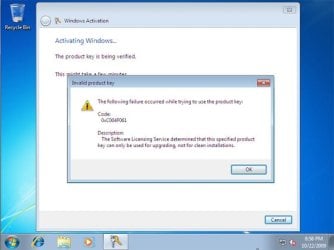
1. Do a clean install of your upgrade Windows 7 at boot without checking the Automatically activate Windows when I'm online box during the installation process.
NOTE: If you already did this from OPTION ONE above and got a activation error, then skip this step and just proceed to step 2 below instead. There's no need to reinstall again.
2. Click on the Download button below to download the .bat file below, and save it to your desktop.
Activate_Windows_Upgrade_after_Clean_Install.bat
Download
3. Right click on the downloaded .bat file, and click on Run as administrator.
4. If prompted, click/tap on Run and Yes (UAC).
NOTE: If you like, you can stop getting the Run prompt by unblocking the downloaded .bat file.
5. You will now notice a command prompt quickly open and close while applying the changes to your registry.
6. Click/tap on OK. (see screenshot below)
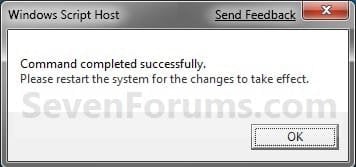
7. Restart the computer.
8. When the computer is finished restarting, then manually activate Windows 7 with your product key number.
OPTION FOUR
Double Installing Windows 7
Note
This option is the same that was used to do a clean install of an upgrade copy of Windows 7. It's more work, but if the options above did not work for you, then this should since this is the most reliable option.
1. Do a clean install of your upgrade Windows 7 at boot without checking the Automatically activate Windows when I'm online box during the installation process, and do not activate Windows 7. When finished with the clean install, do not or install any Windows Updates, drivers, or programs yet.
2. When finished with the clean install, start at step 4 at this link to do an in-place "upgrade" install with your upgrade Windows 7 installation disk from within the just now finished clean install of Windows 7.
3. When the in-place upgrade installation is completely finished, then manually activate Windows 7 with your product key number. You can now also install any Windows Updates drivers, and programs you like.
That's it,
Shawn
Related Tutorials
- How to Do a Upgrade Installation with Windows 7
- How to Do a Clean Installation with Windows 7
- How to Do a Custom Installation of Windows 7
- How to Create a Windows 7 Installation USB Key
- http://www.sevenforums.com/tutorials/30470-make-bootable-iso-student-d-l.html
- How to Partition the Hard Drive in a Windows 7 Install
- How to Install Windows 7 on Computer with Less than 512MB RAM
- How to Install Windows 7 Using "Unified Extensible Firmware Interface" (UEFI)
Attachments
Last edited:


