Windows 7 Forums


Windows 7: Windows 7 USB/DVD Download Tool


Windows 7 USB/DVD Download Tool

How to Get and Use the Windows 7 USB/DVD Download Tool
Published 24 Oct 2009
Published by

Featured Tutorial

Bootmgr - Move to C:\ with EasyBCD

How to Move Bootmgr to C:\ with EasyBCD

User Profiles - Create and Move During Windows 7 Installation

How to Create User Accounts on another Partition or Disk During Windows 7 Installation

Search - Find More with Filters and Operators

How to Use Windows Search Filters and Operators to get better Search Results in Windows 7

Dual Boot - Windows 7 and Linux

How to Correctly Setup a Dual Boot with Windows 7 and LinuxMint13

Windows 7 Installation - Transfer to a New Computer

How to Transfer your Complete Windows 7 Installation to a New Computer

Microsoft Account - Sign up for and Create

How to Sign up for and Create a Microsoft Account
How to Get and Use the Windows 7 USB/DVD Download Tool


Introduction
information   Information
If you would like to burn your downloaded or converted .iso image to a DVD or create a bootable USB flash drive, this free Microsoft utility is for you.

In very little time this can be accomplished by even a novice, and in this tutorial I'm gonna show you how. I have seperated this tutorial into 2 sections: Part 1 covers how to burn a bootable DVD and Part 2 is on creating a bootable flash drive.

This is primarily going to be useful to XP and Vista users who do not have .iso burning software installed on their current HDD and wish to perform a clean install.
Note   Note
The Windows 7 USB/DVD Download Tool does not support using Windows XP .iso files.

If you do not have a Windows 7 with SP1 ISO, then you can download the latest official Windows 7 with SP1 ISO file here:

Microsoft: Windows 7 Direct Download Links


Here's How:
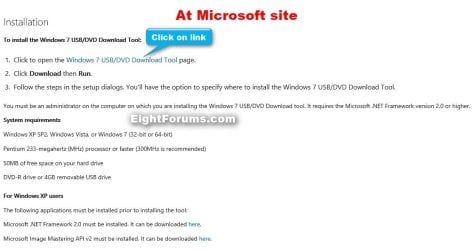
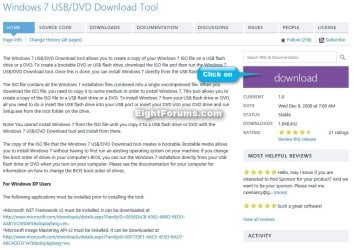
First visit the MS Store Website and download and run the installer.
Windows 7 USB/DVD Download Tool-usb-dvd-dl-tool_00.jpg
Or just click on this easy to use button ---> download

After you have successfully downloaded and installed the Windows 7 USB/DVD Download Tool, you should see its icon on your desktop. Double click to start the program.
Name:  USB icon.JPG
Views: 302903
Size:  10.6 KB
PART 1 - How to Burn a bootable Windows 7 DVD

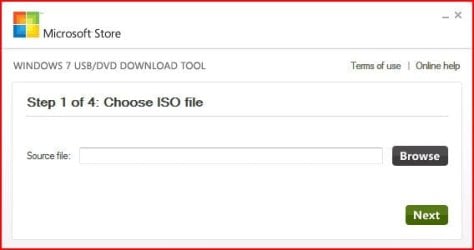
1) After you launch the app, you will see the Step 1 of 4 dialog box. Here you will navigate to the location of your .iso file by clicking the Browse button. Once you have successfully located your iso file click Next to continue to step 2.
Windows 7 USB/DVD Download Tool-usb-dvd-dl-tool_1.jpg
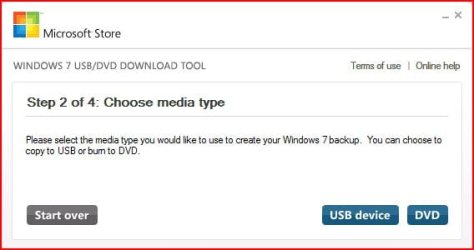
2) In step 2 of 4 you are given the choice of making a bootable DVD or a bootable USB flash. In this first section of my tutorial I show you how to burn a bootable DVD. So click DVD if that is what you want.
Windows 7 USB/DVD Download Tool-usb-dvd-dl-tool_2.jpg
3) Make sure you have a blank DVD in your optical drive, or you may see this message.
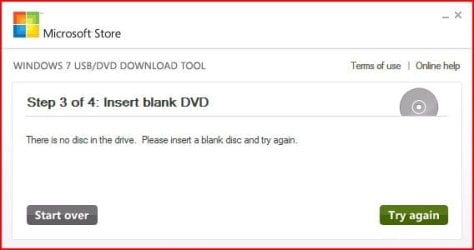
Windows 7 USB/DVD Download Tool-usb-dvd-dl-tool_3.jpg
4) Once you have inserted a blank DVD you will see the folowing screen, click Begin burning to continue.
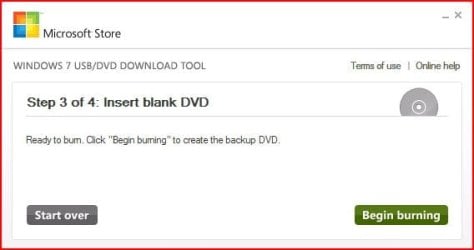
Windows 7 USB/DVD Download Tool-usb-dvd-dl-tool_4.jpg
5) Once the burn starts, you should see the progress bar here at Step 4 of 4. Remember the amount of time it takes to complete the burn depends on many factors... be patient.
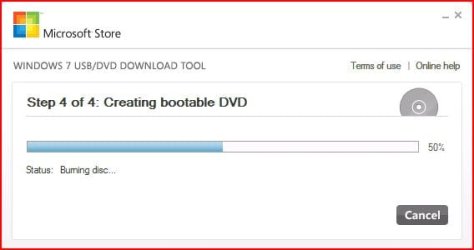
Windows 7 USB/DVD Download Tool-usb-dvd-dl-tool_5.jpg
6) If all you wanted was a bootable DVD, you are finished when you see the image below, close the program or start over if you wish to make a 2nd copy.
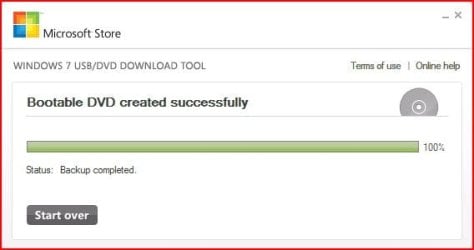
Windows 7 USB/DVD Download Tool-usb-dvd-dl-tool_6.jpg
PART 2 - How to create a bootable Windows 7 USB Flash Drive


warning   Warning
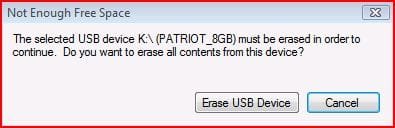
You need a USB flash drive with at least 4GB of free space, and the flash drive will be formattted to NTFS! So backup your data before creating this bootable USB, or you will lose all your data!


Follow the instructions in the Introduction at the beginning of tutorial and download and install the tool. The installation will add the program shortcut to your desktop, just double click to start.

1) After you launch the app, you will see the Step 1 of 4 dialog box. Here you will navigate to the location of your .iso file by clicking the Browse button. Once you have successfully located your iso file click Next to continue to step 2.
Click image for larger version

Name:	USB DVD DL TOOL_1.JPG
Views:	8736
Size:	27.0 KB
ID:	32936
2) In step 2 of 4 you are given the choice of making a bootable DVD or a bootable USB flash. Here in Part 2 of my tutorial I show you how to create a bootable USB Flash Drive. So click USB device if that is what you want.
Click image for larger version

Name:	USB DVD DL TOOL_2.JPG
Views:	78474
Size:	33.1 KB
ID:	32937
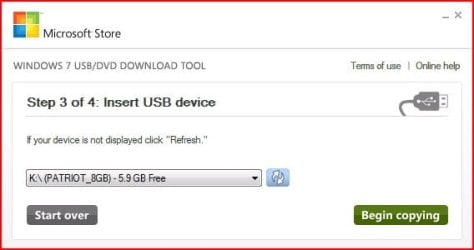
3) Here in step 3 of 4 you will select the USB flash drive of your choice by using the drop down list arrow. Once you have chosen the correct Drive, click the Begin copying button.
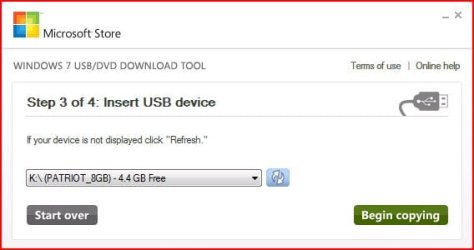
Windows 7 USB/DVD Download Tool-usb-dvd-dl-tool_usb1.jpg

Windows 7 USB/DVD Download Tool-usb-dvd-dl-tool_usb4a.jpg
4) Here in step 4 of 4: Creating bootable USB device, you should see the progress bar move across the screen. As always your speed depends on many factors, have patience!
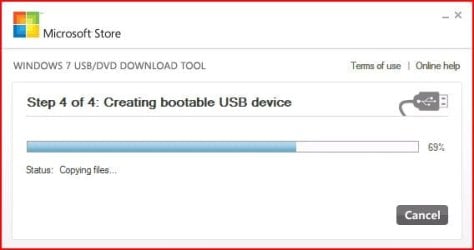
Windows 7 USB/DVD Download Tool-usb-dvd-dl-tool_usb4.jpg
5) Once completed you should see the following dialog box.
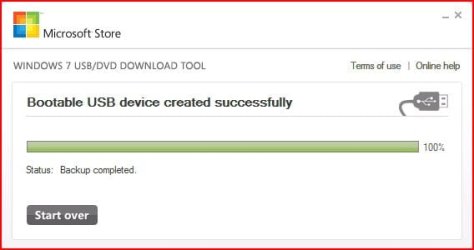
Windows 7 USB/DVD Download Tool-usb-dvd-dl-tool_usb5.jpg
I found it interesting that the USB device icon in "Computer" now looks identical to that of the DVD!
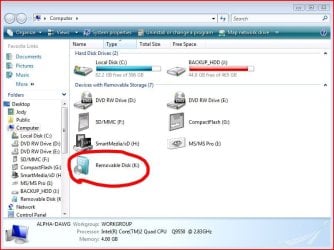
Windows 7 USB/DVD Download Tool-usb-dvd-dl-tool_usb6.jpg
Here are the contents of the USB device after completion...
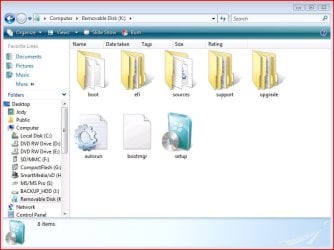
Windows 7 USB/DVD Download Tool-usb-dvd-dl-tool_usb_contents.jpg
I hope this helps out some of you who are "stuck" when it comes to burning an iso to DVD or creating a bootable USB device.

Thanks!


Need more help? Try searching our extensive help and support site.
Loading
25 Oct 2009   #1
BFG

Windows 7 Professional 32 Bit
Orlando


Nice that there's a tool now. I made a bootable USB the other day with a combination of diskpart and using the boot tool in the boot folder of the install

My System SpecsSystem Spec

27 Oct 2009   #2
Darryl Licht

Windows 7 Ultimate 64 bit Steve Ballmer Signature Edition
So Cal (I.E.)


Thanks BFG... its so easy to use, just like everything I've done with Windows 7!
My System SpecsSystem Spec
28 Oct 2009   #3
bluemoon4ever

windows 7 RTM


question. what if you dont have an ISO file, either like me you have the Files expanded onto your hard disk, or burned onto a Boot DVD?

is it possible to rebuild the ISO from either a Boot DVD or from the Expanded files on my hard drive?

thanks in advance

Edit: answered my own question lol. did a search on this lovely forum and found just what i was looking for .... VLite does the trick

double edit: after compiling the ISO using Vlite i ran the MS USB/DVD tool and it tells me that "The Selected file not a valid ISO file". I opened the ISO in UltraISO and it tells me that its Boot CD/DVD so i cant understand why its not a valid ISO, unless MS have fixed it so that i only recognises FULL and Complete ISO's with nothing Added or taken out?

anybody else have a problem with this?

Last edited by bluemoon4ever; 28 Oct 2009 at 07:27 AM..
My System SpecsSystem Spec
.


28 Oct 2009   #4
Darryl Licht

Windows 7 Ultimate 64 bit Steve Ballmer Signature Edition
So Cal (I.E.)


Quote   Quote: Originally Posted by bluemoon4ever View Post
question. what if you dont have an ISO file, either like me you have the Files expanded onto your hard disk, or burned onto a Boot DVD?

is it possible to rebuild the ISO from either a Boot DVD or from the Expanded files on my hard drive?

thanks in advance

Edit: answered my own question lol. did a search on this lovely forum and found just what i was looking for .... VLite does the trick

double edit: after compiling the ISO using Vlite i ran the MS USB/DVD tool and it tells me that "The Selected file not a valid ISO file". I opened the ISO in UltraISO and it tells me that its Boot CD/DVD so i cant understand why its not a valid ISO, unless MS have fixed it so that i only recognises FULL and Complete ISO's with nothing Added or taken out?

anybody else have a problem with this?
Bluemoon:

I am assuming you have the student DL from Digital River? If yes, try these instructions here: Make bootable iso from student d/l They worked like a champ for me! ...and dont forget to rep SIW2 if it works for you!
My System SpecsSystem Spec
29 Oct 2009   #5
bluemoon4ever

windows 7 RTM


nope not using a student release .. using windows RTM
My System SpecsSystem Spec
29 Oct 2009   #6
Dave76

Windows 7 Ult x64 - SP1/ Windows 8 Pro x64
Wanderer


Great tutorial,

I've just added it to the Tutorial quick reference list for Installing Windows 7 sticky thread in Installation & Setup forum.

Good information.

Thanks
My System SpecsSystem Spec
29 Oct 2009   #7
Darryl Licht

Windows 7 Ultimate 64 bit Steve Ballmer Signature Edition
So Cal (I.E.)


Quote   Quote: Originally Posted by bluemoon4ever View Post
nope not using a student release .. using windows RTM
Bluemoon:

Good beer btw! I'm sorry I misread/misunderstood your first post... so you have DVD and you want to make a backup iso of it.

There are many CD/DVD burning apps that will let you like Nero, but it is not easiest app to figure out... so many use ISO Recorder or MagicIso to do that.

Hope that helps!
My System SpecsSystem Spec
29 Oct 2009   #8
bluemoon4ever

windows 7 RTM


Quote   Quote: Originally Posted by Darryl Licht View Post
Quote   Quote: Originally Posted by bluemoon4ever View Post
nope not using a student release .. using windows RTM
Bluemoon:

Good beer btw! I'm sorry I misread/misunderstood your first post... so you have DVD and you want to make a backup iso of it.

There are many CD/DVD burning apps that will let you like Nero, but it is not easiest app to figure out... so many use ISO Recorder or MagicIso to do that.

Hope that helps!
lol i know how to make a DVD, its that i fancied making an ISO so that i could use the Microsoft program on this thread to make a USB boot WIndows 7 installation disk. Its not a big deal as i already have the dvd and files on hard disk. Just wondered why it didnt work for me that all.
My System SpecsSystem Spec
29 Oct 2009   #9
Darryl Licht

Windows 7 Ultimate 64 bit Steve Ballmer Signature Edition
So Cal (I.E.)


Quote   Quote: Originally Posted by bluemoon4ever View Post
Quote   Quote: Originally Posted by Darryl Licht View Post
Quote   Quote: Originally Posted by bluemoon4ever View Post
nope not using a student release .. using windows RTM
Bluemoon:

Good beer btw! I'm sorry I misread/misunderstood your first post... so you have DVD and you want to make a backup iso of it.

There are many CD/DVD burning apps that will let you like Nero, but it is not easiest app to figure out... so many use ISO Recorder or MagicIso to do that.

Hope that helps!

lol i know how to make a DVD, its that i fancied making an ISO so that i could use the Microsoft program on this thread to make a USB boot WIndows 7 installation disk. Its not a big deal as i already have the dvd and files on hard disk. Just wondered why it didnt work for me that all.
Blue:

Please re-read my post... The 2 apps I linked to are for creating an iso from the CD or DVD!
My System SpecsSystem Spec
Comment

 Windows 7 USB/DVD Download Tool problems?


Tutorial Tools


Similar help and support threads for: Windows 7 USB/DVD Download Tool
Windows 7 Tutorial Category
I need to download Windows 7 USB-DVD Download Tool. why is it harmful Installation & Setup
Windows 7 USB/DVD Download Tool Installation & Setup
Windows 7 USB/DVD Download Tool Help - Cant find .ISO Installation & Setup
Windows 7 usb/dvd download tool Installation & Setup
Windows 7 Download tool cannot see my drive Installation & Setup


All times are GMT -5. The time now is 06:49 AM.


Seven Forums Android App Seven Forums IOS App Follow us on Facebook

Windows 7 Forums is an independent web site and has not been authorized,
sponsored, or otherwise approved by Microsoft Corporation.
"Windows 7" and related materials are trademarks of Microsoft Corp.
© Designer Media Ltd
  

1 2 3 4 5 6 7 8 9 10 11 12 13 14 15 16 17 18 19 20 21 22 23 24 25 26 27 28 29 30 31 32