Windows 7 Forums


Windows 7: Jump Lists


Jump Lists

How to Open and Use Windows 7 Start Menu and Taskbar Jump Lists
Published 30 Jan 2009
Published by

Featured Tutorial

User Profiles - Create and Move During Windows 7 Installation

How to Create User Accounts on another Partition or Disk During Windows 7 Installation

Search - Find More with Filters and Operators

How to Use Windows Search Filters and Operators to get better Search Results in Windows 7

Microsoft Account Display Name - Change

How to Change your Microsoft Account Display Name

Dual Boot - Windows 7 and Linux

How to Correctly Setup a Dual Boot with Windows 7 and LinuxMint13

Restore Point - Add "Create Restore Point" to Context Menu in Windows

How to Add "Create Restore Point" to Context Menu in XP, Vista, Windows 7, and Windows 8

Clean Up Factory Bloatware


How to Open and Use Windows 7 Start Menu and Taskbar Jump Lists

information   Information
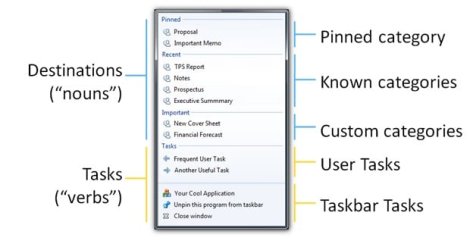
Jump Lists help you easily find and open the files and programs you use often. This will show you how to open and use the Start menu and taskbar Jump Lists in Windows 7.

For more information about Jump Lists, see: Developing for the Windows 7 Taskbar - Jump into Jump Lists - Part 1 - Windows 7 for Developers - The Windows Blog

Note   Note
Jump lists provide quick access to application features. Think of Jump Lists as a mini Start menu for the application. You can use Jump Lists on the taskbar and the Start menu to open your most frequently visited websites, recently opened files, and favorite programs with just one click. This helps eliminate the need to open the program and then load the relevant file, or by performing common tasks without opening the program first. Programs that use the system API for their Most Recently Used list (the list of recently used filenames that many apps have in their File menus) will automatically acquire a Jump List containing their most recently used files. You can Pin the programs and files you use the most on the taskbar and Start menu so you can open them from the same spot every time for quicker access.

On a computer that is running Windows 7 or Windows Server 2008 R2, the Jump List of an application may disappear permanently when you use the application to open or save a new item. This issue occurs when there are 999 items in the Jump List already.

Installing the update at the link below resolves the issue and enables the displaying of the Jump Lists.

A Jump List is not displayed in Windows 7 or in Windows Server 2008 R2 if the list contains more than 999 items

warning   Warning
Jump Lists will require that you have Recent Programs and Recent Items turned on for it to work.

A Tasks jump list for program (ex: Windows Live Messenger) options does not require to have Recent Programs or Recent Items turned on to work though.


OPTION ONE
Jump Lists in the Start Menu

NOTE: Jump Lists don't appear in the All Programs area in the Start menu.
1. Open the Start Menu.

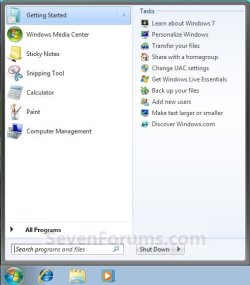
2. Hover over a program in the Start Menu "pin to area" that has a arrow to the right of it indicating it has a jump list. (see screenshots below step 3)

3. The jump list for the selected program will now automatically expand open. Select a jump list item. (see screenshots below)
NOTE: You can also select the program in the Start menu pin area, then use the Shift+Tab keys to move over to the jump list. Next, use the arrow keys to select a jump list item and press Enter to open it.
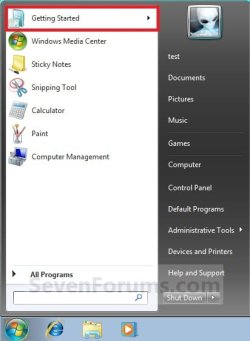
Jump Lists-start_menu-1.jpgJump Lists-start_menu-2.jpg


OPTION TWO
Open Jump Lists on the Taskbar
1. Right click on a pinned icon on the taskbar (ex: Windows Explorer icon), and go to step 4.
OR

2. Press the Windows + ALT + (1-10) keys for the icon in the numerical order from either left to right or top to bottom on the taskbar, then go to step 4.

OR

3. Left click and hold on a pinned icon on the taskbar, drag up and release the left click, and go to step 4.

4. From here you can select what item you want to open with the selected program. (See screeshots below)
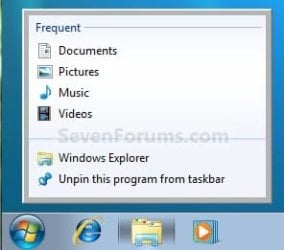
Name:  Taskbar-1.jpg
Views: 16859
Size:  43.8 KBJump Lists-taskbar-2.jpg
That's it,
Shawn


Need more help? Try searching our extensive help and support site.
Loading
13 Feb 2009   #1
ustahl

Win 7 x64 Ultimate
 
 
Jump Lists not accessable

I have following problem trying to use taskbar jump lists:

When I right click a pinned taskbar icon the the jump list shows up like it should for as long as the mouse cursor stays on top of the taskbar icon. When I try to move the cursor onto the jump list, the jump list disappears before I reach it.
I only rarely manage to catch the jump list by really focussing on hitting it with explosive lightning speed. That can't be right, the jump list should be easily accessable. It seems like I am fighting with some too short delay setting. It's driving me nuts.

Could it be some menu delay or mouse speed setting?
I'd be grateful for suggestions on how to fix this.


Cheers Uffe

Last edited by ustahl; 13 Feb 2009 at 01:34 PM.. Reason: politeness
My System SpecsSystem Spec

13 Feb 2009   #2
Brink

64-bit Windows 7 Ultimate SP1 & Windows 8 Enterprise
Texas


Hello Uffe,

Yeah, this seems to be a bug with the jump lists. Be sure to send feedback to Microsoft about it to help make them aware of this issue.

I have found that once you have it highlighted in the Start menu, using the arrow keys seem to help make selecting a item in the jump list easier to do.

Hope this helps,
Shawn

Last edited by Brink; 06 May 2009 at 11:56 AM..
My System SpecsSystem Spec
13 Feb 2009   #3
ustahl

Win 7 x64 Ultimate


Quote   Quote: Originally Posted by Brink View Post
Hello Uffe,

Yeah, this seems to be a bug with the jump lists. Be sure to send feedback to Microsoft about it to help make them aware of this issue.

I have found that once you have it highlighted in the Start menu, using the arrow keys seem to help make selecting a item in the jump list easier to do.

Hope this helps,
Shawn
Hi Shawn,
Thanks for swift response.
1. Feedback sent to MS.
2. Tried yr help by Start menu suggestion, but that only made a hassle of it all. I mean, if y're highlighting items in the Start menu, you might as well use that for yr selections and forget the elusive jump lists.
3. I also tried the following: right click taskbar icon, press shift or ctrl or alt or a combination of these, before trying to catch the jump list. Sometimes, it seemed, I got an extra fraction of a second for catching the jump list. Or maybe my hand is just getting faster through all this (silly) practice. It's like training for a shootdown at High Noon.

I guess we have to wait for MS to fix it, maybe in an iterim Hotfix?

Cheers Uffe

Last edited by Brink; 06 May 2009 at 11:56 AM.. Reason: correction
My System SpecsSystem Spec
.


13 Feb 2009   #4
Barman58

Windows 7 Ultimate x64 + x86 + Windows 8 x64
Newport, South Wales, UK


Hi Uffe,

One method that works for me with the jump lists is to left click on the icon then drag upward - this will open the jump list for me - I think it's included for multi-touch.

If your having right click problems however, it may not work, but worth a try
My System SpecsSystem Spec
14 Feb 2009   #5
ustahl

Win 7 x64 Ultimate


Barman, thanks a lot!
You solved it. Left click & hold down & drag upward works like a charm.
Seems like that's the way it's supposed to work.
I feel stupid for not trying that myself. Obviously the solution was too easy.
No need to try right click any longer.

I hope Brink can also confirm this easy method for accessing jump lists, and, if deemed necessary, adjust the tutorial accordingly.

Cheers Uffe
My System SpecsSystem Spec
14 Feb 2009   #6
Brink

64-bit Windows 7 Ultimate SP1 & Windows 8 Enterprise
Texas


Quote   Quote: Originally Posted by Barman58 View Post
Hi Uffe,

One method that works for me with the jump lists is to left click on the icon then drag upward - this will open the jump list for me - I think it's included for multi-touch.

If your having right click problems however, it may not work, but worth a try
Nice trick Nigel. The tutorial has been updated to include it.

Shawn
My System SpecsSystem Spec
30 May 2009   #7
burtie

Vista/Windows 7


Just out of curiosity is there a way to edit jump lists on items pined to the taskbar?
My System SpecsSystem Spec
30 May 2009   #8
Brink

64-bit Windows 7 Ultimate SP1 & Windows 8 Enterprise
Texas


Hello Burtie,

I have not found a way to yet.
My System SpecsSystem Spec
30 May 2009   #9
burtie

Vista/Windows 7


Hello

Hmm such a shame, maybe there will be a way soon, it would be a really handy feature
My System SpecsSystem Spec
Comment

 Jump Lists problems?


Tutorial Tools


Similar help and support threads for: Jump Lists
Windows 7 Tutorial Category
How to exclude files and folders from "Recent" lists and jump lists Customization
Jump lists and CS5 Software
Jump Lists General Discussion
Chrome jump lists. Please help. Browsers & Mail
a few questions about jump lists General Discussion


All times are GMT -5. The time now is 06:39 PM.


Seven Forums Android App Seven Forums IOS App Follow us on Facebook

Windows 7 Forums is an independent web site and has not been authorized,
sponsored, or otherwise approved by Microsoft Corporation.
"Windows 7" and related materials are trademarks of Microsoft Corp.
© Designer Media Ltd
  

1 2 3 4 5 6 7 8 9 10 11 12 13 14 15 16 17 18 19 20 21 22 23 24 25 26 27 28 29 30 31 32