How to Turn System Protection On or Off in Windows 7
Information
System Restore regularly tracks changes to your computer's system files, and uses a feature called System Protection to create restore points of selected hard disks in your computer. System Protection is turned on by default for the Windows 7 hard disk or partition on your computer.
This will show you how to turn System Protection On or Off for creating System Restore Points for system settings and previous versions (shadow copies) of files in Windows 7. You could also use previous versions (shadow copies) to restore older copies of files and folders.
You can select which disks have System Protection turned on for.
This will show you how to turn System Protection On or Off for creating System Restore Points for system settings and previous versions (shadow copies) of files in Windows 7. You could also use previous versions (shadow copies) to restore older copies of files and folders.
You can select which disks have System Protection turned on for.
Note
It is not recommended to turn off system protection for your C: system drive (Windows 7) since it is a great tool to easily undo a mistake, for example one that may have crippled Windows 7, by just doing a system restore to go back to a previous restore point of your system dated before the mistake.
Warning
- System Restore doesn't protect FAT32 and other FAT disks because FAT disks don't support the use of shadow copies. Shadow copies contain information about changes to documents and system files. Shadow copies require the NTFS file system. Windows 7 uses the NTFS file system.
- Turning off System Protection for a disk deletes all restore points for that disk. You cannot restore the disk until you turn on System Protection again and a restore point is created for that disk.
Here's How: 1. Open the Control Panel (Icons View). A) Click on the System icon.
B) Go to step 3.
OR
2. Open the Start Menu. A) Right click on the Computer button and click on Properties.
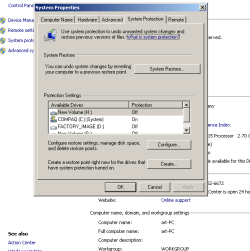
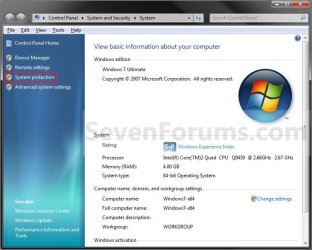
3. Click on the System Protection link. (see screenshot below)
4. If prompted by UAC, then click on Yes if administrator or type in the adminstrator's password if standard user.
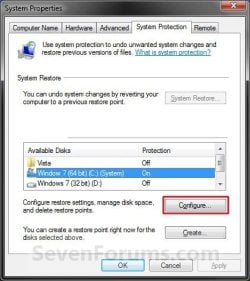
5. Click on the available hard disk drive or partition, that you want to turn System Protection on or off for, to select it. (see screenshot below step 6)
NOTE: Windows 7 should be the C: drive with (System). Under the Protection column, you will see if System Protection is turned On or Off for the available disk.
6. Click on the Configure button. (see screenshot below)
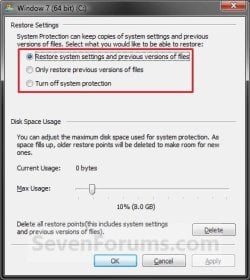
7. To Turn On System Protection for System Settings and Previous Versions of Files A) Dot Restore system settings and previous versions of files. (see screenshot below step 10)
NOTE: This turns on creating restore points and Previous Versions for the selected drive in step 5.
B) Move the Max Usage slider to set the maximum disk space usage you want to be used by system protection on the selected drive letter.
C) Go to step 10.
8. To Turn On System Protection for Only Previous Versions of Files A) Dot Only restore previous versions of files. (see screenshot below step 10)
NOTE: This turns on only Previous Versions for the selected drive in step 5.
B) Move the Max Usage slider to set the maximum disk space usage you want to be used by system protection on the selected drive letter.
C) Go to step 10.
9. To Turn Off System Protection for the Selected Disk A) Dot Turn off system protection. (see screenshot below step 10)
NOTE: This turns off both creating restore points and Previous Versions for the selected drive in step 5.
B) Go to step 10.
10. Click on OK. (see screenshot below)
11. Repeat steps 5 to 10 if you wanted to turn System Protection on or off for another listed drive.
12. When finished, click on OK. (see screenshot below step 6)
That's it,
Shawn
Related Tutorials
- How to Enable or Disable Windows 7 System Restore
- How to Change the System Protection Disk Space Usage in Window 7
- How to Delete System Protection Restore Points in Windows 7
- How to Make a Create System Restore Point Shortcut in XP, Vista, Windows 7, and Windows 8
- How to Add "Create Restore Point" to Context Menu in XP, Vista, Windows 7, and Windows 8
- How to Create a System Restore Point in Windows 7
- How to Do a System Restore in Windows 7
- How to Create a Windows 7 System Protection Properties Shortcut
- How to Enable or Disable Windows 7 System Restore Configuration
- How to Restore Files and Folders in Windows 7 with Previous Versions
- How to Free Up and Recover Hard Drive Space in Windows 7
- How to Stop System Restore Points from being Deleted in Vista and Windows 7 when Dual Booting with XP
- How to Delete Shadow Copies in Vista and Windows 7
- How to Extract Files and Folders from System Restore Points in Windows 7 and Vista
- How to Enable or Disable Automatic System Restore Point Creation in Windows
Last edited: