
Screen Refresh Rate - Custom for NVIDIA Brand

How to Create a Custom Screen Refresh Rate with NIVIDIA Control Panel in Windows

   Information
Microsoft answer:
Certain monitors report a TV-compatibility timing of 59.94Hz. Therefore, Windows 7 exposes two frequencies, 59Hz and 60Hz, for every resolution that is supported at that timing. The 59Hz setting makes sure that a TV-compatible timing is always available for an application such as Windows Media Center. The 60Hz setting maintains compatibility for applications that expect 60Hz.

In Windows 7, when a user selects 60Hz, the OS stores a value of 59.94Hz. However, 59Hz is shown in the Screen refresh rate in Control Panel, even though the user selected 60Hz.


This will show you how to create and set a custom screen refresh rate using the NVIDIA Control Panel in Windows. The NVIDIA Control Panel is only available when you have a NIVIDIA graphics card or chip installed in your computer along with the drivers.
   Tip
Be sure to have the lastest NVIDIA video and your monitor driver versions for Windows 7 installed to see if they may support the screen refresh rate that you are wanting first.

This can be handy if you cannot set a refresh rate normally. For example, it will not stay set above 59 Hertz despite setting it to 60 Hertz, and your monitor supports 60 or above Hertz.
   Note
Credit for this tip belongs to our member Jimmy.
   Warning
DO NOT set the refresh rate above what your monitor supports. Doing so can damage your monitor permanently. Please look up your monitor's specifications at it's manufacturer's website to confirm what refresh rates it supports.


Here's How:
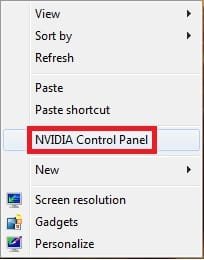
1. Right click on the desktop, and click on NVIDIA Control Panel.
Step1.jpg
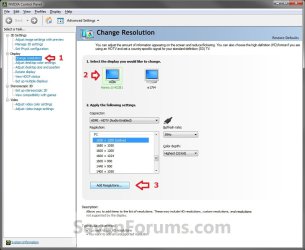
2. In the left pane, select Change resolution. Now select the monitor that you want to change the refresh rate for, then click on the Add Resolutions button. (See screenshot below)
Step2.jpg
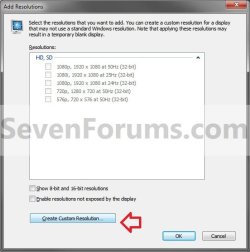
3. Click on the Create Custom Resolution button. (See screenshot below)
Step3.jpg
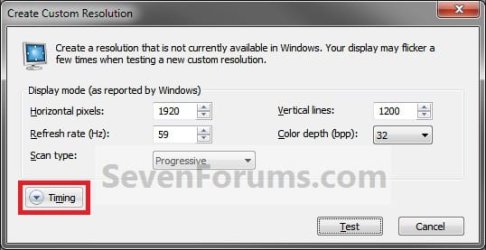
4. Click on Timing. (See screenshot below)
Step4.jpg
5. Under the Standard drop down menu, select Manual. (See screenshot below)
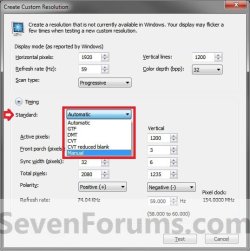
Step5.jpg
6. At the top (1 in image below), change the Refresh rate to the closest rate to what you want to set it as (ex: 60Hz). (See screenshot below)
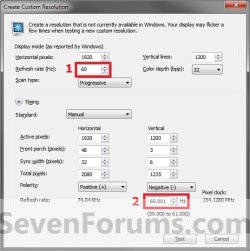
Step6.jpg
7. At the bottom (2 in image above), change the refresh rate to .001 above the refresh rate you want to change it to. For example, if you wanted to have a 60Hz refresh rate, change this value to 60.001. Click on the Test button. (See screenshot above)

8. If the display looks ok, then click on Yes and go to step 9. If not, then click on No, and repeat steps 6 and 7 until it does or cancel the change. (See screenshot below)
Step7.jpg
9. Click on OK. (See screenshot below)
NOTE: If you wanted to Edit (pencil icon) or Delete (red X icon) this custom screen refresh rate, then you will need to select another screen resolution in the window below step 2 or 10 first before you will be able to. You cannot edit or delete a custom resolution if it is set as your current one.
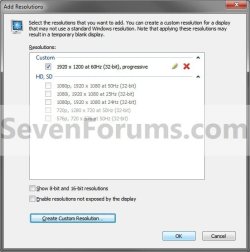
Step8.jpg
10. You will now notice that you screen refresh rate (ex: now 60Hz instead of 59Hz) has been changed. (See screenshot below)
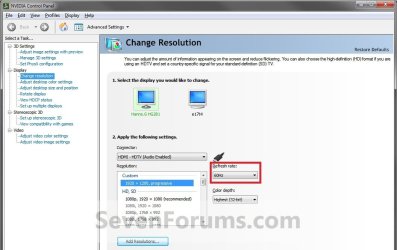
Step9.jpg
That's it,
Shawn


Last edited:
You're most welcome Woundman, and welcome to Seven Forums. :)
 

My Computer

Computer type
PC/Desktop
Computer Manufacturer/Model Number
Self built custom
OS
64-bit Windows 11 Pro for Workstations
CPU
Intel i7-8700K OC'd to 5 GHz
Motherboard
ASUS ROG Maximus XI Formula Z390
Memory
64 GB (4x16GB) G.SKILL TridentZ RGB DDR4 3600 MHz
Graphics Card(s)
ASUS ROG-STRIX-GTX1080TI-O11G-GAMING
Sound Card
Integrated
Monitor(s) Displays
2 x Samsung Odyssey G7 27"
Screen Resolution
2560x1440
Hard Drives
1TB Samsung 990 PRO M.2,
4TB Samsung 990 PRO PRO M.2,
TerraMaster F8 SSD Plus NAS
PSU
Seasonic Prime Titanium 850W
Case
Thermaltake Core P3
Cooling
Corsair Hydro H115i
Keyboard
Logitech wireless K800
Mouse
Logitech MX Master 4
Internet Speed
2 Gb/s Download and 100 Mb/s Upload
Antivirus
Malwarebyte Anti-Malware Premium
Browser
Google Chrome
Other Info
Logitech Z625 speaker system,
Logitech BRIO 4K Pro webcam,
HP Color LaserJet Pro MFP M477fdn,
APC SMART-UPS RT 1000 XL - SURT1000XLI,
Galaxy S23 Plus phone
Thank you, Brink. This method worked for me with no problems.
 

My Computer

Computer Manufacturer/Model Number
Home built
OS
Windows 7 Ultimate 32 bit
CPU
Intel(R) Pentium(R) 4 CPU 3.00GHz
Motherboard
ASUS P4P800-VM Motherboard Chipset: Intel 865G + ICH5
Memory
2.50 GB RAM
Graphics Card(s)
NVIDIA GeForce 7600 GS
Sound Card
SoundMax Integrated Digital Audio (Chip)
Monitor(s) Displays
ViewSonic VX 1962 wm
Screen Resolution
1680 X 1050
Hard Drives
Seagate Barracuda 7200.10 80 GB
ST380215A ATA Device 18.6 GB
Western Digital "My Book" external hard drive 750 GB
Cooling
Fan based
Keyboard
Microsoft Comfort Curve Keyboard 2000 v10 USB
Mouse
Logitec optic USB
Internet Speed
3.01 Mb/s download 0.64 Mb/s upload
You're most welcome Carl. Thank you for the feedback. :)
 

My Computer

Computer type
PC/Desktop
Computer Manufacturer/Model Number
Self built custom
OS
64-bit Windows 11 Pro for Workstations
CPU
Intel i7-8700K OC'd to 5 GHz
Motherboard
ASUS ROG Maximus XI Formula Z390
Memory
64 GB (4x16GB) G.SKILL TridentZ RGB DDR4 3600 MHz
Graphics Card(s)
ASUS ROG-STRIX-GTX1080TI-O11G-GAMING
Sound Card
Integrated
Monitor(s) Displays
2 x Samsung Odyssey G7 27"
Screen Resolution
2560x1440
Hard Drives
1TB Samsung 990 PRO M.2,
4TB Samsung 990 PRO PRO M.2,
TerraMaster F8 SSD Plus NAS
PSU
Seasonic Prime Titanium 850W
Case
Thermaltake Core P3
Cooling
Corsair Hydro H115i
Keyboard
Logitech wireless K800
Mouse
Logitech MX Master 4
Internet Speed
2 Gb/s Download and 100 Mb/s Upload
Antivirus
Malwarebyte Anti-Malware Premium
Browser
Google Chrome
Other Info
Logitech Z625 speaker system,
Logitech BRIO 4K Pro webcam,
HP Color LaserJet Pro MFP M477fdn,
APC SMART-UPS RT 1000 XL - SURT1000XLI,
Galaxy S23 Plus phone
I can not get this to work. I have a Nvidia GeForce 8600M GT on my msi laptop. I have all the recent drivers for the graphics card. It is stuck at 59hz and i need it to be able to get to 60hz. Battlefield doesn't allow the game to work if a monitor is at 59hz. Is there a way to over ride the 59 to get it to be 60? thanks
 

My Computer

OS
Windows 7 64
Graphics Card(s)
GeForce 8600M GT
Hello Netprints, and welcome to Seven Forums.

Please try again and double check to make sure that a mistake may have been made before. If you are seeing something different than in the tutorial, then please take and post back a screenshot of it with what step it is for. This will help determine what may be wrong. :)
 

My Computer

Computer type
PC/Desktop
Computer Manufacturer/Model Number
Self built custom
OS
64-bit Windows 11 Pro for Workstations
CPU
Intel i7-8700K OC'd to 5 GHz
Motherboard
ASUS ROG Maximus XI Formula Z390
Memory
64 GB (4x16GB) G.SKILL TridentZ RGB DDR4 3600 MHz
Graphics Card(s)
ASUS ROG-STRIX-GTX1080TI-O11G-GAMING
Sound Card
Integrated
Monitor(s) Displays
2 x Samsung Odyssey G7 27"
Screen Resolution
2560x1440
Hard Drives
1TB Samsung 990 PRO M.2,
4TB Samsung 990 PRO PRO M.2,
TerraMaster F8 SSD Plus NAS
PSU
Seasonic Prime Titanium 850W
Case
Thermaltake Core P3
Cooling
Corsair Hydro H115i
Keyboard
Logitech wireless K800
Mouse
Logitech MX Master 4
Internet Speed
2 Gb/s Download and 100 Mb/s Upload
Antivirus
Malwarebyte Anti-Malware Premium
Browser
Google Chrome
Other Info
Logitech Z625 speaker system,
Logitech BRIO 4K Pro webcam,
HP Color LaserJet Pro MFP M477fdn,
APC SMART-UPS RT 1000 XL - SURT1000XLI,
Galaxy S23 Plus phone
Thanks for the welcome. I did everything you said to do. Here is where it fails.
Untitled.png
 

My Computer

OS
Windows 7 64
Graphics Card(s)
GeForce 8600M GT
Netprints,

It appears that your monitor does not support it. Do you have the latest monitor driver installed, if available for Windows 7 for your particular monitor model #? Sometimes a newer version may add support.
 

My Computer

Computer type
PC/Desktop
Computer Manufacturer/Model Number
Self built custom
OS
64-bit Windows 11 Pro for Workstations
CPU
Intel i7-8700K OC'd to 5 GHz
Motherboard
ASUS ROG Maximus XI Formula Z390
Memory
64 GB (4x16GB) G.SKILL TridentZ RGB DDR4 3600 MHz
Graphics Card(s)
ASUS ROG-STRIX-GTX1080TI-O11G-GAMING
Sound Card
Integrated
Monitor(s) Displays
2 x Samsung Odyssey G7 27"
Screen Resolution
2560x1440
Hard Drives
1TB Samsung 990 PRO M.2,
4TB Samsung 990 PRO PRO M.2,
TerraMaster F8 SSD Plus NAS
PSU
Seasonic Prime Titanium 850W
Case
Thermaltake Core P3
Cooling
Corsair Hydro H115i
Keyboard
Logitech wireless K800
Mouse
Logitech MX Master 4
Internet Speed
2 Gb/s Download and 100 Mb/s Upload
Antivirus
Malwarebyte Anti-Malware Premium
Browser
Google Chrome
Other Info
Logitech Z625 speaker system,
Logitech BRIO 4K Pro webcam,
HP Color LaserJet Pro MFP M477fdn,
APC SMART-UPS RT 1000 XL - SURT1000XLI,
Galaxy S23 Plus phone
Found this nVidia "workaround" after trying all day to fix the information file as described in another section of this forum. The change to a degraded 60 Hz from 85 came about after changing from the original Matrox 64 mb card in this business machine to a Nvidia FX5500 with 250 mb and all the attendant whoope capabilities and the latest driver. On paper the nVidia card is much more capable but after the change the Planar PX212M monior whose information found within the Standard Monitor's inf file (among four others) was separated out and saved as as a separate inf file but is not accepted by "update driver" routine in hardware settings for the monitor ("cannot find a better driver" when directed to the new inf file). Now, attempting to fix it within the nVida control panel by the means described for "custom resolutions," the test of the 85 Hz resolution does not pass and thus cannot be saved. When the original card is put back in it retains the max 60 Hz res and can't be fixed either. When the monitor is tried on another machine intended for gaming with a nVidia card of even higher capabilities, the 85 Hz resolution is allowed and the monitor and my eyes hum along just fine. There is something missing from this tutorial with regard to a special case (mine) which I cannot identify. Prior to the "upgrade" to the nVidia card, I'm ninety percent certain the monitor was identified within the inf file (probably the same as it is now) and in the hardware device manager as OTHER THAN a "standard plug and play" monitor and more accurately as the PX212M flat panel that it is.
 

My Computer

Computer Manufacturer/Model Number
IBM Intellistation Z Pro
OS
Windows XP Professional
CPU
2 Xeon
Motherboard
IBM
Memory
2 GIG
Graphics Card(s)
Nvidia FX-5200
Sound Card
integrated
Monitor(s) Displays
Planar PX212M
Hard Drives
IBM 60 gig
Case
IBM
Cooling
standard
At 75Hz

First of all big thanks for this tutorial!
I could manage to boost my refresh rate to 75Hz on my TV (that I am using as a Monitor)
I have an LG 32LM669s with 400Hz refresh rate. Graphics card is a GTX570

Question is, how can I get to at least 120Hz. Cause normally I could not even get to 75Hz but I added with your tutorial all Hz numbers from 61 to 77 step by step, so I could reach 77Hz. By 78Hz it says no signal...
Is there a way to get higher?

Sorry for my english.. it is not the best... :)
 

My Computer

OS
Windows 7 Ultimate x64
CPU
AMD Phenom II X4 965 Processor 3,41GHz
Motherboard
Asus Sabertooth 990FX
Memory
16GB
Graphics Card(s)
Nvidia GTX570
Monitor(s) Displays
LG 32LM669s
Hello Bela, and welcome to Seven Forums.

For that TV, that's most likely the highest refresh rate supported at that screen resolution. I wouldn't recommend pushing it any higher to not risk burning out your TV.
 

My Computer

Computer type
PC/Desktop
Computer Manufacturer/Model Number
Self built custom
OS
64-bit Windows 11 Pro for Workstations
CPU
Intel i7-8700K OC'd to 5 GHz
Motherboard
ASUS ROG Maximus XI Formula Z390
Memory
64 GB (4x16GB) G.SKILL TridentZ RGB DDR4 3600 MHz
Graphics Card(s)
ASUS ROG-STRIX-GTX1080TI-O11G-GAMING
Sound Card
Integrated
Monitor(s) Displays
2 x Samsung Odyssey G7 27"
Screen Resolution
2560x1440
Hard Drives
1TB Samsung 990 PRO M.2,
4TB Samsung 990 PRO PRO M.2,
TerraMaster F8 SSD Plus NAS
PSU
Seasonic Prime Titanium 850W
Case
Thermaltake Core P3
Cooling
Corsair Hydro H115i
Keyboard
Logitech wireless K800
Mouse
Logitech MX Master 4
Internet Speed
2 Gb/s Download and 100 Mb/s Upload
Antivirus
Malwarebyte Anti-Malware Premium
Browser
Google Chrome
Other Info
Logitech Z625 speaker system,
Logitech BRIO 4K Pro webcam,
HP Color LaserJet Pro MFP M477fdn,
APC SMART-UPS RT 1000 XL - SURT1000XLI,
Galaxy S23 Plus phone
Hello Brink,

Thanks for the response... I was reading a lot in the last 2 days and slowly I begin to understand that the refresh rate of my output 1920x1080x32@24Hz is the standard output from the PC to the display. No matter what refresh rate the display is working with.
The reason why I did that was that if I go to 3D mode in a game, I have a latency on my mouse+movements etc.
Even if the 3D mode is off, this latency is there...
I try to fix this problem to have a fluent gaming, but I could not find out until now, what to do.
Fact is, I can connect 2 Outputs on the same Monitor and it has a dual view, so I could use it maybe in this mode. But the question is, how can I enable the 3D mode in the graphics?
My really first try was to contact the LG support by phone, but they didn't even new why I had the same big latency in first place as I connected my PC to the TV. On standard it has a postprocessing on every input signal and I had to disable it manually...
So the point is, that I am looking for a solution to play in 3D with that LG 3DTV in full HD, fluent without latency.
If this is not gonna work with this hardware I am willing to by also (if it is necesarry) a 3D vision shutter system from Nvidia, but the question is, does my Monitor fit the requierments of a 120Hz Monitor, or should I bring back this TV and buy instead complete different stuff... If yes, do you have any suggestions?

Thanks in advance
Greetings
Bela
 

My Computer

OS
Windows 7 Ultimate x64
CPU
AMD Phenom II X4 965 Processor 3,41GHz
Motherboard
Asus Sabertooth 990FX
Memory
16GB
Graphics Card(s)
Nvidia GTX570
Monitor(s) Displays
LG 32LM669s
A TV just doesn't have the same capabilities as a dedicated computer monitor, but they are getting closer.

I see that TV model # has a HDMI input, but didn't see any mention of a DVI input from a PC. You might try using either connection if you have not already.

I'm not an expert for 3D display on a TV from a connected PC game, so you might post this in either the "Gaming" or Graphic Cards area to see if someone may know more and better help.
 

My Computer

Computer type
PC/Desktop
Computer Manufacturer/Model Number
Self built custom
OS
64-bit Windows 11 Pro for Workstations
CPU
Intel i7-8700K OC'd to 5 GHz
Motherboard
ASUS ROG Maximus XI Formula Z390
Memory
64 GB (4x16GB) G.SKILL TridentZ RGB DDR4 3600 MHz
Graphics Card(s)
ASUS ROG-STRIX-GTX1080TI-O11G-GAMING
Sound Card
Integrated
Monitor(s) Displays
2 x Samsung Odyssey G7 27"
Screen Resolution
2560x1440
Hard Drives
1TB Samsung 990 PRO M.2,
4TB Samsung 990 PRO PRO M.2,
TerraMaster F8 SSD Plus NAS
PSU
Seasonic Prime Titanium 850W
Case
Thermaltake Core P3
Cooling
Corsair Hydro H115i
Keyboard
Logitech wireless K800
Mouse
Logitech MX Master 4
Internet Speed
2 Gb/s Download and 100 Mb/s Upload
Antivirus
Malwarebyte Anti-Malware Premium
Browser
Google Chrome
Other Info
Logitech Z625 speaker system,
Logitech BRIO 4K Pro webcam,
HP Color LaserJet Pro MFP M477fdn,
APC SMART-UPS RT 1000 XL - SURT1000XLI,
Galaxy S23 Plus phone
Back
Top