How to Open and Use ClearType Text Tuner in Windows 7 and Windows 8
Information
ClearType font technology makes the text on your screen almost as sharp and clear as text that is printed on paper.
This will show you how to turn on or off the ClearType Text Tuner and how to use it to help make the text on your screen sharp and clear to make it easier to read. ClearType is turned on by default in Windows 7 and Windows 8.
Note
To get the full benefit of ClearType, you'll need a high-quality, flat-panel monitor, such as LCD or plasma. Even on a CRT monitor, you might get some improvement in readability with ClearType.
Here's How:
1. Press the Windows + R keys to open the Run dialog, type cttune.exe, and press Enter. NOTE:The ClearType Text Tuner exe file is located at C:\Windows\System32\cttune.exe.
2. Do step 3 or 4 below for what you would like to do.
3. To Turn On ClearType
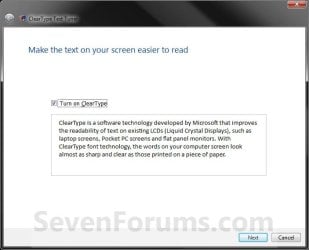
A) Check the Turn on ClearType box, click/tap on Next, and go to step 5 below. (See screenshot below step 4)
4. To Turn Off ClearType
A) Uncheck the Turn on ClearType box, click on Next, go to step 5 below, and click on Next until finished at step 11. (See screenshot below)
5. If you have multiple monitors, select to tune one or all of them, and click/tap on Next. (See screenshot below)
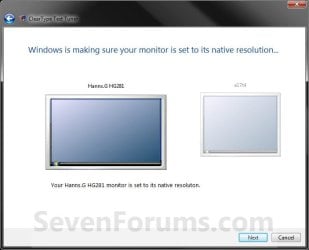
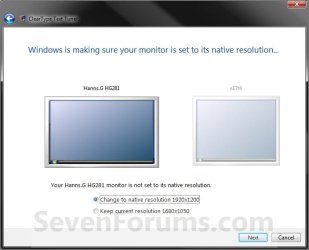
6. If your monitor native screen resolution is not correct, then correct it and click/tap on Next. (See left screenshot below) NOTE:If the native resolution is correct, then just click on Next. (See right screenshot below)
7. Click on the text that looks best to you, and click/tap on Next. (See screenshot below)
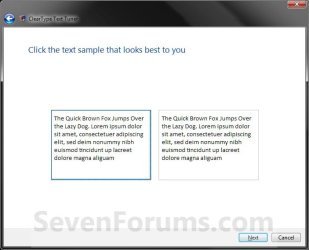
8. Click on the text that looks best to you, and click/tap on Next. (See screenshot below)
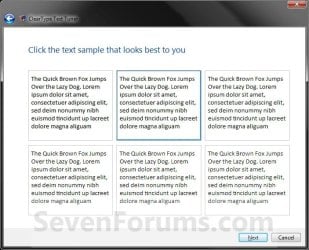
9. Click on the text that looks best to you, and click/tap on Next. (See screenshot below)
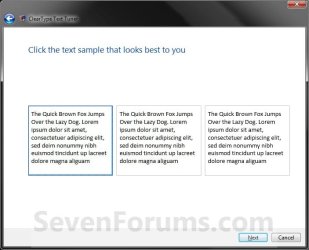
10. Click on the text that looks best to you, and click/tap on Next. (See screenshot below)
11. Click/tap on Finish. (See screenshot below) NOTE:If you selected to tune all monitors (step 5), then you will click on Next instead and repeat steps 6 to 11 again for the next monitor.

I can confirm this behaviour. it seems the cleartype option for menus (like "file" and "edit") and some other stuff is inverted. whenever you turn off cleartype it will get turned on for those but turned off for everything else. and verse visa.
but it is not for every menu.
you can see it for firefox menus and toolbar buttons.
you can also see it for IE tab titles.
just look at those while switching cleartype on and off multiple times.
I checked the areas you mentioned. In IE8, the tab titles do have ClearType turned off for them to, but it is very subtle there. You really have to look to notice it. Everything else was real obvious when ClearType was turned off though.
You see, that the menu and the addressbar is exactly turned around. with cleartype on the letters look like cleartype is off. firefox is not the only example. i have the same results with other menus, for example the popup-menu that appears, when i right-click on the desktop.
for me it is distracting. might be, because cleartype isn't configured correctly, but anyway, this shouldn't happen. off still means off
I'm sorry CloneWarrior, but the ON image looks sharper and clearer to me than the OFF one in all areas of the image. What type of monitor are you using?
If LCD, then you might turn ClearType back on and see if adjusting the settings in ClearType Tuner may help any.
you can also see it in another way: if you look at the menu in the off-image (so on for menus), you see that the shortkeys (strg+n, etc.) are not aligned.
anyway, these are images. they should look the same on every monitor. except colours of course. maybe i get distracted easier then you, because of being a perfectionist.
but you could test it yourself. change your cleartype settings in a way, that they DON'T look good. then turn cleartype on and off multiple times to see that different GUI-items seem to invert the settings.
anyway. my goal is not to make it look good on my machine, but to report the initial problem, namely cleartype not being turned on or off completely. there is probably just a boolean-bug somewhere in the code, that inverts the settings. just a quick guess
System Manufacturer/Model Number home built OS windows 7 ultimate x64 CPU intel i5 750 Motherboard asus p7p55d-e modded 1601 bios to get 11.2 intel option rom Memory 16 gig ram ddr3 @ 1333 9-9-9-24 CR2 Graphics Card evga 460 GTX 1 GIG SC Sound Card asus xonar D2X Monitor(s) Displays dell 2209WA Screen Resolution 1680x1050
Keyboard microsoft business ps2 keyboard Mouse microsoft optical black mouse PSU coolermaster silent pro 600watt modular Case antec P182 Cooling artic freezer 7 pro rev 2, 3 case fans Hard Drives Samsung 830 SSD 128gig - boot device wooosh - P55
WD black cavalier 640gig WD6401AALS - P55
WD 500gig WD5000AAKS - P55
Seagate 500gig ST3500630AS - P55
Samsung 750gig HD753LG - Marvell ide mode (drive doesnt like ahci) Internet Speed 30 meg cable Other Info All drives listed as P55 using AHCI