
How to Change, Remove, or Restore the Shortcut Arrow Overlay Icon in Windows
Information
This tutorial will show you how to change, remove, or restore the default shortcut arrow overlay on all shortcut icons in Vista, Windows 7, and Windows 8.
You must be logged in as an administrator to be able to do the steps in this tutorial.
You must be logged in as an administrator to be able to do the steps in this tutorial.
Warning
Removing the shortcut arrow will make it harder to tell which files are shortcuts or not.
You can still tell by right clicking or press and hold on the file, and click/tap on Properties to see if you have a Shortcut tab or not.
You can still tell by right clicking or press and hold on the file, and click/tap on Properties to see if you have a Shortcut tab or not.
OPTION ONE
Change Shortcut Arrow using "Vista Shortcut Overlay Remover"
1. If you have not already, click/tap on the Download button below to download the Vista Shortcut Overlay Remover (Vista Shortcut Overlay Manager) program below for the 32-bit or 64-bit Windows you have installed. Save the .msi file to your desktop, and install it.
32-bit (x86) Windows
Download
64-bit (x64) Windows
Download
2. Double click/tap on the program's shortcut to run the program.
3. To Change, Restore, or Remove the Arrow for All Shortcuts
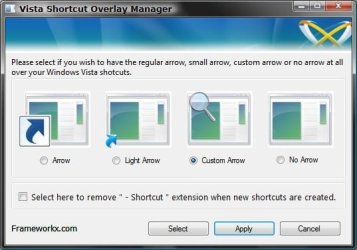
A) Select (dot) the arrow option you want for the shortcut arrow. (See screenshot below)
NOTE: If you selected Custom Arrow to change the shortcut arrow, then click on Select and navigate to and choose a ICO (icon) file you have downloaded to use as the shortcut arrow.
4. To Remove the "Shortcut" Name from All Shortcuts
NOTE: See also: http://www.sevenforums.com/tutorials/804-shortcut-extension-remove-restore.html
A) Check the box to also remove the - Shortcut name extension for new shortcuts that are created.
5. Click/tap on Apply.
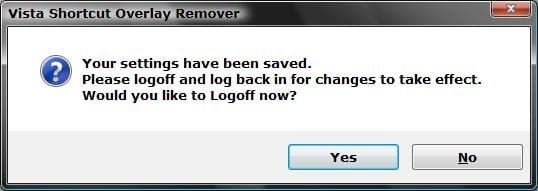
6. Click/tap on Yes to log off to apply the changes. (See screenshot below)
NOTE: If you like, you could also just restart explorer instead to apply your changes.
7. Log back on and your done.
Warning
If you used the Light Arrow or No Arrow option and uninstall "Vista Shortcut Overlay Remover", then they will be undone the next time you log off/on or restart the computer/explorer.
The Arrow (default) and Custom Arrow options will not be undone if you uninstall "Vista Shortcut Overlay Remover".
The Arrow (default) and Custom Arrow options will not be undone if you uninstall "Vista Shortcut Overlay Remover".
OPTION TWO
To Change Shortcut Arrow Overlay Icon in Registry Editor
1. Press the Windows + R keys to open the Run dialog, type regedit, and press Enter.
2. In regedit, navigate to the location below:
NOTE: If Shell Icons it is not in the left pane under Explorer, right click on Explorer, and click on New and Key. Type Shell Icons for the new keys's name, and press Enter.
Code:
HKEY_LOCAL_MACHINE\SOFTWARE\Microsoft\Windows\CurrentVersion\Explorer\Shell Icons3. In the right pane of Shell Icons, right click on an empty area, and click/tap on New and String Value, and name it 29.
4. Double click/tap on the 29 sting value to modify it.
5. Type in the full path of your custom .ico file within quotes, OR copy and paste the path below for what overlay icon you would like to use, and click/tap on OK.
Tip
(No arrow - Transparent) %windir%\System32\shell32.dll,-50
 (Classic) %windir%\System32\shell32.dll,-30
  (Default) %windir%\System32\shell32.dll,-16769
6. Log off and on, or restart the computer to apply.
OPTION THREE
To Change Shortcut Arrow Overlay Icon using a REG File
NOTE: This option does the same thing as OPTION TWO above, but automatically for you using a .reg file.
1. Do step 2, 3, or 4 below for what you would like to do.
2. To Restore Default Shortcut Arrow Overlay Icon
NOTE: This is the default setting.
A) Click/tap on the Download button below to download the .reg file below, and go to step 5 below.
Default_Shortcut_Arrow.reg Download
3. To Use Classic Shortcut Arrow Overlay Icon
A) Click/tap on the Download button below to download the .reg file below, and go to step 5 below.
Classic_Shortcut_Arrow.reg Download
4. To Have No Shortcut Arrow Overlay Icon
A) Click/tap on the Download button below to download the .reg file below, and go to step 5 below.
No_Shortcut_Arrow.reg
Download
5. Log off and log on, or restart the computer to apply.
6. You can now delete the downloaded .reg file if you like.
That's it,
Shawn
Related Tutorials
- How to Remove or Restore the "Shortcut" Name Extension in Windows 7 and Windows 8
- How to Change the Icon of a Shortcut in Windows 7
- How to Hide a Folder or Shortcut Icon in Vista and Windows 7
- How to Create a Shortcut of a File, Folder, Drive, or Program in Vista, Windows 7, and Windows 8
- How to Remove the Lock Icon from Files and Folders in Windows 7
Attachments
-
FxVisor32.msi1.7 MB · Views: 155,739
-
FxVisor64.msi1.7 MB · Views: 306,962
-
Remove_Restore_Shortcut_Arrow.zip1.3 KB · Views: 24,474
-
No_Shortcut_Arrow.reg334 bytes · Views: 22,435
-
Default_Shortcut_Arrow.reg5.6 KB · Views: 12,550
-
Classic_Shortcut_Arrow.reg334 bytes · Views: 8,176
-
transparent.ico15.5 KB · Views: 7,625
Last edited:


