How to Hide or Show Desktop Icons in Windows 7 and Windows 8
Information
This will show you how to easily hide or show all icons (ex: files, folders, shortcuts) on your desktop in Windows 7 and Windows 8.
OPTION ONE
Hide or Show Desktop Icons using the Desktop Context Menu
1. Right click or press and hold on a empty area of your desktop, then do step 2 or 3 below for what you would like to do.
2. To Show All Desktop Icons
NOTE: This is the default setting.
A) Click/tap on Show Desktop Icons to check it. (See screenshot below step 3)
3. To Hide All Desktop Icons
A) Click/tap on Show Desktop Icons to uncheck it. (See screenshot below)
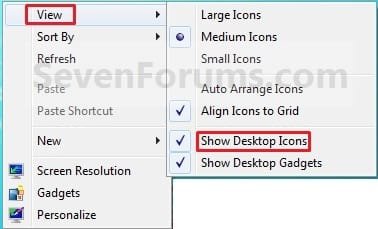
B) Save your current theme in Windows 7 or Windows 8 to help prevent these settings from being reset after you log off and on, or restart the computer.
OPTION TWO
Hide or Show Desktop Icons using a BAT File Download
1. To Show All Desktop Icons
NOTE: This is the default setting.
A) Click/tap on the download button below to download the file below, and go to step 3 below.
Show_Desktop_Icons.bat
Download
2. To Hide All Desktop Icons
A) Click/tap on the download button below to download the file below, and go to step 3 below.
Hide_Desktop_Icons.bat
Download
3. Save the .bat file to another location other than your desktop, and run it.
NOTE: It would be hard to see the .bat file on your desktop if already set to hide.
4. If prompted, click/tap on Run.
NOTE: If you like, you can stop getting the Run prompt by unblocking the downloaded .bat file.
5. You will now notice a command prompt quickly open and close, and your screen flash while applying the changes to your registry and restarting explorer.
6. When finished, you can delete the downloaded .bat file(s) if you like.
That's it,
Shawn
Related Tutorials
- How to Hide or Show Desktop Gadgets in Windows 7
- How to Hide a Folder or Shortcut Icon in Vista and Windows 7
- How to Turn Aero Peek On or Off in Windows 7
- How to Use Show Desktop in Windows 7
- How to Add or Remove a Default Desktop Icon in Windows 7
- How to Create a "Desktop Icon Settings" Shortcut in Vista and Windows 7
- How to Allow or Prevent the Windows 7 Recycle Bin Icon to Display
- How to Easily Change the Windows Desktop Icons Size
- How to Turn Drop Shadows On or Off for Desktop Icons
- How to "Hide file names" of Files in Picture and Video Folders in Windows 7 and Windows 8
- Hide or Show File Names of Shortcuts and Folders in Windows 7 and Windows 8
- How to Create a "Internet Explorer" Desktop Icon in Windows 7
Attachments
Last edited: