Search in Windows 7

How to Search in Windows 7

   Information
This will show you how to do a Search and Advanced Search for files and folders in Windows 7 through the Start Menu and Windows Explorer.

   Note
Before doing a search in Windows 7, you should make sure that you have set your Search Options for the What to search, How to search, and When searching non-indexed locations settings. If you have the index enabled (it is by default), then you should also have any locations and file types added to be indexed so they will be included in the search results when doing a search. If the files have been recently changed, then the index may not have finshed updating yet and you will need to manually rebuild the index to force it to update now.

To be able to search in libraries, the Windows Search service needs to be Started and set to Automatic. Libraries require it's included folders to also be added to the index to be tracked properly even though they will still open properly.


OPTION ONE

Search in the Start Menu


   Note
You can use the search box line in the Start menu to find files, folders, programs, and e‑mail messages stored on your computer. When searching from the Start menu, only files that have been indexed will appear in search results.

You can also adjust these settings below in the Customize Start Menu settings for what is to be included in the search from the Start Menu Search box.
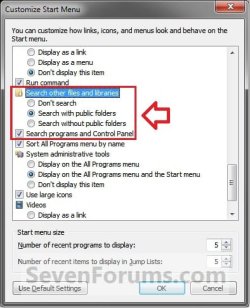
Start_Menu_Customize.jpg

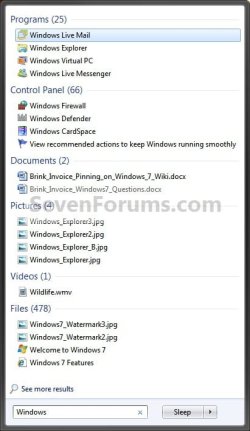
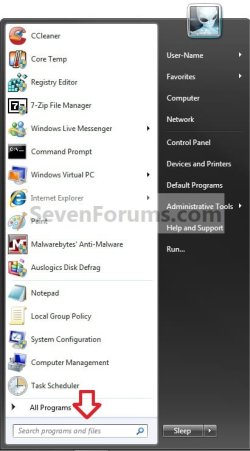
1. Open the Start Menu, and type a word or part of a word for what you want to search for in the Search box. (See screenshot below)
NOTE: As you type, items that match your text will appear on the Start menu. The search is based on text in the file name, text in the file, tags, and other file properties.
Start_Menu.jpg
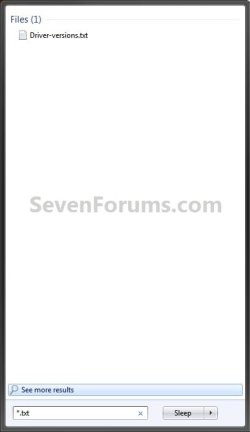
2. You will now see the search results for what you search for. (See screenshot below)
NOTE: You can also click on the See more results link to see more search results in a Windows Explorer window like in OPTION TWO below.
Start_Menu2.jpgStart_Menu3.jpg
3. You can now just click on a search result to open it. (See screenshot above)


OPTION TWO

Search in Windows Explorer


NOTE: This will allow you to do a search for any item from within a selected drive or folder location of your choice in Windows Explorer.
1. Press the F3 key or Windows Key + F keys. (See screenshot below)
NOTE: This Search Results window gives you the same search results as the Start Menu in OPTION ONE.
Search.jpg
A) Go to step 3.
OR

2. Open Windows Explorer, and navigate to where (ex: drive or folder) you want to search in and open it.
NOTE: When searching a drive or folder in Windows Explorer, Windows only searches from within the currently opened drive or folder location and its subfolders. Windows does not search outside this search path.

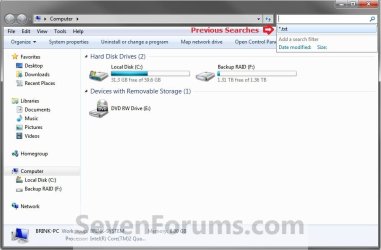
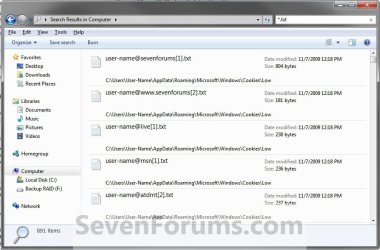
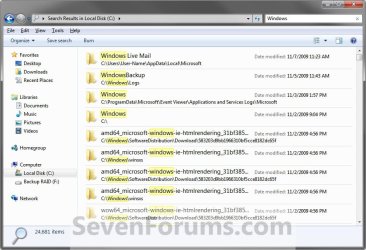
3. Type a word or part of a word for what you want to search for in the Search box at the top right corner in Windows Explorer. (See screenshots below)
NOTE: As you type, the contents of the folder or library are filtered to reflect each successive character you type. When you see the file that you want, stop typing. You will also see the word you type in highlighted in the search results.
Windows_Explorer.jpg

Windows_Explorer_B.jpg

Windows_Explorer2.jpg

Windows_Explorer3.jpg

   Tip

Using Search Filters


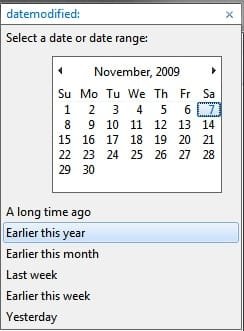
NOTE: If you're searching for a file based on one or more of its properties (such as a tag or the date the file was last modified), you can use search filters to specify the property in your search.
  • Click in the Search box, and select a listed search filter that you want to add to narrow the search results with.
  • Depending on the search filter selected, choose a value to be used for this search filter.
    Search_Filter.jpg
  • You can repeat these steps to add more search filters to build complex searches on multiple properties. Each time that you click a search filter or value, the search filter terms are automatically added to the search box.
Using Search Again In


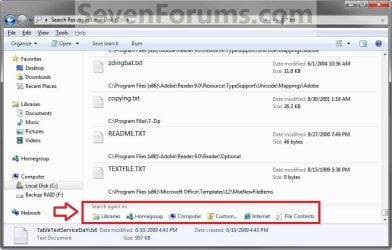
NOTE: If you can't find what you're looking for in the search results from this current Windows Explorer location, then you can expand the search to include different locations.
  • After doing a search, scroll to the bottom of the search results list. Under Search again in, do one of the following:
    • Click Libraries to search across every library.
    • Click Computer to search across your entire computer. This is the way to search for files that aren't indexed (such as system or program files). However, be aware that the search will be slower.
    • Click Custom to search specific locations.
    • Click Internet to search online, using your default web browser and your default search provider.
Search_Again.jpg


That's it,
Shawn


Related Tutorials

 
Last edited:
Tip if you can't search contents in particular file types

I found i was trying to search inside of .df files but nothing ever came back from search.

http://www.sevenforums.com/tutorials/18212-index-add-remove-file-types.html

1) go to control panel
2) indexing options
3) advanced button
4) file types tab
5) locate the file type in list
6) toggle the radio set to "Index properties and file contents"
7) press ok
8) press close

retry your search...
 

My Computer

OS
Windows 7 Ultimate x64
You could possibly mention you need it enabled in Programs/Features.
 

My Computer

Computer type
PC/Desktop
Computer Manufacturer/Model Number
Novatech iRush Pro
OS
Windows 7 Ultimate SP1 - 64 Bit
CPU
Intel Core i5 2500k
Motherboard
Foxconn H67M-S/H67M-V/H67
Memory
2x4GB DDR3 1333Hz
Graphics Card(s)
Ati Radeon 6770
Sound Card
None
Monitor(s) Displays
Samsung S22B150
Screen Resolution
1920x1080
Hard Drives
2x500GB
PSU
500W
Cooling
Fan
Keyboard
HP KU0316
Mouse
Wireless Logitech M185
Internet Speed
20MB/s
Antivirus
Avast Free
Browser
Google Chrome
Other Info
Logitech M185 Mouse
KU-M316 Keyboard
Hello Infinite,

The Windows Search option in Windows Features is only for the search index. It does not affect doing a non-index search though. :)
 

My Computer

Computer type
PC/Desktop
Computer Manufacturer/Model Number
Self built custom
OS
64-bit Windows 11 Pro for Workstations
CPU
Intel i7-8700K OC'd to 5 GHz
Motherboard
ASUS ROG Maximus XI Formula Z390
Memory
64 GB (4x16GB) G.SKILL TridentZ RGB DDR4 3600 MHz
Graphics Card(s)
ASUS ROG-STRIX-GTX1080TI-O11G-GAMING
Sound Card
Integrated
Monitor(s) Displays
2 x Samsung Odyssey G7 27"
Screen Resolution
2560x1440
Hard Drives
1TB Samsung 990 PRO M.2,
4TB Samsung 990 PRO PRO M.2,
TerraMaster F8 SSD Plus NAS
PSU
Seasonic Prime Titanium 850W
Case
Thermaltake Core P3
Cooling
Corsair Hydro H115i
Keyboard
Logitech wireless K800
Mouse
Logitech MX Master 4
Internet Speed
2 Gb/s Download and 100 Mb/s Upload
Antivirus
Malwarebyte Anti-Malware Premium
Browser
Google Chrome
Other Info
Logitech Z625 speaker system,
Logitech BRIO 4K Pro webcam,
HP Color LaserJet Pro MFP M477fdn,
APC SMART-UPS RT 1000 XL - SURT1000XLI,
Galaxy S23 Plus phone
thank you so much
i was looking for these options for along time


but i have now a problem with my search when i'm searching in a folder

when i type a word to be found in a folder
it founds it
but then i cant do anything with that file like cut-rename-copy
but i was able to do it until a while ago

can you tell me what's the problem?
 

My Computer

OS
windows 7 ultimate x32bit
Hello pinklotus,

Double check that you are right clicking on the actual highlighted file and not on any space around the file. It can be real easy to click on a blank area right next to the file.

If you are, then when you right click on the file in search results, and click on "Open file location", are you able to do it from it's source location?
 

My Computer

Computer type
PC/Desktop
Computer Manufacturer/Model Number
Self built custom
OS
64-bit Windows 11 Pro for Workstations
CPU
Intel i7-8700K OC'd to 5 GHz
Motherboard
ASUS ROG Maximus XI Formula Z390
Memory
64 GB (4x16GB) G.SKILL TridentZ RGB DDR4 3600 MHz
Graphics Card(s)
ASUS ROG-STRIX-GTX1080TI-O11G-GAMING
Sound Card
Integrated
Monitor(s) Displays
2 x Samsung Odyssey G7 27"
Screen Resolution
2560x1440
Hard Drives
1TB Samsung 990 PRO M.2,
4TB Samsung 990 PRO PRO M.2,
TerraMaster F8 SSD Plus NAS
PSU
Seasonic Prime Titanium 850W
Case
Thermaltake Core P3
Cooling
Corsair Hydro H115i
Keyboard
Logitech wireless K800
Mouse
Logitech MX Master 4
Internet Speed
2 Gb/s Download and 100 Mb/s Upload
Antivirus
Malwarebyte Anti-Malware Premium
Browser
Google Chrome
Other Info
Logitech Z625 speaker system,
Logitech BRIO 4K Pro webcam,
HP Color LaserJet Pro MFP M477fdn,
APC SMART-UPS RT 1000 XL - SURT1000XLI,
Galaxy S23 Plus phone
Hello pinklotus,

Double check that you are right clicking on the actual highlighted file and not on any space around the file. It can be real easy to click on a blank area right next to the file.

If you are, then when you right click on the file in search results, and click on "Open file location", are you able to do it from it's source location?

thanks

no I'm sure that I'm clicking on the file
no even when I ask to open the file source location
it doesn't show me the file
and I should look for it myself
 

My Computer

OS
windows 7 ultimate x32bit
Could you post a screenshot showing all of this an the options it gives you to see if it may help ID the issue?
 

My Computer

Computer type
PC/Desktop
Computer Manufacturer/Model Number
Self built custom
OS
64-bit Windows 11 Pro for Workstations
CPU
Intel i7-8700K OC'd to 5 GHz
Motherboard
ASUS ROG Maximus XI Formula Z390
Memory
64 GB (4x16GB) G.SKILL TridentZ RGB DDR4 3600 MHz
Graphics Card(s)
ASUS ROG-STRIX-GTX1080TI-O11G-GAMING
Sound Card
Integrated
Monitor(s) Displays
2 x Samsung Odyssey G7 27"
Screen Resolution
2560x1440
Hard Drives
1TB Samsung 990 PRO M.2,
4TB Samsung 990 PRO PRO M.2,
TerraMaster F8 SSD Plus NAS
PSU
Seasonic Prime Titanium 850W
Case
Thermaltake Core P3
Cooling
Corsair Hydro H115i
Keyboard
Logitech wireless K800
Mouse
Logitech MX Master 4
Internet Speed
2 Gb/s Download and 100 Mb/s Upload
Antivirus
Malwarebyte Anti-Malware Premium
Browser
Google Chrome
Other Info
Logitech Z625 speaker system,
Logitech BRIO 4K Pro webcam,
HP Color LaserJet Pro MFP M477fdn,
APC SMART-UPS RT 1000 XL - SURT1000XLI,
Galaxy S23 Plus phone
here is a list of all the options that are hidden at times, you can use them even if there not shown by default.

kind: [for a drop down list of all options]
or
kind:=calendar
kind:=communication
kind:=contact
kind:=document
kind:=email
kind:=feed
kind:=folder
kind:=game
kind:=instant message
kind:=journal
kind:=link
kind:=movie
kind:=note
kind:=picture
kind:=program
kind:=saved search
kind:=task
kind:=tv
kind:=video
kind:=web history
type: [for a drop down list of all options]
or
type:=Application
type:="Contact file"
type:=Directory
type:="File folder"
type:=Icon
type:="Internet Shortcut"
type:=Library
type:="Pinned Site Shortcut"
type:=Shortcut
type:="Windows Media Audio File"
 

My Computer

Computer type
Laptop
Computer Manufacturer/Model Number
Compaq Presario A916NR Notebook PC
OS
Windows 7 Enterprise 32 bit
CPU
Intel Pentium Dual CPU T2330 @ 1.60Ghz
Motherboard
COMPAQ
Memory
2.0GB
Graphics Card(s)
Intel
Hard Drives
Seagate ST9500325AS ATA Device
Antivirus
n/a
Browser
IE, Firefox, Chrome (in that order)
Greetings,

Is it possible to search for two or more files and get the result in the same windows then select & copy them?

Regards
 

My Computer

Computer type
PC/Desktop
Computer Manufacturer/Model Number
DELL
OS
Windows 7 Ultimate x64
CPU
Core i5 @ 3.1 GHz
Memory
8.00 GB
Browser
chrome Version 31.0.1650.57 m
Hello mhachoui,

Yes, it sure is. You could use this format below to search for both files at the same time. You can then select them as usual from the search results. :)

file1 AND file2

(see top "Adding operators") section below for more info. Advanced tips for searching in Windows
 

My Computer

Computer type
PC/Desktop
Computer Manufacturer/Model Number
Self built custom
OS
64-bit Windows 11 Pro for Workstations
CPU
Intel i7-8700K OC'd to 5 GHz
Motherboard
ASUS ROG Maximus XI Formula Z390
Memory
64 GB (4x16GB) G.SKILL TridentZ RGB DDR4 3600 MHz
Graphics Card(s)
ASUS ROG-STRIX-GTX1080TI-O11G-GAMING
Sound Card
Integrated
Monitor(s) Displays
2 x Samsung Odyssey G7 27"
Screen Resolution
2560x1440
Hard Drives
1TB Samsung 990 PRO M.2,
4TB Samsung 990 PRO PRO M.2,
TerraMaster F8 SSD Plus NAS
PSU
Seasonic Prime Titanium 850W
Case
Thermaltake Core P3
Cooling
Corsair Hydro H115i
Keyboard
Logitech wireless K800
Mouse
Logitech MX Master 4
Internet Speed
2 Gb/s Download and 100 Mb/s Upload
Antivirus
Malwarebyte Anti-Malware Premium
Browser
Google Chrome
Other Info
Logitech Z625 speaker system,
Logitech BRIO 4K Pro webcam,
HP Color LaserJet Pro MFP M477fdn,
APC SMART-UPS RT 1000 XL - SURT1000XLI,
Galaxy S23 Plus phone
Thanks Brink,

Is it possible to search for two strings in the same file name, for example: 'C130' & '0135' in the file 'Response to 422-C130-E-INMA-0135-R0.pdf'?

Regards
 

My Computer

Computer type
PC/Desktop
Computer Manufacturer/Model Number
DELL
OS
Windows 7 Ultimate x64
CPU
Core i5 @ 3.1 GHz
Memory
8.00 GB
Browser
chrome Version 31.0.1650.57 m
Hello mhachoui,

If you like, you should be able to open the file and search for the strings that way.
 

My Computer

Computer type
PC/Desktop
Computer Manufacturer/Model Number
Self built custom
OS
64-bit Windows 11 Pro for Workstations
CPU
Intel i7-8700K OC'd to 5 GHz
Motherboard
ASUS ROG Maximus XI Formula Z390
Memory
64 GB (4x16GB) G.SKILL TridentZ RGB DDR4 3600 MHz
Graphics Card(s)
ASUS ROG-STRIX-GTX1080TI-O11G-GAMING
Sound Card
Integrated
Monitor(s) Displays
2 x Samsung Odyssey G7 27"
Screen Resolution
2560x1440
Hard Drives
1TB Samsung 990 PRO M.2,
4TB Samsung 990 PRO PRO M.2,
TerraMaster F8 SSD Plus NAS
PSU
Seasonic Prime Titanium 850W
Case
Thermaltake Core P3
Cooling
Corsair Hydro H115i
Keyboard
Logitech wireless K800
Mouse
Logitech MX Master 4
Internet Speed
2 Gb/s Download and 100 Mb/s Upload
Antivirus
Malwarebyte Anti-Malware Premium
Browser
Google Chrome
Other Info
Logitech Z625 speaker system,
Logitech BRIO 4K Pro webcam,
HP Color LaserJet Pro MFP M477fdn,
APC SMART-UPS RT 1000 XL - SURT1000XLI,
Galaxy S23 Plus phone
Hello Brink,

I am searching in a data server for multiple files which file name contains two-string as the example below.

Thx
 

My Computer

Computer type
PC/Desktop
Computer Manufacturer/Model Number
DELL
OS
Windows 7 Ultimate x64
CPU
Core i5 @ 3.1 GHz
Memory
8.00 GB
Browser
chrome Version 31.0.1650.57 m
Sorry,

I meant as the previous example: C130 & 0135 in the file Response to 422-C130-E-INMA-0135-R0.pdf
 

My Computer

Computer type
PC/Desktop
Computer Manufacturer/Model Number
DELL
OS
Windows 7 Ultimate x64
CPU
Core i5 @ 3.1 GHz
Memory
8.00 GB
Browser
chrome Version 31.0.1650.57 m
Hello again,

After a try, I added a space in the search box & the results returned multiple files matching.

Thank you
 

My Computer

Computer type
PC/Desktop
Computer Manufacturer/Model Number
DELL
OS
Windows 7 Ultimate x64
CPU
Core i5 @ 3.1 GHz
Memory
8.00 GB
Browser
chrome Version 31.0.1650.57 m
Perfect.
 

My Computer

Computer type
PC/Desktop
Computer Manufacturer/Model Number
Self built custom
OS
64-bit Windows 11 Pro for Workstations
CPU
Intel i7-8700K OC'd to 5 GHz
Motherboard
ASUS ROG Maximus XI Formula Z390
Memory
64 GB (4x16GB) G.SKILL TridentZ RGB DDR4 3600 MHz
Graphics Card(s)
ASUS ROG-STRIX-GTX1080TI-O11G-GAMING
Sound Card
Integrated
Monitor(s) Displays
2 x Samsung Odyssey G7 27"
Screen Resolution
2560x1440
Hard Drives
1TB Samsung 990 PRO M.2,
4TB Samsung 990 PRO PRO M.2,
TerraMaster F8 SSD Plus NAS
PSU
Seasonic Prime Titanium 850W
Case
Thermaltake Core P3
Cooling
Corsair Hydro H115i
Keyboard
Logitech wireless K800
Mouse
Logitech MX Master 4
Internet Speed
2 Gb/s Download and 100 Mb/s Upload
Antivirus
Malwarebyte Anti-Malware Premium
Browser
Google Chrome
Other Info
Logitech Z625 speaker system,
Logitech BRIO 4K Pro webcam,
HP Color LaserJet Pro MFP M477fdn,
APC SMART-UPS RT 1000 XL - SURT1000XLI,
Galaxy S23 Plus phone
Yikes this is strange...

This thread's not been bumped for a while but I have a question that's hard to search on (!):

I just used Windows Explorer to do a search in my C: drive, and within the results, clearly labelled "Search Results in C: Windows7" are a couple of non-C: items, namely from \\SERVER which is my WHS2011 server on my network. Why might Explorer find files when I've clearly asked to limit the search to C:?????? I did BTW right-click on this Search result and ask to "Open file location" and it was indeed where it was purported to be, which happens to be a Thumbs.db file: \\SERVER\Music\Beatles - 1

This is very unexpected behavior and since I have a speed issue or two already on this PC, this gives me pause to think something is seriously wrong.

I do not have any mapped drives on this PC fwiw. Any ideas?

:confused:
 

My Computer

Computer type
Laptop
Computer Manufacturer/Model Number
Dell Latitude E6540 Laptop
OS
Windows 7 Professional 64bit
CPU
Intel Core i7 4600M @ 2.90GHz
Motherboard
Dell Inc. 0CYT5F (SOCKET 0)
Memory
16.0GB Dual-Channel DDR3 @ 797MHz (11-11-11-28)
Graphics Card(s)
Intel HD Graphics 4600 (Dell) 2048MB ATI AMD Radeon HD 8790M
Sound Card
Realtek High Definition Audio
Monitor(s) Displays
HP ZR30w (2560x1600@60Hz)
Hard Drives
256GB LITEONIT LMT-256M6M-41 mm SATA (SSD)
1TB Samsung SSD 860 EVO mSATA SATA (SSD)
2TB USB 3.0 USB Device
115GB SanDisk Ultra Fit USB
Other Info
Multiple Dell E-Port Plus II Port Replicator/Docking Stations 0Y72NH USB 3.0 + 130W AC Adapters
Hello :)

A little question..
When I tries to search for a file(explorer window up to the right).. say its name is 1234.txt and i know that I have at least ten files with the same name.. but it only finds six or seven files..
I have indexing turned off because the hard drive activity drives me crazy.
Is it possible to search for all my files with it off? I don't mind if it takes longer time.

I miss windows XP search function. :(
 

My Computer

Computer type
PC/Desktop
Computer Manufacturer/Model Number
AsusX53, Aspire E1-572. AsusUX32A, HP Pro3130mt+3010mt, HP Proliant ML150G3, 3xCustom, i3, i5, i7
OS
Linux:Debian, Kali.. 2xWin8.1,2x,1x7Pro, Retro:1x2003server.1xXPpro, 1xW2k,1x98SE,1x95,1x3.11
CPU
cpu's intel 8088 up to intel i7 gen9.. dual xenon on server
Motherboard
a lot of them :-)
Memory
oldest 1024KB newest 64GB
Graphics Card(s)
mostly internals i don't game
Sound Card
old retro=soundblaster.. newer ones internal
Monitor(s) Displays
smalest 12" largest 26"
Internet Speed
100/100
Antivirus
NortonInternetSecurity, MS, Avast, (not on the same computer
Browser
IE8, IE9. IE11, Firefox
Other Info
I can't fit all info on all my computers in these fields :-D
Back
Top