Windows 7 Forums Search
Welcome to Windows 7 Forums. Our forum is dedicated to helping you find solutions with any problems, errors or issues you are experiencing with Windows 7. The Windows 7 forum also covers news and updates and has an extensive Windows 7 tutorial section that covers a wide range of tips and tricks.


Windows 7 - Hard Disk Partition Letter Missing in Windows 7 - Fix


Hard Disk Partition Letter Missing in Windows 7 - Fix

How to Fix Missing Vista Hard Disk Partition Letter in Windows 7
Published by Brink
02-09-2009
Default Hard Disk Partition Letter Missing in Windows 7 - Fix

How to Fix the Missing Vista Hard Disk Partition Letter in Windows 7

information   Information
This will show you how to fix the missing already installed Windows Vista hard disk partition in Windows 7 when you have just installed Windows 7 from boot to dual or multi boot with Vista.
Note   Note
This will also work for a missing XP hard drive partition in Windows 7 as well.
Tip   Tip
If you install Windows 7 from within Vista to the other partition or drive instead, then Vista should show up in Windows 7 then. However, installing Windows 7 from within Vista instead of at boot may not always install properly if something in Vista interferes during installation.

EXAMPLE: Missing Vista Hard Disk Partition Letter in Windows 7
NOTE: The left screenshot is in the Computer window, and the right screenshot is in Disk Management.
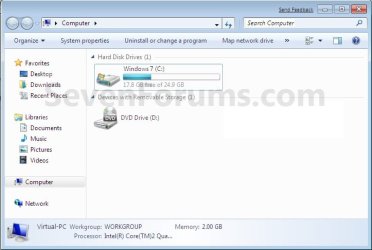
Hard Disk Partition Letter Missing in Windows 7 - Fix-example2.jpgHard Disk Partition Letter Missing in Windows 7 - Fix-example1.jpg

Here's How:
1. Open the Control Panel (All Items view), and click on the Administrative Tools icon, then close the Control Panel window.

2. Click on Computer Management in Administrative Tools.

3. If prompted by UAC, click on Yes. Close the Administrative Tools window.

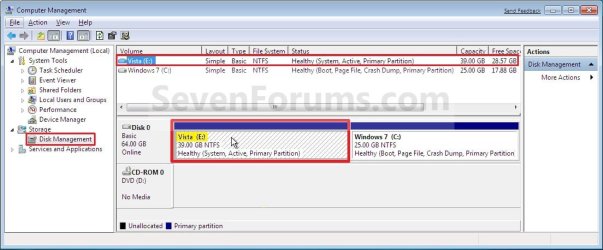
4. In the left pane under Storage, click on Disk Management. (See screenshot below step 5)

5. In the right pane, right click on the Vista hard disk partition that is missing it's drive letter, then click on Change Drive Letter and Paths. (See screenshot below)
Hard Disk Partition Letter Missing in Windows 7 - Fix-step1.jpg
6. Click on the Add button. (See screenshot below)
Hard Disk Partition Letter Missing in Windows 7 - Fix-step2.jpg
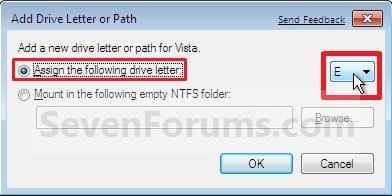
7. Select (dot) Assign the following drive letter, then select a drive letter you want to have assigned to the Vista disk partition and click on OK. (See screenshot below)
Hard Disk Partition Letter Missing in Windows 7 - Fix-step3.jpg
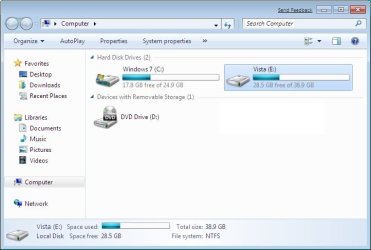
8. The Vista Hard Disk Partition will now show up in Windows 7. (See screenshots below)
NOTE: The left screenshot is in the Computer window, and the right screenshot is in Disk Management.
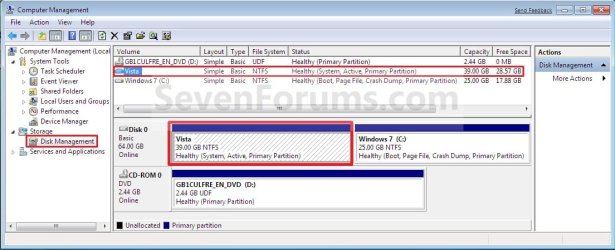
Hard Disk Partition Letter Missing in Windows 7 - Fix-after2.jpgHard Disk Partition Letter Missing in Windows 7 - Fix-after1.jpg
That's it,
Shawn


Published by
Administrator

Join Date: Oct 2008
Location: Texas
Posts: 34,657
Brink has a reputation beyond reputeBrink has a reputation beyond reputeBrink has a reputation beyond repute
Brink has a reputation beyond reputeBrink has a reputation beyond reputeBrink has a reputation beyond reputeBrink has a reputation beyond reputeBrink has a reputation beyond reputeBrink has a reputation beyond reputeBrink has a reputation beyond reputeBrink has a reputation beyond reputeBrink has a reputation beyond reputeBrink has a reputation beyond reputeBrink has a reputation beyond reputeBrink has a reputation beyond reputeBrink has a reputation beyond reputeBrink has a reputation beyond repute

Tutorial Tools
02-28-2011   #1
longnh


Windows 7 Ultimate x64 SP1


"Change Drive Letter and Paths" is not available

What if the option "Change Drive Letter and Paths" is greyed out?

My System SpecsSystem Spec
02-28-2011   #2
Brink


Windows 7 Ultimate x64 SP1


Hello Longnh, and welcome to Seven Forums.

Could you post a screenshot of your Disk Management showing all of your drives layout?
My System SpecsSystem Spec
03-01-2011   #3
longnh


Windows 7 Ultimate x64 SP1


Hey Brink, thanks for your quick reply.

I'm using dual XP and Windows 7. That partition (F didn't show up in Windows 7 though I can still see it in Disk Management (the only information is total size, there's no label, letter, free space, used space). When I right-clicked, "Format" was the only option available in context menu (Disk Management). Everything's normal in XP, I mean I can read/write to that partition if I boot into XP. It's so weird.

After I formatted that partition, it works well now (so I cannot take any screenshot). I can see it in both XP and Windows 7 (but my data was gone, of course). Basically my problem was solved, but I'm still curious about this error.
My System SpecsSystem Spec
.


03-01-2011   #4
Brink


Windows 7 Ultimate x64 SP1


Longnh,

I'm not certain what was the issue, but I'm happy to hear that you got it sorted.
My System SpecsSystem Spec
03-02-2011   #5
BajolCool


Windows 7 Ultimate X64 SP1


Hello Brink..
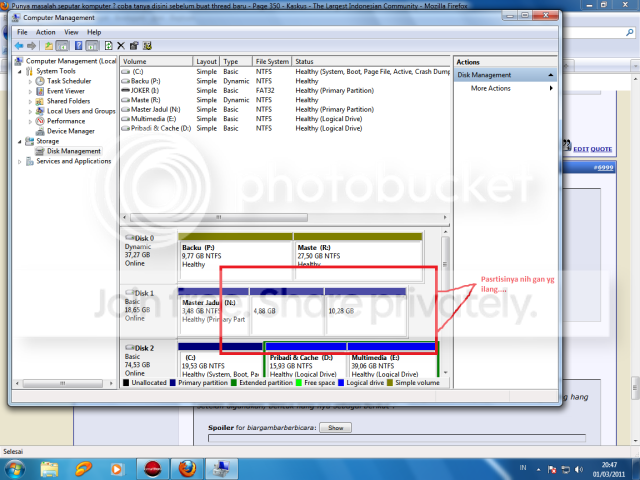
I have same problem like longnh have.. this my screenshot


i have important file in my 2 partition.. please help me , to make 7 assign this partition without format it


Thanks in Advance

Bajol
My System SpecsSystem Spec
03-02-2011   #6
Brink


Windows 7 Ultimate x64 SP1


Hello Bajol,

Do you have access to them to be able to copy the files to another location, then format them to get a drive letter and copy the files back?
My System SpecsSystem Spec
03-02-2011   #7
BajolCool


Windows 7 Ultimate X64 SP1


Quote   Quote: Originally Posted by Brink View Post
Hello Bajol,

Do you have access to them to be able to copy the files to another location, then format them to get a drive letter and copy the files back?
No I can't acces it..
In this case, i'm login as administrator. But I'm still can't acces both of them.

My only way is acces the drive from XP and backup the files from there.
i have formatted HDD through 7 disk management and 7 can recognize now

thanks for the advice

Bajol
My System SpecsSystem Spec
03-02-2011   #8
Brink


Windows 7 Ultimate x64 SP1


You're most welcome Bajol. I'm happy to hear that you got it sorted.
My System SpecsSystem Spec
4 Days Ago   #9
BenWagner


Windows 7 Home Premium 64bit


Brink:
I am having the same problem. When my XP died I bought a HP running Windows 7 Home Premium 64. While most of the files I wanted are backed up to a portable hard drive, I thought the easiest way to move my files was to remove the drive from the old computer and put it in the new and drag and drop the files where I wanted on the new one. I then planed to keep the drive in for storage and backup.
(I was not planning to duel boot to XP as I understand that windows checks and does not run on different computer, but if it is possible I would be interested in doing so)
I have followed the steps listed to add a hard drive. I have scanned for changes. I have uninstalled and reinstalled the drive in Device Manager. I have changed folder options to show hidden files.
I do not want to reformat the drive at least until I transfer some files off it.
Any help you or other forum members can give will be greatly appreciated.
Thank you very much.
Ben
Attached Thumbnails
Hard Disk Partition Letter Missing in Windows 7 - Fix-harddriveproblem.jpg   Hard Disk Partition Letter Missing in Windows 7 - Fix-harddriveproblem1.jpg  
My System SpecsSystem Spec
Comment

Hard Disk Partition Letter Missing in Windows 7 - Fix problems?


Tutorial Tools


Similar Threads for: Hard Disk Partition Letter Missing in Windows 7 - Fix
Windows 7 Tutorial Category
Is deleting a hard disk partition on Windows 7 installation secure? General Discussion
Solved Need quick help about new hard disk partition on win 7 disk management Hardware & Devices
hard disk partition General Discussion
Hard disk size missing Hardware & Devices
Solved Can't change hard drive letter to needed letter General Discussion


All times are GMT -5. The time now is 11:54 AM.


Windows 7 Forums is an independent web site and has not been authorized,
sponsored, or otherwise approved by Microsoft Corporation.
"Windows 7" and related materials are trademarks of Microsoft Corp.
© Designer Media Ltd
  

1 2 3 4 5 6 7 8 9 10 11 12 13 14 15 16 17 18 19 20 21 22 23 24 25 26 27 28 29 30