Windows 7 Forums


Windows 7: Magnifier Starts at Startup - Enable or Disable


Magnifier Starts at Startup - Enable or Disable

How to Enable or Disable Magnifier Starts at Startup and Log on in Windows 7 and Windows 8
Published 14 Nov 2009
Published by

Featured Tutorial

Portable OS - Carry your OS on an External Drive

How to Create a Portable OS on an External Drive

User Profile - Customize During Installation

How to Customize Default User Profile in Audit Mode

Screen Capture and Video Editing in High Quality


Peppermint3 - Create Live CD/DVD/USB To Use For Emergency Backup

How to Perform an Emergency Data Backup When Windows 7 Will Not Boot

Driver Install - Device Manager

How to Install a Driver in Device Manager
How to Enable or Disable Magnifier Starts at Startup and Log on in Windows 7 and Windows 8

information   Information
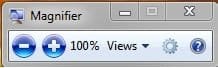
Magnifier allows you to zoom in or out of different parts of the screen. This can be useful for viewing small objects or text that are difficult to see by making them larger.

This will tutorial will show you how to enable or disable the option to have Magnifier to run automatically at startup or when you log on in Windows 7 and Windows 8.

warning   Warning
By default, making any changes in the Ease of Access Center will reset your Visual Effect Settings back to default. You will need to change them back again after doing this tutorial.


EXAMPLE: Magnifier
Name:  Magnifier1.jpg
Views: 44532
Size:  2.3 KBName:  Magnifier.jpg
Views: 44534
Size:  9.0 KB

Here's How:
1. Do step 2 or 3 below depending on what you are able to do.

2. If Magnifier is already open, then click/tap on the sprocket icon, click/tap on the Control whether Magnifier starts when I log on (Windows 7) or Control whether Magnifier starts when I log on (Windows 8) link, click/tap on OK, close Magnifier, and go to step 4 below. (See screenshot below)
NOTE: You may need to click on the magnifying glass to see Magnifier below.
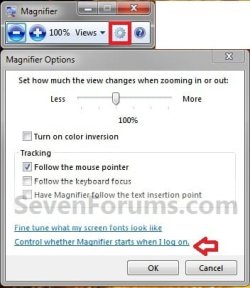
Magnifier Starts at Startup - Enable or Disable-step3.jpg

3. Open the Control Panel (icons view), click/tap on the Ease of Access Center icon, and go to step 5 below.

4. Click/tap on the Make the computer easier to see link. (See screenshot below)
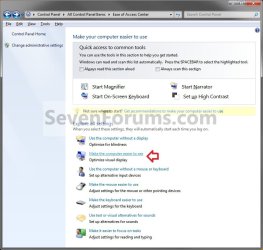
Magnifier Starts at Startup - Enable or Disable-step1.jpg
5. Do step 6 or 7 below for what you would like to do.


6. To Enable Magnifier to Start at Startup
A) Check the Turn on Magnifier box, click/tap on OK, and go to step 8 below. (see screenshot below)
Magnifier Starts at Startup - Enable or Disable-step2.jpg
7. To Disable Magnifier to Start at Startup
A) Uncheck the Turn on Magnifier box, click/tap on OK, and go to step 8 below. (see screenshot above)
8. You can now close the Ease of Access Center window if you like.
That's it,
Shawn


Need more help? Try searching our extensive help and support site.
Loading
Comment

 Magnifier Starts at Startup - Enable or Disable problems?


Tutorial Tools


Similar help and support threads for: Magnifier Starts at Startup - Enable or Disable
Windows 7 Tutorial Category
Startup Sound - Enable or Disable Tutorials
Solved Annoying Magnifier glass feature -- turn off and disable General Discussion
Magnifier on startup General Discussion
keyboard and magnifier at startup.... General Discussion
Need way to disable/enable network card at startup?? Network & Sharing


All times are GMT -5. The time now is 02:20 PM.


Windows 7 Forums is an independent web site and has not been authorized,
sponsored, or otherwise approved by Microsoft Corporation.
"Windows 7" and related materials are trademarks of Microsoft Corp.
© Designer Media Ltd