
Hidden Files and Folders - Show or Hide

How to Show or Hide All Hidden Files, Folders, and Drives in Vista, Windows 7, and Windows 8

   Information
This tutorial will show you how to have all hidden files, folders, and drives to show or don't show in Windows 7. These are set to be hidden by default in Vista, Windows 7, and Windows 8.
   Note
When you have these hidden files, folders, and drives set to show, the icon shows as transparent to indicate that they are set as hidden.

EXAMPLE: A Hidden and Normal Folder Example.jpg
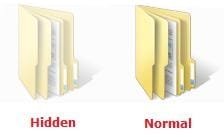
EXAMPLE: A Hidden Protected Operating System File Protected_System_File.jpg



OPTION ONE

To Hide or Show Hidden Files using Folder Options


NOTE: This option only affects the current user. 1. Open Folder Options.

2. To Show Hidden Files, Folders, and Drives
NOTE: This will also allow hidden drives to show despite if Hide empty drives in the Computer folder is checked. A) Select (dot) Show hidden files, folders, and drives. (See screenshot below)
B) Click on the Apply button. Folder_Options-1.jpg
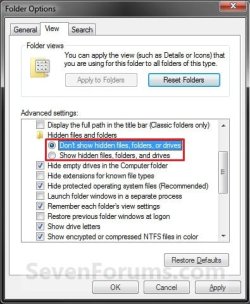
3. To Don't Show Hidden Files, Folders, and Drives A) Select (dot) Don't Show hidden files, folders, and drives. (See screenshot above)

B) Click on the Apply button.
4. To Show Protected Operating System Files
NOTE: For example, desktop.ini files. A) If you have not already, do step 2.

B) Uncheck the Hide protected operating system files box. (See screenshot below step 5B)

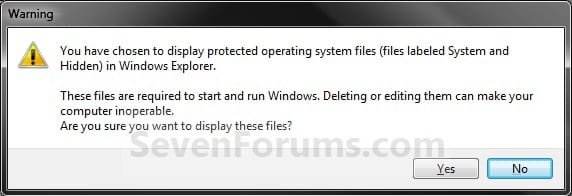
C) Click/tap on Yes to confirm, and go to step 6 below. (See screenshot below) Confirm.jpg5. To Hide Protected Operating System Files A) Check the Hide protected operating system files box, and go to step 6 below. (See screenshot below) Folder_Options-2.jpg
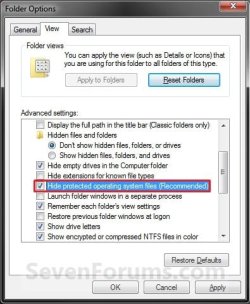
6. Click/tap on OK. (See screenshot above)


OPTION TWO

To Hide or Show Hidden Files using a BAT File Download


NOTE: This option only affects the current user. 1. To Show Hidden Files, Folders, and Drives
NOTE: This will also allow hidden drives to show despite if Hide empty drives in the Computer folder is checked. A) Click on the Download button below to download the file below. Show_hidden_files_folders_and_drives.bat


Download


B) Go to step 5.
2. To Don't Show Hidden Files, Folders, and Drives A) Click on the Download button below to download the file below. Don't_show_hidden_files_folders_and_drives.bat

Download


B) Go to step 5.
3. To Show Protected Operating System Files
NOTE: For example, desktop.ini files. This also applies step 1. A) Click on the Download button below to download the file below. Show_protected_operating_system_files.bat

Download


B) Go to step 5.
4. To Hide Protected Operating System Files A) Click on the Download button below to download the file below. Hide_protected_operating_system_files.bat

Download


5. Save the .bat file to your desktop, and run it.

6. If prompted, click/tap on Run.
NOTE: If you like, you can stop getting the Run prompt by unblocking the downloaded .bat file.

7. You will now notice a command prompt quckly open and close while applying the changes to your registry.

8. When finished, you can delete the downloaded .bat file(s) if you like.


OPTION THREE

To Hide or Show Hidden Files using Registry Editor

1. Open the Start Menu, then type regedit in the search line and press enter.

2. If prompted by UAC, then click on Yes.

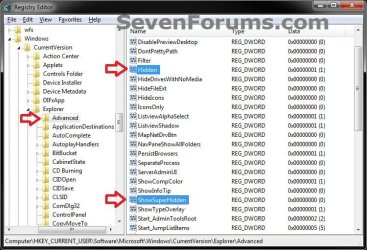
3. In regedit, navigate to the location below. (see screenshot below) For Current User Only:
HKEY_CURRENT_USER\Software\Microsoft\Windows\CurrentVersion\Explorer\Advanced

For All Users: (Must be logged in as an administrator to be able to do this option)
HKEY_LOCAL_MACHINE\SOFTWARE\Microsoft\Windows\CurrentVersion\Explorer\Advanced
Reg1.jpg
4. To Show Hidden Files, Folders, and Drives
NOTE: This will also allow hidden drives to show despite if Hide empty drives in the Computer folderis checked. A) In the right pane of Advanced, right click on Hidden and click on Modify. (see screenshot above)

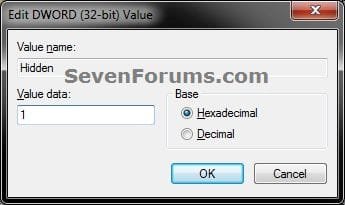
B) Type 1 and click on OK. (see screenshot below) Modify-1.jpg
C) Go to step 8.
5. To Don't Show Hidden Files, Folders, and Drives A) In the right pane of Advanced, right click on Hidden and click on Modify. (see screenshot below step 3)

B) Type 0 and click on OK. (see screenshot below step 4B)

C) Go to step 8.
6. To Show Protected Operating System Files
NOTE: For example, desktop.ini files. A) Do step 4.

B) In the right pane of Advanced, right click on ShowSuperHidden and click on Modify. (see screenshot below step 3)

C) Type 1 and click on OK. (see screenshot below step 7B)

D) Go to step 8.
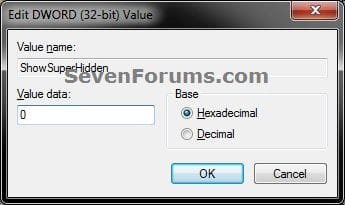
7. To Hide Protected Operating System Files A) In the right pane of Advanced, right click on ShowSuperHidden and click on Modify. (see screenshot below step 3)

B) Type 0 and click on OK. (see screenshot below ) Modify-2.jpg
8. Close regedit.

9. Log off and log on, or restart the computer to apply.
That's it,
Shawn


Attachments

Last edited:
Hi Shawn, i often use this to hide some files from other users on my pc. Is there a way to create a shortcut on the desktop to hide or unhide files or folders?
 

My Computer

Computer Manufacturer/Model Number
Samsung NP530U4B-S02IN
OS
Windows® 8 Pro (64-bit)
CPU
Intel® Core™ i5 Processor 2467M (1.60GHz, 3MB L3 Cache)
Motherboard
Samsung Electronics
Memory
6GB DDR3 System Memory at 1,333MHz (on BD 4GB + 2GB x 1)
Graphics Card(s)
AMD Radeon™ HD7550M 1GB DDR3 (Ext. Graphic)
Sound Card
Realtek High Definition Audio
Monitor(s) Displays
35.56cm (14.0) SuperBright 300nit HD LED Display
Screen Resolution
1366x768
Hard Drives
1TB S-ATA II Hard Drive (5400RPM) with ExpressCache 16GB SSD
Internet Speed
sucks
Antivirus
Microsoft Security Essentials
Browser
Google Chrome (Sync enabled)

My Computer

Computer type
PC/Desktop
Computer Manufacturer/Model Number
Self built custom
OS
64-bit Windows 11 Pro for Workstations
CPU
Intel i7-8700K OC'd to 5 GHz
Motherboard
ASUS ROG Maximus XI Formula Z390
Memory
64 GB (4x16GB) G.SKILL TridentZ RGB DDR4 3600 MHz
Graphics Card(s)
ASUS ROG-STRIX-GTX1080TI-O11G-GAMING
Sound Card
Integrated
Monitor(s) Displays
2 x Samsung Odyssey G7 27"
Screen Resolution
2560x1440
Hard Drives
1TB Samsung 990 PRO M.2,
4TB Samsung 990 PRO PRO M.2,
TerraMaster F8 SSD Plus NAS
PSU
Seasonic Prime Titanium 850W
Case
Thermaltake Core P3
Cooling
Corsair Hydro H115i
Keyboard
Logitech wireless K800
Mouse
Logitech MX Master 4
Internet Speed
2 Gb/s Download and 100 Mb/s Upload
Antivirus
Malwarebyte Anti-Malware Premium
Browser
Google Chrome
Other Info
Logitech Z625 speaker system,
Logitech BRIO 4K Pro webcam,
HP Color LaserJet Pro MFP M477fdn,
APC SMART-UPS RT 1000 XL - SURT1000XLI,
Galaxy S23 Plus phone
Hi Shawn, good find but will it work with laptop too?

UPDATE:
great its working. thanks buddy.
 

My Computer

Computer Manufacturer/Model Number
Samsung NP530U4B-S02IN
OS
Windows® 8 Pro (64-bit)
CPU
Intel® Core™ i5 Processor 2467M (1.60GHz, 3MB L3 Cache)
Motherboard
Samsung Electronics
Memory
6GB DDR3 System Memory at 1,333MHz (on BD 4GB + 2GB x 1)
Graphics Card(s)
AMD Radeon™ HD7550M 1GB DDR3 (Ext. Graphic)
Sound Card
Realtek High Definition Audio
Monitor(s) Displays
35.56cm (14.0) SuperBright 300nit HD LED Display
Screen Resolution
1366x768
Hard Drives
1TB S-ATA II Hard Drive (5400RPM) with ExpressCache 16GB SSD
Internet Speed
sucks
Antivirus
Microsoft Security Essentials
Browser
Google Chrome (Sync enabled)
You're welcome. :)
 

My Computer

Computer type
PC/Desktop
Computer Manufacturer/Model Number
Self built custom
OS
64-bit Windows 11 Pro for Workstations
CPU
Intel i7-8700K OC'd to 5 GHz
Motherboard
ASUS ROG Maximus XI Formula Z390
Memory
64 GB (4x16GB) G.SKILL TridentZ RGB DDR4 3600 MHz
Graphics Card(s)
ASUS ROG-STRIX-GTX1080TI-O11G-GAMING
Sound Card
Integrated
Monitor(s) Displays
2 x Samsung Odyssey G7 27"
Screen Resolution
2560x1440
Hard Drives
1TB Samsung 990 PRO M.2,
4TB Samsung 990 PRO PRO M.2,
TerraMaster F8 SSD Plus NAS
PSU
Seasonic Prime Titanium 850W
Case
Thermaltake Core P3
Cooling
Corsair Hydro H115i
Keyboard
Logitech wireless K800
Mouse
Logitech MX Master 4
Internet Speed
2 Gb/s Download and 100 Mb/s Upload
Antivirus
Malwarebyte Anti-Malware Premium
Browser
Google Chrome
Other Info
Logitech Z625 speaker system,
Logitech BRIO 4K Pro webcam,
HP Color LaserJet Pro MFP M477fdn,
APC SMART-UPS RT 1000 XL - SURT1000XLI,
Galaxy S23 Plus phone
Show Hidden Files being applied systemwide

I usually enable the option to show hidden files on each pc I build for myself, under XP this setting only seems to affect the individual folder for which I choose to apply it to, under Windows 7 however it seems that this setting gets applied systemwide to every folder regardless of which folder you are actually editing the folder view options for, does anyone know how to enable it only for the folders I specifically select it for (using the folder view options doesn't narrow it down, did that and that's how I found out it applies systemwide to all folders INCLUDING MY DESKTOP)? I don't like seeing 2 desktop.ini files showing up on my desktop, I tried to go into windows explorer and select the desktop folder and 'hide hidden files' but then it hides them on all folders on my system (extremely annoying), which completely defeats the purpose of choosing to display hidden files on all of my other folders.

Thanks for any help you can provide,
bartman2589
 

My Computer

Computer Manufacturer/Model Number
Custom Built
OS
Windows 7 Ultimate x64 w/SP1
CPU
AMD FX6100
Motherboard
Gigabyte 78LMT-S2P
Memory
8Gb DDR3-1333 (Kingston Hyper-X)
Graphics Card(s)
XFX nVidia GT520 PCIe w/2Gb Video Memory
Sound Card
OEM on board audio
Monitor(s) Displays
Acer X193w 19" widescreen lcd
Screen Resolution
1440x900 32bit color depth
Hard Drives
2x 1Tb Hitachi Deskstar SATA drives (HDS721010CLA332)
1x 500Gb Hitachi Deskstar SATA drive in external USB enclosure (HDS721050CLA362)
PSU
Antec 450 watt
Case
Antec Full Tower
Cooling
Air Cooled 4x 80mm case fans (2 front, 2 rear)
Keyboard
2nd hand eMachines PS2 Keyboard (model KB-0108)
Mouse
Kingston Pro-Fit Full Size wired mouse
Internet Speed
6Mb
Hello Bartman, and welcome to Seven Forums.

You can leave protected operating system files hidden (Step 5) to not have the desktop.ini files displayed, but leave system files unhidden (Step 2) to see the rest of them.

Hope this helps,
Shawn
 

My Computer

Computer type
PC/Desktop
Computer Manufacturer/Model Number
Self built custom
OS
64-bit Windows 11 Pro for Workstations
CPU
Intel i7-8700K OC'd to 5 GHz
Motherboard
ASUS ROG Maximus XI Formula Z390
Memory
64 GB (4x16GB) G.SKILL TridentZ RGB DDR4 3600 MHz
Graphics Card(s)
ASUS ROG-STRIX-GTX1080TI-O11G-GAMING
Sound Card
Integrated
Monitor(s) Displays
2 x Samsung Odyssey G7 27"
Screen Resolution
2560x1440
Hard Drives
1TB Samsung 990 PRO M.2,
4TB Samsung 990 PRO PRO M.2,
TerraMaster F8 SSD Plus NAS
PSU
Seasonic Prime Titanium 850W
Case
Thermaltake Core P3
Cooling
Corsair Hydro H115i
Keyboard
Logitech wireless K800
Mouse
Logitech MX Master 4
Internet Speed
2 Gb/s Download and 100 Mb/s Upload
Antivirus
Malwarebyte Anti-Malware Premium
Browser
Google Chrome
Other Info
Logitech Z625 speaker system,
Logitech BRIO 4K Pro webcam,
HP Color LaserJet Pro MFP M477fdn,
APC SMART-UPS RT 1000 XL - SURT1000XLI,
Galaxy S23 Plus phone
RE: Show Hidden Files being applied systemwide

Brink thanks for taking the time to reply, however I was hoping for a solution that would allow me to still have the system files visible (i.e. fix the behavior of the 'show hidden files' option so that it functions on a per folder basis the way it does in XP). I like many others consider myself to be a 'power user' of sorts and sometimes find myself having to modify various system files in order to get the desired behavior out of windows, having the system files hidden is quite annoying in my opinion (as is Windows 7's decision to not allow me to grant myself full permissions on the files in the Windows folder, that part totally pisses me off). Thanks again for taking the time to reply however. I guess I'll have to wait for Micro$haft to hopefully fix this behavior in a service pack (god knows many system admins would probably want it to work the way I want it to).

Thanks,
bartman2589
 

My Computer

Computer Manufacturer/Model Number
Custom Built
OS
Windows 7 Ultimate x64 w/SP1
CPU
AMD FX6100
Motherboard
Gigabyte 78LMT-S2P
Memory
8Gb DDR3-1333 (Kingston Hyper-X)
Graphics Card(s)
XFX nVidia GT520 PCIe w/2Gb Video Memory
Sound Card
OEM on board audio
Monitor(s) Displays
Acer X193w 19" widescreen lcd
Screen Resolution
1440x900 32bit color depth
Hard Drives
2x 1Tb Hitachi Deskstar SATA drives (HDS721010CLA332)
1x 500Gb Hitachi Deskstar SATA drive in external USB enclosure (HDS721050CLA362)
PSU
Antec 450 watt
Case
Antec Full Tower
Cooling
Air Cooled 4x 80mm case fans (2 front, 2 rear)
Keyboard
2nd hand eMachines PS2 Keyboard (model KB-0108)
Mouse
Kingston Pro-Fit Full Size wired mouse
Internet Speed
6Mb
Sorry Bartman,

This is how is in Vista and Windows 7. It is unlikely to change. :(
 

My Computer

Computer type
PC/Desktop
Computer Manufacturer/Model Number
Self built custom
OS
64-bit Windows 11 Pro for Workstations
CPU
Intel i7-8700K OC'd to 5 GHz
Motherboard
ASUS ROG Maximus XI Formula Z390
Memory
64 GB (4x16GB) G.SKILL TridentZ RGB DDR4 3600 MHz
Graphics Card(s)
ASUS ROG-STRIX-GTX1080TI-O11G-GAMING
Sound Card
Integrated
Monitor(s) Displays
2 x Samsung Odyssey G7 27"
Screen Resolution
2560x1440
Hard Drives
1TB Samsung 990 PRO M.2,
4TB Samsung 990 PRO PRO M.2,
TerraMaster F8 SSD Plus NAS
PSU
Seasonic Prime Titanium 850W
Case
Thermaltake Core P3
Cooling
Corsair Hydro H115i
Keyboard
Logitech wireless K800
Mouse
Logitech MX Master 4
Internet Speed
2 Gb/s Download and 100 Mb/s Upload
Antivirus
Malwarebyte Anti-Malware Premium
Browser
Google Chrome
Other Info
Logitech Z625 speaker system,
Logitech BRIO 4K Pro webcam,
HP Color LaserJet Pro MFP M477fdn,
APC SMART-UPS RT 1000 XL - SURT1000XLI,
Galaxy S23 Plus phone
share hidden folders

this is a very general tip guys...

u can easily share all ur files n folders with other computers connected in same domain and thats how i hope u all know.


but to share d hidden file or folders just one thing u have do is just rename that file or folder by adding a"$" symbol at last of its original name without any blank space.

for eg:
if d name of a folder is"music", just rename it by"music$".

but the person or d pc with which u r sharing ur hiddenn files must know ur hidden files/folders locations.

this tip is 4 windows xp.
i dont know whether it works upon other operating systems or not.
 

My Computer

Computer Manufacturer/Model Number
self build/assembled
OS
windows 7 rtm ultimate build 7600 x86
CPU
intel pentium 4 HT 3GHz
Motherboard
intel 945 GZ Micro 775 SE
Memory
1 gb transcend 667 Mhz
Graphics Card(s)
Nvidea 8400 GS 512 MB
Sound Card
realtek inbuild
Monitor(s) Displays
23" samsung syncmaster P2370MS full HD 1080p
Screen Resolution
1920x1080
Hard Drives
hitachi 160gb sata+Samsung 500gb sata
PSU
Zebronics 450W
Case
trendsonic
Cooling
two extra fans taken from damaged PSUs
Keyboard
Microsoft
Mouse
Microsoft
Internet Speed
512Kbps
question... before windows 7, i always hid some files that are created in the "My Documents" folder (well, the folder named after myself since Vista)...

anyway... i want to hide or get rid of Favorites, Saved Games, Contacts, etc... before i was able to simply hide them via right-click-properties, however on windows 7, when i do that, they're still there!! not even faded out or anything!

first thing i did before posting this was to go into Folder Options to activate, and reactivate the view hidden folder options... nothing.

know why my folders won't hide?
 

My Computer

Computer Manufacturer/Model Number
Samsung NP-NC10-KA03US
OS
Windows 7
CPU
Intel Atom
Memory
2GB DDR2
Graphics Card(s)
Intel GMA
Hello Paul, and welcome to Seven Forums.

I'm not sure why you can't hide them in the C:\Users\(user-name) folder location by right clicking on them and checking Hidden and applying to all subfolders and files.

You can try this instead though:
1. Open a elevated command prompt.

2. Type in the command below for the user folder that you want to hide.
  • attrib +h %USERPROFILE%\Contacts /s
  • attrib +h %USERPROFILE%\Desktop /s
  • attrib +h %USERPROFILE%\Documents /s
  • attrib +h %USERPROFILE%\Downloads /s
  • attrib +h %USERPROFILE%\Favorites /s
  • attrib +h %USERPROFILE%\Links /s
  • attrib +h %USERPROFILE%\Music /s
  • attrib +h %USERPROFILE%\Pictures /s
  • attrib +h %USERPROFILE%\"Saved Games" /s
  • attrib +h %USERPROFILE%\Searches /s
  • attrib +h %USERPROFILE%\Videos /s
3. Repeat step 2 for any other user folder you want to hide.

4. When done close the command prompt.

5. It may take a moment for them to hide.

Hope this helps,
Shawn
 

My Computer

Computer type
PC/Desktop
Computer Manufacturer/Model Number
Self built custom
OS
64-bit Windows 11 Pro for Workstations
CPU
Intel i7-8700K OC'd to 5 GHz
Motherboard
ASUS ROG Maximus XI Formula Z390
Memory
64 GB (4x16GB) G.SKILL TridentZ RGB DDR4 3600 MHz
Graphics Card(s)
ASUS ROG-STRIX-GTX1080TI-O11G-GAMING
Sound Card
Integrated
Monitor(s) Displays
2 x Samsung Odyssey G7 27"
Screen Resolution
2560x1440
Hard Drives
1TB Samsung 990 PRO M.2,
4TB Samsung 990 PRO PRO M.2,
TerraMaster F8 SSD Plus NAS
PSU
Seasonic Prime Titanium 850W
Case
Thermaltake Core P3
Cooling
Corsair Hydro H115i
Keyboard
Logitech wireless K800
Mouse
Logitech MX Master 4
Internet Speed
2 Gb/s Download and 100 Mb/s Upload
Antivirus
Malwarebyte Anti-Malware Premium
Browser
Google Chrome
Other Info
Logitech Z625 speaker system,
Logitech BRIO 4K Pro webcam,
HP Color LaserJet Pro MFP M477fdn,
APC SMART-UPS RT 1000 XL - SURT1000XLI,
Galaxy S23 Plus phone
seems the folders became hidden after i restarted the computer... but i'm still baffled why they won't go hidden immediately after applying the Hide properties...

thanks for your help!
 

My Computer

Computer Manufacturer/Model Number
Samsung NP-NC10-KA03US
OS
Windows 7
CPU
Intel Atom
Memory
2GB DDR2
Graphics Card(s)
Intel GMA
That's great news Paul. I'm not sure why it took a restart either.
 

My Computer

Computer type
PC/Desktop
Computer Manufacturer/Model Number
Self built custom
OS
64-bit Windows 11 Pro for Workstations
CPU
Intel i7-8700K OC'd to 5 GHz
Motherboard
ASUS ROG Maximus XI Formula Z390
Memory
64 GB (4x16GB) G.SKILL TridentZ RGB DDR4 3600 MHz
Graphics Card(s)
ASUS ROG-STRIX-GTX1080TI-O11G-GAMING
Sound Card
Integrated
Monitor(s) Displays
2 x Samsung Odyssey G7 27"
Screen Resolution
2560x1440
Hard Drives
1TB Samsung 990 PRO M.2,
4TB Samsung 990 PRO PRO M.2,
TerraMaster F8 SSD Plus NAS
PSU
Seasonic Prime Titanium 850W
Case
Thermaltake Core P3
Cooling
Corsair Hydro H115i
Keyboard
Logitech wireless K800
Mouse
Logitech MX Master 4
Internet Speed
2 Gb/s Download and 100 Mb/s Upload
Antivirus
Malwarebyte Anti-Malware Premium
Browser
Google Chrome
Other Info
Logitech Z625 speaker system,
Logitech BRIO 4K Pro webcam,
HP Color LaserJet Pro MFP M477fdn,
APC SMART-UPS RT 1000 XL - SURT1000XLI,
Galaxy S23 Plus phone
was hoping for a solution that would allow me to still have the system files visible (i.e. fix the behavior of the 'show hidden files' option so that it functions on a per folder basis the way it does in XP).

Bart, I think you are mistaken. I'm using XP (and have been for years). That option has always been global. It doesn't work on a per-folder basis. You can, however, set the attribute for specific folders to be hidden or not, which will probably do what you need.
 

My Computer

Computer Manufacturer/Model Number
Home-Built and has been slowly upgraded since 1999
OS
Windows 7 RC (Build 7100)
CPU
AMD Athlon XP 2400+
Motherboard
ECS L7S7A2
Memory
1.25 GB
Graphics Card(s)
ATI Radeon
Sound Card
SoundBlaster Live! Platinum (w/ Live! Drive)
Monitor(s) Displays
ViewSonic 19" LCD
Screen Resolution
1440x900
Hard Drives
320GB PATA
250GB external USB Backup
PSU
500W
Case
Generic Beige Box
Cooling
A bunch of Fans
Keyboard
Old one with the keys pried off that I don't use
Mouse
Microsoft Optical Mouse I found at Unclaimed baggage for $10
Internet Speed
Knology Cable Internet (~6-7Mbps)
Actually happinessiseasy I think you might be mistaken (or not quite understanding what I want to accomplish). I too have been using XP for a number of years (almost from the day it was first released), and one of the first things I do after installing XP is to set my folder preferences to show all system files and show all hidden files as well as to show protected operating system files and make it display extensions for known file types (I've had friends of mine that have been bitten by viruses that were actually .vbs scripts but weren't immediately recognizable as such because the extension was hidden), I also set explorer to display file details as opposed to thumbnails or any other view style then I apply this to ALL folders using the handy little button, now when I do this on XP with SP2 or above I don't end up seeing the desktop.ini file residing on my desktop however if I open the folder that contains the desktop icons for my user account in windows explorer I DO see the desktop.ini file telling me that XP has elected not to show it on the desktop (which is exactly the way I want it), I will grant you that under SP1 and prior XP did in fact show the desktop.ini files on my desktop when I chose to enable viewing of hidden and system and protected OS files, but under SP2 and above it does not (if necessary I can take a screenshot showing windows explorer open with the desktop.ini file visible in explorer but not actually visible on the desktop). However Windows7 does not behave this way (I don't know if this is true of Vista or not, nor do I care, as most people are aware Vista is easily one of the worst OS's Microsoft has released in the past 30 or so years).
 

My Computer

Computer Manufacturer/Model Number
Custom Built
OS
Windows 7 Ultimate x64 w/SP1
CPU
AMD FX6100
Motherboard
Gigabyte 78LMT-S2P
Memory
8Gb DDR3-1333 (Kingston Hyper-X)
Graphics Card(s)
XFX nVidia GT520 PCIe w/2Gb Video Memory
Sound Card
OEM on board audio
Monitor(s) Displays
Acer X193w 19" widescreen lcd
Screen Resolution
1440x900 32bit color depth
Hard Drives
2x 1Tb Hitachi Deskstar SATA drives (HDS721010CLA332)
1x 500Gb Hitachi Deskstar SATA drive in external USB enclosure (HDS721050CLA362)
PSU
Antec 450 watt
Case
Antec Full Tower
Cooling
Air Cooled 4x 80mm case fans (2 front, 2 rear)
Keyboard
2nd hand eMachines PS2 Keyboard (model KB-0108)
Mouse
Kingston Pro-Fit Full Size wired mouse
Internet Speed
6Mb
I understand what you're saying, but I don't see the same behavior. I am running XP Pro SP3. Is this the same build you're running? The behavior that I see is system-wide (desktop included) and consistent with what I expect to see (i.e. the same as the behavior we both see in Windows 7).

Trying it just now, unchecking the "Hide protected operating system files" setting shows POSFs (files with SH attributes) everywhere, including the desktop, and the desktop viewed through Windows Explorer. I have never heard of a per-folder setting for this. In fact, all of the settings in the "Advanced Settings" box are system-wide, not per-folder. I don't know why they put "Apply to All Folders" on the same tab, honestly.
 

My Computer

Computer Manufacturer/Model Number
Home-Built and has been slowly upgraded since 1999
OS
Windows 7 RC (Build 7100)
CPU
AMD Athlon XP 2400+
Motherboard
ECS L7S7A2
Memory
1.25 GB
Graphics Card(s)
ATI Radeon
Sound Card
SoundBlaster Live! Platinum (w/ Live! Drive)
Monitor(s) Displays
ViewSonic 19" LCD
Screen Resolution
1440x900
Hard Drives
320GB PATA
250GB external USB Backup
PSU
500W
Case
Generic Beige Box
Cooling
A bunch of Fans
Keyboard
Old one with the keys pried off that I don't use
Mouse
Microsoft Optical Mouse I found at Unclaimed baggage for $10
Internet Speed
Knology Cable Internet (~6-7Mbps)
happinessiseasy said:
Trying it just now, unchecking the "Hide protected operating system files" setting shows POSFs (files with SH attributes) everywhere, including the desktop, and the desktop viewed through Windows Explorer. I have never heard of a per-folder setting for this. In fact, all of the settings in the "Advanced Settings" box are system-wide, not per-folder.

Nor have I ever seen the behavior that bartman2589 describes. In fact I tested this just now on both XP SP2 and SP3. The "Advanced Settings" tab is indeed only global settings. The "Apply to all folders" button only applies the visual layout of the current window (icons vs. list vs. details view, column spacing, etc.) to all other folders.

I've never ever seen one folder display hidden files while another does not. I tried it every which way just now and I simply couldn't duplicate this alleged behavior.

I'm not arguing that bartman2589 did not succeed in getting his desktop.ini files to disappear off his desktop, but it can't be from selectively applying the Advanced Settings to one folder and not another. I would bet that there is some other explanation for why the desktop.ini files are disappearing in this case.

Personally, I just delete them from the Desktop folders. I've never had any problems from this.

bartman2589 said:
I don't know if this is true of Vista or not, nor do I care, as most people are aware Vista is easily one of the worst OS's Microsoft has released in the past 30 or so years

I'm not sure what this statement has to do with this topic, but examine the logic in it. "I do not know whether or not Vista behaves according to my preference, but it doesn't matter, because Vista is terrible."

To this day, I simply cannot understand the phenomenon of Vista-bashing for nothing more than the sake of Vista-bashing.
 

My Computer

OS
Gentoo Linux, Windows 7
I can't see this option in my windows 7 :(

359d1226066077-hidden-files-folders-show-hide-folder_options-1.jpg
 
Last edited by a moderator:

My Computer

Computer Manufacturer/Model Number
Dell Inspiron 6000
OS
Windows 7 Ultimate x32bit
Memory
1Gb
Hard Drives
60Gb Internal
Mouse
Dell

My Computer

Computer type
PC/Desktop
Computer Manufacturer/Model Number
Self built custom
OS
64-bit Windows 11 Pro for Workstations
CPU
Intel i7-8700K OC'd to 5 GHz
Motherboard
ASUS ROG Maximus XI Formula Z390
Memory
64 GB (4x16GB) G.SKILL TridentZ RGB DDR4 3600 MHz
Graphics Card(s)
ASUS ROG-STRIX-GTX1080TI-O11G-GAMING
Sound Card
Integrated
Monitor(s) Displays
2 x Samsung Odyssey G7 27"
Screen Resolution
2560x1440
Hard Drives
1TB Samsung 990 PRO M.2,
4TB Samsung 990 PRO PRO M.2,
TerraMaster F8 SSD Plus NAS
PSU
Seasonic Prime Titanium 850W
Case
Thermaltake Core P3
Cooling
Corsair Hydro H115i
Keyboard
Logitech wireless K800
Mouse
Logitech MX Master 4
Internet Speed
2 Gb/s Download and 100 Mb/s Upload
Antivirus
Malwarebyte Anti-Malware Premium
Browser
Google Chrome
Other Info
Logitech Z625 speaker system,
Logitech BRIO 4K Pro webcam,
HP Color LaserJet Pro MFP M477fdn,
APC SMART-UPS RT 1000 XL - SURT1000XLI,
Galaxy S23 Plus phone
Back
Top