File and Folder Arrangement - Group by - Sort by - Arrange by

How to Change the Group by, Sort by, and Arrange by Folder View in Windows 7 Explorer

   Information
This will show you how to change and organize the file and folder arrangements in a opened folder using Arrange by, Sort by, or Group by folder views in Windows 7.

   Tip
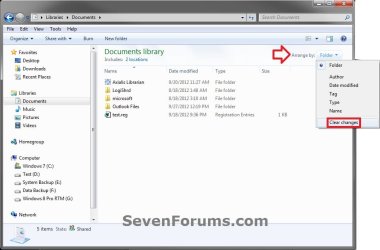
After you make any changes to the Sort by or Group by folder view settings in a library, you can restore the library back to it's default Sort by or Group by folder view by clicking on the Arrange by drop down menu on the toolbar (top right corner) and clicking on Clear changes.

If Clear changes is not listed, then the library is already set to be viewed by it's default Sort by or Group by folder view.
Clear_Changes.jpg


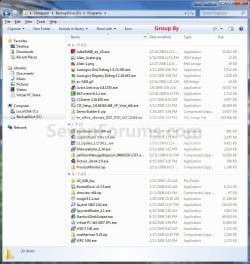
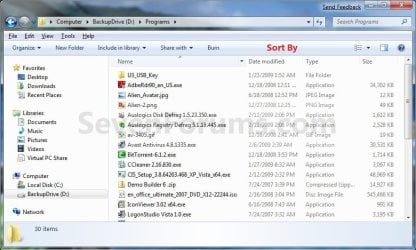
EXAMPLE: "Group by" and "Sort by" in Windows Explorer
NOTE: These screenshots are using the Name column to "Group by" and "Sort by". What you see in your window will also depend on what you have the folder template and arrangement set as.
Group_By.jpg

Sort_By.jpg


OPTION ONE

To Change "Sort by" and "Group by" View using the View Menu


1. Open the Windows Explorer folder or library window that you wish to change the view of the icon sizes in.

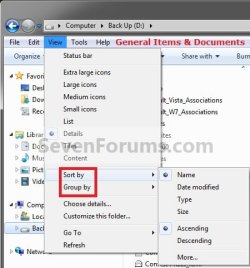
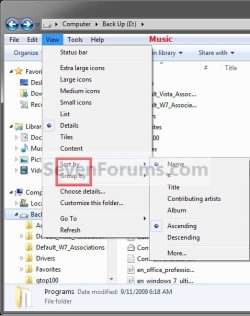
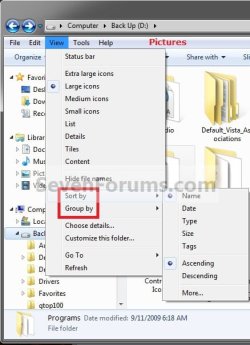
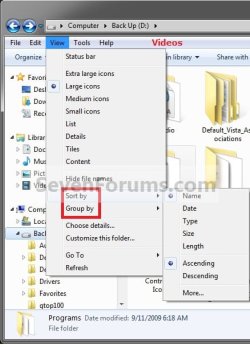
2. Click on the View menu bar item and select either the Sort By or Group by arrangement options, then select a column name and Ascending or Descending order for how you want the window arranged by. (See screenshots below)
NOTE: The column names listed in the View menu bar will depend on what you have the folder template set as. You can also click on More to add more column name options.
View_General_Items_Documents.jpg

View_Music.jpg

View_Pictures.jpg

View_Videos.jpg


OPTION TWO

To Change "Sort by" and "Group by" View using the Column Headings


   Note
The Sort and Group option at the top, and the Stack by option at the bottom are no longer available in the final Windows 7 RTM. Please disregard them in the screenshots.

1. Open the Windows Explorer folder or library window that you wish to change the view of the icon sizes in.

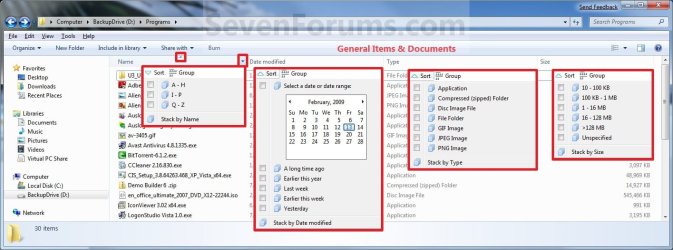
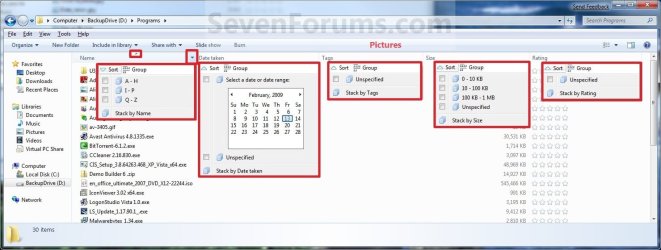
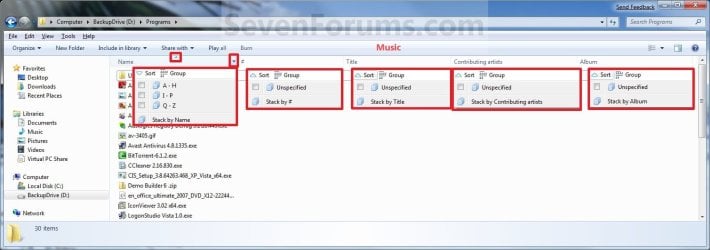
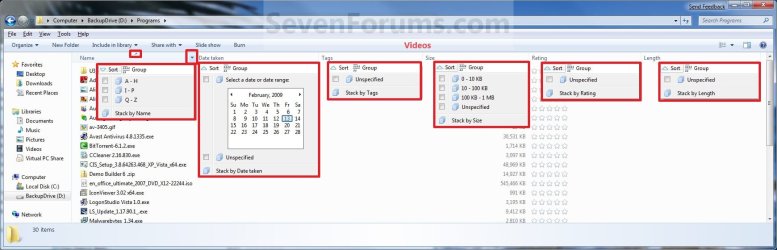
2. To Sort by or Group by the Column Headings Name Menu
A) Move your mouse pointer on the column headings name that you want to have the window organized by, then click on the arrow to the right of it. (See screenshots below step 3)

B) You can now select to Sort by or Group by the window by that column headings name. (See screenshots below)
NOTE: What you see in your window will also depend on what you have the folder template and arrangement set as.
General_Items_Documents.jpg

Pictures.jpg

Music.jpg

Videos.jpg

OR

3. To Select to Organize By the Column Headings Name
NOTE: This will allow you to quickly change what column headings name the window is organized by with still using the Sort By or Group By arrangement that you have set in step 2 or OPTION ONE above.
A) Click on the column heading name. (See screenshots below step 2)
NOTE: Whatever column headings name the triangle is in, is the one that the window is being organized by.

B) Click on the same column heading name until you have the ascending or descending order that you want. (See screenshots below step 2)
NOTE: When the triangle in the column headings name is pointing upwards, then it is descending. When the triangle in the column headings name is pointing downwards, then it is ascending.


OPTION THREE

To Change "Arrange by" Folder View in Libraries


   Note
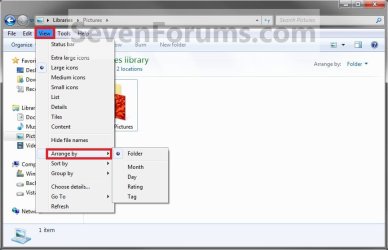
Arrange by is only available in the Library folders. The arrange by options will vary depending on the folder template of the library folder. All included folders and subfolders in a library will always share the same folder view. You are able to have separate "Arrange by" view settings in each added right click -> New -> Folder created in the library itself though.

  • The Windows Search Service must be set to Automatic and Started for this option to work.
  • Disabling the index in Windows 7 will cause you to no longer be able to use Arrange by in Libraries.
1. Open the library folder that you wish to change the Arrange by view of the files in.

2. Click on the View menu bar item and select Arrange by and the option for how you want the library folder files arranged. (See screenshot below)
ArrandeBy2.jpg
OR

3. Click on the Arrange by toolbar option and select Arrange by and the drop down menu option for how you want the library folder files arranged. (See screenshot below)
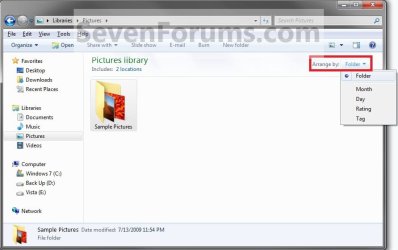
ArrangeBy1.jpg
4. All included folders in the library will now have the same Arrange by set for them as well. The library will always open with the same Arrange by setting that it had when it was last closed.
That's it,
Shawn


Last edited:
hello
I want to group items in library by custom(i want to select which item be in what group)
is there any way?
i have attached my library pic.
thanks


Hello Hossienisgreat, and welcome to Seven Forums.

Sorry, but no. You can only use "Arrange by" as in OPTION THREE in the tutorial for inside the libraries, and use "Sort by" and "Group by" with the main Libraries folder as in your screenshot.
 
Last edited:

My Computer

Computer type
PC/Desktop
Computer Manufacturer/Model Number
Self built custom
OS
64-bit Windows 11 Pro for Workstations
CPU
Intel i7-8700K OC'd to 5 GHz
Motherboard
ASUS ROG Maximus XI Formula Z390
Memory
64 GB (4x16GB) G.SKILL TridentZ RGB DDR4 3600 MHz
Graphics Card(s)
ASUS ROG-STRIX-GTX1080TI-O11G-GAMING
Sound Card
Integrated
Monitor(s) Displays
2 x Samsung Odyssey G7 27"
Screen Resolution
2560x1440
Hard Drives
1TB Samsung 990 PRO M.2,
4TB Samsung 990 PRO PRO M.2,
TerraMaster F8 SSD Plus NAS
PSU
Seasonic Prime Titanium 850W
Case
Thermaltake Core P3
Cooling
Corsair Hydro H115i
Keyboard
Logitech wireless K800
Mouse
Logitech MX Master 4
Internet Speed
2 Gb/s Download and 100 Mb/s Upload
Antivirus
Malwarebyte Anti-Malware Premium
Browser
Google Chrome
Other Info
Logitech Z625 speaker system,
Logitech BRIO 4K Pro webcam,
HP Color LaserJet Pro MFP M477fdn,
APC SMART-UPS RT 1000 XL - SURT1000XLI,
Galaxy S23 Plus phone
More group by name options

thanks for the guide, it was very helpful, however i wanted to know if it was possible when using the "Group by Name" option you can do it by each individual letter and not in strings like A-H, I-P and Q-Z
 

My Computer

OS
Windows 7 Enterprise x64
Hello Chad, and welcome to Seven Forums.

Sorry, but no. It's only able to group them into strings like that instead. :(
 

My Computer

Computer type
PC/Desktop
Computer Manufacturer/Model Number
Self built custom
OS
64-bit Windows 11 Pro for Workstations
CPU
Intel i7-8700K OC'd to 5 GHz
Motherboard
ASUS ROG Maximus XI Formula Z390
Memory
64 GB (4x16GB) G.SKILL TridentZ RGB DDR4 3600 MHz
Graphics Card(s)
ASUS ROG-STRIX-GTX1080TI-O11G-GAMING
Sound Card
Integrated
Monitor(s) Displays
2 x Samsung Odyssey G7 27"
Screen Resolution
2560x1440
Hard Drives
1TB Samsung 990 PRO M.2,
4TB Samsung 990 PRO PRO M.2,
TerraMaster F8 SSD Plus NAS
PSU
Seasonic Prime Titanium 850W
Case
Thermaltake Core P3
Cooling
Corsair Hydro H115i
Keyboard
Logitech wireless K800
Mouse
Logitech MX Master 4
Internet Speed
2 Gb/s Download and 100 Mb/s Upload
Antivirus
Malwarebyte Anti-Malware Premium
Browser
Google Chrome
Other Info
Logitech Z625 speaker system,
Logitech BRIO 4K Pro webcam,
HP Color LaserJet Pro MFP M477fdn,
APC SMART-UPS RT 1000 XL - SURT1000XLI,
Galaxy S23 Plus phone
Hey Brink, Thanx for this wonderful post! Now I have got a problem. In certain folders I have changed the arrangement to group the contents by type. But after some time, or say after I restart the system, the arrangement changes back to the default one automatically. Any help would be greatly appreciated!
 

My Computer

Computer Manufacturer/Model Number
Acer Aspire 5738
OS
Windows 7 Ultimate x86
CPU
Intel C2D T6400 2.0 GHz
Motherboard
Acer Phoenix
Memory
3GB DDR3
Graphics Card(s)
Inbuilt 256 MB
Screen Resolution
1366x768
Hard Drives
320 GB
Internet Speed
2Mbps
Hello Saurabh, and welcome to Seven Forums.

Where is this folder located?

If on an external or removable location, then this is normal since these type of locations will not have their folder views remembered after such an event.
 

My Computer

Computer type
PC/Desktop
Computer Manufacturer/Model Number
Self built custom
OS
64-bit Windows 11 Pro for Workstations
CPU
Intel i7-8700K OC'd to 5 GHz
Motherboard
ASUS ROG Maximus XI Formula Z390
Memory
64 GB (4x16GB) G.SKILL TridentZ RGB DDR4 3600 MHz
Graphics Card(s)
ASUS ROG-STRIX-GTX1080TI-O11G-GAMING
Sound Card
Integrated
Monitor(s) Displays
2 x Samsung Odyssey G7 27"
Screen Resolution
2560x1440
Hard Drives
1TB Samsung 990 PRO M.2,
4TB Samsung 990 PRO PRO M.2,
TerraMaster F8 SSD Plus NAS
PSU
Seasonic Prime Titanium 850W
Case
Thermaltake Core P3
Cooling
Corsair Hydro H115i
Keyboard
Logitech wireless K800
Mouse
Logitech MX Master 4
Internet Speed
2 Gb/s Download and 100 Mb/s Upload
Antivirus
Malwarebyte Anti-Malware Premium
Browser
Google Chrome
Other Info
Logitech Z625 speaker system,
Logitech BRIO 4K Pro webcam,
HP Color LaserJet Pro MFP M477fdn,
APC SMART-UPS RT 1000 XL - SURT1000XLI,
Galaxy S23 Plus phone
Hi Thanx Brink for the quick reply. I was actually talking about the downloads folder located at C:\Users\xxxxxx\Downloads.
 

My Computer

Computer Manufacturer/Model Number
Acer Aspire 5738
OS
Windows 7 Ultimate x86
CPU
Intel C2D T6400 2.0 GHz
Motherboard
Acer Phoenix
Memory
3GB DDR3
Graphics Card(s)
Inbuilt 256 MB
Screen Resolution
1366x768
Hard Drives
320 GB
Internet Speed
2Mbps
Saurabh,

For that folder, it's going to be Automatic Folder Type Discovery that is casuing your issue. This is when Windows will automatically change the folder template of a folder to match the file type of the last file added or saved in the folder. Since this is your Downloads folder, you would be having all sorts of different file types saved to it causing it to change templates each time.

To stop this, you could use the tutorial below to set a default template to disable Automatic Folder Type Discovery. Unfortunately, it will set it to be the default for all folders, but you will still be able to manually change the folder template for each of them.

http://www.sevenforums.com/tutorials/15699-folder-template-default.html

Hope this helps,
Shawn
 

My Computer

Computer type
PC/Desktop
Computer Manufacturer/Model Number
Self built custom
OS
64-bit Windows 11 Pro for Workstations
CPU
Intel i7-8700K OC'd to 5 GHz
Motherboard
ASUS ROG Maximus XI Formula Z390
Memory
64 GB (4x16GB) G.SKILL TridentZ RGB DDR4 3600 MHz
Graphics Card(s)
ASUS ROG-STRIX-GTX1080TI-O11G-GAMING
Sound Card
Integrated
Monitor(s) Displays
2 x Samsung Odyssey G7 27"
Screen Resolution
2560x1440
Hard Drives
1TB Samsung 990 PRO M.2,
4TB Samsung 990 PRO PRO M.2,
TerraMaster F8 SSD Plus NAS
PSU
Seasonic Prime Titanium 850W
Case
Thermaltake Core P3
Cooling
Corsair Hydro H115i
Keyboard
Logitech wireless K800
Mouse
Logitech MX Master 4
Internet Speed
2 Gb/s Download and 100 Mb/s Upload
Antivirus
Malwarebyte Anti-Malware Premium
Browser
Google Chrome
Other Info
Logitech Z625 speaker system,
Logitech BRIO 4K Pro webcam,
HP Color LaserJet Pro MFP M477fdn,
APC SMART-UPS RT 1000 XL - SURT1000XLI,
Galaxy S23 Plus phone
HMM,

The grouping by name ranges seems to be quite arbitary,
0-9
A-H
I-P
Q-Z.

Is it possible to amend these, or simply use the alphabet letters as in xp ?
 

My Computer

Computer Manufacturer/Model Number
Home built
OS
windows 7 ultimate
CPU
Q9650
Motherboard
GA P35-DS4
Memory
2x2gb PC 8500CLS5 G.Skill
Graphics Card(s)
ATI 5870 1gb.
Sound Card
On board
Monitor(s) Displays
Generic
Hard Drives
WD.
PSU
Antec 560watts
Case
Antec 900 case
Cooling
Air
Hello Fish,

No way that I know of to change that specific "group by" option other than using a different view option. :(
 

My Computer

Computer type
PC/Desktop
Computer Manufacturer/Model Number
Self built custom
OS
64-bit Windows 11 Pro for Workstations
CPU
Intel i7-8700K OC'd to 5 GHz
Motherboard
ASUS ROG Maximus XI Formula Z390
Memory
64 GB (4x16GB) G.SKILL TridentZ RGB DDR4 3600 MHz
Graphics Card(s)
ASUS ROG-STRIX-GTX1080TI-O11G-GAMING
Sound Card
Integrated
Monitor(s) Displays
2 x Samsung Odyssey G7 27"
Screen Resolution
2560x1440
Hard Drives
1TB Samsung 990 PRO M.2,
4TB Samsung 990 PRO PRO M.2,
TerraMaster F8 SSD Plus NAS
PSU
Seasonic Prime Titanium 850W
Case
Thermaltake Core P3
Cooling
Corsair Hydro H115i
Keyboard
Logitech wireless K800
Mouse
Logitech MX Master 4
Internet Speed
2 Gb/s Download and 100 Mb/s Upload
Antivirus
Malwarebyte Anti-Malware Premium
Browser
Google Chrome
Other Info
Logitech Z625 speaker system,
Logitech BRIO 4K Pro webcam,
HP Color LaserJet Pro MFP M477fdn,
APC SMART-UPS RT 1000 XL - SURT1000XLI,
Galaxy S23 Plus phone
Hello,

First post here. I'm wondering something about the "group by type" option. I use this option quite a lot for my music recording projects. Some days ago, something happened and I can't use this option anymore, I can group the files by type in my folder but when I close the explorer, the files are not grouped by type anymore unfortunately. It's really weird because I never had this problem before...

Other weird stuffs : No programms anymore in the start menu (latest used programms) and I've lost the settings of my recording software. I don't know if there is a link with the "group by" problem but maybe?

Any help would be very appreciated because I'm very curious to know what happened... Thanks :)
 

My Computer

OS
Windows 7 64 Bits
Hello,

First post here. I'm wondering something about the "group by type" option. I use this option quite a lot for my music recording projects. Some days ago, something happened and I can't use this option anymore, I can group the files by type in my folder but when I close the explorer, the files are not grouped by type anymore unfortunately. It's really weird because I never had this problem before...

Other weird stuffs : No programms anymore in the start menu (latest used programms) and I've lost the settings of my recording software. I don't know if there is a link with the "group by" problem but maybe?

Any help would be very appreciated because I'm very curious to know what happened... Thanks :)

Hello Anaon, and welcome to Seven Forums.

Could you post screenshots showing all of this to see if anything may stand out as a cause?

Are you opening this folder from the same location? For example, from a Start Menu shortcut vs navigating to it in Windows Explorer.
 
Last edited:

My Computer

Computer type
PC/Desktop
Computer Manufacturer/Model Number
Self built custom
OS
64-bit Windows 11 Pro for Workstations
CPU
Intel i7-8700K OC'd to 5 GHz
Motherboard
ASUS ROG Maximus XI Formula Z390
Memory
64 GB (4x16GB) G.SKILL TridentZ RGB DDR4 3600 MHz
Graphics Card(s)
ASUS ROG-STRIX-GTX1080TI-O11G-GAMING
Sound Card
Integrated
Monitor(s) Displays
2 x Samsung Odyssey G7 27"
Screen Resolution
2560x1440
Hard Drives
1TB Samsung 990 PRO M.2,
4TB Samsung 990 PRO PRO M.2,
TerraMaster F8 SSD Plus NAS
PSU
Seasonic Prime Titanium 850W
Case
Thermaltake Core P3
Cooling
Corsair Hydro H115i
Keyboard
Logitech wireless K800
Mouse
Logitech MX Master 4
Internet Speed
2 Gb/s Download and 100 Mb/s Upload
Antivirus
Malwarebyte Anti-Malware Premium
Browser
Google Chrome
Other Info
Logitech Z625 speaker system,
Logitech BRIO 4K Pro webcam,
HP Color LaserJet Pro MFP M477fdn,
APC SMART-UPS RT 1000 XL - SURT1000XLI,
Galaxy S23 Plus phone
Hello Anaon, and welcome to Seven Forums.

Thank you very much :)

Could you post screenshots showing all of this to see if anything may stand out as a cause?

Sure! I'll do this tomorrow as I'm not on the same computer right now.

Are you opening this folder from the same location? For example, from a Start Menu shortcut vs navigating to it in Windows Explorer.

Same location yes, a folder shorcut I had on my desktop. Maybe I could try to delete it and make another new shortcut?

Thanks
 

My Computer

OS
Windows 7 64 Bits
It wouldn't hurt anything to see if deleting the shortcut and creating a new one may help, but not sure if it will until the screenshots may reveal anything or not. :)
 

My Computer

Computer type
PC/Desktop
Computer Manufacturer/Model Number
Self built custom
OS
64-bit Windows 11 Pro for Workstations
CPU
Intel i7-8700K OC'd to 5 GHz
Motherboard
ASUS ROG Maximus XI Formula Z390
Memory
64 GB (4x16GB) G.SKILL TridentZ RGB DDR4 3600 MHz
Graphics Card(s)
ASUS ROG-STRIX-GTX1080TI-O11G-GAMING
Sound Card
Integrated
Monitor(s) Displays
2 x Samsung Odyssey G7 27"
Screen Resolution
2560x1440
Hard Drives
1TB Samsung 990 PRO M.2,
4TB Samsung 990 PRO PRO M.2,
TerraMaster F8 SSD Plus NAS
PSU
Seasonic Prime Titanium 850W
Case
Thermaltake Core P3
Cooling
Corsair Hydro H115i
Keyboard
Logitech wireless K800
Mouse
Logitech MX Master 4
Internet Speed
2 Gb/s Download and 100 Mb/s Upload
Antivirus
Malwarebyte Anti-Malware Premium
Browser
Google Chrome
Other Info
Logitech Z625 speaker system,
Logitech BRIO 4K Pro webcam,
HP Color LaserJet Pro MFP M477fdn,
APC SMART-UPS RT 1000 XL - SURT1000XLI,
Galaxy S23 Plus phone
Hello!

So I took some captures of my problems...

capture_seven2.jpg

Here you can see the blank menu. And the way I'd like to organize my files in the folder opened in the explorer. If I close the explorer, it's not organized anymore.

capture_seven.jpg

I don't know if it helps but when I wanted to add a folder to my program menu, Windows asked me this, it says "access to this folder refused". It really seems that I'm not the admin anymore or something like that...

Many thanks for your help!!
 

My Computer

OS
Windows 7 64 Bits
Anaon,

Windows will remember the folder view setting on a per specific folder opened from per specific location only. For example, you will have a different folder view for when you open say your C:\User\(user-name)\Music folder from the Start Menu vs from navigated to in Windows Explorer. Each different location you open a folder from will have it's own separate folder view.

Are you opening the same folder from the exact same location for the ones being reset?

The permission dialog is normal for whenever you try to copy, move, or delete a item into a system folder. You would just need to click on Continue to allow it first. This is for security purposes to help protect your system files.
 

My Computer

Computer type
PC/Desktop
Computer Manufacturer/Model Number
Self built custom
OS
64-bit Windows 11 Pro for Workstations
CPU
Intel i7-8700K OC'd to 5 GHz
Motherboard
ASUS ROG Maximus XI Formula Z390
Memory
64 GB (4x16GB) G.SKILL TridentZ RGB DDR4 3600 MHz
Graphics Card(s)
ASUS ROG-STRIX-GTX1080TI-O11G-GAMING
Sound Card
Integrated
Monitor(s) Displays
2 x Samsung Odyssey G7 27"
Screen Resolution
2560x1440
Hard Drives
1TB Samsung 990 PRO M.2,
4TB Samsung 990 PRO PRO M.2,
TerraMaster F8 SSD Plus NAS
PSU
Seasonic Prime Titanium 850W
Case
Thermaltake Core P3
Cooling
Corsair Hydro H115i
Keyboard
Logitech wireless K800
Mouse
Logitech MX Master 4
Internet Speed
2 Gb/s Download and 100 Mb/s Upload
Antivirus
Malwarebyte Anti-Malware Premium
Browser
Google Chrome
Other Info
Logitech Z625 speaker system,
Logitech BRIO 4K Pro webcam,
HP Color LaserJet Pro MFP M477fdn,
APC SMART-UPS RT 1000 XL - SURT1000XLI,
Galaxy S23 Plus phone
Are you opening the same folder from the exact same location for the ones being reset?

Yes sir! Absolutely sure!

The permission dialog is normal for whenever you try to copy, move, or delete a item into a system folder. You would just need to click on Continue to allow it first. This is for security purposes to help protect your system files.

Tried on my laptop to do the same (adding a new folder for example) and I don't get this dialog security box actually, this is very weird...
 

My Computer

OS
Windows 7 64 Bits
You might see if resetting all folder views back to default may allow them to be set and remembered afterwards.


What user account are you logged into on the laptop, and what is UAC set to on it? You wouldn't get prompted if you were logged into the built-in Administrator account.
 

My Computer

Computer type
PC/Desktop
Computer Manufacturer/Model Number
Self built custom
OS
64-bit Windows 11 Pro for Workstations
CPU
Intel i7-8700K OC'd to 5 GHz
Motherboard
ASUS ROG Maximus XI Formula Z390
Memory
64 GB (4x16GB) G.SKILL TridentZ RGB DDR4 3600 MHz
Graphics Card(s)
ASUS ROG-STRIX-GTX1080TI-O11G-GAMING
Sound Card
Integrated
Monitor(s) Displays
2 x Samsung Odyssey G7 27"
Screen Resolution
2560x1440
Hard Drives
1TB Samsung 990 PRO M.2,
4TB Samsung 990 PRO PRO M.2,
TerraMaster F8 SSD Plus NAS
PSU
Seasonic Prime Titanium 850W
Case
Thermaltake Core P3
Cooling
Corsair Hydro H115i
Keyboard
Logitech wireless K800
Mouse
Logitech MX Master 4
Internet Speed
2 Gb/s Download and 100 Mb/s Upload
Antivirus
Malwarebyte Anti-Malware Premium
Browser
Google Chrome
Other Info
Logitech Z625 speaker system,
Logitech BRIO 4K Pro webcam,
HP Color LaserJet Pro MFP M477fdn,
APC SMART-UPS RT 1000 XL - SURT1000XLI,
Galaxy S23 Plus phone
You might see if resetting all folder views back to default may allow them to be set and remembered afterwards.
I'll try this :)

What user account are you logged into on the laptop, and what is UAC set to on it? You wouldn't get prompted if you were logged into the built-in Administrator account.
On my laptop, I'm the built Administrator I guess (I checked the user options panel). There's no "open as admin" option for example, like on my desktop before my problems happened. I'm checking if I'm the administrator on my desktop right now, I'm a bit lost with the admin thing...

Many thanks for your help!!
 

My Computer

OS
Windows 7 64 Bits
Nothing works unfortunately. I tried to enable the Built-in Administrator Account using the elevated command prompt but it says that the user account cannot be found (I typed : "net user administrator /active:yes"). However the UAC says that I'm the administrator.

EDIT : Sorry, I need to type "Administrateur", in french ;)

I guess that all these problems come from the admin account. I just found out that all my folders are in "read only" mode, is this normal?

Thanks
 

My Computer

OS
Windows 7 64 Bits

My Computer

Computer type
PC/Desktop
Computer Manufacturer/Model Number
Self built custom
OS
64-bit Windows 11 Pro for Workstations
CPU
Intel i7-8700K OC'd to 5 GHz
Motherboard
ASUS ROG Maximus XI Formula Z390
Memory
64 GB (4x16GB) G.SKILL TridentZ RGB DDR4 3600 MHz
Graphics Card(s)
ASUS ROG-STRIX-GTX1080TI-O11G-GAMING
Sound Card
Integrated
Monitor(s) Displays
2 x Samsung Odyssey G7 27"
Screen Resolution
2560x1440
Hard Drives
1TB Samsung 990 PRO M.2,
4TB Samsung 990 PRO PRO M.2,
TerraMaster F8 SSD Plus NAS
PSU
Seasonic Prime Titanium 850W
Case
Thermaltake Core P3
Cooling
Corsair Hydro H115i
Keyboard
Logitech wireless K800
Mouse
Logitech MX Master 4
Internet Speed
2 Gb/s Download and 100 Mb/s Upload
Antivirus
Malwarebyte Anti-Malware Premium
Browser
Google Chrome
Other Info
Logitech Z625 speaker system,
Logitech BRIO 4K Pro webcam,
HP Color LaserJet Pro MFP M477fdn,
APC SMART-UPS RT 1000 XL - SURT1000XLI,
Galaxy S23 Plus phone
Back
Top