
How to Pin or Unpin a Program to the Windows 7 Taskbar
Information
This will show you how to Pin or Unpin a .exe file or shortcut of a installed program to the Windows 7 taskbar as a icon on the taskbar.
Note
The pinned taskbar items are located in this hidden system folder:
The default icon links on the taskbar is Internet Explorer, Windows Media Player, and Windows Explorer (opens to Libraries).
Code:
C:\Users\(User-Name)\AppData\Roaming\Microsoft\Internet Explorer\Quick Launch\User Pinned\TaskBarThe default icon links on the taskbar is Internet Explorer, Windows Media Player, and Windows Explorer (opens to Libraries).
Tip
Each program icon pinned to the taskbar can be opened by pressing the Windows key + 1 to 0 (1-10) keyboard shortcuts. You would use a number for how the program icons are ordered on the taskbar from left to right (for top or bottom) or top to bottom (for left or right) desktop location.
Warning
You will need to have Recent Items turned on to see the recent items in a pinned program's Jump List.
OPTION ONE
To Pin a Program to the Taskbar
NOTE: You can use step 2 or 3 to pin a folder in the Windows Explorer taskbar icon jump list.
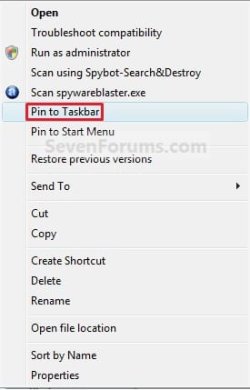
1. Right click on a program exe file or shortcut that you want to pin to the taskbar, and click on Pin to Taskbar. (See screenshot below)
OR
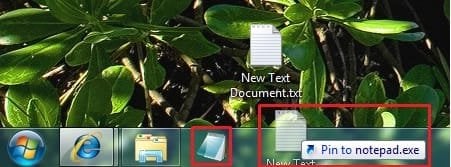
2. Drag a file that has a program associated for it (ex: .txt file for Notepad) to a empty area on the taskbar until you see the Pin to (program name) (ex: Pin to notepad.exe) pop-up, then drop it. (See screenshot below)
NOTE: This will pin the program (ex: Notepad) to the taskbar with the file (ex: txt) included in it's right click menu.
OR
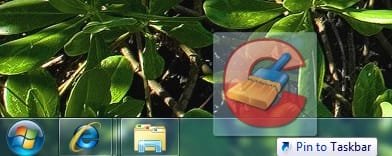
3. Drag a program .exe file or shortcut (ex: CCLeaner), to a empty area of the taskbar until you see the Pin to Taskbar pop-up, then drop it. (See screenshot below)
OR
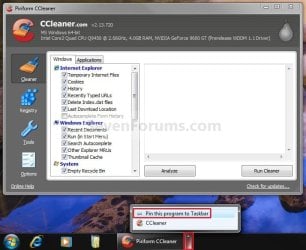
4. Right click on a open window taskbar button or icon that you want to pin to the taskbar, and click on Pin this program to the Taskbar. (See screenshot below)
OR
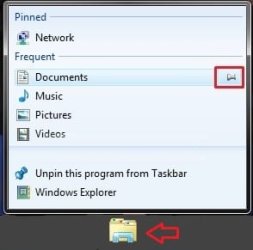
5. Pin to program's jump list. (See screenshot below)
OPTION TWO
To Unpin a Program to the Taskbar
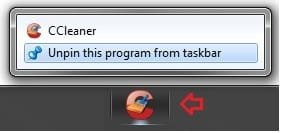
1. Right click on a pinned taskbar icon link that you want to unpin, and click on Unpin this program from the Taskbar. (See screenshot below)
OR
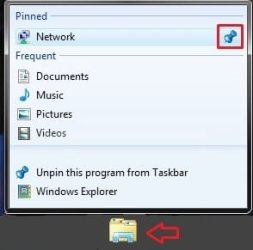
2. Unpin from program's jump list. (See screenshot below)
That's it,
Shawn
Related Tutorials
- How to Backup and Restore Pinned Taskbar Items in Windows 7
- How to Reset and Clear All Pinned Items on the Taskbar in Windows 7
- How to Pin or Unpin a Folder to the Windows 7 Taskbar
- How to Pin or Unpin Items in Windows 7 Jump Lists
- How to Enable or Disable Pinning and Unpinning of Items in Windows 7 Jump Lists
- How to Pin Computer to the Windows 7 Taskbar
- How to Pin the Recycle Bin to the Windows 7 Taskbar
- How to Pin Your User Files Folder to the Windows 7 Taskbar
- How to Enable or Disable Windows 7 Taskbar Pinned Programs
- How to Enable or Disable Windows 7 Taskbar Button Grouping
- How to Use Small or Large Icons on the Windows 7 Taskbar
- How to Pin or Unpin a Program to the Windows 7 Start Menu
- How to Enable or Disable QuickLaunch in Windows 7
- How to Lock or Unlock the Windows 7 Taskbar
- How to Move the Windows 7 Taskbar Location on the Desktop
- How to Show or Hide the Windows 7 Taskbar with Auto-hide
- How to Turn Recent Programs On or Off in Windows 7
- How to Change the Windows 7 Pinned Windows Explorer Taskbar Icon Open To Target
- How to Open and Use Windows 7 Start Menu and Taskbar Jump Lists
- How to Change the Windows 7 Taskbar Icon Width Size
- How to Center the Taskbar Icons in Windows 7
- How to Create a Internet Website Shortcut in Windows 7
- How to Pin or Unpin a Drive to the Windows 7 Taskbar
- How to Restore Missing "Pin to Taskbar" and "Pin to Start Menu" Context Menu Items in Windows 7 Shortcuts
- How to Add or Remove "Pin to Taskbar" from Context Menu in Windows 7 and Windows 8
- How to "Pin to Taskbar" Transparent Invisible Icons for Programs in Windows 7
- How to Create a Shortcut of a File, Folder, Drive, or Program in Vista, Windows 7, and Windows 8
Attachments



Last edited:


