
How to Change Taskbar Thumbnail Live Preview Delay Time in Windows 7 and Windows 8
Information
This tutorial will show you how to change the delay time for how long it takes to open an Aero Peek live preview of an open window when you hover the mouse pointer on it's taskbar thumbnail preview in Windows 7 and Windows 8.
Note
Taskbar thumbnail previews will only work if you are using a Aero Theme. This feature is not available in the Windows 7 Starter edition.
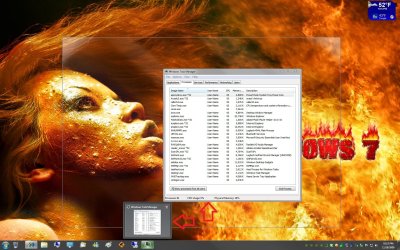
EXAMPLE: Taskbar Thumbnail Live Preview
NOTE: The thumbnail live preview (Aero Peek) in this example is the main window seen in the background when hovering on the taskbar thumbnail preview of a taskbar button.

OPTION ONE
Change Taskbar Thumbnail Live Preview Delay Time using a REG File
Download
2. To Have a 1 Second Taskbar Thumbnail Live Preview Delay Time A) Click/tap on the download button below to download the file below, and go to step 4 below. 1_Sec_Taskbar_Live_Preview_Delay_Time.reg
Download
3. To Have a 1000 Second Taskbar Thumbnail Live Preview Delay Time
NOTE: This will basically be the same as disabling all taskbar thumbnail live previews. A) Click/tap on the download button below to download the file below, and go to step 4 below. 1000_Sec_Taskbar_Live_Preview_Delay_Time.reg
Download
4. Save the .reg file to your desktop.
5. Double click/tap the downloaded .reg file to merge it.
6. Click/tap on Run, Yes (UAC), Yes, and OK when prompted.
7. Log off and log on, or restart the computer to apply the changes.
8. When done, you can delete the downloaded .reg file if you like.
OPTION TWO
Change Taskbar Thumbnail Live Preview Delay Time in Registry Editor
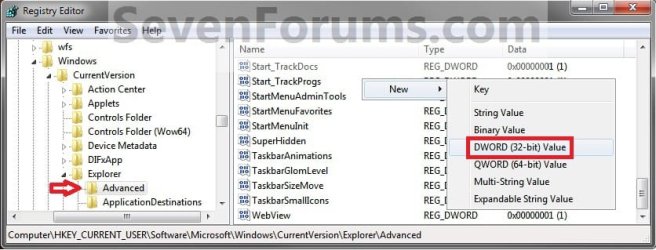
2. In regedit, go to: (See screenshot below step 4A) HKEY_CURRENT_USER\Software\Microsoft\Windows\CurrentVersion\Explorer\Advanced
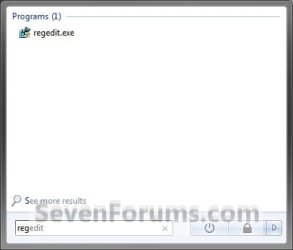
3. Do step 4 or 5 below for what you would like to do.
4. To Change the Default Taskbar Thumbnail Live Preview Delay Time A) In the right pane of Advanced, right click on a empty space, and click on New and DWORD (32-bit) Value. Type ThumbnailLivePreviewHoverTime and press enter. (See screenshot below)
NOTE: If you already have the ThumbnailLivePreviewHoverTime DWORD, then skip this step.
B) In the right pane of Advanced, double click/tap on ThumbnailLivePreviewHoverTime to modify it. (See screenshot below)
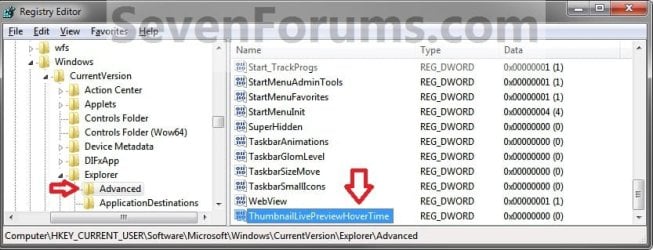
C) Select (dot) Decimal, type in how many milliseconds (1000 milliseconds = 1 second) you want the delay time to be, and click/tap on OK. (See screenshot below)
NOTE: 1000 milliseconds may be a good delay time, but adjust the delay time to meet your needs though.
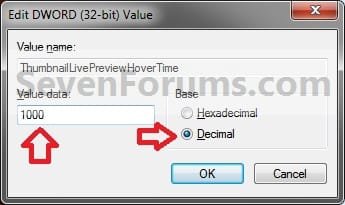
D) You will now see the time changed now in the registry, and go to step 6 below. (See screenshot below)
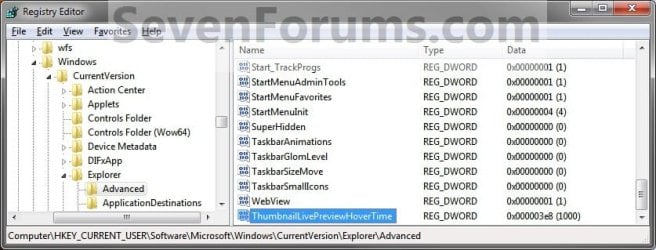
5. To Restore the Default Taskbar Thumbnail Live Preview Delay Time A) In the right pane, right click on ThumbnailLivePreviewHoverTime,and click/tap on Delete. (See screenshot below step 4D)
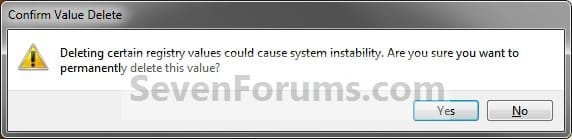
B) Click/tap on Yes to confirm, and go to step 6 below. (See screenshot below)
6. Close regedit.
7. Log off and log on, or restart the computer to apply the changes.
That's it,
Shawn
Related Tutorials
- How to Enable or Disable Taskbar Thumbnail Live Previews in Windows 7 and Windows 8
- How to Change Taskbar Thumbnail Previews Display Delay Time in Windows 7 and Windows 8
- How to Speed up the Menu Show Delay Time in Windows 7
- How to Change the Mouse Hover Time before Pop-up Displays in Windows 7
- How to Change How Long Windows 7 Notifications Stay Open
- How to Change the Windows 7 Aero Peek Mouse Hover Delay Time to Preview Desktop
- How to Enable or Disable Taskbar Thumbnail Previews in Windows 7 and Windows 8
- How to Change Taskbar Thumbnail and List Mode Threshold in Windows 7 and Windows 8
- Enable or Disable Internet Explorer Individual Tabbed Browsing Taskbar Preview Windows in Windows 7
- How to Change the Size of Windows 7 Taskbar Thumbnail Previews
- How to Change the Space Size Between Windows 7 Taskbar Thumbnail Previews
- How to Change the Margin Size of Windows 7 Taskbar Thumbnail Previews
Attachments
Last edited:
