

How to Set a Default Folder View for All Folders in Windows 7
InformationThis will show you how to set a default folder view setting for all Windows Explorer folders to open with in Windows 7.
NoteThis will not affect the folder view settings in libraries and library folders, the small File -> "Save as", "Open" common dialog type windows, or a window's default size and position.
Here's How:
1. Set a default folder template that you want to have all Windows Explorer folders to use.
NOTE: You can choose between having General Items, Documents, Pictures, Music, or Video as the default folder template for all folders.
2. When finished, apply the folder view to all folders.That's it,TipIf you wish to undo this and restore the folder view settings back to their default settings later, then this tutorial can show you how to: How to Reset All Folder View Settings to Default in Windows 7
Shawn
Related Tutorials
- How to Back Up and Restore Your Folder View Settings in Vista, Windows 7, and Windows 8
- How to Change a Folder Template in Windows 7
- How to Set a Default Folder Template for All Folders in Windows 7
- How to Reset the Folder View Settings for All Folders with the Same Folder Template in Windows 7
- How to Reset All Folder View Settings to Default in Windows 7
- How to "Apply to Folders" a Specific Folder View to All Folders with the Same Folder Template in Windows 7
- How to Change the File and Folder View Arrangement in Windows 7 Explorer
- How to Change the Icon Size in a Windows 7 Explorer Window
- How to Change the Group by, Sort by, and Arrange by Folder View in Windows 7 Explorer
- How to Disable Auto Arrange in Windows 7 Explorer to have Free Sorting
- How to Add or Remove Windows Explorer Columns
- How to Change the Width of Columns in Windows Explorer
Folder View - Set a Default for All Folders
-
-
-
New #3
I'm trying to do tha e same thing but there is no "Customise" tag available. See here:
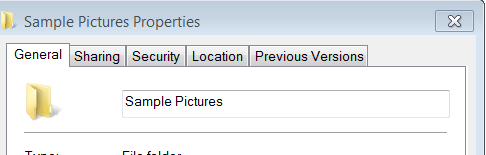
I have tried it with "Take Ownership" and logged into the Win 7 Default Administrator Account but no go.
Can you hlp please, no rush, it hardly rates as urgent.:)
EDIT: Slapped wrist time for me again!!!! Have just read that you can't set the customise in Liraries view!!! SorryLast edited by mitchell65; 30 Aug 2012 at 07:13.
-
-
New #5
But it doesn't work for "Network Location." I set a default folder
template to a Network Location using
All_Folders_Use_General_Items_Folder_Template.bat, and no matter to what
subfolder I go, it doesn't inherit the folder view I previously set.
It worked with Windows XP, but from Windows Vista on, not anymore :-(
-
New #6
Unfortunately, you'll need to manually set the folder view for the Network shell folder and network locations.
-
New #7
I want to change things permanently
None of these works for my situation. I have many folders that I want to look at in specific ways but I cannot get them to always look the way I want them to. Here are several versions of the problem and my thoughts on how to fix each of them.
1) General format. I usually want "general" format folders to default to "details" view, sorted by date. But they always come up looking different than that. How do I change the default so that it comes up the way I want? I've tried changing the view, but that doesn't "stick" past a reboot. So I tried changing the view and closing the window with "control" while hitting the window close (X) symbol, but that doesn't do it either. It will show up the way I want it if I open it up again in the same session but once I shut down and later reboot my system, that all goes away and the undesired look shows up the next time I open the folder.
2) I have a few special folders that I want to look differently from the normal defaults. Is there a way to set up a different default for just those folders? I notice that one can set up a different template for library folders, but this doesn't seem to be an option for regular folders.
3) What is a library folder, why is it different from a general purpose folder, and can library folders only exist in a particular place?
-
New #8
Hello A0110915, and welcome to Seven Forums.
By default, each folder will have it's own folder view per location it's opened from.
Q1) Setting General Items as the folder template with Sort by -> Date selected, and using the tutorial to apply should set this as the default for all folders. This will not affect libraries though.
If this does not stick, then reset all folder views back to default, and try again.
Q2) Yes, you will still be able to set any specific folder to any folder view you like as normal without affecting any other folder.
Q3) A library is a collection of included folders to allow accessing the contents of all the included folders in one location. All included folders in a library share the same folder view no matter which included folder the folder view was set in.
- Library - Include a Folder
- Library - Remove a Included Folder
- Libraries - Arrange Included Folders in any Order
Shawn
-
New #9
Is there a similar one for Windows 8.1 8.x?

Folder View - Set a Default for All Folders
How to Set a Default Folder View for All Folders in Windows 7Published by Brink

 Quote
Quote
Related Discussions