

How to Add or Remove the Desktop Toolbar on the Windows 7 Taskbar
InformationThis will show you how to add or remove the Desktop toolbar on the taskbar in Windows 7. This includes expandable shortcuts to Libraries, Homegroup, User Folder (your user-name folder), Computer, Network, Control Panel, and Recycle Bin.
NoteThis is the same Desktop shortcut under Favorites in the Windows Explorer Navigation Pane.
Any shortcut that you add to this location or on your desktop will also be included in the Desktop toolbar.
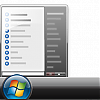
EXAMPLE: Desktop Toolbar
OPTION ONETo Add the Desktop Toolbar
1. Right click on a empty space on the taskbar and click on Toolbars and Desktop to check Desktop. (See screenshot below)
2. To Add or Remove the Desktop Toolbar's Text or Title
A) Unlock the taskbar.3. To Have Small or Large Icons for the Desktop Toolbar
B) Right click on the dotted lines to the left of the "Desktop" toolbar, and check (add) or uncheck (remove) Show Text or Show Title. (see screenshot below)
C) Lock the taskbar.A) Unlock the taskbar.
B) Right click on the dotted lines to the left of the "Desktop" toolbar, and click on View and check Large Icons or Small Icons. (see screenshot above)
NOTE: This is only for the icons on the taskbar in the Desktop toolbar, and not the icons in the expandable (arrow icon) menu of the Desktop toolbar.
C) Lock the taskbar.4. To Have the Desktop Toolbar on the Left Side of the Taskbar
A) Unlock the taskbar.
B) Left click and hold on the dotted lines to the left of the "Desktop" toolbar, and drag it to the left until you reach the pinned taskbar icons and drop it. (see screenshot below)
C) Now, left click and hold on the dotted lines of the pinned taskbar programs on the far left side, then drag it to the right past the dotted lines of the Desktop toolbar and release. (See screenshot below)
D) Left click and hold on the dotted lines of the pinned taskbar programs on the right side of the Desktop toolbar now, then drag it to the left and right to adjust how much of the items you want to see in the Desktop toolbar. When done, drop it. (See screenshot below)
E) Lock the taskbar.
OPTION TWOTo Remove the Desktop Toolbar
1. Right click on a empty space on the taskbar and click on Toolbars and Desktop to uncheck Desktop. (See screenshot below)That's it,
Shawn
Related Tutorials
- How to Pin or Unpin a Folder to the Windows 7 Taskbar
- How to Add or Remove a Default Desktop Icon in Windows 7
- How to Pin or Unpin a Drive to the Windows 7 Taskbar
- How to Backup and Restore Taskbar Toolbars in Vista and Windows 7
- How to Add or Remove a Toolbar on the Taskbar in Vista and Windows 7
- How to Use Toolbars in Windows 7 and Vista
- How to Enable or Disable Adding and Removing Taskbar Toolbars in Vista and Windows 7
Desktop Toolbar on Taskbar - Add or Remove
-
New #1
Taskbar Trouble
This tutorial was very helpful in exploring the toolbar option in Windows 7. I also managed to play around with it and learned how to make New Toolbars.
While making one for my schoolwork, I've run into the problem that a sliver of a folder is always showing next to the title. It's not a big deal but it is a bit unsightly on what is otherwise a very attractive new taskbar. This does not happen when I add the desktop taskbar.
Any idea of how to correct this? Simply dragging the dotted line bars doesn't seem to help. I have them over as far as possible.

Last edited by Brink; 02 Dec 2009 at 23:22. Reason: attached image
-
New #2
Hello Tgz, and welcome to Seven Forums.
See if using "Large icons" with the folder instead may allow you to drag the dotted lines to hide it the folder icon. If you find the taskbar to large for you liking afterwards, you could pin the School toolbar as a folder with a icon instead.
Taskbar - Pin or Unpin a Folder
Hope this helps,
Shawn
-
New #3
Thank you for the reply.
I use the small icons because I'm on an Acer netbook and it frees up some of that precious screen space. However, even when I switched to large icons I seemed to have the same problem.
The solution I finally found was on accident. I found that if I made the new toolbars, dragged the taskbar to the side of the screen, shrank the toolbar as much as possible again (changing the taskbar orientation changed the toolbar size), and then dragged the taskbar back to the bottom, then it looked right.
It worked, but it still seems like a rather silly aesthetic problem. And I prefer the toolbar to the pinned folder because I can look through all my files and subfolders without having to bring up another window. I'm very pleased with the results, but wish there had been a more practical way of fixing the problem.
-
New #4
TGZ,
I'm happy to hear that you got it sorted. Yeah, it would be nice to not have to play the curly shuffle to get it to display properly.
-
New #5
Hi I added the Desktop toolbar to taskbar but every time I restart the windows it's gone and I have to add it again, what should I do?
-
New #6
Hello Ebic, and welcome to Seven Forums.
As a test to see if it may just ne something wrong in your current user account, create a new administrator account, log in to it, and see if it may work properly in this new account.
-
New #7
I created a new administrator account , it worked fine there. So is there a way to fix the current account? I have installed lots of programs only for this one. thank you for the help.
-
New #8
You could see if running a sfc /scannow may be able to fix it.
If not, then you could copy over any desktop and Start Menu shortcuts and user files from the old account into the new account to have and use in the new account instead.
-
New #9
Hi,
Thank you for this tutorial. Though, one thing is rather an annoyance, every time when I open one of these toolbars it populates the lists, sometimes instantly and sometimes with lag. Even more so when there are folders within the toolbar. Is there a way to make this constant and preferably instant?
Thanks in advance.
Desktop Toolbar on Taskbar - Add or Remove
How to Add or Remove the Desktop Toolbar on the Windows 7 TaskbarPublished by Brink


 Quote
Quote
Related Discussions