
How to Change the Homegroup Password in Windows 7
Information
This will show you how to change the password for your Windows 7 homegroup.
Here's How: 1. If you have not already, make sure that all PCs that are already in the homegroup are turned on and not asleep.
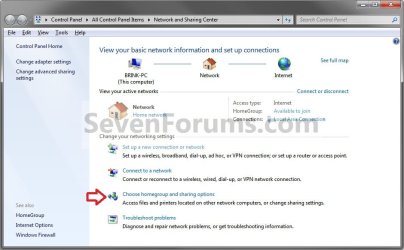
2. Open the Control Panel (icons view), and click on the Network and Sharing Center icon.
WARNING: You must only do this step and step 2 in all computers joined to this homegroup. If not, then each computer that you did not do this for will have to leave the homegroup and join the homegroup before it be part of the homegroup again.
3. Click on the Choose homegroup and sharing options link. (see screenshot below)
WARNING: You must only do this step and step 1 in all computers joined to this homegroup. If not, then each computer that you did not do this for will have to leave the homegroup and join the homegroup before it be part of the homegroup again.
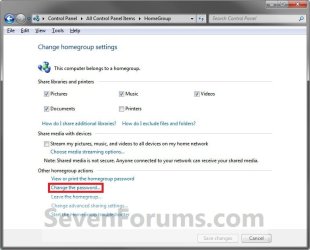
4. In only one of the computers, click on the Change the password link. (see screenshot below)
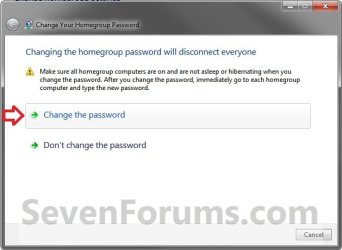
5. Select Change the password. (see screenshot below)
5. Type in your own password, or use the one generated for you. When done, click on Next. (see screenshot below)
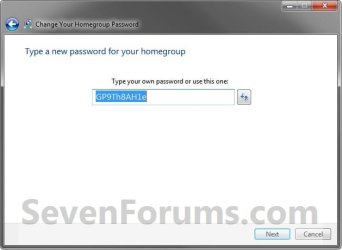
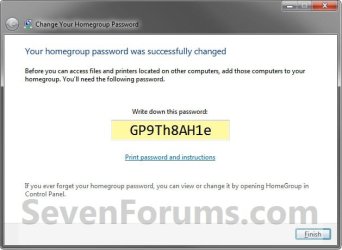
6. Write down and/or print this password down. When done, click on Finish. (see screenshot below)
NOTE: The password is case sensitive, so it will need to be typed exactly as it appears here when entered in the other computers in the homegroup.
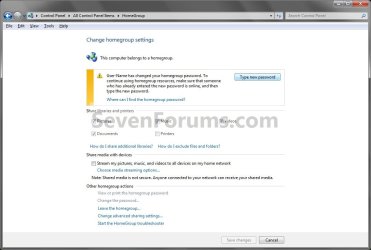
7. After you change the password, everyone else connected to this homegroup will be asked to enter the new password automatically.
NOTE: You will need to do this step now in every computer that is joined to this homegroup. A) Click on the Type new password button. (see screenshot below)
B) Type in the new password from step 6, and click on Next. (see screenshot below)

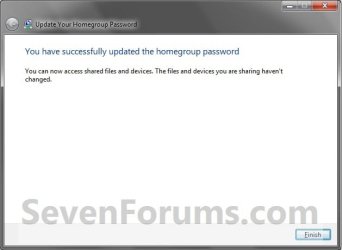
C) Click on Finish. (see screenshot below)
D) Close the HomeGroup window. (see screenshot below step 3)
E) Repeat step 7 until the new password has been entered in all computers in this homegroup.
That's it,
Shawn
Related Tutorials
- How to Change the Homegroup Password in Windows 8
- How to Link your Live ID and Share Files in Windows 7 HomeGroup
- How to Change the Default HomeGroup Icon in Windows 7
- How to Add or Remove Homegroup from the Windows 7 Navigation Pane
- How to Add or Remove the HomeGroup Desktop Icon in Windows 7
- How to Create a Homegroup in Windows 7
- How to Join or Add a Computer to a Windows 7 Homegroup
- How to Leave a Windows 7 Homegroup
- How to View or Print Your Windows 7 Homegroup Password
- How to Change Windows 7 Homegroup File and Folder Sharing Settings
- How to Create a HomeGroup Troubleshoot Shortcut in Windows 7
- How to Create a HomeGroup Settings Shortcut in Windows 7
- How to Create a HomeGroup Folder Shortcut in Windows 7
Last edited:

