Windows 7 Forums Search
Welcome to Windows 7 Forums. Our forum is dedicated to helping you find solutions with any problems, errors or issues you are experiencing with Windows 7. The Windows 7 forum also covers news and updates and has an extensive Windows 7 tutorial section that covers a wide range of tips and tricks.


Windows 7 - Problem Reports and Solutions - View History Details


Problem Reports and Solutions - View History Details

How to Review Your Windows 7 Reliability and Problems History
Published by Brink
02-27-2009
Default Problem Reports and Solutions - View History Details

How to Review Your Windows 7 Reliability and Problems History

information   Information
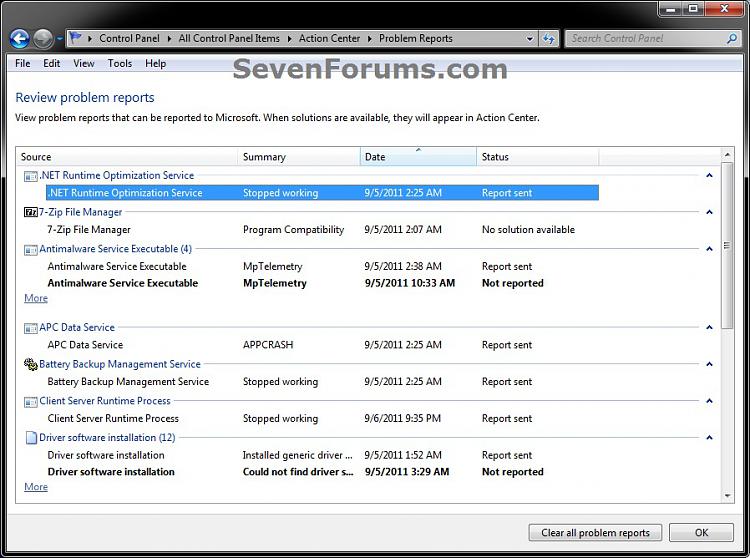
Problem reports help Windows 7 to identify problems and to notify you about solutions. If a solution is not available, the details in a problem report can help Microsoft create a solution.

This will show you how to view problem report details for any problem that your Windows 7 computer has reported to Microsoft.


Here's How:
1. Do either step 2 or 3.

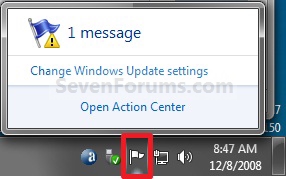
2. Click on the Action Center icon in the notification area of the taskbar, and click on Open Action Center. (see screenshot below)
Name:  Action_Center_Icon.jpg
Views: 21041
Size:  30.4 KB
A) Go to step 4.
OR

3. Open the Control Panel (icons view), and click on the Action Center icon.

4. Click on the Maintenance drop down arrow to expand it, then click on the View reliability history link under the Check for solutions to problem reports section. (see screenshot below)
Problem Reports and Solutions - View History Details-step-1.jpg
5. At the bottom of the Reliability Monitor, click on the View all problem reports link. (see screenshot below)
Problem Reports and Solutions - View History Details-step-2.jpg
6. Right click on a listed problem report that you would like to see the details of, and click on View technical details. (see screenshot below)
NOTE: If a solution is available for this problem report, then you can click on View solution to see it.
Problem Reports and Solutions - View History Details-step-3.jpg
7. When done, click on OK to return to Reliability Monitor or close the Problem History window. (see screenshot above)
That's it,
Shawn


Published by
Administrator

Join Date: Oct 2008
Location: Texas
Posts: 34,658
Brink has a reputation beyond reputeBrink has a reputation beyond reputeBrink has a reputation beyond repute
Brink has a reputation beyond reputeBrink has a reputation beyond reputeBrink has a reputation beyond reputeBrink has a reputation beyond reputeBrink has a reputation beyond reputeBrink has a reputation beyond reputeBrink has a reputation beyond reputeBrink has a reputation beyond reputeBrink has a reputation beyond reputeBrink has a reputation beyond reputeBrink has a reputation beyond reputeBrink has a reputation beyond reputeBrink has a reputation beyond reputeBrink has a reputation beyond repute

Tutorial Tools
Comment

Problem Reports and Solutions - View History Details problems?



Tutorial Tools


Similar Threads for: Problem Reports and Solutions - View History Details
Windows 7 Tutorial Category
Windows Update - View Update History Details Tutorials
Problem view history reliability Performance & Maintenance
Details view everywhere Customization
Problem Reports and Solutions - Clear History Tutorials
Problem Reports and Solutions - Change Problem Reporting Settings Tutorials


All times are GMT -5. The time now is 12:30 PM.


Windows 7 Forums is an independent web site and has not been authorized,
sponsored, or otherwise approved by Microsoft Corporation.
"Windows 7" and related materials are trademarks of Microsoft Corp.
© Designer Media Ltd
  

1 2 3 4 5 6 7 8 9 10 11 12 13 14 15 16 17 18 19 20 21 22 23 24 25 26 27 28 29 30