
BitLocker Drive Encryption - Suspend or Resume Protection on Windows 7 Drive
1. Open the Control Panel (icons view), and click on the BitLocker Drive Encryption icon.
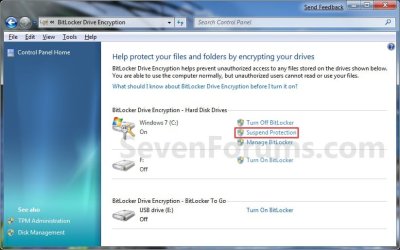
2. Click on Suspend Protection for the Windows 7 or other operating system drive or partition letter. (See screenshot below)
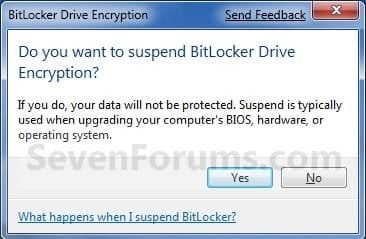
3. Click on Yes to apply. (See screenshot below)
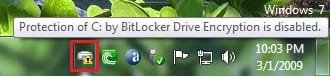
4. You will now see this BitLocker icon in the taskbar notification area (far right) indicating that BitLocker Drive Encryption has been disabled for the selected drive. (See screenshot below)
NOTE: While BitLocker Drive Encryption is disabled, you will not need to plug in the USB flash drive containing the startup key.
1. Open the Control Panel (icons view), and click on the BitLocker Drive Encryption icon.
A) Go to step 4.
OR
2. Double click on the BitLocker icon in the taskbar notification area (far right). (See screenshot below)
A) Go to step 4.
OR
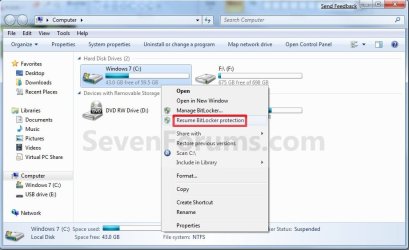
3. Open the Start menu and click on the Computer button, then right click on the Windows 7 or other operating system drive or partition letter thay you want to resume protection with and click on Resume BitLocker protection. (See screenshot below)
A) Go to step 5.
4. Click on Resume Protection for the Windows 7 or other operating system drive or partition letter. (See screenshot below)
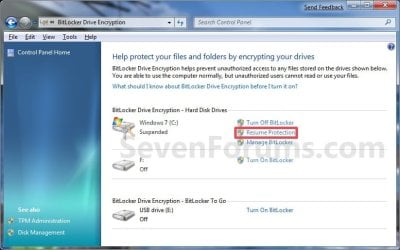
5. The BitLocker icon in the taskbar notification area will now be gone indicating that BitLocker Drive Encryption is enabled again.
NOTE: When BitLocker Drive Encryption is enabled, you will need to plug in the USB flash drive containing the startup key before starting the computer again.
That's it,
Shawn
How to Suspend or Resume BitLocker Protection on Windows 7 Drive
Information
This will show you how to temporarily suspend (unlock) BitLocker drive encryption protection on a Windows 7 or other operating system drive or partition, and to resume (lock) protection when needed.
Note
Suspend protection is typically used when upgrading your computer's BIOS, hardware, operating system, or just when you temporarily do not want the drive encrypted.
Warning
BitLocker is only available in the Windows 7 Ultimate and Enterprise editions.
When you suspend protection, the data on the Windows 7 or other operating system drive or patition will temporarily not be encrypted until you resume protection again. This does not permanently turn of BitLocker drive encryption to the drive.
When you suspend protection, the data on the Windows 7 or other operating system drive or patition will temporarily not be encrypted until you resume protection again. This does not permanently turn of BitLocker drive encryption to the drive.
OPTION ONE
To Suspend BitLocker Protection
1. Open the Control Panel (icons view), and click on the BitLocker Drive Encryption icon.
2. Click on Suspend Protection for the Windows 7 or other operating system drive or partition letter. (See screenshot below)
3. Click on Yes to apply. (See screenshot below)
4. You will now see this BitLocker icon in the taskbar notification area (far right) indicating that BitLocker Drive Encryption has been disabled for the selected drive. (See screenshot below)
NOTE: While BitLocker Drive Encryption is disabled, you will not need to plug in the USB flash drive containing the startup key.
OPTION TWO
To Resume BitLocker Protection
1. Open the Control Panel (icons view), and click on the BitLocker Drive Encryption icon.
A) Go to step 4.
OR
2. Double click on the BitLocker icon in the taskbar notification area (far right). (See screenshot below)
A) Go to step 4.
OR
3. Open the Start menu and click on the Computer button, then right click on the Windows 7 or other operating system drive or partition letter thay you want to resume protection with and click on Resume BitLocker protection. (See screenshot below)
A) Go to step 5.
4. Click on Resume Protection for the Windows 7 or other operating system drive or partition letter. (See screenshot below)
5. The BitLocker icon in the taskbar notification area will now be gone indicating that BitLocker Drive Encryption is enabled again.
NOTE: When BitLocker Drive Encryption is enabled, you will need to plug in the USB flash drive containing the startup key before starting the computer again.
That's it,
Shawn
Related Tutorials
- How to Turn Windows 7 BitLocker To Go On or Off for Removable Drives
- How to Turn BitLocker On or Off without a TPM for Windows 7 Drive
- How to Change Windows 7 BitLocker Drive Encryption Method and Cipher Strength
- How to Turn Windows 7 BitLocker On or Off for Internal Data Hard Drives
- How to Create a Windows 7 BitLocker Drive Encryption Shortcut
- How to Lock an Unlocked BitLocker Drive
- Add "Lock Drive" to Unlocked BitLocker Drives Context Menu in Windows 7 and Windows 8
- How to Unlock a Windows 7 Computer Locked by BitLocker Drive Encryption
- How to Check BitLocker Status of Drive in Windows 7 and Windows 8
Last edited:


