
How to View All Your Offline Files in Windows 7 and Windows 8
Information
If you have made network files or folders to be Always available offline, then this will show you how to view all your available offline files in one place in Windows 7 and Windows 8.
Note
When you make a network file, or all files in a network folder, available offline, Windows creates a copy of the file or folder on your computer. This is called an offline file. The next time you disconnect from the network, you'll still be able to open, modify, and save the file the same way you would if you were still connected. And when you do connect to the network again, Windows will automatically sync the offline file on your computer with the corresponding file on the network to update it.
In Windows 7, offline files is only available in the Windows 7 Professional, Ultimate, and Enterprise editions.
In Windows 8, offline files is only available in the Windows 8 Pro and Windows 8 Enterprise editions.
In Windows 7, offline files is only available in the Windows 7 Professional, Ultimate, and Enterprise editions.
In Windows 8, offline files is only available in the Windows 8 Pro and Windows 8 Enterprise editions.
Here's How:
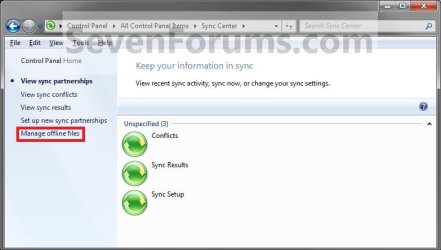
1. Open the Control Panel (icons view) in Windows 7 or Windows 8, and click/tap on the Sync Center icon.
2. In the left pane, click/tap on the Manage offline files link. (see screenshot below)
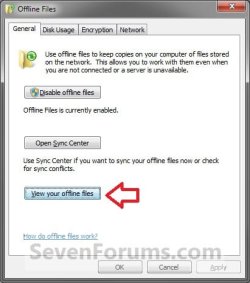
3. Under the General tab, click/tap on the view your offline files button. (see screenshot below)
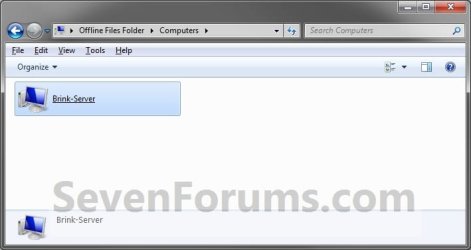
4. You will now be in your Offline Files Folder. Open the folder for the location that you want to see those available offline files. (see screenshot below)

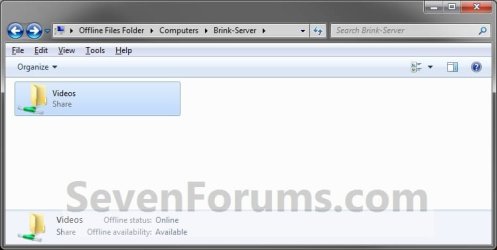
5. For example, select Computers, and an available network computer. You will now see the available offline folders and their offline files in them. (see screenshots below)
That's it,
Shawn
Related Tutorials
- How to Create a "Offline Files Folder" Shortcut in Windows 7 and Windows 8
- Enable or Disable the Use Of Offline Files in Windows 7 and Windows 8
- How to Make Network Files or Folders Available Offline in Windows 7 and Windows 8
- How to View and Change Your Offline Files Status in Windows 7
- How to Encrypt or Unencrypt Offline Files in Windows 7 and Windows 8
- How to Manage the Offline Files Disk Space Usage in Windows 7 and Windows 8
- How to Create an Offline Files "Sync Center" Shortcut in Windows 7 and Windows 8
- How to Create an Offline Files "Sync Conflicts" Shortcut in Windows 7 and Windows 8
- How to Create an Offline Files "Sync Results" Shortcut in Windows 7 and Windows 8
- How to Create an Offline Files "Sync Setup" Shortcut in Windows 7 and Windows 8
Last edited:

