

How to Make a "Create System Restore Point" Shortcut in XP, Vista, Windows 7, and Windows 8
InformationThis tutorial will provide you with a create a manual system restore point shortcut that will instantly create a restore point with an optional description and success message in XP, Vista, Windows 7, and Windows 8.
System Restore isn't available for Windows RT.
NoteRestore points contain information about registry settings and other system information that Windows uses. System Restore points do not include personal user files in the C:\Users\(user-name) folders.
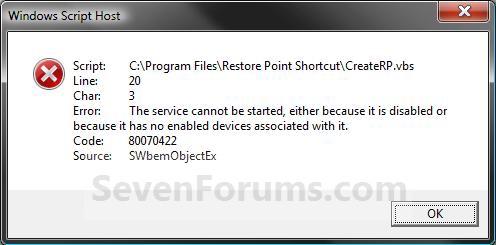
WarningFor this shortcut to work, you must have System Protection turned on for the C: (Windows) drive. If you do not have it on, then you will get the error below when you try to use the shortcut.
EXAMPLE: Create System Restore Point with description and message shortcut
NOTE: When you click on the Create System Restore Point shortcut, you will see this window. Just type in a name for the restore point, and click on OK to create the restore point.
OPTION ONETo Create the "Create Restore Point" Shortcut
1. Do step 2, 3, or 4 below for what type of shortcut you would like to use to create a restore point with.2. For an Instant Create Restore Point Shortcut
NOTE: This shortcut will instantly create a restore point named Instant Restore Point in System Restore without prompting for a description or giving you any type of success message. If you didn't get an error, then the restore point was created successfully after a few moments.
A) Click/tap on the Download button below to download the file below, and go to step 5 below.3. For a Create Restore Point with Description Prompt Shortcut
Instant_Restore_Point.zip
NOTE: This shortcut will prompt you to enter a description name for the restore point, then create the restore point. If you didn't get an error, then the restore point was created successfully after a few moments.
A) Click/tap on the Download button below to download the file below, and go to step 5 below.4. For a Create Restore Point with Description and Success Message Shortcut
Restore_Point_Shortcut.zip
NOTE: This shortcut will prompt you to enter a description for the restore point, create the restore point, and give you a successfully completed message when it's finished.
A) Click/tap on the Download button below to download the file below, and go to step 5 below.5. Save the downloaded .zip file to your desktop.
Restore_Point_Message_Shortcut.zip
6. Unblock the downloaded .zip file.
7. Open the downloaded .zip file, right click on the Instant_Restore_Point (step 2), or Restore Point Shortcut (step 3), or Restore Point Message Shortcut (step 4) folder, and click/tap on Copy.
8. Navigate to and open the C:\Program Files folder in Windows Explorer, then right click or press and hold on an empty area in the folder window, and click/tap on Paste. (see screenshot below step 10)
9. If prompted by UAC, then click on Continue and Yes.
10. You should now see the Instant_Restore_Point (step 2), or Restore Point Shortcut (step 3), or Restore Point Message Shortcut (step 4) folder in the C:\Program Files window now. (see screenshot below)
11. Open the downloaded .zip file, extract (drag and drop) the Create System Restore Point or Instant Restore Point shortcut to your desktop.
13. You can now leave the Create System Restore Point (left screenshot below) or Instant Restore Point (right screenshot below) shortcut on the desktop or move it to where you like for easy use of it.
OPTION TWOTo Remove the "Create Restore Point" Shortcut
1. Navigate to C:\Program Files in Windows Explorer, then right click on either the Instant_Restore_Point (step 2 above), or Restore Point Shortcut (step 3 above), or Restore Point Message Shortcut (step 4 above) folder, and click on Delete. (see screenshot below)That's it,
2. If prompted by UAC, then click/tap on Yes (Windows 7/8) or Continue (Vista).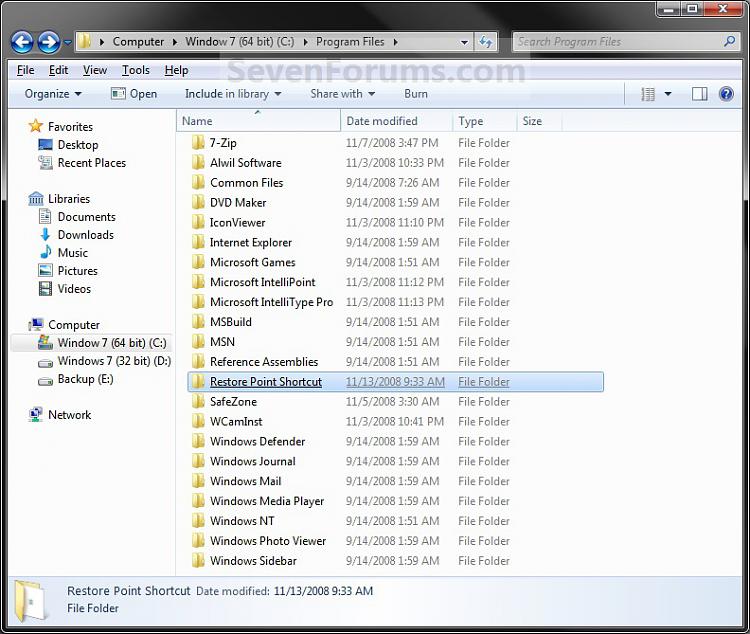
3. Right click or press and hold on the Create System Restore Point (left screenshot below) or Instant Restore Point (right screenshot below) shortcut, and click/tap on Delete.
Shawn
Related Tutorials
- How to Add "Create Restore Point" to Context Menu in XP, Vista, Windows 7, and Windows 8
- How to Change the System Protection Disk Space Usage in Window 7
- How to Change the Maximum Disk Space Used for System Protection in Windows 8
- How to Turn System Protection On or Off in Windows 7
- How to Enable or Disable Windows 7 System Restore
- How to Delete System Protection Restore Points in Windows 7 and Windows 8
- How to Create a System Restore Point in Windows 7
- How to Create a Restore Point in Windows 8
- How to Do a System Restore in Windows 7
- How to Do a System Restore in Windows 8
- How to Create a Windows 7 "System Protection Properties" Shortcut
- How to Automatically Create System Restore Points in Windows 7 and Windows 8
- How to Create a System Recovery Shortcut in Windows 7
- How to Stop System Restore Points from being Deleted in Vista and Windows 7 when Dual Booting with XP
- How to Extract Files and Folders from System Restore Points in Windows 7 and Vista
- How to Enable or Disable Automatic System Restore Point Creation in Windows
System Restore Point Shortcut
-
New #1
Thanks Shawn keep it up the tutorials are coming in handy.
-
-
New #3
now this is a great shortcut...... well done Shawn!!
this will be the first tweak i make once its back up & running.
:)SK
-
-
New #5
Hello Brink....:)
I've now added this shortcut to the Windows, Startup folder so that every time I boot I get a prompt to create a restore point.
Thank you Shawn; all your hard work is appreciated!
Later Ted
Ted
-
New #6
You're welcome Ted.
However, System Restore should automatically create a restore point at startup from a task in Task Scheduler for you.
-
New #7
Hello Brink!...:)
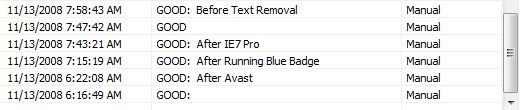
These are shots of my SR since the reinstall yesterday. I've done at least a dozen restarts and at least one boot from "off" in that time and SR has not created one restore point.
I have the same problem in Vista!....
.. .....
.....
Later Ted
Ted
Last edited by Brink; 23 Sep 2013 at 19:46. Reason: fixed image arrangement
-
New #8
Can we make the system auto create a restore point without asking to the description?
-
New #9
Hello Natri,
Since Windows 7 automatically creates restore points on it's own from a task in Task Scheduler, this shortcut was made to help make creating manual restore points easier. The entering of a description is there to allow you to make it easier to know which on to use if you needed to do a System Restore. For example, use a description of "Before a program installation" or "Before a driver installation". Otherwise you would get just a date and time and that's it.
I would recommend to use a description. It only takes a few extra seconds.

System Restore Point Shortcut
How to Make a "Create System Restore Point" Shortcut in XP, Vista, Windows 7, and Windows 8Published by Brink


 Quote
Quote

Related Discussions